A browser-based QR code generator is a practical API alternative for anyone who needs a scannable PNG without a developer key, monthly quota or third-party server, and the QR Code Generator fits that description by encoding the text you type entirely in your browser and returning a downloadable PNG the moment you stop typing. Most free QR APIs route the URL or vCard you submit through their backend, log the payload, and return either a hosted image or a tracking redirect they control; the destination can be swapped silently, the redirect can expire if the plan lapses, and a tiered pricing plan governs how many calls you can make per month. A pure client-side generator avoids all of those concerns: there is no key to manage, no rate limit to hit, no server log containing your unpublished URL or contact card, and the pixels in the downloaded PNG encode your text directly, so the code behaves the same whether someone scans it today or five years from now. For marketers, SEOs, small-business owners and developers who occasionally need a code rather than a continuous integration pipeline, this is the simplest replacement for the QR API stack.
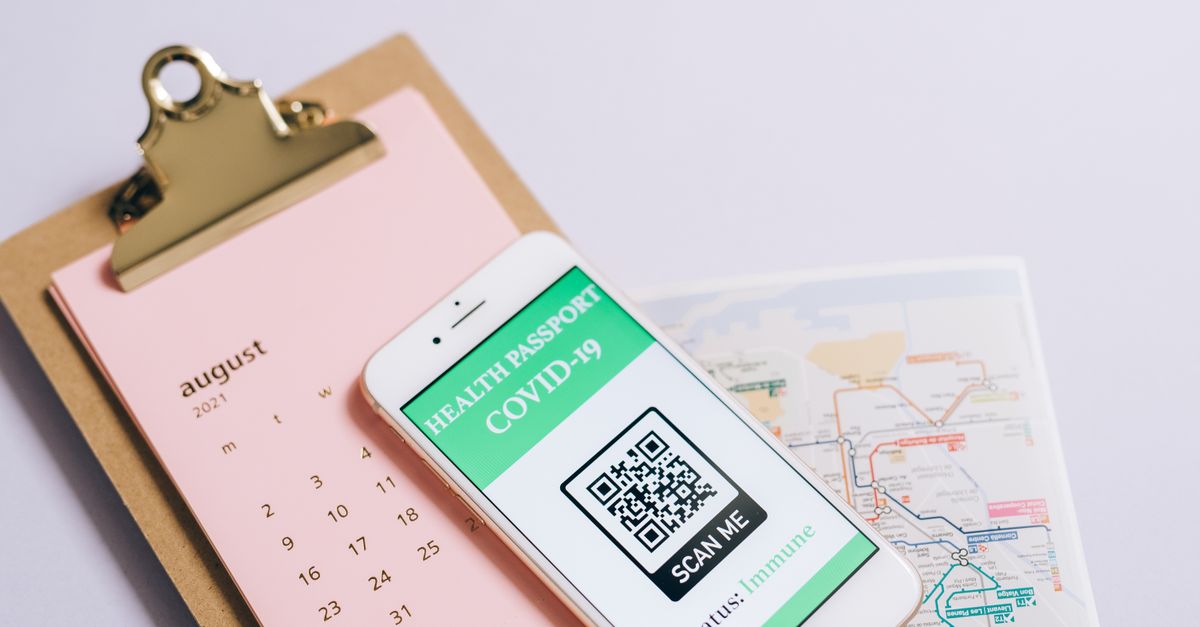
Why look for a QR code generator API alternative?
API-driven QR generators are built for high-volume automation: you authenticate with a key, POST your payload to an endpoint and read back an image URL or JSON your application then renders into a code. That model fits developers shipping thousands of codes per day, but it sits awkwardly with teams that need a working PNG for a poster, a restaurant menu, a product insert or a one-off campaign. The friction of running through an API shows up in three places. First, account creation and key management: even a free tier usually asks for an email and an app secret you have to store somewhere. Second, monthly request caps that gate every campaign or seasonal push, with overages billed mid-month. Third, a server hop in which your text — sometimes an unpublished URL, an internal staging link or a contact card with a private number — leaves the device that generated it.
Free tiers often lean on a different trick: they hand you a short redirect URL they control rather than encoding your destination directly. That means the URL behind the code can be swapped later, the link can expire if the plan lapses, and analytics on every scan flow back to the API vendor. Privacy and SEO teams raise the same flag here — a tracked short link is not the canonical URL you'd want to attribute in Google Search Console, and the redirect adds an extra HTTP hop that can fail offline. For anyone whose real need is "turn this string into a usable PNG now," the cleaner alternative is to do the encoding right in the browser.
Generate a QR code in three steps (no API required)
- Type or paste a URL, Wi-Fi login, contact card or any other text into the box on the QR Code Generator page. The QR code appears instantly as you type, with no submit button to press and no request sent to a server.
- Optionally pick an error-correction level from the controls — M is fine for most everyday prints; switch to H for codes that will carry a logo or be printed very small. Set an output size if the default is not large enough for the layout you have in mind.
- Click Download PNG to save the code to your device, then drop it into your design, print it or share it. Your text has stayed in the browser the entire time, and the downloaded file is a standard PNG that no scanner treats differently from any other QR image.
The whole flow takes the time it takes to type a URL. There is no sign-up, no API key to paste, no quota to check, and no watermark burned into the corner of the image.
Browser-based vs API-based QR generation
The two approaches are not in conflict; they serve different volumes and different workflows. The trade-offs for an everyday user look like this:
| Dimension | Browser-based QR generator | Typical QR code API |
|---|---|---|
| Setup | Open a page, start typing | Create account, store API key, wire up a client |
| Monthly request limit | None | Tiered, with plan-dependent caps |
| Where the encoded text goes | Stays in the browser | Routed through vendor servers |
| What the code points to | Your text, encoded directly into the pixels | Often a vendor-controlled redirect URL |
| Code lifetime | Works forever, offline | Can change or break if the plan expires |
| Scan analytics | Not collected | Vendor logs every scan by default |
| Watermark on output | None | Sometimes on free tier |
| Best fit | One-off and low-volume needs | High-volume programmatic generation |
If your workflow already runs through a pipeline and you specifically need scan analytics on every code, an API is a fair choice. If you need a working PNG right now, the browser path eliminates the surrounding bureaucracy.
Picking an error-correction level that scans reliably
The most common reason a printed QR code fails to scan is that too much of it is dirty, scratched or covered. Every QR code embeds redundant data so the rest of the matrix can be reconstructed, and you decide how much redundancy to bake in. The four levels are part of the QR specification itself, so they behave the same in this tool as in any API:
| Level | Approximate data recovery | Typical use |
|---|---|---|
| L | ~7% | Clean digital displays and large prints where the code will never be damaged |
| M | ~15% | Everyday posters, business cards, restaurant menus, packaging |
| Q | ~25% | Outdoor prints, slightly curved surfaces, codes that will see handling |
| H | ~30% | Codes overlaid with a logo, very small prints, industrial environments |
The trade-off is density: higher levels add more squares for the same text, which means each square is smaller for a fixed image size. The everyday default is M, and that is what the QR Code Generator picks when the setting is left alone; switch up only with a known reason — a logo in the middle, a thumbnail-sized print, a curved bottle cap, or a poster that will live outdoors. If a code you generate is dense enough that an older phone struggles, dropping from M to L keeps the same text but makes each module easier to resolve.
Tips for codes that always read
A few habits save hours of reprints. Keep a quiet margin (white border) around the code; the tool adds one automatically, but if you crop or frame the image later, leave at least four modules of empty space on every side. Print at high contrast: dark code on a light background is the most reliable pairing, while pastel-on-pastel combinations and inverse white-on-black codes can confuse older camera apps. Test the printed code with more than one phone before committing to a large print run — iOS and Android scanning libraries are not identical, and a code that opens instantly on one can stall on another. For codes that will carry a logo in the middle, choose error-correction level H so the overlay doesn't break the matrix.
Encoding choice also matters. A QR code is just text, so the longer your payload the denser the grid and the harder it is to scan in low light or from a distance. If your destination is a long URL with several UTM parameters, run it through a shortener first — or a UTM Link Builder that keeps the canonical link clean — both for scan reliability and for the SEO benefit of having a single tidy destination. Contact cards work the same way: a lean MECARD with name, phone and email scans more reliably than a full vCard with every imaginable field.
Where a static QR tool sits next to a dynamic QR API
The case for a browser-based generator is strongest for one-off needs: a poster, a Wi-Fi login in a coffee shop, a vCard on the back of a business card, a single coupon code, a link printed on packaging. None of those need a vendor sitting between the text and the scan, and none benefit from a redirect that can be changed later. The same argument generalizes to the related case of 1D barcodes, where shipping and inventory labels often share the same overhead — see Skip the Server Calls: A Browser-Based Barcode Generator for that workflow. APIs earn their keep when generation is built into a product flow, when you need scan analytics on every code, or when you want the destination editable after print. Pick the tool that matches the volume and the privacy posture; for everything else, the browser is enough.
For a deeper look, see Command Line vs Online Bulk QR Code Generator.