A LinkedIn profile QR code is a standard QR image that stores your LinkedIn profile URL and directs a scanner to that page. To generate one, copy your profile link, paste it into the browser-based QR Code Generator, choose optional error-correction and output settings, and download the PNG.
This workflow suits a business card, portfolio, event handout, email signature, or recruitment post. The image contains the URL you supply; it does not change your LinkedIn profile, verify ownership, or bypass LinkedIn's visibility and sign-in rules.
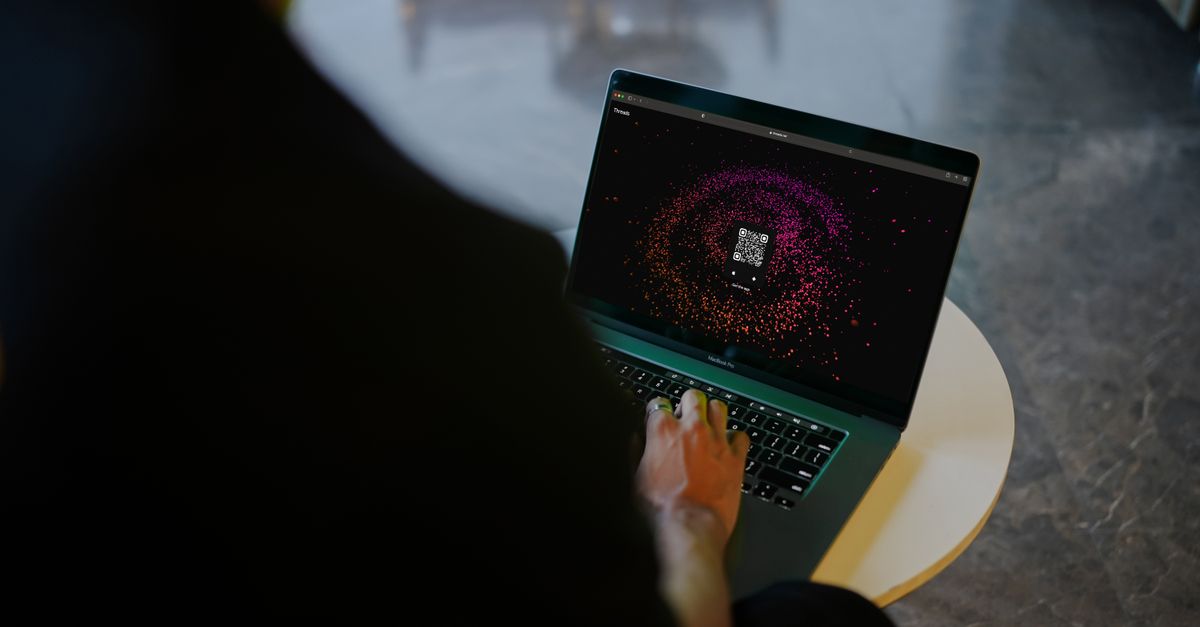
Create a LinkedIn Profile QR Code
- Copy your profile URL. Open LinkedIn in a browser and copy the exact address from the address bar for the individual profile you want to share. Check that the URL begins with https and points to the intended person, rather than a company page or search-results page.
- Open the QR Code Generator. Go to the browser-based QR Code Generator and locate its input box. A regular LinkedIn URL is sufficient; no special template or code format is required.
- Paste the URL. As soon as the LinkedIn address is in the box, the QR code appears instantly; there is no Generate button to press. Check the preview before continuing so a missing character or unintended destination is easy to spot.
- Choose the settings. For most business-card and poster uses, select error-correction level M. Choose H if the final code will be very small or will carry a logo. Select an output size appropriate for where the PNG will be placed.
- Download the PNG. Click Download PNG to save the finished code. Keep the original file rather than taking a screenshot, because the downloaded PNG is the generator's supported output.
- Test the result. Open the downloaded image on a phone and scan it. Confirm that it opens the intended LinkedIn profile, then test the final printed or displayed version with more than one phone before a large rollout.
What this workflow produces: a downloadable PNG containing the LinkedIn URL, not an authentication code or an image that changes profile permissions. It is a standard code for your own printed or digital material, so profile access still depends on the URL and LinkedIn's normal visibility and sign-in rules.
For a recruiter card or public-facing handout, use the individual profile URL you actually want recipients to open. If the profile is not public, the QR code cannot reveal content that a visitor would not otherwise be allowed to see.
Choose Error Correction and Output Size
Error correction stores redundant versions of the encoded information, allowing a code to remain readable when part of it is dirty, scratched, covered, or overlaid. According to the generator's documented levels, a higher setting improves recovery but creates a denser grid that needs more room or a closer scan.
| Level | Approximate recovery | Sensible use | Tradeoff |
|---|---|---|---|
| L | About 7% | Short payloads in large, unobstructed codes | Lowest redundancy |
| M | About 15% | Everyday profile links, posters, and business cards | Balanced recovery and density |
| Q | About 25% | Small prints or curved surfaces | More modules and greater space requirements |
| H | About 30% | Logo overlays and especially small prints | Highest density |
M is the practical choice for a LinkedIn profile code. It offers more protection than L without the extra density of Q or H. Step up to H when a logo covers the center or the code must stay readable at a small size. Higher correction does not make an undersized code automatically scannable.
Output size controls the PNG dimensions, while the amount of text also affects module density. Keep the profile URL as short as practical. If a long link does not scan reliably, shorten it first or choose a lower error-correction level, then test the revised code.
Match the QR Code to Its Placement
Choose the placement before the final download because it determines the useful size and error-correction level. A single PNG can be reused, but another version may be needed when the same link appears in a compact card and a large poster.
| Use case | Starting setting | Main check |
|---|---|---|
| Business card | M, or H for a very small code | Scan at the actual card size |
| Poster or flyer | M | Check contrast and expected scan distance |
| PDF portfolio | M | Keep the embedded PNG sharp and readable |
| Event badge | Q or H for a small or curved placement | Test at the intended viewing distance |
| Direct digital share | M | Preview the code at its full shared size |
The generator's download format is PNG. If a printer or design vendor asks for SVG, EPS, PDF, or CMYK artwork, check compatibility before placing the order rather than assuming this file fits a specialist workflow. No account or watermark is required.
Test the Code Before Printing
Reliability depends on the finished code, not just the preview on a large monitor. Work through these checks after downloading the PNG and before committing to print.
- Test with more than one phone. Camera software, screen density, and scanning distance can differ. Use at least two phones that reflect your intended audience.
- Scan at final size. A good desktop preview does not prove that a thumbnail, business card, or distant poster will scan. Test the actual exported file and final print.
- Keep strong contrast. Dark code on a light background is easiest to read. Avoid low-contrast color combinations that make the modules and background hard to distinguish.
- Preserve the quiet margin. Leave the white border around the code clear. The generator adds this margin automatically, so do not crop tightly around the modules.
- Account for obstruction. If a logo or graphic will cover part of the code, generate it at H and check the result. Higher correction helps recover obscured data but does not replace sufficient size and contrast.
- Simplify a failed code. If a long URL will not scan, shorten it or choose a lower error-correction level. Retest after each change instead of assuming the QR image itself is the problem.
If one phone opens a sign-in page, test the link itself as well as the code. That may reflect normal LinkedIn access rather than a bad QR image. The PNG can remain in use indefinitely; opening the profile still requires network access.
Download, Share, and Reuse the PNG
Click Download PNG, then insert that file into your business-card design, document, slide, email, or recruitment post. Keep the QR code visually separate from nearby text and logos, and place a short label such as 'Scan to view my LinkedIn profile' outside the code.
The downloaded image has no server-side expiry. It encodes the destination directly, so the generator does not add a tracking redirect and cannot report scans. A scan attempts to open LinkedIn, where the destination receives a normal request and applies its own access rules. The code therefore does not depend on a generator-hosted landing page remaining online.
The generator is free, needs no account or watermark, and has no limit on how many codes you can create and download.
Keep Creation Private and the Destination Accessible
Code creation happens entirely in your browser, so the URL is not uploaded to a server while the QR code is generated. That privacy property applies to the creation process only: when someone scans the result, their device contacts LinkedIn. A QR code also does not conceal its destination from someone who decodes it, so publish only links you intend to share.
Before distribution, open the URL in a private browser window and confirm that it leads to the intended profile and that its sharing permissions match the audience. If you later replace the profile URL, generate a new PNG so the embedded link matches the new destination.
Related reading: Can I Generate a Code 128 Barcode Without File Upload?.
Related reading: How to Choose the Right Bulk QR Code Generation Approach.