To generate a QR code to join a WhatsApp group, paste the group’s active invite link into a QR code generator and download the resulting PNG.
The QR code does not create the group or grant membership by itself. It carries the group’s invitation link, which WhatsApp uses to display the invitation. Depending on the group’s link settings, someone who scans the code may join directly, submit a join request, or wait for an administrator to approve it.
Use the browser-based QR Code Generator to turn the link into a downloadable image. The code appears as soon as the link is entered, and the supplied text stays in the browser rather than being uploaded to a server.
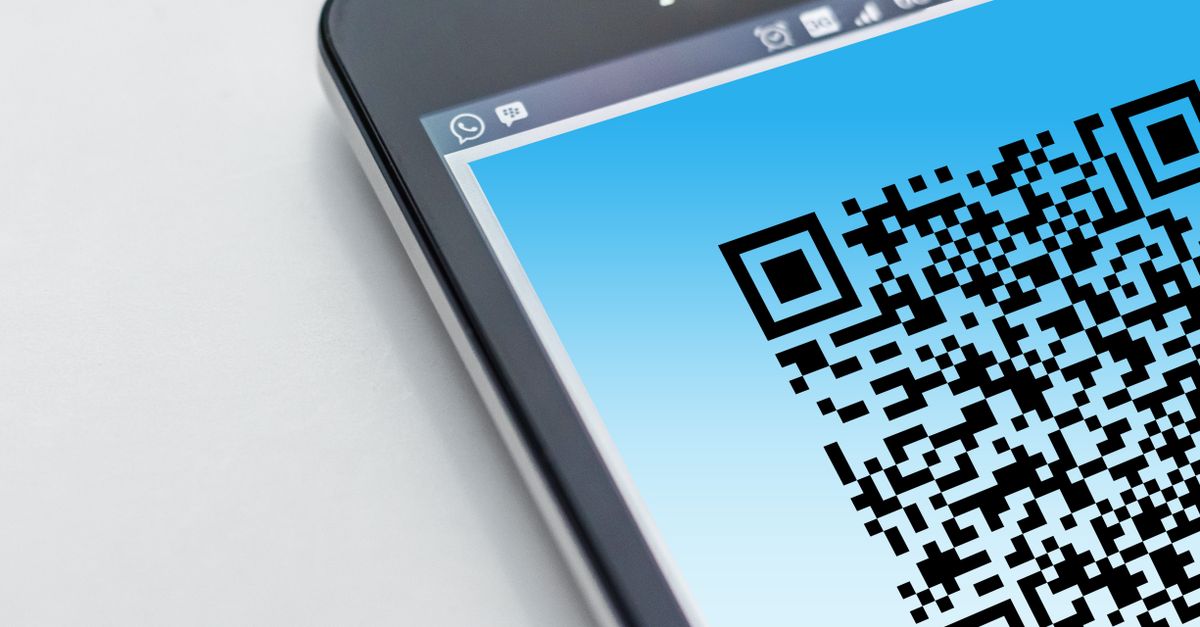
What a WhatsApp group join code contains
A WhatsApp group QR code normally contains an invitation URL rather than the group’s member list or account credentials. When a phone reads the code, it recognizes the URL and opens the invitation destination. WhatsApp then handles the joining process and applies the group’s own approval rules.
There are two main ways to share a group invitation. WhatsApp can display a native group code inside its app, while you can copy an invite link and encode that link in your own PNG. The native code is convenient for sharing in person, but WhatsApp may reset or replace it. A generated PNG is better suited to a poster, flyer, presentation, email, or community page, although it still depends on the copied invitation remaining active.
| Sharing method | What the recipient receives | Best fit | Important limitation |
|---|---|---|---|
| WhatsApp’s native group code | An app-managed invitation displayed by WhatsApp | Quick sharing with people already using WhatsApp | It may be reset or replaced and is not a downloadable PNG from this tool |
| Generated PNG containing the invite link | The copied group invitation URL | Posters, event pages, email, flyers, and other fixed placements | Joining still works only while WhatsApp accepts the invitation link |
| Plain-text invite URL | A link that the recipient must enter manually | A fallback when scanning is not practical | The recipient has to type or paste the address |
Copying the invitation link gives you control over the final image and makes it possible to test the exact file that will be printed. The generated PNG is fixed, but the URL inside it remains subject to WhatsApp’s controls.
Create a QR code to join your WhatsApp group
Complete the WhatsApp and browser steps in this order so the finished code points to the correct group:
- Copy the group’s active invitation link. Open WhatsApp, open the group, and view its information or menu. Select the option to invite people or share the group through a link, then copy the full web address. Menu labels can differ between app versions. If no invitation-link option is available, ask a group administrator for the link.
- Paste only the invitation URL into the generator. Open the QR Code Generator, select the input box, and paste the complete link, including its https:// prefix. Do not add surrounding instructions because the scanner may then display the entire block as plain text rather than open the link. The QR code appears instantly, with no Generate button to press.
- Choose an error-correction level. Level M is fine for most uses. Select H for small printed codes or when you plan to place a logo over the QR code. Higher levels add redundancy but create a denser code that needs more physical space to scan reliably.
- Select an output size. Choose the available size that suits the placement. If you are unsure, use a larger option for a poster or handout and test the result before committing to a full print run.
- Download the PNG. Click Download PNG to save the finished code. The downloaded file contains the invitation URL directly and does not depend on a server-side redirect.
- Scan the exact file before publishing it. Display the PNG on another device and scan it with a phone camera. Follow any link preview or confirmation prompt, and verify that the correct WhatsApp group invitation appears. Test more than one phone when the code will be used at an event or in public.
- Publish the code and maintain the invitation. Place the PNG in its final location without cropping its white margin. If an administrator later expires, resets, or revokes the invite link, generate a new PNG from the replacement link and update every printed or digital placement.
Choose an error-correction level
Error correction adds redundant information to a QR code so it can remain readable when part of the image is dirty, scratched, covered, or otherwise obscured. The amount of redundancy affects both resilience and visual density, which makes the level important for a code printed at a particular size.
| Level | Approximate recovery | Practical use |
|---|---|---|
| L | About 7% | Large, clean placements where maximum damage recovery is unnecessary |
| M | About 15% | Everyday links, posters, screens, and normal printed group invitations |
| Q | About 25% | Small or curved placements that need more protection than M |
| H | About 30% | Very small print or a code that will carry a logo |
M is the sensible everyday choice for a WhatsApp invitation displayed on a screen or printed at a normal size. H is the safer option when the code will be reduced for a business card or overlaid with a logo. Because H creates a denser pattern, give it a larger printed area and test the result rather than assuming it will scan from the same distance as M.
Longer content also makes a QR code denser. Prefer WhatsApp’s direct invitation link rather than a long campaign URL that eventually leads to the same group. A shorter payload can improve readability on older or lower-resolution cameras, although the destination must still be exactly the active group invitation.
Prepare the PNG for printing and online sharing
The downloaded PNG is the version to publish rather than a screenshot or a photograph of the code. These preparation steps help preserve reliable scanning:
- Keep the quiet margin. The generator adds a white border around the code. Do not crop it, place text over it, or cover its edges when designing the surrounding layout.
- Use strong contrast. Dark code modules on a light background provide the clearest result. Avoid low-contrast color combinations, shadows, or patterned backgrounds behind the code.
- Do not stretch the image. Scaling a small PNG beyond its selected output size can make its edges uneven. Regenerate it at a larger output size if the intended placement requires more detail.
- Print at a usable physical size. Digital resolution and printed dimensions are different. A code that looks sharp on a monitor may still fail when reduced to a very small area on paper.
- Test the final medium. Scan a screen version before publication and test a physical print separately. Lighting, screen glare, and print quality can affect results differently.
After publication, the PNG itself has no built-in expiration, and the generator does not use a tracking redirect. The WhatsApp invitation can still expire or be reset under WhatsApp’s controls. Ask an administrator to confirm the link’s validity process, and place the group name or an administrator contact near the code so recipients have a way to report a link that no longer works.
For digital distribution, send the PNG file rather than an image that has been repeatedly compressed by a messaging app. For physical distribution, test the printed version on several phones before ordering a large batch.
Fix a code that does not scan
If the invitation fails to open, work through the cause rather than immediately changing the error-correction level. The most common checks concern the link, size, contrast, and placement.
- Replace an outdated invitation. Copy the group’s current invite link, paste only that URL into the generator, and create a new PNG. An old code can still scan while its destination no longer accepts joins.
- Increase the output or printed size. Regenerate at a larger output size or print the current PNG larger. A code with too little physical space cannot recover detail that was never captured clearly.
- Restore a clean background. Keep the area around the code plain and light. Remove graphics, gradients, or shadows that reduce contrast or intrude into the quiet margin.
- Protect any logo overlay. If you added a logo separately, use error-correction level H and make sure the logo does not cover too much of the code. Leave enough room for the denser pattern.
- Test the actual placement. A camera may show a URL preview and require a tap instead of opening it automatically. Clean the screen or printed surface, hold the phone steady, and confirm that the scanner identifies the invitation.
If the same PNG works in one location but not another, the problem is likely the placement rather than the encoded link. If it fails everywhere, return to the source link and generate a fresh code from the current invitation.
Understand what the generator leaves under your control
The generator handles one part of the task: converting supplied text or a URL into a downloadable QR-code image. WhatsApp continues to control the group and its invitation rules.
- It does not create a WhatsApp group, invite contacts, or retrieve a private group’s invitation link.
- It does not bypass administrator approval, join requests, or other WhatsApp group-access settings.
- It does not extract WhatsApp’s native on-screen group code or convert that displayed code into a PNG.
- It does not renew, reset, or revoke a WhatsApp invitation link.
- It does not report scan counts or member activity because it encodes the link directly without a tracking redirect.
Use the native WhatsApp code for temporary in-app sharing, and use the generated PNG when you need a fixed file for a poster, flyer, email, or event page. In either case, confirm that the invitation opens the intended group and that the group administrator knows how the link will be maintained.
Related reading: Can I Generate a Code 128 Barcode in My Browser?.
Related reading: How to Check Bulk QR Code Generator Results.