To generate a QR code for a website, paste the destination URL into the browser-based QR Code Generator and download the resulting PNG.
The generator runs entirely in your browser, encodes the address directly without a tracking redirect, and creates a PNG that does not expire. The linked website must still be reachable for a scan to open its page.
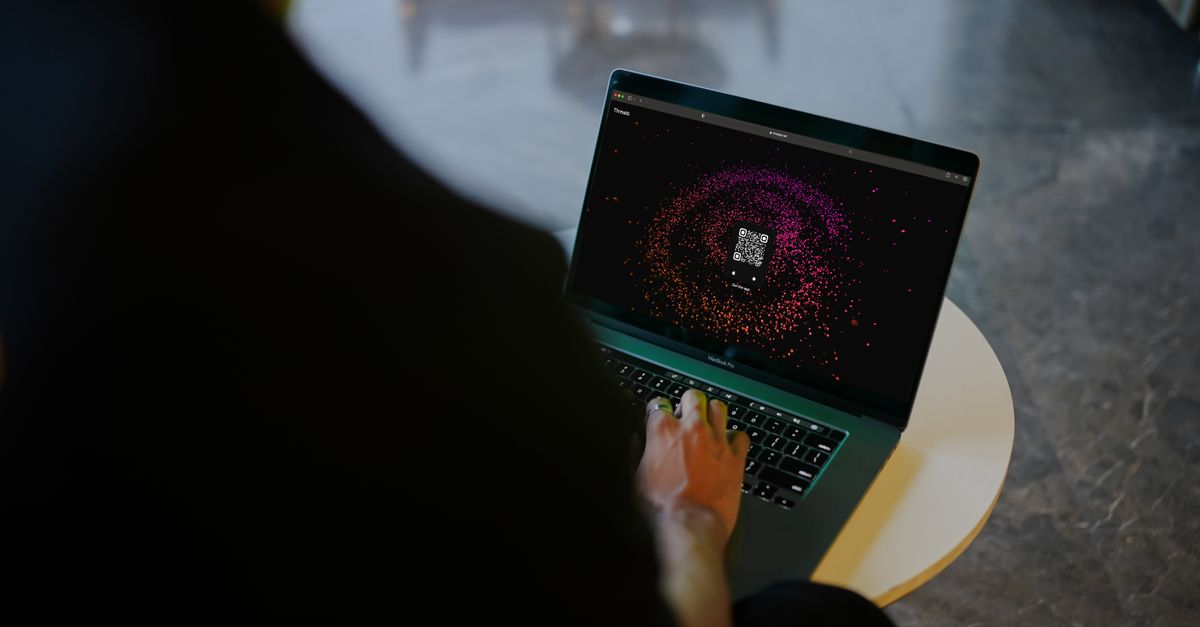
Create a QR code for your website
Use this workflow when the QR code should take a visitor to one specific webpage. The important parts are encoding the final, tested URL and preserving the code’s quiet margin wherever it appears.
- Open the generator and paste the destination URL. Include the complete address, including “https://” when applicable. The QR code appears immediately as you type or paste; there is no Generate button to press.
- Check the address before changing settings. Compare every character with the page you want to open, especially the domain, path, and query string. The code encodes the text exactly, so any correction must be made in the input.
- Choose an error-correction level. Use M for an ordinary web link or a large poster. Choose H when the code will be printed small, placed on a curved surface, or overlaid with a logo.
- Select an output size. Choose from the available sizes according to where the code will be used. For a small printed placement, favor a larger output so the pattern remains clear at its final dimensions.
- Download the PNG. Click Download PNG to save the finished image. The file has no watermark and is ready to insert into a web page or send to a printer.
- Test the code with more than one phone. Scan the downloaded image or a printed proof and confirm that it opens the intended page. Testing different phones helps reveal problems caused by a particular camera or display.
- Publish it in the intended position. Upload the PNG to your website or include it in a poster, menu, card, package, or flyer. Keep the automatic white margin and high contrast so the code is not accidentally cropped or weakened.
Choose an error-correction level for the placement
The generator documents four error-correction levels. Higher levels recover more of a damaged or obscured code, but they also create a denser pattern that needs more physical space.
| Level | Approximate recovery | Best fit for a website QR code |
|---|---|---|
| L | About 7% | Unobstructed placements where minimum density is useful |
| M | About 15% | Everyday links, posters, menus, and full-size print |
| Q | About 25% | Small prints or curved surfaces needing extra recovery |
| H | About 30% | Very small prints, curved surfaces, or logo overlays |
M is the everyday default for most website placements. It adds useful protection without making the code unnecessarily dense. Move to Q or H when the placement conditions justify the extra redundancy.
For example, use H when placing a logo over the center of the code. Even H does not remove the need for an adequate printed size: a highly recovered pattern contains more squares, so it may need to be printed larger or scanned from closer.
Prepare a short, stable destination URL
A website QR code stores a text payload, so the destination should be a clean, final URL that works on the phones you expect visitors to use.
- Point to the intended page. Use the complete URL for the relevant landing page rather than the homepage when the code represents a particular product, form, menu, or offer.
- Remove unnecessary parameters. If the page can be reached without extra query strings, a shorter address creates a less dense code that is easier to scan.
- Respect the generator’s finite payload limit. Capacity varies by content type and error-correction level; at the most forgiving settings, one QR code can hold roughly 7,089 numeric digits, 4,296 alphanumeric characters, or 2,953 bytes of binary data. Keep a URL within the limit for its content type and chosen level. The more characters encoded, the denser the grid becomes. If a long link will not scan reliably, shorten it before relying on a large print run.
- Keep the address stable when possible. Updating the content behind the same URL leaves the printed QR code usable, while changing the destination itself requires a replacement code.
If scans are part of a campaign, prepare a tagged destination URL with the UTM Link Builder before pasting it into the QR generator. The QR generator does not add tracking or report scan counts; campaign measurement can instead come from your website’s analytics.
Test the code at its final size
Test the version you will actually publish rather than relying only on a full-screen preview. A code that looks clear on a monitor can still fail on a small printed card or under uneven lighting.
| Placement | Starting level | What to verify |
|---|---|---|
| Large poster or menu | M | A full-size proof opens the intended page |
| Small business card or label | H | The pattern remains clear at the actual printed dimensions |
| Code with a central logo | H | The overlay does not prevent a reliable scan |
| Curved packaging | Q or H | The code scans from a realistic viewing angle |
- Preserve the quiet margin. The generator adds a white border automatically, but it should not be cropped during placement or image editing.
- Use strong contrast. A dark code on a light background is easiest to scan. Avoid color combinations that make the code difficult to distinguish.
- Test the final dimensions. Print a proof at the planned size and scan that version, especially before ordering a large quantity.
- Try more than one phone. A second device can reveal whether camera resolution, brightness, or scanning behavior is causing a problem.
If a scan fails, first enlarge the physical code, restore contrast, or remove an obstruction. If the grid is simply too dense, shorten the URL or choose a lower error-correction level, but only when the placement does not also need protection from damage or a logo overlay.
Place the PNG on a webpage or in print
On a website
Upload the PNG to your media library or asset folder, insert it into the page, and add descriptive alt text for the destination. If the QR image itself should be clickable, link it to the same URL it encodes. Do not crop its quiet border, and keep a normal text link nearby so visitors are not forced to use a camera.
In print
Preserve the image’s proportions and automatic white margin, and use dark elements against a light background. Avoid stretching the PNG because distorted squares can impair recognition. A proof at the actual print dimensions provides the best check before producing the final material.
Understand privacy, permanence, and tracking
The generator creates the QR code locally in your browser, so the URL or other entered text never leaves your device. It has no account requirement, adds no watermark, and does not impose a limit on how many codes you create. The downloaded file contains the encoded destination directly rather than a temporary link controlled by the generator.
- The PNG does not contain a copy of your website. It stores the destination text, so the website can continue serving updated content after the code is distributed.
- The QR file does not expire, but the destination still matters. The page must remain available for a visitor to reach it. A lapsed domain, removed page, or unavailable website can prevent the code from opening anything.
- A changed URL normally needs a new PNG. Regenerate and replace the code after changing the destination, unless the old address is deliberately configured to redirect on your website.
- The generator does not provide scan tracking. It neither inserts a tracking redirect nor records how often the code is scanned. Use the destination URL and your own analytics when campaign measurement is needed.
If you're weighing options, Generate a QR Code for Instagram: Profile and Post Links covers this in detail.
If you're weighing options, Generate Barcode for Website: A Practical SVG Guide covers this in detail.