A QR code for a Google Form is a two-dimensional barcode that stores the form's full share URL, letting any smartphone camera open that form on tap without typing the address by hand. To create one, paste the Google Forms share link into a browser-based QR code generator, wait for the code to render on screen, optionally adjust the error-correction level and output size, then click Download PNG to save a print-ready image. The whole process takes under a minute and does not require a Google account, a third-party app, or any file uploads.
Google Forms is widely used for surveys, RSVPs, sign-up sheets, event check-ins, and customer feedback. Its share URL, however, is long and easy to mistype, which is a real problem on flyers, classroom posters, business cards, conference badges, and restaurant table tents. A QR code solves the typing problem by turning that long string of characters into a square a phone camera can read instantly. Pairing Google Forms with a QR code is therefore one of the simplest ways to bridge offline printed material and an online data-collection form.
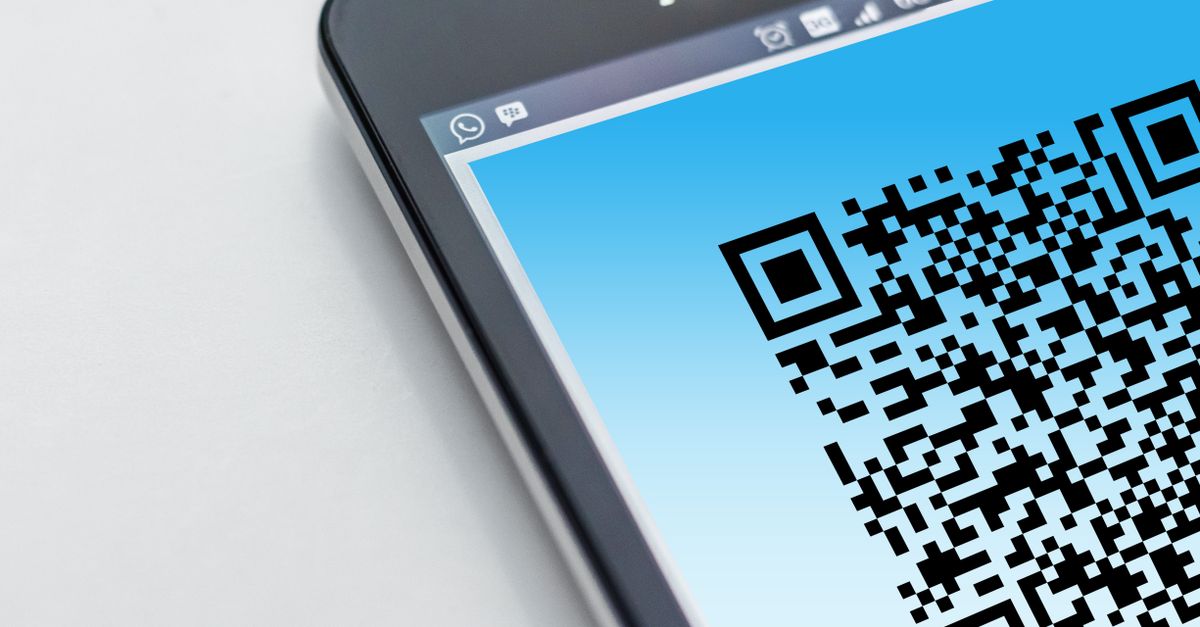
Why a browser-based QR generator fits Google Forms
Most online QR tools work by sending the URL you submit to a remote server, which then returns an image. That works, but it also means your form link lives on someone else's infrastructure for at least a moment. For internal HR forms, classroom rosters, or any link you would rather not share with a third party, a tool that runs entirely inside your browser is the safer choice. The QR Code Generator builds the code with a JavaScript encoder that runs locally, so the Google Forms URL never leaves your computer.
Beyond privacy, a browser tool is also faster. There is no account to create, no email confirmation, and no watermark placed on top of your code. You paste the link, watch the pattern appear, and download a clean PNG that you can drop straight into a slide deck, a PDF handout, or a printed poster without further editing. Because the encoder is local, the page also works offline once it has loaded, which is useful when you are preparing materials at a venue with patchy Wi-Fi.
Get the share link from Google Forms
Before you can build a QR code, you need the correct public URL for your form. Open the form in Google Forms, click the Send button in the top right corner, and choose the link icon (a chain link). Google will display a shortened share URL that begins with https://docs.google.com/forms/. Click Copy to put that address on your clipboard. That single link is all the QR generator needs.
Two small checks save time later. First, open the copied URL in a private browser window and confirm the form actually loads, because a QR code will happily encode a broken address and produce a code that nobody can open. Second, decide whether you want respondents to need a Google sign-in. Under the form's Settings tab, the "Responses" section has a toggle labelled "Restrict to users in [your organisation]" and a "Require sign-in" option. Turning both off makes the form open to anyone who scans the code, which is usually what you want for a printed flyer. If you do want to limit who can respond, leave those toggles on and treat the QR code as an internal asset instead of a public one.
Generate the QR code from the Google Forms URL
- Open the QR Code Generator in your browser.
- Click the input box and paste the Google Forms share link you copied in the previous step. The QR code renders on screen immediately, with no button to press.
- Choose an error-correction level from the dropdown. Level M (about 15 percent redundancy) is fine for clean prints at standard sizes. Choose level H (about 30 percent) only if you plan to overlay a logo in another tool or print the code below about two centimetres square.
- Pick an output size. A 512-pixel PNG is comfortable for A4 flyers and slide decks. For larger prints such as posters or banners, bump the size up so the squares stay sharp at the final scale.
- Click Download PNG to save the file to your computer. The filename is typically a short hash, so rename it to something descriptive such as feedback-form-qr.png.
- Print or embed the PNG wherever you need it. Scan it once with your own phone to confirm it opens the correct form before distributing.
Where to use a QR code that links to a Google Form
The most common placement is on printed handouts. Event organisers put a QR code on the back of name badges so attendees can leave session feedback without hunting for a link. Teachers print a single QR code on a syllabus cover sheet that opens the course evaluation form. Cafés tape a small QR sticker on each table so customers can leave a review in two taps. In each case the printed surface stays clean, and the form link travels with the document rather than living in a footnote.
Digital placements are equally useful. A QR code embedded in a slide deck lets an audience open a live poll without typing a URL under time pressure. Adding the same code to an email signature turns every outgoing message into a low-key feedback channel. Even on a website, a static QR image next to a "Scan to fill out our survey" line converts desktop visitors into mobile respondents without breaking the existing layout. Once a single code lives in both a printed poster and an email footer, every channel points at the same destination without anyone having to retype a character.
Choosing the right QR settings for printed material
Print is where QR codes fail most often, usually for one of two reasons: the code is too small, or the contrast is too low. Both can be avoided with a few deliberate choices.
| Use case | Recommended size | Error-correction level | Notes |
|---|---|---|---|
| Business card or name badge | 300 to 512 px PNG | M | Keep the code at least 1.5 cm square after printing. |
| A4 flyer or handout | 512 px PNG | M | Place the code in a quiet corner away from body copy. |
| Large poster or banner | 1024 px PNG or vector export | M | Test-scan from the expected viewing distance before mass printing. |
| Code with a logo overlay | 512 to 1024 px PNG | H | Higher redundancy lets the code survive up to 30 percent obstruction. |
| Digital slide or email signature | 256 to 512 px PNG | M | Match the code's pixel size to the on-screen size to avoid blur. |
Contrast matters as much as size. The downloaded PNG is black on transparent, so it sits well on white paper or a light background. For dark backgrounds, place a white box behind the code before adding it to the artwork rather than recolouring the modules, which can break older scanners. Quiet zones, the blank margin that surrounds a QR code, also matter: leave at least four module widths of empty space around the code so the camera can find its edges.
Common pitfalls when turning a Google Form link into a QR code
The first pitfall is encoding the wrong URL. The share link in Google Forms looks similar to the edit link, but only the share link opens the form for anonymous respondents. Copying from the address bar of the editor view will produce a code that opens a "Request edit access" page instead of the form itself. Always copy from the Send dialog.
The second pitfall is changing the form after printing. Editing a Google Form keeps the same share URL, but deleting the form or moving it to a different Google account breaks every QR code already in circulation. For long-lived print runs, treat the form as frozen once the QR code ships, and create a new code if the form needs a fresh home. A simple way to hedge against that risk is to point a redirect URL at the form and encode the redirect in the QR code instead, so you can swap the destination later without reprinting anything.
The third pitfall is trusting a third-party generator with sensitive links. A QR code for an internal HR feedback form, a patient intake questionnaire, or a customer survey that collects email addresses deserves the same care as the form itself. Using a tool that runs entirely in your browser keeps the URL off remote servers, which is a quiet but meaningful privacy win.
Pair the QR code with other shareable assets
Once the QR code is ready, you usually want it to travel with a short URL as well. Some printed materials include both, so people without a scanner can still type the address. A UTM-tagged version of the same link is helpful when the form is part of a campaign, because it lets analytics separate scans from other traffic. The UTM Link Builder lets you assemble that campaign URL the same way, in your browser, without sending the parameters to a server. For readers who want a broader walkthrough of QR code options beyond Google Forms, the complete QR code guide covers error correction, file formats, and scanning behaviour in more depth.
For anyone running several forms at once, a batch approach can save time. The Bulk QR Code Generator accepts up to 20 unique lines and produces separate PNG files in one pass, which is handy when a single event needs check-in, feedback, and dietary-preference forms side by side. Pair the batch output with consistent filenames, such as event-checkin-qr.png and event-feedback-qr.png, so the files stay organised when they go to print or design.
Finally, treat the printed code as a long-lived asset. Scan it once a month with two different phone models to confirm it still resolves, because URL shorteners and Google account changes can quietly break older codes. A five-second check each month keeps the offline to online handoff working for as long as the poster, handout, or badge is in circulation. If you ever need to retire the link without reprinting, set up a redirect page that points to the new form and paste that redirect URL into a fresh QR code, then swap the image in your digital channels while printed materials age out naturally.
For a deeper look, see How to Create Multiple QR Codes at Once for Free.