A bulk QR code generator on Android can run entirely inside the phone's browser, producing up to 20 individual PNG files from a plain-text list without installing a new app or granting extra permissions. Lizely's Bulk QR Code Generator does exactly that: paste one URL or text snippet per line, pick a pixel size and error-correction level, and download each verified QR symbol separately. Every step happens in the current browser tab on your Android device, so nothing is uploaded, shortened, or tracked. The tool caps the batch at 20 unique lines and 2,000 JavaScript characters per line, which keeps phone CPU, memory, and download volume predictable. Each preview has its own deterministic filename and an explicit download button, which is friendlier on mobile than an automatic 20-file ZIP. For event check-ins, inventory labels, marketing materials, or classroom handouts, that limit covers most real-world phone-based batches, and you can split larger jobs into a few runs.
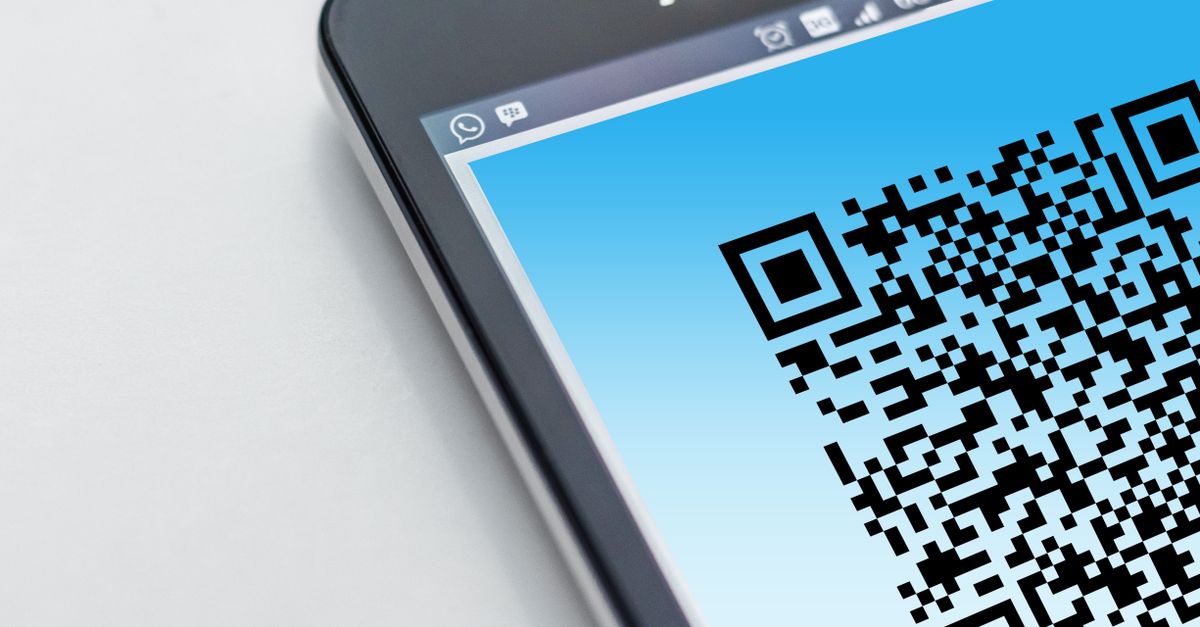
What "Browser-Based" Actually Means on Android
The search for a "bulk QR code generator on Android" usually surfaces two kinds of results: dedicated Android apps on Google Play and online tools that promise browser-based batches. Many of those apps ask for storage permissions, internet permissions, and an account, then push batch export behind an in-app purchase. A browser tool sidesteps all of that, because Chrome, Samsung Internet, Firefox, and other Android browsers already include the rendering engine, file download handling, and clipboard access you need. Because the Bulk QR Code Generator reuses the same qrcode 1.5.4 library already running on the Lizely single QR page, the symbol you generate on a Pixel is the same symbol you would generate on a Windows laptop, with no second encoder drifting apart between platforms. Encoding and PNG rendering both happen client-side and produce data URLs that never leave the tab.
Why Skip the APK and Use Your Existing Browser
There are practical reasons to avoid installing yet another Android app for a one-off batch. APK installs add background services, notification permissions, and sometimes ad SDKs that drain battery on phones already juggling photos, maps, and chat apps. A browser session leaves no persistent process behind: when you close the tab, the page and its data URLs are gone. Updates arrive automatically the next time you open the URL, so there is nothing to patch or uninstall. If a colleague needs the same symbols tomorrow on an iPad or a Chromebook, the same URL works without an app store round trip. For short-lived jobs like a one-week pop-up event or a single batch of inventory tags, browser-based generation is usually faster than installing, granting permissions, and learning a new interface.
Generate Up to 20 QR Codes on Android
- Open Chrome (or your preferred Android browser) and load the Bulk QR Code Generator page in the current tab.
- Type or paste your list into the input area, one URL or text snippet per line. The page trims surrounding whitespace, drops empty lines, and removes exact duplicates while keeping the first occurrence.
- Choose a PNG canvas size: 128, 256, or 512 pixels. Larger pixels look better when printed or scaled up; smaller files are easier to share on messaging apps.
- Pick an error-correction level. Level M is a sensible default for clean screens and printed labels; L fits more data; Q and H trade data capacity for restoration ability.
- Tap Generate QR codes. The page runs the batch under an asynchronous job identifier and shows a preview for each unique line, up to the 20-line cap.
- For each preview, tap the download link. On Android the file lands in your default Downloads folder with a filename such as 01-example-com.png.
- Open your phone's camera or scanner app, point it at each downloaded PNG on the screen, and compare the decoded payload character for character with the original line.
Picking Size and Error-Correction Level on a Phone Screen
Three PNG sizes and four error-correction levels make a small decision matrix, but each option changes the output in a different way. Pixel size changes the PNG canvas; error-correction level changes the QR symbol's module density and therefore its data capacity. The same URL encoded at level L usually produces a less dense symbol than the same URL encoded at level H, which is why higher error correction is not automatically better for long payloads. DENSO WAVE publishes the standard restoration rates for each level, summarized below.
| Level | Approximate restoration rate | When it is a sensible pick on Android |
|---|---|---|
| L | 7% | Long URLs, short clean labels, plenty of payload room needed |
| M | 15% | Default for ordinary display and print conditions |
| Q | 25% | Outdoor posters, curved surfaces, light wear expected |
| H | 30% | Labels that may be scratched, photographed at odd angles, or partially obscured |
Pixel size is independent of data capacity. A 512-pixel PNG printed 10 cm wide will scan from further away than the same symbol at 128 pixels, but the encoded URL is identical. If you want a deeper walkthrough of how size and error level interact, the batch QR size and error-level guide covers the trade-offs in more detail. The library used here runs with a fixed margin of 2 modules around the symbol, which preserves the quiet zone that scanners lock onto first.
Limits Worth Knowing Before You Paste
The 20-line cap and 2,000-character per-line cap are not marketing numbers; they bound CPU, memory, layout work, and download volume on ordinary phones. If you have a longer list, split it into multiple batches rather than trimming silently. The 2,000-character per-line limit is an input cap, not an encoded payload cap. Each line is encoded into its own QR symbol whose capacity depends on version and error-correction level, so a long line may still exceed QR capacity and trigger an error. The input parser keeps first-seen order, so position 01 always corresponds to the first non-duplicate line you pasted. Generated filenames start with a two-digit batch position and a short ASCII stem derived from the content; a line with no ASCII letters or numbers falls back to qr-code. Filenames are convenience labels only and never alter the encoded payload, so renaming files on your phone is safe.
Verifying Each PNG on the Target Android Device
A clean preview does not guarantee every scanner will read the symbol. Long UTF-8 text, emojis, print size, contrast, camera focus, display glare, physical damage, and reader behavior all affect success. The underlying library notes that full ECI support is not implemented, so some payloads may render differently across scanner apps. Before publishing, printing, labeling inventory, distributing event material, or replacing an existing code, scan every final PNG with the target device and the application that will actually read it. If you plan to use a QR for payments, authentication secrets, safety instructions, or any irreversible action, do not skip this scan-and-compare step: an unchecked code can point to the wrong destination after a single typo.
Sharing and Filing the PNGs on Android
After the batch downloads land in the Downloads folder, Android offers a few quick ways to put them where you need them. You can long-press a file in the Files by Google app or the built-in file manager to share it directly to Drive, email, or a printer. For event check-in lists, dropping the 20 PNGs into a single Drive folder keeps them versioned and easy to restore. If you need to print labels, sending the PNGs from your phone to a Wi-Fi printer works for most modern models without any extra app. Avoid stretching, recoloring, cropping, or covering the finder patterns after download; those three squares in the corners are what scanners lock onto first, and visual edits can move or hide them without you noticing on a small phone screen.
When the Page Rejects a Line
If a single payload exceeds QR capacity, the batch surfaces an error rather than presenting a partial result as complete, which protects you from a silently broken label. To recover, shorten the URL with a redirect, switch to error-correction level L for the maximum payload room, or split the payload into two linked QR codes. The asynchronous job identifier also prevents an earlier batch from overwriting newer settings if you tap Generate twice quickly on a slow connection. Changing any input or option invalidates the previous batch, so the previews you see always match the settings currently shown on screen.
Related reading: Does Bulk URL Generator Check Whether Each Page Exists?.