A bulk QR code generator in Google Sheets can be done entirely without an add-on by copying a column of values from your spreadsheet, pasting the lines into a browser-based QR generator, and downloading up to 20 verified PNG files back into your workflow. The whole process runs locally in the current tab, so no installation, account, or third-party service is required to turn a list of URLs, Wi-Fi labels, or short text snippets into scannable images. This approach suits anyone who needs a small batch of QR codes for inventory, event signage, classroom handouts, link handouts, or product packaging mockups and who already keeps the source data in Google Sheets. The batch size is capped at 20 unique lines per generation and each line can carry up to 2,000 JavaScript characters, which matches common Google Sheets row ranges without forcing a different tool. Filenames are derived deterministically from each payload, so a generated library is easy to match back to the originating cell after download.
Most teams that already work in spreadsheets reach for a Google Workspace add-on when they hear "bulk QR code generator in Google Sheets." That works for very large runs and recurring automation, but it comes with install prompts, OAuth scopes, and recurring monthly pricing. For a one-off batch of 20 or fewer codes drawn from a column you can see on screen, copying those cells as plain text and pasting them into the Bulk QR Code Generator is faster, quieter, and leaves your Drive untouched. The trade-off is the 20-line cap, which the next sections cover alongside the exact steps.
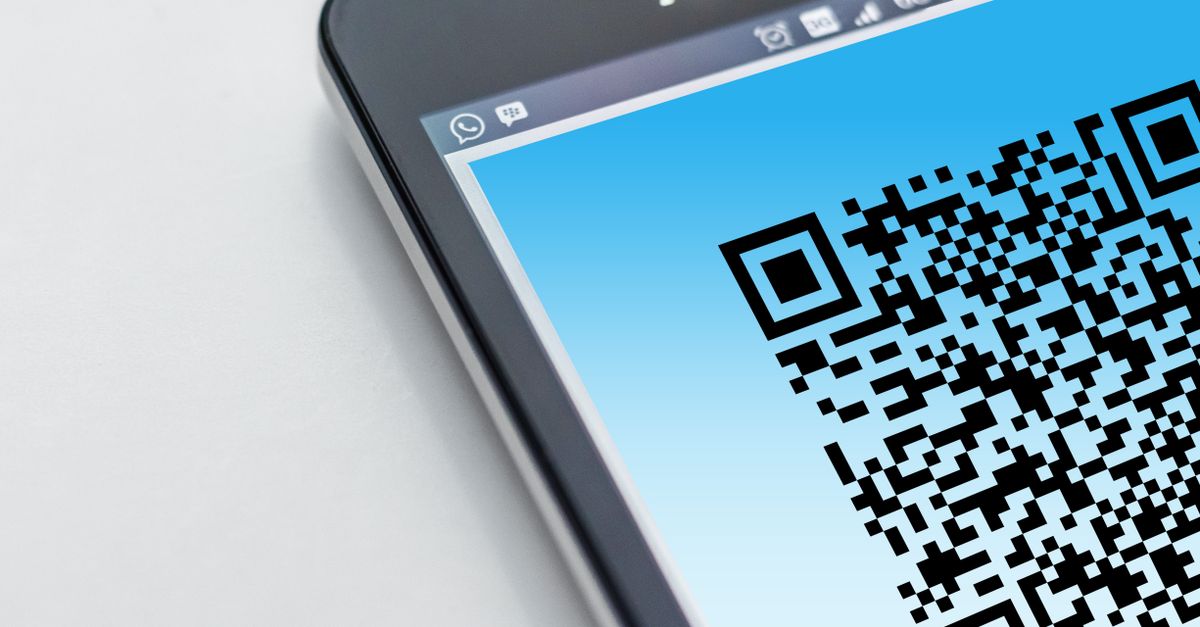
What a Sheets-Friendly Bulk QR Workflow Looks Like
The end-to-end loop is short: format a column, copy its cells, paste into the generator, choose size and error correction, scan-test each preview, and save the PNGs you actually need. There is no server job, no archive library, and no second QR encoder involved. The tool delegates encoding to the qrcode 1.5.4 package already used by the project's single QR Code Generator, which means a batch output and a single-image output are produced by the same code path and cannot drift apart over time.
Because the page trims surrounding whitespace, drops empty lines, and deduplicates exact repeated values in first-seen order, you do not need to clean the source column aggressively before pasting. A column that contains stray spaces, blank separator rows, or accidental duplicates will still produce the correct batch up to the 20-line ceiling. That behavior matters for Google Sheets workflows where blank rows from filtered views or accidental copy artefacts are common.
Why Skip the Add-On Route for Small Batches
Google Workspace add-ons that target QR generation are designed for steady, high-volume use: thousands of codes from a column, branded colors, embedded logos, and round-trips back into Drive. They also ask for permissions to read and write your spreadsheet. For a list of twenty URLs that already exist in a column, the permission footprint, install step, and per-user pricing are heavier than the task.
A browser batch tool avoids those costs when the source data is already short and inspectable. You stay in control of the spreadsheet, the encoding runs against the same qrcode 1.5.4 encoder the single-page tool uses, and the output is a flat set of PNG files you can rename, email, or drop into Canva. The same approach scales if your team simply repeats the run across several smaller sheets, since each generation is independent and uses a fresh job identifier.
Preparing the Column in Google Sheets
Open the spreadsheet and isolate the column you want to encode. Trim trailing spaces with =TRIM(A2) if the source data comes from a copy-paste source, and remove any fully blank cells so the row count matches the intended batch. The generator dedupes exact duplicates, so two identical cells collapse to a single PNG; if you need them as separate symbols, change one character on each row.
Long payloads reduce the chance of fitting inside a single QR version with a chosen error-correction level. Keep URLs short by using a redirect or a UTM-built link from a related tool such as the UTM Link Builder, and avoid embedding entire paragraphs of body copy inside a single code. If a line is likely to fail at the encoder level, the batch surfaces an error instead of presenting a partial set as complete, which is the right behavior for a QR asset you plan to publish.
| Source column state | What the generator does | Effect on batch |
|---|---|---|
| Trailing spaces on a cell | Trimmed before encoding | No change to symbol count |
| Empty row between values | Removed as blank | Row count drops to true values |
| Exact duplicate cell | Collapsed to first occurrence | Symbol count stays under 20 |
| Line over 2,000 characters | Reported as a batch error | No partial batch produced |
Generate the PNGs: The Sheets-to-Browser Steps
- In Google Sheets, select the cells you want to encode, then copy them with Ctrl+C or Cmd+C. Plain-text paste is enough; no Google Sheets add-on is required.
- Open the Bulk QR Code Generator in the same browser tab or a new tab alongside the spreadsheet.
- Paste the copied cells into the input area so each row becomes its own line. The parser trims whitespace, removes blank rows, and deduplicates exact repeats.
- Pick a PNG canvas size from 128, 256, or 512 pixels, and choose an error-correction level of L, M, Q, or H.
- Select Generate QR codes and wait for the previews to render. Each preview carries its own filename and individual download link.
- Open each preview with the target device, confirm the decoded payload character for character, then download only the verified PNGs and preserve their quiet zones.
The same batch step works equally well when the source is a plain text list pasted from any other document. For a deeper walkthrough of plain-text inputs, see how to generate multiple QR codes from a plain text list. The Sheets version differs only in how the input is captured, since cells copy as line-separated values by default.
Choosing PNG Size and Error-Correction Level
PNG size refers to the canvas dimensions in pixels and does not change the data capacity of the QR symbol itself. Choose 128 pixels for compact screen display, 256 pixels for general web or document use, and 512 pixels when a code will be printed at larger physical sizes. Raising pixel count improves appearance at large sizes but does not let you encode more characters, since capacity is governed by QR version and module count rather than pixel dimensions.
Error correction is the setting that trades data capacity for restoration capability. According to DENSO WAVE, the four levels restore approximately 7%, 15%, 25%, and 30% of codewords respectively. The practical default for ordinary clean display conditions is level M; reserve H for codes that may be scratched, dirty, or printed on textured surfaces where a denser symbol is acceptable.
| Level | Approx. codeword restoration | Best for |
|---|---|---|
| L | ~7% | Clean digital displays with short URLs |
| M | ~15% | General-purpose printing and packaging |
| Q | ~25% | Outdoor or partially damaged surfaces |
| H | ~30% | Logos, overlays, or harsh print conditions |
Verifying, Downloading, and Preserving Quiet Zones
A generated PNG is not proof that every scanner will read the intended content. Scan each preview with the phone, tablet, or dedicated reader you plan to use in production, and compare the decoded text character for character against the spreadsheet cell. Long UTF-8 text, emojis, low print contrast, glare, and reader-specific quirks all affect success, and the underlying library notes that full ECI support is not implemented. Never ship an unchecked QR Code for payments, authentication secrets, safety instructions, or any irreversible action.
When verification passes, download each PNG from its preview. The page does not bundle files into a ZIP and does not trigger 20 automatic downloads; each required PNG is fetched through an explicit click. Browser policies may prompt for download permission per file. Keep a clear quiet zone around the image after download, and avoid stretching, recoloring, cropping, or covering the finder patterns, all of which can break scans even when the encoded data is intact.
Filenames are derived deterministically: the URL https://example.com becomes 01-example-com.png, a second payload becomes 02-…, and a line without ASCII letters or numbers falls back to qr-code. This makes it easy to cross-reference each saved PNG back to the originating row in Google Sheets, even after the file is copied into another folder or handed off to a designer. Changing an input or option invalidates the previous batch, so older previews cannot overwrite newer settings inside the same tab.