The Bulk QR Code Generator produces up to 20 individual QR Code PNG files at a canvas size of 128 pixels per side, which is the smallest of the three pixel dimensions the tool offers alongside 256 and 512. The 128-pixel output is a deliberate, bounded choice: it keeps file weight small, fits cleanly inside dense contact sheets and event handouts, and renders without scaling artifacts on screens that already display content at roughly that resolution. The generator handles deduplication, trims surrounding whitespace from each line, and enforces a 20-unique-line cap and a 2,000-character ceiling per line so the browser does not stall when many payloads are processed at once. All encoding and PNG rendering run locally in the current tab — the page never uploads a URL, a Wi-Fi password, or a contact card to a server. Each preview gets its own deterministic filename and an individual download link, so the only workflow step after generation is one explicit click per verified PNG.
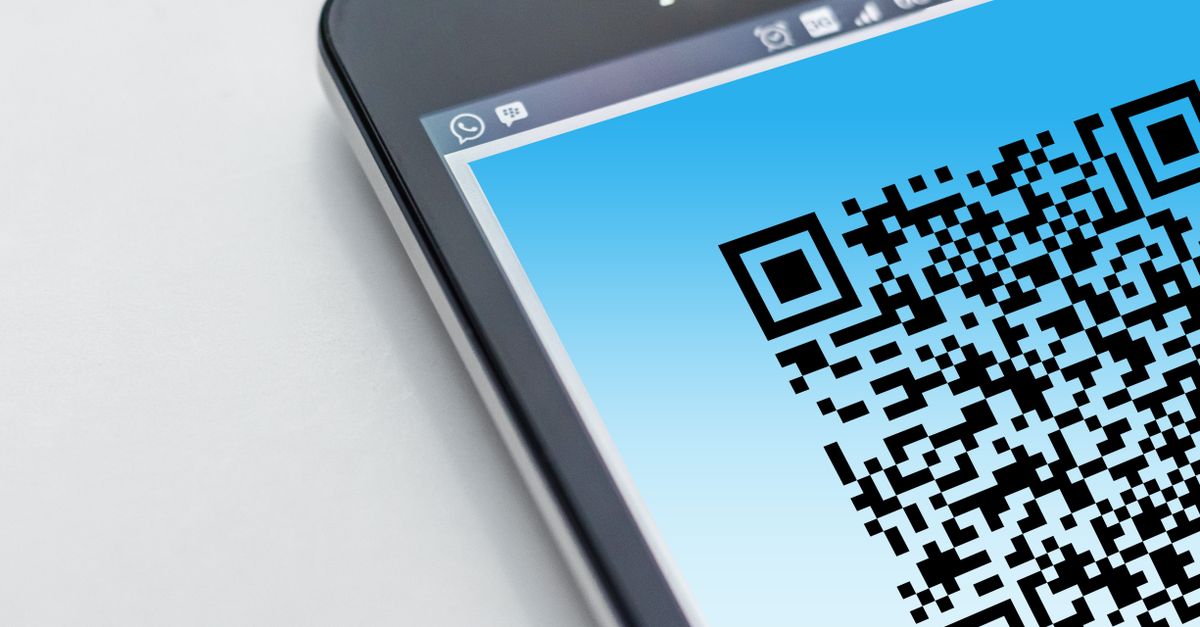
When 128 Pixels Is the Right Output Size
The 128-pixel canvas is a balanced choice when the QR Code will live at a small on-screen size or inside a layout where the code is one element among many. Email signatures, Slack channel topic cards, single-page inventory labels printed at business-card scale, and tight social-media graphics all benefit from a compact PNG that does not inflate the surrounding file weight. The 128-pixel file is also easy to embed in an HTML article or PDF handout through a simple drag-and-drop, because most modern editors will accept the small raster without recompressing the host document or pushing it past a size threshold.
It is worth keeping in mind that pixel dimensions are a presentation setting, not a data-capacity setting. A 128-pixel symbol and a 512-pixel symbol can carry the same payload; the difference is purely how big each module looks after the image is scaled. The trade-off goes the other way too: a 256-pixel or 512-pixel PNG will look sharper when the code is enlarged for poster print, signage, or a printed catalog page, because the source image has more modules to begin with and the upscaled rendering has more pixels to interpolate between.
For most desk-side and web-side uses, 128 pixels hits the practical sweet spot. For phone-screen stickers read at arm's length, 128 pixels is more than enough. For a wall poster or a freight-crate label, reach for 256 or 512 instead and re-encode the same batch.
Preparing Up to 20 Lines for a Clean Batch
The bulk workflow expects one payload per line. Common sources for that list are a CSV column copied from a spreadsheet, an exported address book column, a list of campaign tracking URLs, or a plain text file with one URL per line. Before pasting into the Bulk QR Code Generator, confirm that no single line exceeds 2,000 JavaScript characters and that the batch as a whole contains no more than 20 unique values after trimming. Surrounding whitespace on each line is removed automatically, empty lines are dropped, and any exact duplicate collapses to its first occurrence so the same code is never produced twice in the same batch.
If the list comes from a spreadsheet or a text export, a useful starting point is the article on generating multiple QR codes from a plain text list, which describes the same trim, dedupe, and order-preservation logic in a slightly different framing. Keeping the source list ordered the way the final codes should be ordered — first line first, last line last — saves time later, because the generator assigns a two-digit batch position prefix to each filename based on first-seen order.
Generate Up to 20 QR Codes at 128 Pixels
Once the list is ready, the generation step itself is short. The following ordered steps produce a batch of 128-pixel PNGs that can be downloaded one by one after verification.
- Paste one text or URL per line into the input area, with no more than 20 unique lines and no more than 2,000 characters on any single line.
- Set the PNG canvas size to 128 pixels, and choose an error-correction level — L, M, Q, or H — based on the surface and reader conditions where the codes will live.
- Select the Generate QR codes button and wait for every preview to render. A payload that exceeds QR capacity surfaces as an error rather than a partial success.
- Point a phone camera or dedicated scanner at each on-screen preview and confirm the decoded payload matches the original line character for character.
- Download each verified PNG from its individual download link. Browser policies may require a click per file or may prompt for download permission; the generator does not trigger 20 automatic downloads.
- Preserve each PNG's quiet zone — the blank margin around the symbol — and avoid stretching, recoloring, cropping, or covering the finder patterns after download.
How Error Correction Changes a 128px Symbol
Error correction determines how much of a 128-pixel symbol can be restored when it is partially obscured, damaged, or photographed at an awkward angle. The four levels supported by the generator correspond to approximate codeword restoration rates documented by DENSO WAVE: about 7% for L, 15% for M, 25% for Q, and 30% for H. Higher levels tolerate more damage, but they also reduce the data capacity of the symbol, which can force the encoder into a denser, harder-to-scan matrix when the payload is long.
For ordinary clean display conditions — a glossy handout, a phone screen in good light, a card under glass — level M is the practical default. Level H is worth considering when the code will sit behind a laminate, sit on a textured surface, or live outdoors where glare and dirt are common. Level L leaves the most room for data, but should be reserved for controlled environments where the image is unlikely to be scratched or partly obscured. Because the chosen size is already compact, picking a higher level does not help when the real problem is simply that the printed code is too small to scan — the answer there is to print larger, not to add error correction.
| Level | Approximate restoration rate | Typical use |
|---|---|---|
| L | ~7% | Controlled indoor display |
| M | ~15% | General-purpose default |
| Q | ~25% | Outdoor or partially obscured |
| H | ~30% | Maximum restoration; densest matrix |
Rates are drawn from DENSO WAVE's QR Code error correction reference.
Scan-Verify and Download Each PNG
A successfully generated 128-pixel PNG is not proof that every scanner will read it. Long UTF-8 text, emojis, print size, contrast, camera focus, display glare, physical damage, and reader-specific behavior all influence whether a real device decodes the intended payload. Different readers can also interpret the same string differently — for example, a vCard string may load fully in one scanner and only partially in another. The library underlying the generator notes that full ECI support is not implemented, so non-ASCII text is best avoided when the scanner audience is unknown.
The verification step is non-negotiable. Open every preview on the screen that will host the code, point the target phone camera at it, and read the decoded result aloud or type it back. The reader's decoded string should match the original line byte for byte. If it does not, adjust the input, regenerate, and re-verify. Only after the full batch passes that test should each PNG be downloaded. Changing any input or option invalidates the previous batch; an asynchronous job identifier prevents an older generation result from overwriting newer settings, so re-running is safe, yet the older previews must not be trusted once the inputs have changed.
Quiet Zones, Filenames, and Small-Batch Hygiene
After download, keep at least a four-module-wide quiet zone around each 128-pixel symbol. The generator uses a margin of 2 internal QR modules, which is acceptable for most use, but a print designer should still leave visible white space around the code so scanners can locate the finder patterns reliably. Do not stretch the image non-uniformly, recolor it, crop it, or paste a logo over the finder patterns; any of those actions can break quiet-zone integrity or obscure the position markers that scanners rely on.
Filenames are convenience labels and never alter the encoded payload. A URL like https://example.com produces 01-example-com.png, where 01 is the batch position and example-com is a short ASCII stem derived from the content. Lines that contain no ASCII letters or numbers fall back to qr-code as the stem. Renaming the file is fine; the QR Code data stays the same.
The Bulk QR Code Generator deliberately does not bundle the PNGs into a ZIP archive. Adding an archive dependency for a tool whose goal is to stay light was a conscious trade, and the practical effect is that each verified 128-pixel PNG is downloaded explicitly, which makes the selected outputs easier to audit and harder to accidentally publish unverified.
For a deeper look, see Meta Robots Generator Bulk: Validated Tags for Many Pages.