For Bali, use a live city clock that can display Denpasar in Central Indonesia Time (WITA, UTC+8), rather than relying on a fixed-offset label alone.
The practical option is the World Clock, provided its Add a city menu contains Bali or Denpasar. It displays each selected city’s live local time, date, weekday and UTC offset on one board. If neither Bali nor Denpasar is listed, the tool cannot complete that particular city lookup.
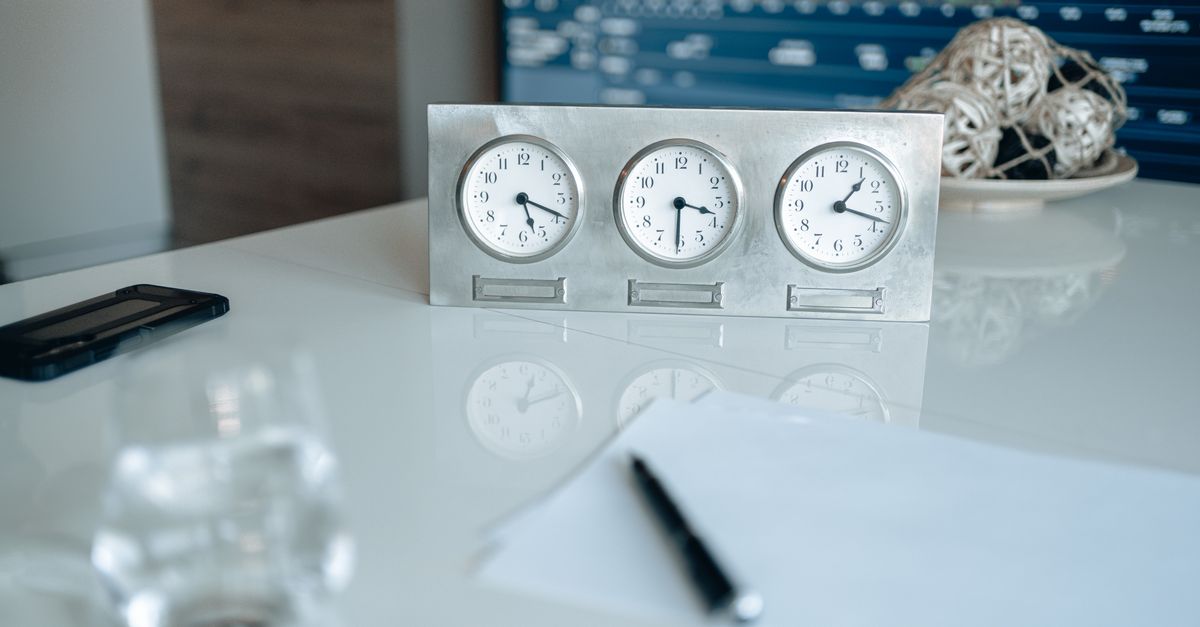
Bali’s clock rule
Bali uses WITA, which is eight hours ahead of UTC, and the island does not change its clocks for daylight saving. A Bali city clock should therefore remain on UTC+8 throughout the year. The offset tells you how far ahead Bali is, but a complete view should also identify the city and show the local weekday and date.
That distinction matters when coordinating a meeting with someone in another country. Two places can share the same clock minute while sitting on different calendar days. Seeing Bali’s date beside its time prevents a late-night request from landing on the wrong day.
- Time zone: Central Indonesia Time, commonly abbreviated WITA.
- UTC offset: UTC+8 throughout the year.
- Daylight saving: No seasonal clock change in Bali.
- City reference: Check for Denpasar when a clock picker organizes destinations by city.
What to check in a Bali world clock
A useful Bali clock needs more than the correct hour. These are the features to compare before relying on it:
| Need | What to look for | World Clock behavior |
|---|---|---|
| Current local time | A live display rather than a static offset | The board updates every second. |
| Local calendar context | City, weekday and date | Each city row includes its local time, date, weekday and exact UTC offset. |
| Seasonal time-zone rules | Automatic daylight-saving handling | The browser’s time-zone database supplies the offset for the displayed moment. |
| Day-and-night context | A quick visual cue | A small sun or moon icon indicates the broad day or night state. |
| Privacy | Local browser processing | The clock runs in the browser with no account, tracking or server call. |
| Bali availability | An explicit Bali or Denpasar entry | The menu covers two dozen major cities, but Bali and Denpasar are not explicitly confirmed in the published selection list. |
That last point is the main limitation. A tool may handle time-zone rules perfectly while still lacking the Bali entry needed for your lookup. Check the city menu first; do not assume that every Indonesian destination is available.
Add Bali to the World Clock
Use this workflow to add and verify the island’s time:
- Open the World Clock. The tool immediately displays its live board of default major cities, with the clock values updating every second.
- Open the Add a city dropdown. Look for Bali. If the destination is labeled by city rather than by the island, check for Denpasar as the practical city reference.
- Select the matching entry and press Add. Its city row appears with the local time, date, weekday and UTC offset.
- Confirm the row. The time should use the 24-hour format, and the offset should read UTC+8 because Bali does not observe daylight saving.
- Remove the row when it is no longer needed. Click Remove on that city’s row; the remaining board rearranges immediately.
If neither Bali nor Denpasar appears in the dropdown, the supported workflow cannot add it manually because the tool requires a city selected from the menu. Plain UTC is also available, but it remains a UTC row rather than a labeled Bali entry. In that case, use a different clock whose destination list explicitly includes Bali or Denpasar.
Read the Bali row correctly
Once Bali is added, read the row from left to right. The local time uses a clear 24-hour format, so there is no need to guess whether a number refers to morning or evening. The date and weekday confirm where Bali sits in its calendar cycle at that instant.
The UTC offset provides another verification point. For Bali it should remain UTC+8 all year, unlike some cities that move between standard time and daylight time. The World Clock reads the applicable rule for each displayed moment, so other cities on the same board remain accurate when their seasonal offsets change.
- Use the local time to decide when a message or call would arrive.
- Check the weekday and date before treating a request as same-day.
- Confirm the UTC offset when coordinating with another city.
- Treat the sun or moon icon as a rough day-and-night cue, not exact sunrise or sunset information.
The icon is useful for quickly identifying an obviously late or early local hour, but it does not establish someone’s working hours or whether a particular venue is open. Confirm those details separately when they affect the decision.
Plan calls and travel around Bali
Keep Bali beside the other cities involved in a schedule. Comparing rows is more reliable than converting one destination in your head, especially when several time zones or calendar dates are involved.
| Situation | What to compare | How to use the display |
|---|---|---|
| Remote team meeting | Bali time and each participant’s city row | Look for a practical overlap and use the day-or-night icons as broad context. |
| Work handoff | Local times, weekdays and dates | Confirm that the incoming team is receiving the handoff on its intended calendar day. |
| Travel or date-boundary check | Each city’s displayed date | Use the city-specific date instead of assuming two locations are on the same day. |
| Personal message | Bali’s 24-hour time and day-or-night cue | Make a quick reasonableness check before sending, while treating personal availability as unknown. |
The board gives you the information needed for a quick scheduling decision, but it does not calculate meeting availability, track calendars, or account for holidays. It answers the narrower and more reliable question: what time is it in each selected city right now?
Privacy and operating limits
The World Clock uses the international time-zone information built into a modern browser. No server call, account or tracking is involved. Your location and the cities you select are not uploaded, and the clock continues working on a flaky connection once the page has loaded because the necessary time-zone data is already on your device.
Its verified feature set is focused on live city clocks. It does not include alarms, calendar bookings, business-hour lookup, travel advisories, exact sunrise data or projected times for future dates. It also cannot add an arbitrary city that is absent from the dropdown. Those limits make it dependable for current local-time checks without turning it into a full scheduling service.
Quick Bali clock checklist
Before using the display for an important decision, confirm these details:
- The row is labeled Bali or Denpasar.
- The time is in Bali’s local 24-hour time.
- The weekday and date match the intended day.
- The offset reads UTC+8.
- The sun or moon icon provides only a broad day-or-night cue.
The best choice is the World Clock when its city menu includes Bali or Denpasar, because it combines live local time with the date, weekday and exact offset in one private browser-based board. If the required city is missing, choose a clock that explicitly lists Bali rather than treating a fixed UTC row as a confirmed Bali lookup.
If you're weighing options, Year Progress on Laptop: Clock, Display, and Limits covers this in detail.