A browser whiteboard opened in its own tab gives Zoom teachers a fast, no-login canvas that can be drawn on with a mouse, touch, or stylus and saved as a 1000 by 600 PNG. The board keeps a fixed working resolution while scaling to fit the page width, so pointer positions stay aligned whether a teacher is on a laptop or a tablet, and screen-sharing the tab inside Zoom shows students the same marks in real time. Each completed pen movement is stored as one stroke, so a teacher can undo only the latest line without losing earlier work, and the same canvas resets cleanly with a single Clear action. The drawing is never uploaded or synced to a cloud account — it lives in the current tab — which means downloading the PNG before leaving the page is the only way to keep a copy for handouts, recap emails, or class archives.
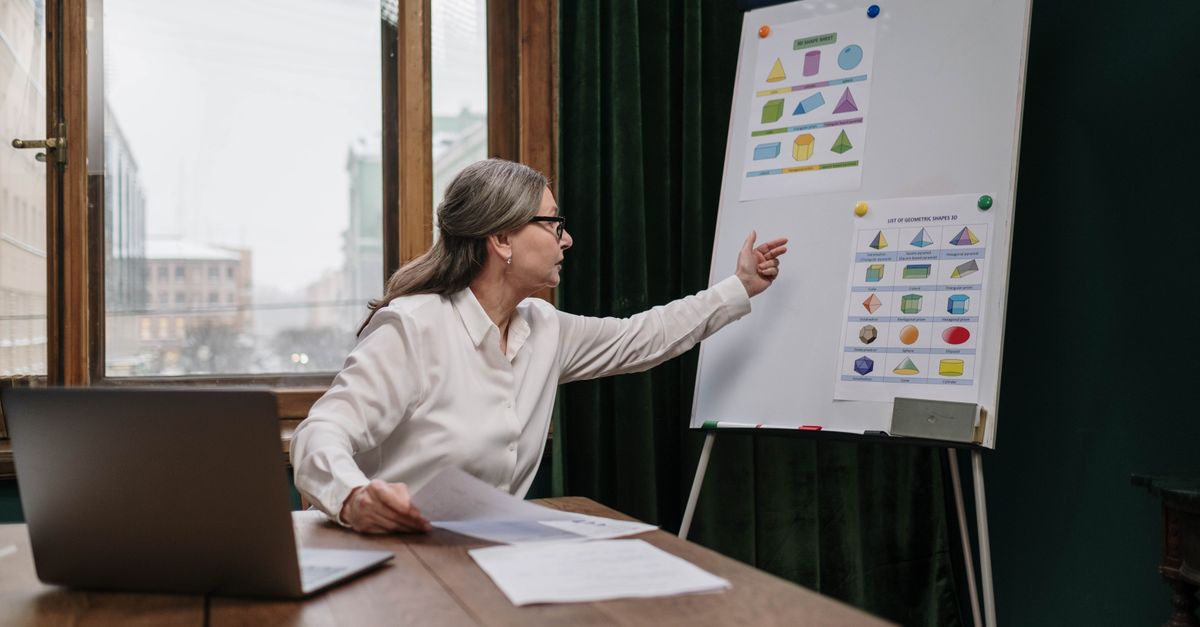
Why teachers pair a browser whiteboard with Zoom
Zoom ships with a native whiteboard feature, but using it cleanly inside a live class still means signing into the desktop client, opening the side panel, and accepting that any board lives inside Zoom's account system. A separate browser whiteboard sits next to the meeting as a plain tab: no login, no licence screen, and no separate app to install. That makes it a practical second surface for the moments in a class where the host's slides are already full and a quick sketch — a labelled diagram, a worked math step, a correction over a student's answer — would explain the next thirty seconds better than another slide. Because the drawing is local to the browser tab, a teacher can also pre-draw a few starter shapes before the meeting begins, then screen-share the tab when the relevant moment arrives.
Open and prepare the whiteboard before class
Open the Online Whiteboard in a second browser tab a few minutes before the lesson. Position the window on the side of your screen where it will be easy to share when you need it; the canvas keeps a fixed 1000 by 600 working resolution while scaling to fit the available page width, so what you see on your monitor is what students will see after you share the tab through Zoom's screen-share menu. Pick a pen color and brush size for the lesson's main accent before drawing — the brush width is normalised between 1 and 40 pixels, so a thin pen keeps handwritten labels crisp at 1080p screen-share resolution, while a thick pen is better for blocking out big shapes. If you plan to write with a stylus, confirm the browser recognises touch or pen input by tapping the canvas once; a single tap should leave a visible dot, which is the easiest sanity check that your device is reaching the page.
Draw, label, and correct during the lesson
The drawing flow is intentionally short so a teacher can stay focused on the class rather than on the tool:
- Choose a pen color and brush size for the next stroke. Match the size to what the camera will see at the screen-share resolution — small text wants a thin brush; big shapes want a wide one.
- Draw on the white canvas with a pointer, touch input, or stylus; use Undo or Clear when needed. Each completed pen movement is stored as one stroke, so a stray line can be removed without losing earlier work, and Clear resets the whole board when the topic changes.
- Select Download PNG before leaving the page to keep a 1000 by 600 copy. The PNG is generated locally with a white background, so it drops cleanly into slides, recap emails, or an LMS post without further editing.
Match pen settings to the teaching moment
Different parts of a lesson want different marks, and switching between them is part of how a freehand whiteboard stays readable. The table below maps common teaching tasks to settings that hold up at typical screen-share resolutions.
| Teaching moment | Suggested color | Suggested brush size |
|---|---|---|
| Annotation emphasis (arrows, circles over a slide) | High-contrast dark or red | 6 to 10 px |
| Diagram outlines (flow charts, geometry) | Dark blue or black | 4 to 8 px |
| Handwritten labels | Dark, single color | 2 to 4 px for legibility |
| Math formulas and worked steps | Dark, high contrast | 2 to 3 px |
| Soft shading or large fills | Light tint | 15 to 30 px |
Brush width is normalised between 1 and 40 pixels on the underlying canvas, so the values above map roughly onto the slider's usable range regardless of how the page is scaled on screen.
Save the board before you move on
The drawing stays in the current browser tab and is not uploaded anywhere, which is the same trade-off that makes the whiteboard fast to open: there is no automatic cloud copy, no account draft, and no recovery if the tab is closed or refreshed. The only way to keep a permanent record is to select Download PNG before navigating away. The output is a 1000 by 600 pixel image with a white background, which is small enough to attach to an email or paste into a slide deck without resizing, and the white background means the file sits naturally on top of a printed handout. A useful classroom rhythm is to download a checkpoint after each main topic — that way, an accidental Clear at the start of the next section costs at most one topic's worth of sketches rather than the entire lesson.
Patterns that work with a freehand whiteboard
Freehand boards reward a small amount of planning. Sketching broad outlines first, then going back in with a stylus or careful pointer movement to add labels, keeps the screen-share image tidy; the reverse order — labels first, then shapes around them — usually produces cramped text and overlapping lines. Using Undo for the latest mark and Clear only between topics is faster than redrawing, because each completed stroke is stored independently and only the last one is removed by Undo. Before making a major change to a board that already works — moving from a labelled diagram to a worked problem, for instance — downloading a quick PNG checkpoint protects the earlier explanation. Teachers who want a fuller walkthrough of running a class this way can compare notes with this guide to teaching online with a browser whiteboard in real time.
When a lightweight whiteboard isn't the right fit
The trade-off for the tool's speed is that it deliberately stays small. There are no accounts, no remote cursors, no embedded files, and no background uploads, which means every mark is local to one tab. For long-lived boards that have to survive across many sessions, multi-person editing where two people need to draw at once, or structured diagrams with vector objects that need to be moved after they're drawn, a dedicated design or collaboration application is the better fit. For a one-hour online class where the goal is to explain a concept live, hand out a single PNG afterwards, and then move on, a freehand browser whiteboard paired with Zoom's screen-share covers that workflow without any sign-up step in the way.