Open a free, in-browser world clock, leave the tab pinned, and you get a live, DST-aware view of the current time in two dozen major cities plus plain UTC, updating every second and visible on the same screen you check when you pick up your phone or laptop. Because it lives in a tab you control, it does not depend on your phone's operating system, your wallpaper, or any built-in widget gallery. The same board works on a laptop on your desk, a phone propped on a stand, or a tablet on the kitchen counter, and it carries the full information a lock-screen widget usually cannot: local time, weekday, calendar date, the exact UTC offset for that instant, and a small day-or-night hint.
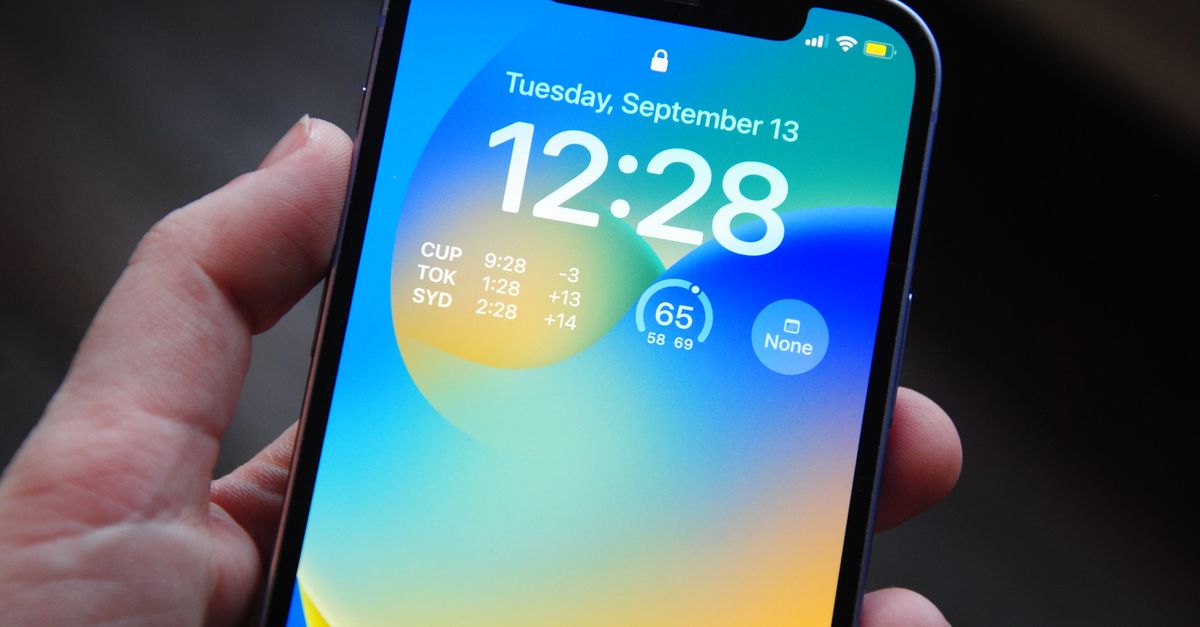
Why a Phone Lock Screen Falls Short
Search results for "world clock on lock screen" overwhelmingly point to iOS and Android widget galleries, and those widgets do exist on some phones. They are constrained in ways that frustrate most people who rely on them. The widget set is fixed by the operating system: you can usually choose two or three cities at most, and the available list is a small subset curated by the OS vendor. The widgets also depend on the exact phone model, the iOS or Android version, and the lockscreen layout you are already using, so the same instruction often fails across devices. Finally, lock-screen widgets cannot run a custom city list, cannot display a UTC offset, and cannot render day-and-night hints, because the widget contract is owned by the OS rather than by you.
A pinned browser world clock removes those limits. You pick the cities, you remove the ones you do not need, and you see exactly the same information on every device you open the tab on. If you prefer a screen-resident experience on a Windows desktop, the same approach works there too, and a short walkthrough of pinning the board on Windows 11 lives in the Add a Live World Clock to Your Windows 11 Desktop guide.
Set Up a Live World Clock in Three Clicks
- Open the World Clock in any modern browser. The board starts running immediately with a default set of cities that spans the Americas, Europe, the Middle East, South Asia, East Asia, and Oceania, and each row begins ticking at one update per second.
- To follow another city, pick it from the "Add a city" dropdown. Los Angeles, Denver, Chicago, New York, São Paulo, London, Paris, Berlin, Moscow, Dubai, Mumbai, Kathmandu, Bangkok, Singapore, Shanghai, Hong Kong, Tokyo, Seoul, Sydney, Auckland, and Honolulu are all available, along with plain UTC. Press Add and the new row appears instantly with the local time in 24-hour format, the weekday, the calendar date, and the exact UTC offset for that instant.
- To stop tracking a city you no longer need, click Remove on its row. The board rearranges itself right away and the remaining rows keep ticking.
- Pin the tab in your browser or set it as a Start-page tile so it is one tap away. On a laptop, leave it in a docked window on the side of a screen; on a phone, leave the tab open or save it to your home screen as a pinned shortcut.
What Each Row Actually Tells You
Every city row carries the same six pieces of information, which is what makes the board useful at a glance rather than a wall of numbers to interpret.
- Local time, rendered in unambiguous 24-hour format so 08:00 can never be confused with 20:00.
- Weekday and date, shown per city so the day boundary crossing midnight in another zone is immediately visible.
- UTC offset for the exact instant being displayed, which is the value that shifts automatically when daylight saving begins or ends.
- Day or night icon, a small sun or moon hint that tells you whether it is a reasonable hour to call without scrolling through numbers.
- City name, written out so you do not have to remember which abbreviation means which place.
- Live tick, updating once per second using the browser's built-in international time-zone database.
Browser Tab vs Native Lock-Screen Widget
The table below compares the two approaches so you can pick the one that matches what you actually need to see at a glance.
| Feature | Native OS lock-screen widget | Pinned browser World Clock |
|---|---|---|
| Number of cities shown | Usually 1 to 3, fixed by the OS | Any subset of two dozen major cities plus UTC |
| Customizable city list | Limited to OS-curated options | Full add and remove control on the spot |
| Daylight saving accuracy | Depends on OS update cadence | Reads browser time-zone database each second |
| UTC offset shown | Rarely | Always, per current instant |
| Day / night indicator | Rarely | Yes, on every row |
| Works without an account | Yes | Yes |
| Same view across phone, tablet, and laptop | No, each device shows its own widget | Yes, the tab renders the same board everywhere |
| Sends data off the device | Varies by OS vendor | No, the board runs entirely in the browser |
Putting It to Work in Real Situations
The reason people want a world clock on their lock screen in the first place is usually one of a small set of recurring tasks. Here is how the World Clock covers each one without any time-zone arithmetic in your head.
Scheduling Across Offices
When your team spans London, Mumbai, and San Francisco, the "right time for a meeting" window is narrow. With those three cities on the board you can read the overlap directly. When it is mid-afternoon in San Francisco, it is late evening in London, and after midnight in Mumbai, which means the working overlap sits early in the California day. The tool does the conversion for you every second, so you do not need a separate meeting-time planner on top of it.
Calling Overseas Without Waking Anyone
The day-or-night icon on each row answers the only question that actually matters before you pick up the phone: is it a reasonable hour over there right now? If the row shows a moon for a city, that is a signal to wait or send a message instead of dialing.
Coordinating Launches and Live Events
Product launches, maintenance windows, sports fixtures, and live streams all happen at a specific instant that has to line up across regions. Pinning the cities involved on the board lets every contributor confirm the moment from the same screen, and the second-by-second update catches any slippage between scheduling tools and reality.
Avoiding the Wrong-Day Mistake
Two places can be on different calendar days at the very same instant, and that is the mistake a quick search-based time check most often makes. When it is late evening in New York, Tokyo and Sydney have already moved into the following day. The weekday and date column on each row makes that day boundary obvious before you send a message or schedule a call.
Privacy, Offline Behavior, and DST
Because the World Clock runs entirely inside the browser tab, it does not phone home. There is no account to create, no server call to make, and no tracking pixel to load. Your device already ships with a complete international time-zone database, and the tool simply asks it for the offset that applies at this exact instant. The cities you add and your own location never leave the machine, and once the page has loaded the board keeps ticking on a flaky connection or even fully offline, because all of the work is local JavaScript reading local data.
The daylight-saving behavior is what most separates this from a quick search. Time zones are not fixed numbers. New York sits at UTC-5 in winter and UTC-4 during Eastern Daylight Time, and London moves between UTC+0 and UTC+1 for British Summer Time. The tool reads the offset that applies to the moment being shown, so the numbers stay correct through both shifts without any manual update. The same logic handles the awkward zones that trip up naive converters, including the half-hour offset at UTC+5:30 for India and the forty-five-minute offset at UTC+5:45 for Nepal.
Tips to Keep It Visible
A pinned tab only helps if you actually see it. A few small habits make the board read like a lock-screen widget rather than another buried browser tab.
- On a laptop, dock the tab to the side of one display and leave the browser in a permanent pinned state so the clock survives restarts.
- On a phone, save the page to the home screen or pin the tab in Chrome or Safari so one tap opens the same board every time.
- On a tablet propped on a desk, use the browser's fullscreen or minimal-UI mode and let the board stay awake beside a Keep Screen On tab.
- Set your system clock to 24-hour format if it is not already, so the readings match the board's display exactly.
The result is a live, DST-aware, fully private world clock that follows the same idea as a lock-screen widget, with multiple cities visible at a glance before you unlock anything, but with a city list, an offset column, and a day-or-night indicator that the OS widget gallery does not give you.