An online to do list app is a browser-based checklist for adding tasks, marking them complete, and returning to them later in the same browser profile.
The To-Do List provides that focused workflow without an account. It stores entries in the current browser profile and never uploads them, which makes it suitable for a temporary personal checklist, a short shopping list, a packing pass, or a group of steps handled at one workstation. It is intentionally smaller than a full task manager, so sharing, deadline, and backup needs should determine whether it is the right fit.
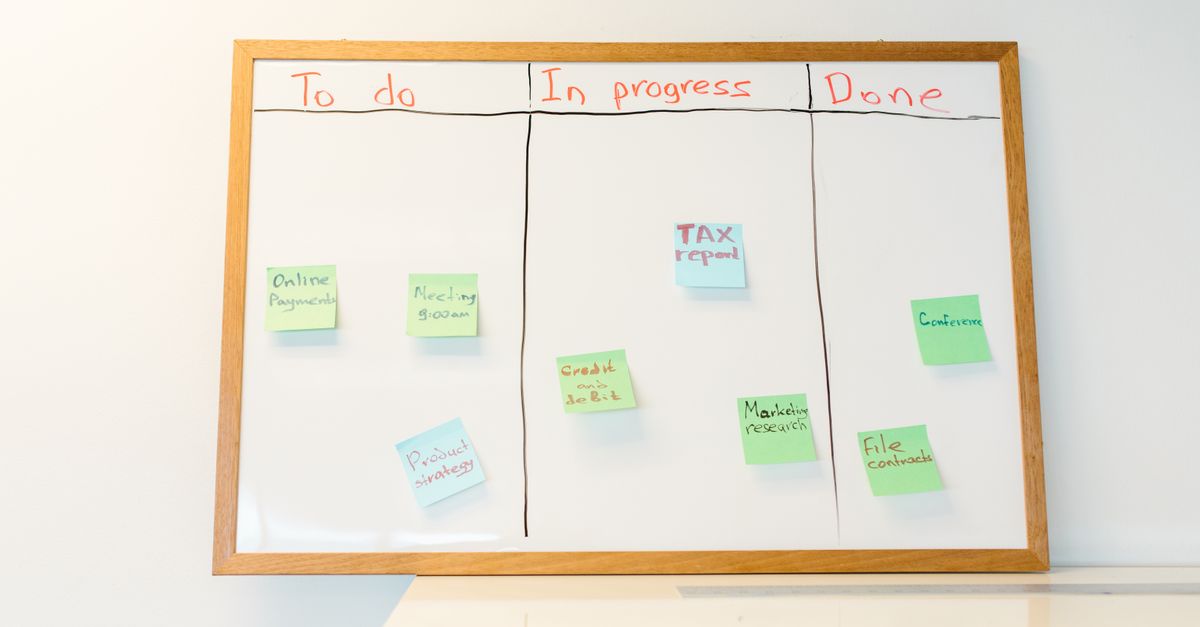
Choose by Storage, Features, and Sharing Needs
An online to do list app can range from a very small browser checklist to a much broader task system. The Lizely option belongs at the lightweight end: it is intended for personal work that stays on one browser profile. It is a poor substitute when another person must see updates, a missed deadline could cause harm, or the record needs to survive beyond local browser storage.
| Need | What this browser tool does | When to use another system |
|---|---|---|
| Storage | Keeps tasks in localStorage for the current browser profile. | Use a dedicated or backed-up service for records that must outlive that profile. |
| Account and sharing | Requires no account and does not provide a shared list. | Use a task manager when another person needs to see or update the work. |
| Deadlines and planning | Has no dates, reminders, priorities, recurring items, or subtasks. | Use a fuller task system when deadlines or structured planning are required. |
| Removal history | Delete and Clear completed are immediate, with no undo. | Keep a separate copy before removal when an audit trail matters. |
| Capacity | Supports up to 100 tasks, with 160 characters per task. | Use a dedicated task manager for large or long-lived projects. |
The trade-off is convenience versus coordination and durability. This browser checklist needs no account and sends no task entries to the site's server, but it does not synchronize, back up, or preserve a deletion history. Those are functional differences, not minor interface preferences, so the consequences of losing or missing a task should guide your choice.
Core Functions of a Lightweight Checklist
The interface is intentionally small. It includes a New task field, an Add control, a checkbox and separate Delete control for each entry, and a Clear completed action. A summary shows both the total number of tasks and the number completed.
- Fast entry: Type one task, select Add, or press Enter. Either route adds the task immediately.
- Clear status: Use the checkbox to switch a task between active and completed.
- Controlled removal: Delete affects only the selected task. Clear completed removes all finished tasks while leaving active work intact, and it is disabled when nothing is complete.
- Defined input: A task can contain up to 160 characters. Leading and trailing whitespace is removed, and an all-whitespace entry is rejected.
- Defined capacity: The list supports up to 100 concise tasks.
- Focused scope: It deliberately avoids dates, reminders, priorities, collaboration, recurring work, subtasks, and cloud synchronization.
This bounded design keeps a short checklist understandable and focused. It also makes clear that the tool is a temporary working aid rather than a calendar, project database, or shared workspace.
Add and Manage Tasks in the Browser
- Open the tool and wait for the list to load. The page reads existing local storage before enabling the interactive list, preventing its initial empty state from overwriting saved tasks during startup.
- Enter one concrete task in the New task field. Select Add or press Enter; both actions produce the same result, and the task appears immediately. Keep the wording within 160 characters, and do not enter only spaces.
- Add the remaining items one at a time. The summary displays the total number of tasks and the number completed. The list can hold up to 100 concise tasks.
- Mark completion with the checkbox beside the task. Selecting it switches the entry between active and completed. Reload the page when you want to confirm that local persistence has restored the valid list.
- Remove tasks that are no longer needed. Use Delete for one item or Clear completed to remove every finished item while active work remains. Both removal actions are immediate and have no undo, so copy any wording you may need for an audit trail before deleting it.
Write Each Entry as an Observable Action
A checklist works better when each entry describes a result that can be completed. Add “Send the revised proposal” instead of “Proposal,” or “Back up photos to the external drive” instead of “Photos.” Broad labels leave the next action unclear, while concrete wording makes it easier to decide when the item is finished.
Mark a task complete only when the stated result exists. A checked box should represent finished work, not merely an intention to do it later. This approach keeps the list practical for a shopping pass, packing routine, or a short series of steps performed at one workstation.
Where the List Is Saved
Tasks are stored in localStorage under a versioned key in the current browser profile. Reloading the page restores a valid stored list, so you can leave the page and return later without creating an account. The storage is tied to that profile rather than to your identity across the web.
There is no synchronization between devices, browsers, private windows, or profiles. Each separate browser or profile has a separate list. Clearing site data, resetting the browser profile, or using a cleanup utility can remove the stored tasks. Because localStorage is a convenience rather than a backup system, keep important deadlines and irreplaceable project records in a dedicated task manager or another backed-up service.
Local storage also has a clear privacy boundary. Task entries are not uploaded or attached to a Lizely account, but they are not encrypted. Anyone who can use the same unlocked browser profile may be able to read the list, and browser extensions or device administrators may have access to page storage. Do not store passwords, recovery codes, medical records, financial account details, or other secrets in the list.
The implementation validates stored data before relying on it. After loading, every add, toggle, delete, or clear action replaces the stored JSON with the current validated list. During restoration, malformed JSON, duplicate identifiers, invalid completion values, oversized tasks, and lists beyond the supported limit are rejected as a unit rather than partially rendered as trusted interface data.
Keep a Checklist Focused and Actionable
Use this online checklist for a temporary personal list, a short shopping list, a packing pass, or a group of steps you are completing at one workstation. Add one observable next action at a time, work through the list, and use the checkbox only after the result is complete. Clear completed tasks when you want a quieter view of the work that remains.
Keep the list within its defined limits rather than using it as an unbounded document store. If the project needs reminders, priorities, recurring work, subtasks, collaboration, cross-device access, or a longer record, move it to a dedicated task manager rather than compressing the whole project into brief task lines. Because removal has no history, copy important wording elsewhere before clearing it when you may need to refer back to it.
Move Up When a Full Task Manager Is Needed
A full task-management application is the better choice when another person must see updates, a missing deadline could cause real harm, or a project must remain available across devices and over time. The browser checklist also cannot provide the audit trail or durable backup that some work requires. Those capabilities require notification permissions, account identity, conflict handling, or a larger data model than this focused checklist supports.
For a personal, single-browser checklist, the To-Do List provides a practical sequence: add a task, mark it complete, return after a reload, and clear finished items without creating an account. For shared, deadline-driven, or irreplaceable work, use a dedicated or backed-up system and treat the browser list as a temporary aid rather than the sole record.