This online to-do list stores up to 100 tasks in the current browser profile, with no account, no uploads, and no cross-device sync.
The To-Do List is a small browser checklist for work you need to remember on one device. Type a task, mark it complete, delete it, or remove finished items in a group. A valid saved list returns after a page reload as long as the browser's site data has not been removed.
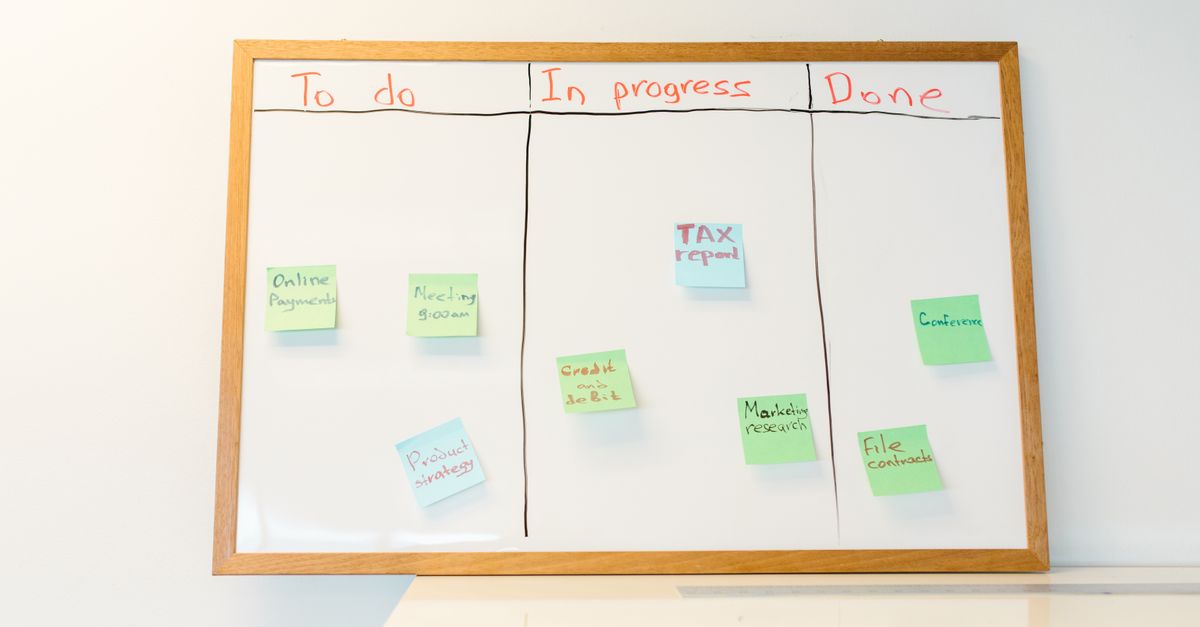
What the online checklist includes
The interface is intentionally focused on four actions:
- Enter one concrete task in the New task field, then select Add or press Enter.
- Use the checkbox beside an entry to move it between active and completed states.
- Use the separate Delete control to remove one unwanted task.
- Select Clear completed to remove all finished tasks while leaving active work intact.
A summary displays both the total number of tasks and the number completed. The tool deliberately does not include dates, reminders, priorities, recurring tasks, subtasks, collaboration, or cloud synchronization. That makes it a lightweight working checklist rather than a full project-management system.
Add and manage a checklist
- Enter the first task. Open the tool, select the New task field, and type one concrete task. Select Add or press Enter; either action creates the entry immediately. Leading and trailing whitespace is removed, an all-whitespace entry is rejected, and a task can contain up to 160 characters.
- Add the remaining items. Continue entering tasks individually. The supported list size is 100 tasks, so keep each entry concise rather than using it as a document or an unbounded notes area.
- Mark work as completed. Select the checkbox beside a task when its stated result has been achieved. The checkbox switches the entry between active and completed, and the summary reflects the changed completion count.
- Confirm that the list persists. Reload the page while using the same browser profile. A valid stored list should return rather than disappear. If it does not, check whether site data, browser data, or profile settings were cleared.
- Remove finished or unwanted work. Select Delete beside one task when it is no longer needed, or select Clear completed to remove all completed entries together. Clear completed is disabled when no task is complete, reducing clicks that would have no effect.
Both removal methods are immediate. The tool keeps no undo history, so copy important task wording elsewhere before deleting or clearing it if you may need an audit trail later.
Where the list is stored
Tasks are stored in localStorage under a versioned key in the current browser profile. They are not attached to an account and are not uploaded. The page waits until it has read the stored list before enabling the interactive controls, preventing an empty starting view from overwriting existing tasks. After loading, each add, toggle, delete, or clear action updates the locally stored version of the list.
A page reload restores a valid saved list. A different browser, device, browser profile, or private window has a separate list because there is no account synchronization. If the stored record is malformed or fails validation, it is rejected as a unit rather than partially displayed.
Browser storage is a convenience, not a backup system. Clearing site data, resetting the browser profile, or running a cleanup utility can remove the list. Use a consistent browser profile if you expect to return to it, and keep irreplaceable information in a separate, backed-up service.
Choose the right list for the job
| Scenario | Best fit | Reason |
|---|---|---|
| Temporary personal checklist | This browser to-do list | It supports immediate adding, completion tracking, deletion, and local persistence without an account. |
| Shopping or packing pass | This browser to-do list | Short, concrete items are easy to mark complete and clear when finished. |
| Shared household or project list | Dedicated task manager | This tool has no collaboration, shared updates, or cloud synchronization. |
| Deadline-critical work | Dedicated task manager | There are no dates, reminders, notifications, or backup history to depend on. |
| Long-lived or auditable records | Backed-up task service | Local browser data can be cleared, and deleted tasks cannot be recovered. |
This list works well for a temporary personal checklist, a short shopping list, a packing pass, or a group of steps being completed at one workstation. Use a full task-management application when another person must see updates, a missed deadline could cause real harm, or a record must survive beyond the current browser profile.
Turn entries into next actions
A checklist is easier to use when every entry describes an observable result rather than a broad goal. Specific wording makes it clear when the checkbox should be selected.
- Write “Send the revised proposal” instead of “Proposal.”
- Write “Back up photos to the external drive” instead of “Photos.”
- Write “Pack the charger and headphones” instead of “Packing.”
Mark an item complete only after the stated result exists. Because the tool has no subtask feature, split work with several required outputs into separate entries. Any deadline written into the task remains ordinary text; the list will not alert you when that time arrives.
Keep the list from becoming the only record
Use the browser list for low-risk tasks that can be recreated if necessary. Keep important deadlines, project records, and other material that would be difficult to replace in a dedicated task manager or another backed-up service. There is no recovery history after a deletion or completed-item cleanup.
Local storage also does not mean encrypted or inaccessible to everyone. Anyone who can use the same unlocked browser profile may be able to read the list, and browser extensions or device administrators may have access to page storage. Do not store passwords, recovery codes, medical records, financial account details, or other secrets in this tool.
For a broader review of browser-storage risks, see the privacy guide for browser-based to-do lists.
A practical rule is simple: use this checklist for short-lived working memory, but choose a dedicated, backed-up system when a task needs shared visibility, deadline alerts, an audit trail, or recovery after deletion.