An online timer counts down from a chosen duration to 00:00 and then signals that the time is up.
The Online Countdown Timer lets you enter hours, minutes, and seconds or select a preset, then start, pause, resume, or reset the countdown. It runs locally in your browser, requires no sign-up, and needs no installation. You can open it for a cooking interval, a presentation block, a workout rest period, or a focused work sprint when you already know how much time the task needs.
Unlike a clock that tells the current time, this tool answers a simpler question: how much time remains before a fixed endpoint? It continues running while you move to another browser tab, and a clear “Time's up!” message marks the end of the interval.
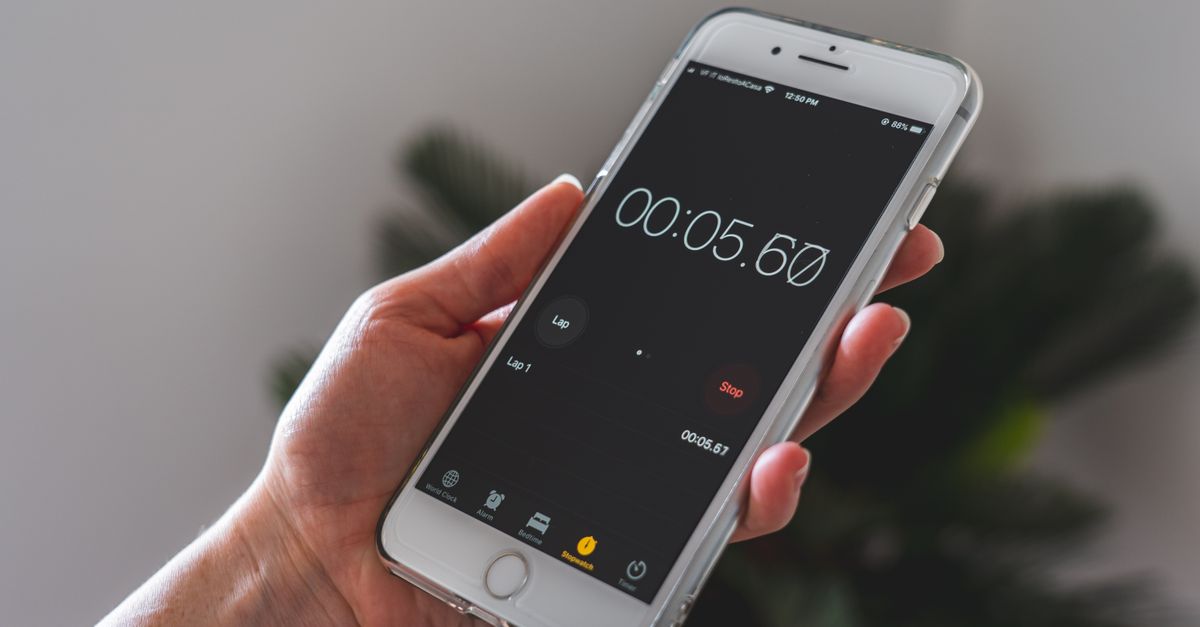
Choose the Right Type of Timer
A countdown timer, stopwatch, and Pomodoro timer all measure time, but they answer different questions. Choose the tool whose counting direction and structure match the task rather than treating them as interchangeable.
| Tool | How time moves | Best suited to | What to choose |
|---|---|---|---|
| Countdown timer | Down from a duration you choose | Cooking, presentations, workouts, study sprints, or any task with a known endpoint | Choose it when the deadline is measured as an elapsed interval |
| Stopwatch | Up from zero | Measuring how long an activity took or recording lap times | Choose it when the finish point is not known in advance |
| Pomodoro timer | Fixed 25-minute focus block followed by a 5-minute break | A regular focus-and-break routine | Choose it when the standard 25/5 rhythm is the goal |
A flexible countdown is the practical choice when an interval has a definite end but no reason to follow a preset routine. The tool in this guide accepts any combination of hours, minutes, and seconds, with hours available up to 99. A stopwatch is better for measuring an unknown duration, while a Pomodoro timer suits a standardized cycle of focused work and rest.
Set and Run an Online Timer
- Open the Online Countdown Timer and choose a starting duration. Tap a quick preset such as 1, 3, 5, 10, or 15 minutes, or type the exact number of hours, minutes, and seconds you need. The hours value can be set as high as 99.
- Press Start to begin the countdown. The large display ticks down from the selected value, and the duration inputs lock while the clock is running so an accidental click cannot change the deadline.
- Let the countdown continue while you work. If you need to freeze it temporarily, press Pause; press Resume to continue from the held value.
- At 00:00, the timer stops and displays “Time's up!” It also plays an optional short beep if your browser permits sound.
- Press Reset whenever you want to return to the original set duration and begin another run without entering the values again.
Select a Duration for the Job
The quickest setup is a preset, but a custom duration gives you control over the exact endpoint. Choose based on the task rather than rounding every interval to a convenient preset.
- Common short intervals: Use the 1-, 3-, 5-, 10-, or 15-minute choices for routine activities that fit those lengths.
- Exact intervals: Type the hours, minutes, and seconds when the task has a precise duration that does not match a preset.
- Longer deadlines: Combine hours with minutes and seconds for multi-hour work, study, cooking, or other extended activities.
- Brief tasks: Set the seconds field for a short sprint, quick rest period, or other brief interval.
Decide on the duration before pressing Start. Reset returns the display to the duration you originally set, so repeated runs can follow the same plan. If the activity itself may finish early, you can pause the countdown instead of letting it continue toward an endpoint that no longer matters.
Keep the Countdown Accurate
Accuracy matters because a timer that slowly falls behind can cause an activity to run too long. Rather than blindly subtracting one second from the displayed value, the timer records a high-resolution anchor timestamp when you press Start and recomputes the remaining time against the real elapsed time on every tick. If the browser is briefly busy, the display corrects itself when processing resumes.
You can switch to another tab or briefly lock your screen without making the timer drift. Because the tool lives in a browser tab, the dependable workflow is to leave that page open while you rely on its alert. The visual “Time's up!” notification provides a clear endpoint, while the optional beep adds an audible cue when browser sound is allowed.
Use It for Everyday Deadlines
A visible countdown works best when the activity has a natural stopping point but no built-in clock. Common uses include:
- In the kitchen: Watch an egg, tea, or oven interval without leaving the timer tab.
- During exercise: Pace intervals, plank holds, rest periods between sets, or HIIT rounds.
- For speakers and teachers: Keep presentations, lightning talks, and classroom activities on schedule.
- While studying: Time a practice test or create a defined study sprint.
- During remote work: Time-box a deep-work session or place a limit on one meeting agenda item.
- At home or during games: Enforce a screen-time limit, time tooth-brushing or a tidy-up race, or act as a board-game and quiz move clock.
The common feature is a visible endpoint. Instead of estimating how long a task has already lasted, you give the activity a fixed interval and let the display show exactly how much remains before the alert.
Control Pauses, Resets, and Alerts
Start, Pause, Resume, and Reset give you control over changes during a timed activity. These controls are useful when a real-world interruption occurs or when the same interval will be repeated.
- Pause freezes the current display when you deliberately want to suspend the countdown.
- Resume continues from the value held by Pause.
- Reset returns the timer to its set duration for another run.
- The completion alert shows “Time's up!” at zero and attempts an optional short beep if the browser permits sound.
Use Pause for a deliberate suspension rather than trying to edit a running clock. The locked inputs protect the selected duration, while Reset makes it easy to repeat the same setup. If sound is unavailable or muted, watch for the visible completion message instead.
Keep Timing Data on Your Device
The countdown runs entirely in your browser using local JavaScript. There is no server round-trip, nothing you enter is uploaded or stored remotely, and your timing activity is not tracked. You do not need to create an account or submit any information before starting.
This local design also lets the tool open instantly and continue working on a flaky connection or fully offline. The timer is intended for use in its browser tab on a laptop or phone, with no separate app to download and no remote setup to complete.
Because the countdown stays on your device, it is a straightforward choice for private work intervals, study sessions, household routines, and temporary activities. Leave the tab open if you need its final alert, and use the visible display as the primary source of the remaining time.
Prepare the Countdown Before You Begin
A short setup check helps prevent avoidable timing problems:
- Identify the exact activity and decide whether its endpoint is best measured as a countdown, stopwatch, or Pomodoro cycle.
- Choose a preset when it matches the task, or enter the hours, minutes, and seconds for a custom interval.
- Keep the timer tab open while the activity is underway.
- Check whether your browser allows sound if you want the optional beep as well as the visual alert.
- Use Pause only for an intentional interruption, and use Reset when repeating the same set duration.
That sequence covers setup, active countdown, interruption handling, and completion notification. Once configured, the online timer provides a clear, adjustable deadline without requiring an account, installation, or manual tracking of elapsed time.
For a deeper look, see Pomodoro Timer Test Online: Verify the 25/5/15 Cycle.
For a deeper look, see Break Reminder Without App: Browser Tab Guide.