An online stopwatch on iPhone is a precise count-up timer that runs entirely inside Safari or any other browser tab — no App Store download, no Apple ID sign-in, and no data uploaded from the device. Press Start and the large display begins counting up from zero in minutes, seconds, and hundredths of a second, with Lap, Resume, and Reset buttons that work the way a hardware stopwatch does. The reading stays accurate even when you switch to another tab, because the timer is recomputed from a real start reference on every refresh rather than counted tick by tick. Everything stays local to the iPhone, so the page also works on a train, in a basement gym, or anywhere a cellular signal is unreliable, as soon as the page has loaded once.
For most people the iPhone's built-in Clock app already includes a stopwatch tab, so the question is why reach for a browser-based one at all. An online stopwatch on iPhone earns its place when you want to keep a single browser tab permanently open as a distraction-free measurement surface, share the exact same tool across an iPhone, an iPad, and a Mac without any account or sync, or use a clean lap-and-total format that mirrors the timing coaches actually want for sprints and intervals. Because the timer runs in standard web code, it also sidesteps notification interruptions, badge counts, and the system Clock's small digital face, which can be hard to read across a kitchen counter or a gym floor.
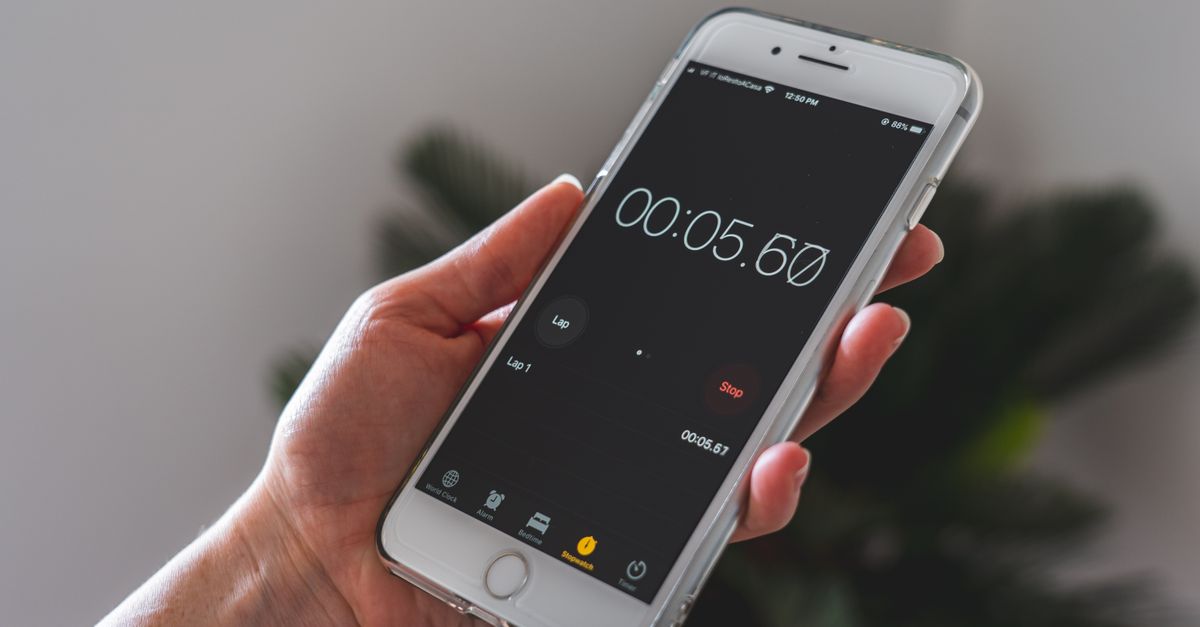
Why Use a Browser Stopwatch on an iPhone
The iPhone Clock stopwatch is a fine default, but a browser stopwatch solves a few specific problems better. The display on the online tool is built around a single large, high-contrast number that remains readable from across a room, which matters when you are timing a plank hold, watching a pasta boil, or running a stopwatch drill on a track. The Lap button records two numbers per split — the segment time and the cumulative total — and lists them newest at the top so the most recent split is the first thing you see. The tool has no preset duration, so it measures the real, open-ended time a task actually consumes, which is the right shape whenever you do not know in advance how long you will need.
Because the stopwatch runs inside Safari, you can keep it in its own tab and hop between Maps, Music, and Messages without losing your measurement. Timing also stays private: no account is required, nothing is sent to a server, and the page works offline once it has loaded, so you can still see your splits in airplane mode. These are not theoretical benefits — they are the everyday reason runners, students, cooks, and interview candidates reach for a browser stopwatch instead of an installed app.
How to Start the Stopwatch on iPhone
The fastest path to a working stopwatch on an iPhone is through Safari. Touch targets are sized for fingers, and the Start, Lap, Pause, and Reset controls are all single taps.
- Open Safari on the iPhone and go to the Online Stopwatch tool page.
- Wait for the page to finish loading so the timer code is fully cached on the device.
- Tap Start — the large display begins counting up from zero in minutes, seconds, and hundredths of a second.
- Hand the iPhone to the person being timed, prop it on a counter, or hold it yourself; the display stays readable from arm's length.
- To stop timing, tap Pause; to continue from the same exact elapsed value, tap Resume.
- When you are done, tap Reset to send the elapsed time and every recorded lap back to zero for a fresh measurement.
If the page loads slowly on cellular, open it once on Wi-Fi so the cache fills, and the tool will keep responding on a flaky connection afterward. If you would rather not navigate to a URL each time, the Home Screen shortcut later in this article turns the page into a single tap.
Using Lap, Pause, and Resume on iPhone
The Lap button is the feature that turns a plain clock into a measurement instrument. While the timer is running, tap Lap to freeze the current moment without stopping the clock. Each recorded lap shows two values: the split — how long that individual segment took — and the total — the cumulative time since you first pressed Start. Laps are listed newest at the top, so the most recent segment is the first row on screen, which is helpful when you are timing repeated drills and want to compare the last run against the first.
Pause freezes the accumulated total at the exact moment of the tap, and Resume continues from that same value rather than restarting from zero. That makes the pause and resume pair the right way to handle interruptions: a phone call, a doorbell, an interviewer asking a clarifying question. Reset clears the elapsed time and every split, so the tool is ready for the next measurement without you having to manually wipe the lap list.
A quick example makes the lap format concrete. Imagine you tap Start at 0:00.00 and tap Lap at 0:18.42. The split reads 0:18.42 — that is how long the first segment took — and the total also reads 0:18.42 because nothing else has happened. You keep the timer running and tap Lap again at 0:39.10. The second split reads 0:20.68 — the difference between the second timestamp and the first — and the total reads 0:39.10 — the cumulative elapsed time. Split for pace, total for absolute time, and the most recent segment is always the first row on screen.
Accuracy, Background Tabs, and Battery on iPhone
Browser timers have a reputation for drifting, especially on mobile devices that aggressively throttle background tabs to save battery. The online stopwatch handles this with anchored timing: it stores a high-resolution start reference and, on every refresh of the display, recomputes elapsed time as the accumulated total plus the real gap since that reference. Because each frame is recalculated from the true clock rather than added up from individual ticks, the reading does not drift, and it does not fall behind if iOS throttles a Safari tab you have not touched in a minute. If you switch to Mail, Maps, or Music and come back to the stopwatch tab, the display corrects itself to the genuine elapsed time.
Resolution is hundredths of a second, or centiseconds, which is the right granularity for short intervals. A 40-meter sprint, a reaction drill, or a kettlebell circuit are all the kind of measurements where the difference between 4.82 and 4.94 seconds is meaningful, and a whole-second clock would round that away. Once the elapsed value passes one hour, the display automatically switches to an hours:minutes:seconds format so long sessions — a study marathon, an open-water swim, a deep-work block — stay readable instead of overflowing into five-digit centisecond counts.
For race-grade timing that has to be legally admissible, a certified hardware timer is still the right tool. For everything between a workout circuit and a class activity, the browser stopwatch is more than precise enough and has the advantage of being free, instant, and instantly shareable across devices that already have a browser.
Stopwatch vs. Countdown vs. Pomodoro on iPhone
The iPhone Clock app actually offers three different timing modes, and picking the wrong one is the most common source of timing frustration. The table below lines up the most important differences so you can reach for the right tool on the first try.
| Tool | Direction | Best For | Has Lap Splits? |
|---|---|---|---|
| Online Stopwatch | Counts up from zero | Sprints, laps, cooking, rehearsal length, open-ended tasks | Yes — split and total |
| Online Countdown Timer | Counts down to zero | Boiling eggs, fixed rest periods, meetings that must end | No |
| Pomodoro Timer | Cycles 25/5/15 blocks | Focused study or writing sessions | No |
| iPhone Clock Stopwatch | Counts up from zero | Casual measurement on the device | Yes |
Use the stopwatch when you do not know in advance how long the activity will take. Use the countdown timer when there is a hard "this must end" moment, and use the Pomodoro timer when you want fixed focus and break blocks to repeat on their own.
Add the Stopwatch to Your iPhone Home Screen
To turn the browser page into something that feels as quick as a native app, add it to the iPhone Home Screen through Safari's share menu. Tap the Share button — the square with the upward arrow — then scroll down and tap Add to Home Screen. Give the shortcut a short name such as Stopwatch, and Safari places an icon on the next available Home Screen page. From then on, one tap opens the stopwatch full-screen with the Safari chrome hidden, which is the closest you can get to a dedicated stopwatch app without actually installing one. Timing and laps stay private because the tool does not upload anything; it just runs as a normal page on the device.
For timing that has to share a screen with music, maps, or messages, Safari keeps the stopwatch in its own tab so the measurement is never covered up. For a quick reaction drill or a single sprint, the Home Screen shortcut is the fastest way to start and stop without ever leaving the device, and the lap list is right there on the same page when you need it.
If you're weighing options, Audio Reaction Time Test on Android: A Realistic Method covers this in detail.