An online stopwatch is a browser-based timer that counts up from zero the moment you press Start, displaying minutes, seconds, and hundredths of a second on a large on-screen readout. For beginners, it is the fastest way to measure how long an activity actually takes — no app to install, no account to create, and no preset duration to choose in advance. Press Start to begin counting, press Lap to mark a split without stopping the clock, press Pause to freeze the reading, and press Reset to clear everything back to zero. Everything happens on the page you are already looking at, so you can keep your hands on the keyboard, your eyes on the activity, and the numbers in plain view. Because the timer has no fixed end, it adapts to whatever you are measuring — a 10-second plank hold or a 90-minute study block — without you having to predict the duration first.
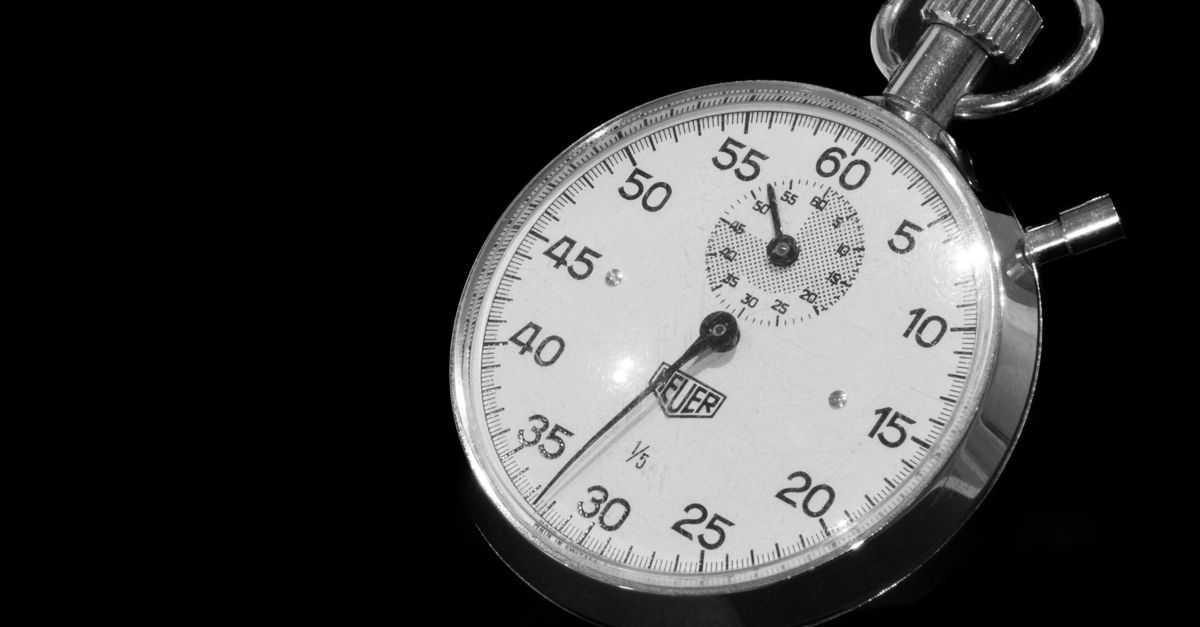
What an Online Stopwatch Does (and What It Doesn't)
A stopwatch answers one simple question: how much time has passed since I hit Start? Unlike a wall clock that just shows the current hour and minute, a stopwatch accumulates elapsed time only while it is running, so the reading reflects the time you spent on a specific activity rather than the time of day. Unlike a countdown timer that runs from a fixed duration down to zero, a stopwatch has no preset end — it keeps climbing until you stop it.
The Online Stopwatch shows hundredths of a second (centiseconds) for the first hour, which is the level of resolution most physical stopwatches provide. For sprints, reaction drills, plank holds, or any interval under a minute, that extra digit is the difference between a useful measurement and a rounded guess. Once the elapsed time crosses one hour, the display switches automatically to an hours:minutes:seconds format so longer sessions stay readable.
Accuracy is handled with anchored timing rather than naive tick counting. The tool records a high-resolution start reference and, on every refresh of the display, recomputes the elapsed time as the accumulated total plus the real gap since that reference. Because each frame is recalculated from the system clock instead of summing individual ticks, the reading does not drift, and it does not fall behind when the browser throttles a background tab. If you switch to another tab and come back, the display corrects itself to the genuine elapsed time. Pausing freezes the accumulated total precisely at the click, and resuming continues from that exact value.
When a Stopwatch Is the Right Tool for the Job
A stopwatch is the right tool whenever you do not know in advance how long an activity will take. That covers a surprising range of everyday tasks. Students and knowledge workers time focused study blocks or track exactly how long a task takes so they can plan better next time. Runners, swimmers, and cyclists time intervals, sprints, and full sessions. Cooks time a boil, a rest, or a brew without hovering over the oven clock. Public speakers and interviewees rehearse to a target length and watch the elapsed time climb. Anyone doing timed exercises, plank holds, breathing routines, or workout circuits can glance at the large display from across the room.
Choosing the right timer depends on whether the activity has a known length. The table below summarizes the three common browser timers and the situation each one fits.
| Timer type | Direction | Preset duration | Best for |
|---|---|---|---|
| Online Stopwatch | Counts up from zero | None | Open-ended activities where you do not know how long it will take |
| Countdown Timer | Counts down to zero | You set the duration | Fixed activities like a 10-minute presentation or a 25-minute meeting slot |
| Pomodoro Timer | Cycles through focus and break blocks | Built-in cycle (e.g. 25/5/15) | Structured work sessions with regular breaks |
If your goal is to measure elapsed time with optional lap splits, an online stopwatch gives you exactly that without forcing you to commit to a duration up front.
How to Use an Online Stopwatch Step by Step
For a first-time user, the whole flow takes about ten seconds from page load to first timed session. Follow these steps in order.
- Open the Online Stopwatch page in any modern browser. The large display starts at 00:00.00.
- Press Start to begin counting up from zero. The display shows minutes, seconds, and hundredths of a second ticking upward in real time.
- While the stopwatch is running, press Lap whenever you want to mark a split — for example, the end of a lap around the track, the completion of a problem set, or a key milestone in a task. The clock keeps running and the lap list gains a new row at the top.
- Press Pause to freeze the reading when you need a break or want to record the current value. The display stops advancing but keeps the accumulated total visible.
- Press Resume to continue exactly where you paused — the elapsed time picks up from the frozen value without resetting.
- Press Reset to clear the elapsed time and the entire lap list back to zero for a fresh measurement.
For a single timed activity you only need Start and Pause. The Lap and Reset buttons become useful once you start tracking segments, comparing runs, or running multiple sessions in a row.
Reading the Lap List: Split vs. Total
The Lap feature is what separates a stopwatch from a plain clock. While the timer is running, pressing Lap freezes the current moment without stopping the clock, so the main counter keeps advancing. Each lap records two numbers:
- Split — how long that individual segment took, measured from the previous lap (or from Start for the first lap).
- Total — the cumulative time since you pressed Start.
Together those two values let you compare segments directly: which lap of a run was fastest, how long each phase of a multi-step task took, or where a rehearsal ran long. The lap list is ordered newest-first, so the most recent split is always at the top and you do not have to scroll to see it.
If the printed display passes the hour mark, the readout changes format, but the lap values stay in their own split-and-total columns. Reset clears the laps along with the main timer, so the next session starts from a clean slate.
Practical Tips for Your First Run
A few small habits make a beginner's first sessions go smoothly.
- Bookmark the page. Treat the stopwatch like a fast utility you can call up in a new tab. Keeping it one click away reduces the temptation to reach for a phone and keeps your timing flow uncluttered.
- Use Pause, not Reset, for short interruptions. If you step away to answer the door mid-task, Pause freezes the elapsed time at the click and Resume continues from that exact value. Reset would zero out your progress.
- Glance-test the display. The large readout is designed to be readable across a room, so for plank holds or rest intervals you do not need to keep the tab in focus — the display stays accurate when you switch back.
- Plan your lap triggers in advance. For a workout circuit, decide which exercises count as laps before you press Start. Pressing Lap at consistent landmarks gives you comparable segment times at the end.
- Keep the page open during long sessions. Because everything runs in the browser tab, closing or refreshing the page resets the timer. Leaving the tab in the background is fine — the anchored timing logic handles background throttling for you.
Privacy and Offline Use
Everything the Online Stopwatch does happens locally in your browser tab. There is no account, no sign-in, and no network request after the page has loaded, so your timing and lap data never leave your device. That makes the tool useful for sensitive situations — recording how long a confidential meeting actually ran, timing a private study session, or measuring a personal workout — without wondering whether a record of it is being sent somewhere.
Once the page has loaded the first time, the stopwatch also keeps working if you lose your internet connection. That offline behavior matters in places like kitchens, basements, gyms, or airplanes where connectivity is unreliable but timing still needs to happen.
For a beginner, the practical takeaway is simple: open the page, press Start, and trust the readout. There is nothing to install, nothing to configure, and nothing waiting to be uploaded when you finish.
Related reading: Break Reminder Free No Sign-Up: How to Start One.