An online scoreboard maker lets you name two teams and keep a clear running tally with −1, +1, +2, and +3 controls in one browser tab. Online Scoreboard is a focused tool for that job: it gives Team A and Team B editable labels, large native controls, and high-contrast score displays. Scores cannot fall below zero, and each side is capped at 9,999,999. You can subtract one point, add one, two, or three, reset one team immediately, or clear both scores through a deliberate confirmation step. A reset changes scores without removing either team name. The result works well for a game, practice session, classroom activity, quiz, informal competition, or tabletop event when a straightforward two-team tally is enough. It does not synchronize with another device, apply rules for a particular sport, or preserve the result as an official record. That makes the setup direct: label both sides, confirm the display is at zero, use only the increments that match your event, and record the final result elsewhere if it needs to survive the browser session.
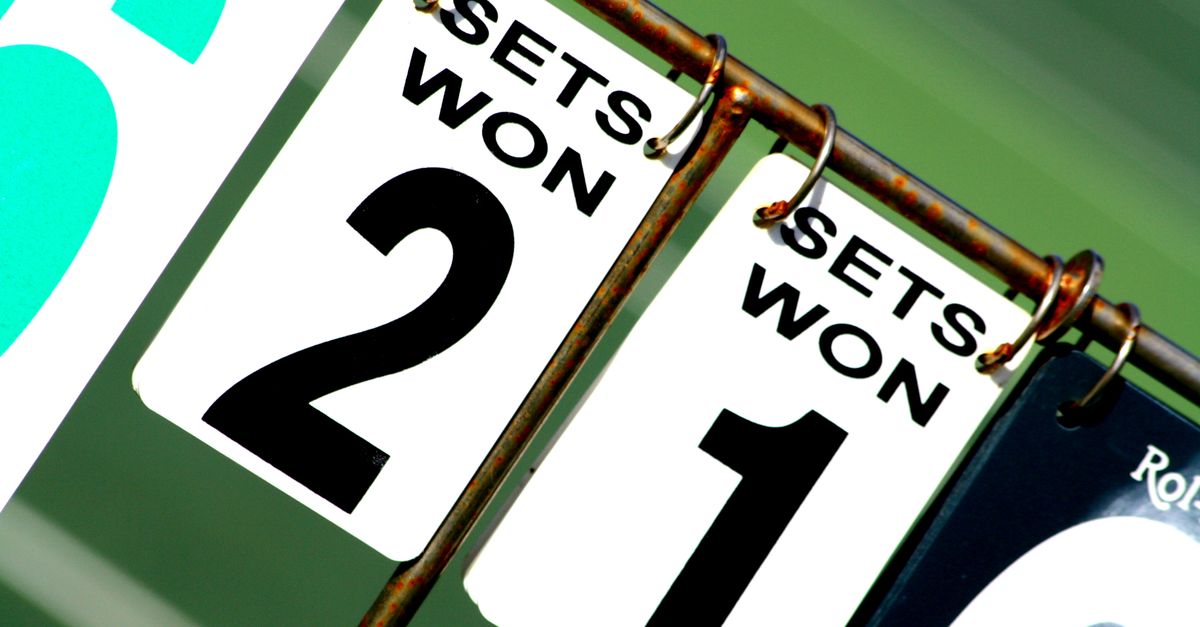
What this scoreboard maker creates
The working board is the finished product here. Set two display names, show both scores, apply one of four fixed adjustments, and use the reset controls when a new round or correction requires it. The tool requires no account and uses no database, remote room, or shared link. Team names, scores, and actions are not uploaded to Lizely. One operator can control the board on the device displaying it, but people using another device will not receive synchronized updates.
| Control | Defined behavior |
|---|---|
| Team name fields | Accept up to 40 ordinary characters. Empty or all-space labels temporarily use the fallback Team A or Team B name, while control characters are rejected. |
| −1 | Subtracts one point without taking a score below zero. The control is disabled when that score is already zero. |
| +1, +2, and +3 | Add the exact labeled amount. An addition that would cross 9,999,999 is rejected, and the interface reports that nothing was added. |
| Single-team reset | Immediately sets only that team’s score to zero. The other score and both names remain unchanged, and the control is disabled at zero. |
| Reset both scores | Requires a second press after the control changes to “Confirm reset both scores.” Confirmation sets both scores to zero while preserving both names; Cancel leaves the scores unchanged. |
The 9,999,999 ceiling is an explicit software safety limit, not a rule established by a sport or league. Likewise, the +2 and +3 buttons are generic conveniences rather than claims that an activity awards those values. A successful score change or a team-name change cancels a pending full-reset confirmation.
Set up and score each event
- Enter the two team names. Type a name into the Team A and Team B fields. Each can contain up to 40 ordinary characters. If a field is blank or contains only spaces while editing, its controls continue to use the appropriate fallback label. Control characters cannot be entered.
- Check the starting display. Before play begins, confirm that both scores read zero and that the displayed names or fallback labels identify the correct sides.
- Apply each scoring action with the matching button. Use −1, +1, +2, or +3 for the team receiving the point. Subtracting at zero leaves the score at zero. If an addition would take a score above 9,999,999, the attempt is rejected without changing the displayed score.
- Reset only the team that needs clearing. Its reset button immediately returns that score to zero without changing the other team’s score or either name. Use this when one side begins a new round while the other score should remain visible.
- Clear the entire board deliberately. Press “Reset both scores” once. The control changes to “Confirm reset both scores,” and a status message explains the pending action. Press the confirmation control to set both scores to zero while keeping the names. Cancel makes no score changes. A successful score change or rename also cancels the pending confirmation.
Correct a score or change a team name
The supported score adjustments are limited to −1, +1, +2, and +3. The −1 button is the point-by-point downward correction, but there is no general undo history. If one entire side should return to zero, its immediate reset is more appropriate than repeatedly subtracting. Neither reset type removes the team names.
Team labels can be edited during a session, but a rename clears older score notices, overflow errors, and any pending full-reset confirmation. This prevents feedback from an earlier action from appearing to describe the renamed state. Score-change buttons then use the current display name in their accessible labels. If a field is empty or contains only spaces during editing, Team A or Team B continues to provide an understandable fallback label.
Operate the board with a keyboard
The name fields are native text inputs, while scoring, resetting, and confirmation controls are native HTML buttons. Normal browser keyboard behavior therefore applies: Enter or Space can activate a focused button. MDN’s guide to the HTML button element explains the behavior of this standard control type.
Every score-change button has an accessible label containing its operation and the team’s current display name. The score output has a matching accessible label, while status messages use a polite live region so updates can be announced without interrupting the user. MDN’s ARIA live-region guidance describes the purpose of this announcement pattern. When a score reaches zero, the disabled subtract and single-team reset controls communicate that it cannot be reduced or reset further.
Keyboard focus follows the visible order: team name, score buttons, team reset, and then the global reset area. For a displayed game or classroom activity, designate one person to operate the board and announce corrections whenever the minus control is used.
Keep the session in the current tab
Names, scores, and actions are not uploaded to Lizely, but that privacy comes with a clear limitation: the board is temporary. State stays in the current browser tab and is not written to localStorage. Reloading the page, closing it, or navigating away resets the names and scores to their defaults. The labels are display names only; they do not identify users, create profiles, or connect the board to another device.
Do not rely on this scoreboard as the only record of an important result. A browser crash, power loss, dispute, or official review can occur without a recoverable board history. The tool has no referee lock, audit trail, undo history, or tamper evidence. Record important results independently as play proceeds. A screenshot can capture a moment, but it is editable and should not be treated as authoritative evidence.
Match the board to the event
The strongest choice is an activity that needs a visible, generic point tally rather than a complete competition system. Use the fit comparison below before deciding that this online scoreboard maker matches the job.
| Need | Online Scoreboard fit | Reason |
|---|---|---|
| Simple two-team scoring | Good fit | It displays two editable names and supports generic one-, two-, or three-point additions. |
| Sport-specific scoring | Not suitable by itself | It does not track goals, sets, innings, fouls, possession, periods, clocks, serving order, handicaps, tie-breaks, or winning conditions. |
| Remote or synchronized viewing | Not suitable | There is no remote room, shared link, or multi-device synchronization. |
| Timing, penalties, or player statistics | Use another system | Those details fall outside this two-score display and should remain in a purpose-built timing or record system. |
| Official or permanent result keeping | Not suitable | The board does not persist its state or provide locking, history, or tamper evidence. |
Use only the increments that are appropriate for the event. The +2 and +3 controls do not determine scoring policy, and the upper score limit does not represent a competition rule. Keep separate clocks, penalties, player statistics, or official score sheets in systems designed to record them.
Check the setup before play
- Enter concise team names that are easy to distinguish.
- Verify that both scores begin at zero.
- Make a short test change with the adjustments you expect to use. If testing −1, begin with a score above zero.
- Run the confirmed full reset and verify that both scores return to zero without removing the names.
- Assign one operator and establish a clear way to announce corrections.
- Keep the screen awake if the board will be displayed at a venue.
- Maintain an independent record whenever the outcome matters after the browser session ends.
With those boundaries in mind, this online scoreboard maker provides a direct way to create and operate a two-team display without account setup, sport-specific assumptions, or a shared-link illusion.
For a deeper look, see Pomodoro Timer on Laptop: Run Focused Work Cycles.
For a deeper look, see Are My Receipt Details Uploaded When Using Receipt Maker?.