An online countdown timer alternative is a browser-based tool that counts down from a chosen duration to zero and signals when the time is up.
“Alternative” can mean two things: a browser-based replacement for a physical timer or installed app, or a different timekeeping tool that better matches the task. A countdown handles a known duration. A stopwatch measures elapsed time, while a Pomodoro timer organizes a repeatable work-break routine.
For a single deadline of a few seconds or several hours, a flexible browser countdown is the most relevant option. The key is to select the format that matches what you need to measure.
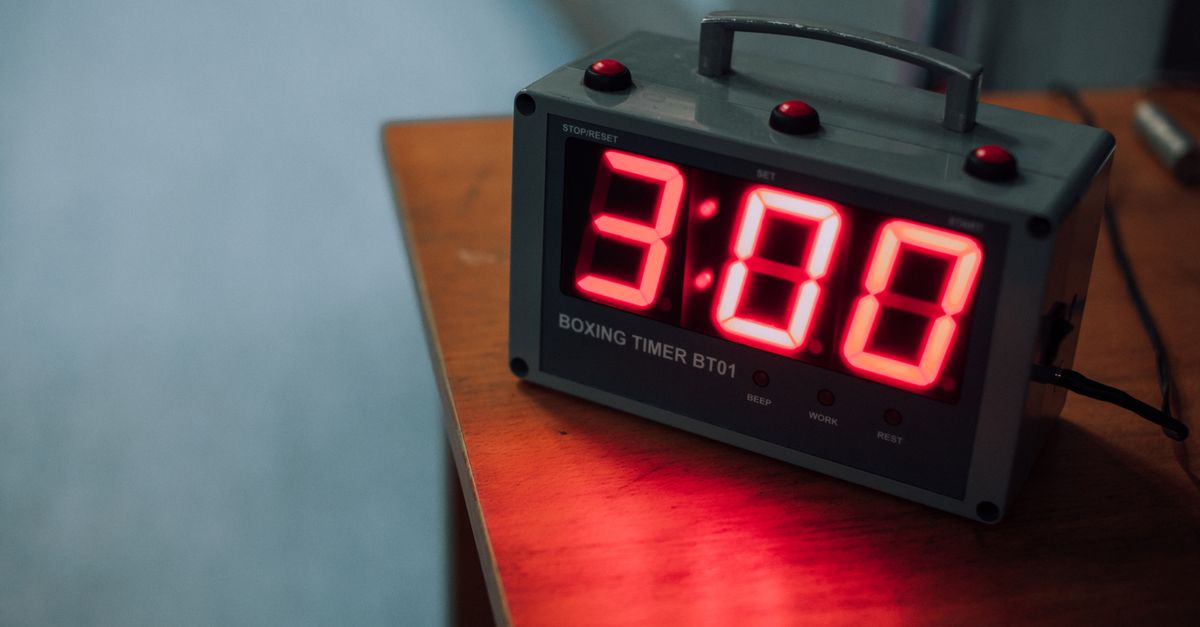
The Alternatives at a Glance
The useful comparison is not simply which tool has the longest feature list. It is which one measures the right thing and remains practical for the environment where you need it.
| Option | How it counts | Best fit | Main distinction |
|---|---|---|---|
| Browser countdown | Down from a chosen duration | A known deadline or fixed-length task | Flexible custom duration with no installation |
| Stopwatch | Up from zero | Measuring how long an activity took | Measures elapsed time rather than time remaining |
| Pomodoro timer | Through fixed work and break phases | A repeatable focus routine | Provides a structured cycle instead of one deadline |
| Physical timer | Down from a set duration | Kitchen or shared timing | Uses a separate dial or device |
This separates a format alternative from a functional alternative. A browser countdown still counts down, but it can replace an installed application without requiring an account. A stopwatch or Pomodoro timer solves a different problem because it changes how time is measured or structured.
Choose by the Job You Need to Finish
Start with the result you want from the timer, then work backward to the appropriate format.
- You have a known duration: Use a countdown to track the remaining time toward a specific endpoint, such as a cooking period, presentation slot, workout interval, or study sprint.
- You do not know when the task will finish: Use an online stopwatch, which counts upward from zero to measure elapsed time.
- You want a repeatable work-break routine: Use a Pomodoro timer when fixed focus and break phases are more useful than one adjustable countdown.
- You need a dial visible away from a computer: Consider a physical timer, especially when a separate kitchen device is more practical than monitoring a browser.
- You want to avoid installation: Use a browser countdown, which opens without an account and keeps the timing controls together in one page.
For most one-off deadlines, the flexible countdown remains the simplest choice. Its purpose is not to replace a stopwatch or a structured Pomodoro cycle; it is to give a single task a visible, adjustable finish point.
Set Up the Browser Countdown for a Fixed Deadline
For a general-purpose deadline, open the Online Countdown Timer and follow this workflow:
- Set the duration. Enter the hours, minutes, and seconds you need, or select a quick preset for 1, 3, 5, 10, or 15 minutes. For longer deadlines, you can enter hours up to 99 along with your chosen minutes and seconds.
- Press Start. The large display begins counting down toward 00:00. While the timer is running, the duration inputs lock so a stray tap cannot change the deadline.
- Pause or continue as needed. Press Pause to freeze the remaining time and Resume to continue. You can switch to another browser tab; when you return, the display recalculates the true time left instead of falling behind.
- Respond at zero and reset when needed. At 00:00, the page displays “Time’s up!” and plays an optional short beep if your browser permits sound. Press Reset to return to the original duration and start again.
This workflow covers both short intervals and extended deadlines without changing the basic controls. A preset provides a quick starting point, while the exact fields let you fine-tune the duration when the task does not match a round number of minutes.
Local Processing, Connection Independence, and Privacy
The countdown is designed to remain accurate because it records a high-resolution anchor timestamp when you press Start and recalculates the remaining time against real elapsed time on each tick. Briefly switching tabs or locking the screen therefore does not make the timer drift. The display corrects itself when you return.
All processing happens locally in the browser with JavaScript. There is no server round-trip, so nothing you enter is uploaded, stored remotely, or tracked. Once the page is open, the timer can continue working on a flaky connection or offline. No sign-up, installation, or account is required, which also makes the browser workflow a practical alternative to downloading a separate timer application.
Match the Countdown to the Activity
Once the format is settled, choose a duration based on the task’s own rules. The countdown does not determine how long an activity should last; it gives you a consistent way to enforce the limit you already have in mind.
| Activity | How to use the countdown | What it helps control |
|---|---|---|
| Kitchen tasks | Set the duration specified for cooking, steeping, or baking | Helps prevent overcooking or leaving food unattended too long |
| Workouts | Time an interval, plank hold, rest period, or round | Keeps each part of the session on schedule |
| Teaching and presentations | Set a speaking or activity slot | Makes the planned finish visible to the room |
| Studying | Choose the length of a practice test or study sprint | Creates a firm boundary around focused work |
| Remote work | Time-box a work session or cap an agenda item | Shows when the allotted period has ended |
| Family and games | Set limits for screen time, tooth-brushing, tidy-up races, or a move clock | Turns a shared rule into a visible deadline |
Use the exact duration required by the recipe, lesson, workout, or schedule rather than choosing a round preset automatically. A physical timer may still be preferable when you need to move away from the device or see the remaining time from another part of the room.
Limits That Affect Your Choice
Check these practical boundaries before relying on a browser countdown:
- It lives in a browser tab. Switching tabs is supported and does not cause drift, but the verified behavior does not cover continued operation after the page is closed. Keep the page open if you depend on its display or alert.
- Sound is optional. The visual “Time’s up!” message is clear, but the beep depends on what your browser permits.
- It is a duration timer. It does not count upward like a stopwatch or automatically impose a Pomodoro-style cycle.
- Its inputs lock during a run. This protects the selected deadline, and Reset returns you to that duration for another run.
- Long durations are supported. Hours can be set up to 99, while minutes and seconds can be entered directly for the precise endpoint.
These limitations make the tool best suited to deadlines monitored on the current device. For a guaranteed native lock-screen alarm or a timer shared across several people, choose a solution built for that specific job instead.
Make the Decision in One Pass
Choose a stopwatch when the question is “How long did this take?” Choose a Pomodoro timer when the question is “How should I organize repeated focus and break periods?” Choose a physical timer when a separate dial is preferable. When the question is simply “How much time remains before this task must end?”, a browser countdown is the direct fit: set the duration, start the display, and rely on the zero-time alert.
Related reading: Pomodoro Timer on Windows: Run 25/5/15 Cycles.
Related reading: Text to Speech Alternative for Draft Playback.