An online clock alarm is a browser-based alert that activates at a chosen time. Online Clock is instead a live display of the device’s current local time and does not set, ring, or send an alarm. Use Online Clock when you need a readable desk clock, meeting-room display, study reference, presentation check, event companion, or second-screen time view. Its main panel combines an analog face and a digital readout with the English local date and the time-zone name resolved by your browser. You can select 12- or 24-hour formatting, show or hide seconds, and request a larger fullscreen view. Those controls change how the same browser-supplied time is presented, not the device clock itself. If your real goal is to be notified at a target time, use the dedicated Online Alarm Clock instead: this display page has no alarm, notification, or scheduled alert.
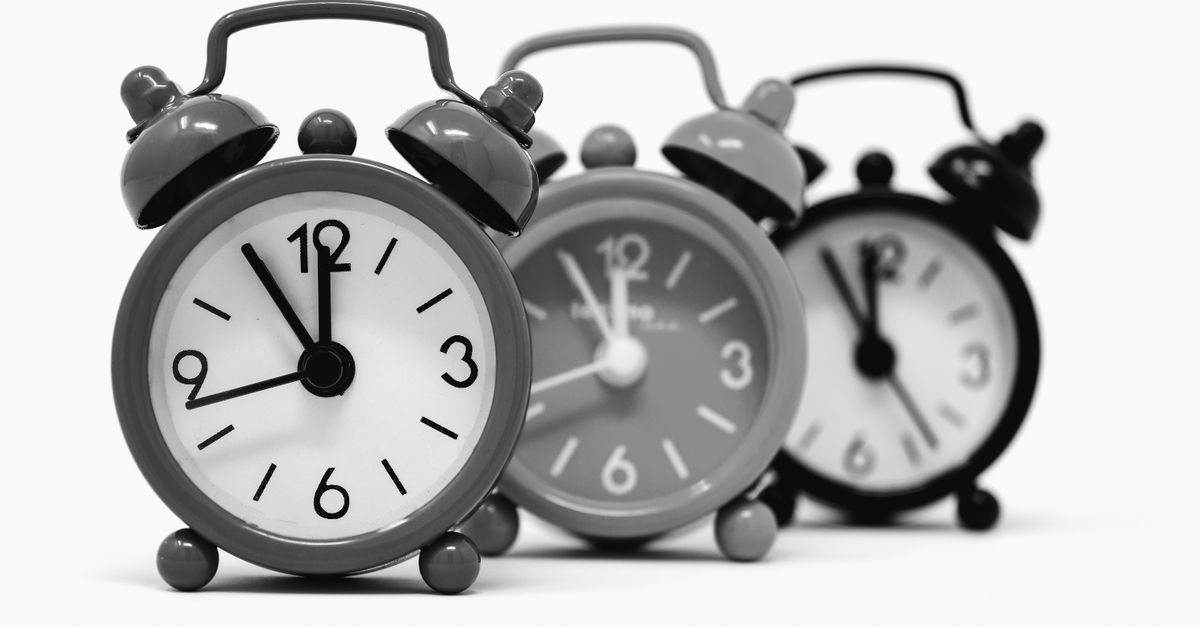
Choose a display or an actual alert
The search phrase can describe two separate jobs: seeing the current time and being notified at a chosen time. Match the tool to the result. A live clock face can be useful during a meeting, lesson, presentation, or timed activity, but it cannot alert you when a target time arrives.
| What you need | Right tool | Reason |
|---|---|---|
| Read the current device-local time | Online Clock | Provides matching analog and digital displays with the local date and zone. |
| Receive an alert at a chosen time | Online Alarm Clock | Dedicated tool for alarms. |
| Compare several locations | World Clock | Use for comparing several locations. |
| Measure elapsed duration | Online Stopwatch | Use for elapsed timing. |
| Track a remaining duration | Online Countdown Timer | Use for remaining duration. |
Online Clock is the appropriate choice when a readable current-time display is the finish line. Changing its hour format, seconds setting, or fullscreen state cannot add an alert function. If being notified at a specific time is essential, choose the dedicated alarm tool instead.
Set up and verify the local display
- Open and verify the page. Open Online Clock and confirm that the displayed local date and browser-resolved time-zone name match the settings of the device you intend to use. The zone label may be a region name or a generic local-zone fallback, depending on platform support.
- Set the display. Choose 24-hour time if preferred, or retain 12-hour time, and then show or hide seconds. The analog and digital displays use the same browser Date reading. These preferences affect presentation only; they do not change the underlying device time.
- Enlarge the view and know how to exit. After confirming the date and zone, select Enter fullscreen for a larger display. If the browser accepts the request, use the browser’s normal Escape key or fullscreen control to leave the mode.
Select the hour system your audience understands and decide whether seconds provide a useful reference or add distraction. Entering fullscreen only after verification keeps the date and zone check from being overlooked.
Read the format and analog face accurately
Online Clock supports two explicit digital formats. Its date and time information all come from the same local browser reading rather than separate clock inputs.
| Display choice | Exact behavior |
|---|---|
| 12-hour mode | Midnight appears as 12 AM, noon appears as 12 PM, and other hours use 1 through 11 with an AM or PM suffix. |
| 24-hour mode | Hours range from 00 through 23 and include a leading zero. |
| Seconds shown | The analog second hand and digital seconds field are visible. |
| Seconds hidden | The visible second hand and seconds field disappear, while the minute and hour hands continue including the current fractional time. |
| Date and zone | The panel shows an English weekday, month name, day, year, and the browser-resolved local time-zone name. |
Minutes and optional seconds always use two digits. The page updates four times per second so the second hand can move smoothly, while the digital display changes only when its visible fields change. Analog hand positions are calculated from the same Date object as the digital readout: the second hand includes milliseconds, the minute hand includes fractional seconds, and the hour hand includes fractional minutes. Hiding seconds therefore changes what you see without freezing the remaining analog hands.
Verify the source before trusting the display
Online Clock displays the current time reported by the browser and device, so accuracy depends entirely on their clock and time-zone configuration. The page does not contact a network time server, compare time-zone offsets, correct drift, update daylight-saving rules, or certify legal time. Selecting another display format cannot repair an incorrect source reading.
If the displayed time is wrong, review the device’s date, current time, automatic synchronization, and time-zone settings. Changing the operating-system zone while the page is open should affect later Date readings as the browser exposes the change, although a refresh may be necessary on some platforms. The zone label itself can be a region name or a generic local-zone fallback. Online Clock contains no country list, city-to-zone map, daylight-saving table, or maintained offset dataset. For the separate task of comparing current times in several locations, use the World Clock instead.
Understand what fullscreen does
Fullscreen is a request made to the browser, not a forced operating mode. It usually requires a direct user action and can be unavailable or denied by browser policy, an embedded page, device restrictions, or user settings. When the request is rejected, the page keeps a visible error rather than pretending that the larger mode activated.
A successful fullscreen request enlarges the clock presentation, but the widget does not hide system controls, prevent the device from sleeping, lock orientation, or behave as an operating-system screen saver. It can serve as a desk clock, meeting-room display, or second-screen reference while the tab remains open and the device stays awake. Closing the tab ends the display.
Make a final reliability and use-case check
Online Clock fits activities that need a shared or easily visible current-time reference, including a desk clock, study display, event countdown companion, presentation time check, or second-screen clock. Choose the format that suits the people using it, decide whether seconds help, confirm the English date and zone label, and enter fullscreen last. It can accompany a countdown, but it cannot perform the countdown itself.
The tool requires no account and has no server-side history, location request, or background service. The clock does not upload the displayed reading, resolved zone, display preferences, or fullscreen action. Keep the distinction between a clock and an alarm clear: for a target-time alert, use the dedicated Online Alarm Clock; for elapsed time, use the Stopwatch; and for a remaining duration, use the Countdown Timer.