An online alarm clock for laptop is a free browser tool that shows your laptop's current local time, ticks live every second, and rings with both an on-screen banner and a repeating beep at the exact minute you choose — all without installing software or creating an account. You open a single tab in Chrome, Edge, Firefox, Safari, or any modern browser, pick when you want to be reminded, and the page does the rest entirely on your own machine. For laptop users who already live inside a browser all day, this kind of tool turns any tab into a dependable reminder in seconds. It is faster than digging through a dedicated desktop alarm app, lighter than installing a system utility, and more transparent about its limits than a sketchy download. The live clock at the top of the page always reads your laptop's local time in 24-hour format, so the alarm you set matches the clock on the wall, the time on your phone, and the meeting link in your calendar with no math required.
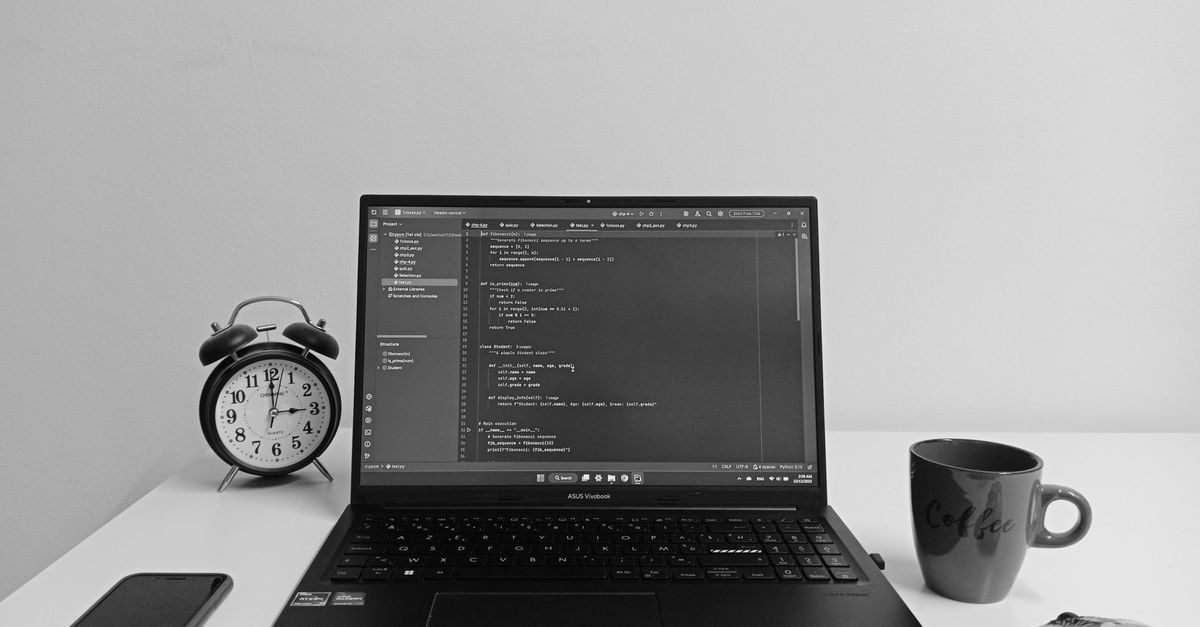
Why a Browser-Based Alarm Fits a Laptop
Laptops spend most of their working life in a browser tab. Email, chat, dashboards, and even video calls all live there, so a tool that also lives in a tab fits naturally into the rest of the workflow. Adding an alarm clock should not require a separate install, a system permission, or a monthly subscription, and a browser-based alarm clock removes all three of those steps. You open the page, set a time, and the alarm is armed.
Because the page is a normal website, it works the same on Windows, macOS, ChromeOS, and Linux laptops. It also runs in any modern browser, including the one already pinned to your taskbar. There is nothing to update, no driver to maintain, and no startup item to manage. When you close the tab, the tool is gone. When you reopen it, the page is fresh again.
A second benefit is local-time accuracy. Laptops travel between home, the office, a coffee shop, and a hotel room, and they pick up the right time zone as you move. An online alarm clock that reads from your laptop's clock will ring at the same minute your phone and your wall clock say it should, without any time-zone math on your part.
What the Online Alarm Clock Does on Your Laptop
The page does two simple jobs and does them well. The first job is to show your laptop's current time as a large, glanceable clock that updates once per second in HH:MM:SS format. You can keep the tab open in the corner of your screen as a desk clock even when you are not setting an alarm.
The second job is to ring at the exact minute you choose. When the moment arrives, the page shows a bold on-screen "Alarm!" banner, plays a repeating beep through your browser's audio engine, and displays the label you typed so you know what it was for. You stop it with Dismiss, or push it forward five minutes with Snooze.
Behind the scenes, the comparison between the current time and your chosen time runs in your browser. Nothing you set is uploaded, and no account is required. You can read a deeper look at the inputs and the single-tab design in the online alarm clock accuracy guide.
How to Set an Alarm on Your Laptop
- Open the Online Alarm Clock page in a new browser tab on your laptop.
- Read the live clock at the top of the page to confirm it matches the time on your laptop's taskbar or menu bar.
- Use the time picker to choose the hour and minute you want to be reminded at.
- Optionally type a short label such as "Standup," "Stretch," or "Bread out of oven" so the alarm banner reminds you why it rang.
- Click Set alarm. The status line below the controls will confirm the exact target time so you can sanity-check it.
- Leave the tab open and keep your laptop awake. When the minute arrives, the page shows the on-screen banner and starts the beep.
- Press Dismiss to stop it, or Snooze to ring again five minutes later.
If you need to change a running alarm, switch it off and set a new one. The alarm only fires once for the target minute, so it will not stutter or double-trigger if you leave it alone.
Common Laptop Uses for a Browser Alarm
Laptop workdays are full of soft deadlines that no calendar reminder quite catches. A browser alarm fills the small gaps between meetings, focus blocks, and breaks, and it is private enough that the times you set never leave your device.
| Laptop use case | How a browser alarm helps |
|---|---|
| Timeboxing focused work | Ring at the end of a 25-, 50-, or 90-minute block to take stock and reset. |
| Joining a video call | Nudge you a minute before a meeting so you can switch tabs and unmute on time. |
| Pacing workouts | Mark rest intervals, round changes, or a hard stop on a session. |
| Cooking near the laptop | Ring when bread comes out of the oven or water reaches a boil. |
| Power nap during the day | Wake you after a short, fixed rest without spinning up a phone alarm. |
| Leaving for an appointment | Ring with enough lead time to wrap up and walk out the door. |
| Watching a parking meter | Remind you to top up the meter before the time runs out. |
For work blocks you want to keep repeating, you can pair the alarm with a Pomodoro Timer in another tab so the cycles run on their own. For a one-off short countdown, an online countdown timer in the same browser covers that gap without needing a separate install.
Limitations to Know Before You Rely on It
A browser-based alarm clock has a clean trade-off. It is private, fast, and free, but it only works as long as the page is open and the laptop is awake. If you close the tab, quit the browser, or let the laptop sleep or lock, the alarm cannot sound. That is a real limit for anyone who wants to use it as their primary wake-up alarm.
For non-critical reminders during the work day, the limit is fine. Keep the laptop plugged in, raise the lid, and disable the automatic sleep timer so the screen stays on. You can use a keep screen on tool in another tab if your power settings are aggressive, which buys you a local wake lock while the alarm page is visible.
Browsers also gate audio behind user interaction, so the first click on the page is what enables the beep. As long as you press Set alarm with a real mouse or keyboard press, the sound will play at the target minute. If you switch tabs and mute the laptop, the on-screen banner will still appear, which is a quiet fallback when audio is unavailable.
Quick Troubleshooting for Laptop Users
If the alarm did not ring, run through this short list before assuming the tool is broken.
- Confirm the tab is still open and the browser has not been quit or refreshed by an update.
- Check that the laptop is awake and unlocked. Sleep, hibernate, and lock screens all stop the timer.
- Verify the time picker is set for the right half of the day. The clock uses 24-hour format internally, so 13:00 is 1 PM and 00:30 is half past midnight.
- Make sure the laptop's volume is up and not on mute, since some laptops default to a low or muted state after sleep.
- If the page looks frozen, refresh once to re-arm the live clock, then set the alarm again.
For anything truly critical, pair the browser alarm with a backup. A phone alarm, a smart speaker routine, or a hardware clock can cover the moments when a laptop goes to sleep or the lid closes. The browser tool is the fastest way to set one off; it is not meant to be the last line of defense for a wake-up you cannot miss.