A browser-based online alarm clock for heavy sleepers runs entirely in a single browser tab, rings at the exact minute you choose with a repeating sound plus a bold on-screen "Alarm!" alert, and requires nothing to install or sign up for. The tool combines a glanceable live clock — ticking once per second in your device's local time in 24-hour HH:MM:SS format — with an alarm scheduler that compares your chosen minute against the device clock. When the two match, the page plays a repeating beep generated by your browser's built-in audio, shows a large visible banner with your optional label, and keeps looping until you press Dismiss or Snooze. Because the clock reads your own device's time zone, the alarm you set matches the time on your phone and wall clock with no conversion math. Setting one takes two clicks: pick a time with the time picker, type a short label such as "Morning shift" or "Take medication" if you like, then press Set alarm. The status line confirms the target time. The whole interaction happens locally in your browser, so no alarm time, label, or label content is uploaded, logged, or shared. This makes it a fast, private, and reliable way to turn any tab into a heavy-sleeper-friendly alarm.
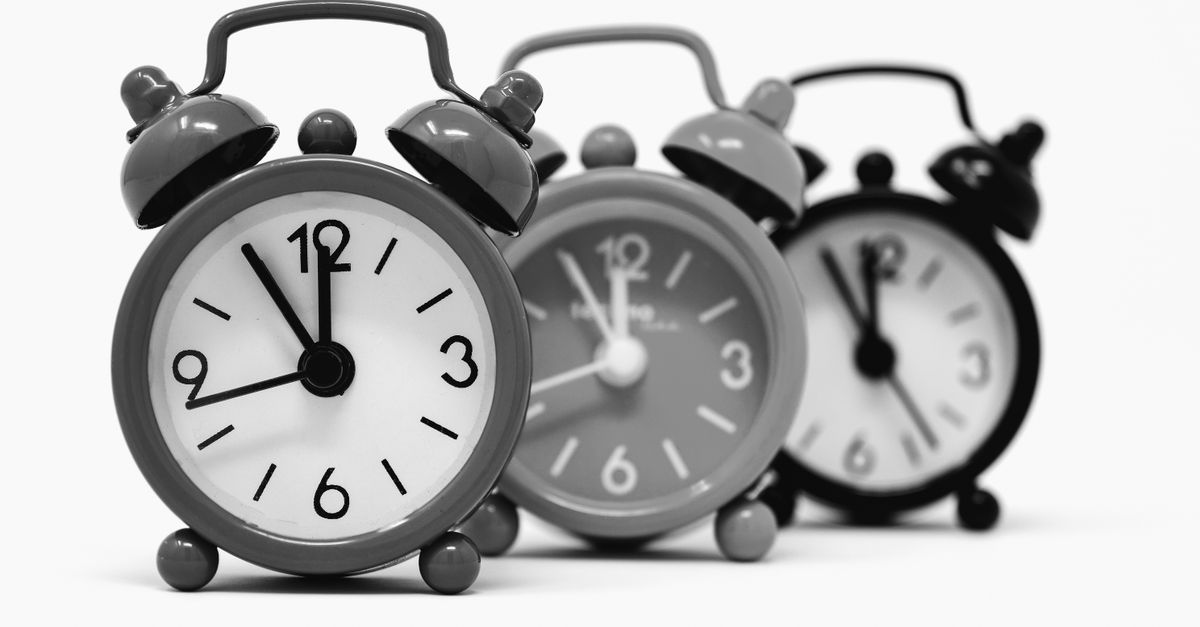
Why Heavy Sleepers Need a Different Alarm Strategy
Standard phone alarms fail heavy sleepers for predictable reasons: the device sits across the room, the sound is too short, or a half-awake hand finds snooze before conscious thought kicks in. A browser-based alarm can be set up on a laptop already open on your desk, kept visible next to the bed, or pinned on a second monitor. The repeating beep plays until you actively stop it, and the on-screen banner gives you a visual cue that does not depend on sound alone — useful if you share a room, wear earplugs, or sleep through quiet chimes.
The other advantage is repetition and visibility. Many built-in phone alarms stop themselves after a few seconds or a short loop. The browser alarm keeps playing and keeps showing the alert banner until you press a button, so even the deepest sleeper eventually sees or hears something. Pair this with the optional label, and the alarm can tell you exactly why it rang ("Morning meeting" or "Take insulin") instead of just ringing ambiguously.
What the Online Alarm Clock Actually Does
The tool does three things in one page, and understanding each part helps you get the most out of it as a heavy-sleeper alarm:
- Live clock. The current time sits at the top of the page, ticking once per second in 24-hour HH:MM:SS format using your device's local time. This makes the page useful even when you are not setting an alarm — keep it open as a large desk clock while you work, cook, or run a meeting.
- Alarm scheduler. You pick a target minute with a time picker, optionally type a label, and press Set alarm. The status line confirms the alarm is armed and shows the exact target time. The comparison runs in your browser, so the alarm fires at the minute you picked on the device clock.
- Hard-to-ignore ring. When the moment arrives, the page shows a bold on-screen "Alarm!" banner with your label, plays a repeating beep, and continues until you press Dismiss (to stop) or Snooze (to ring again five minutes later). The alarm fires only once for the target minute, so it does not stutter or double-trigger.
Everything runs locally. No data leaves your device.
Set a Heavy-Sleeper Alarm in Your Browser
The four-step workflow the tool supports, as designed for the page:
- Read the current time from the live clock at the top of the tool. It updates every second in your device's local time, in 24-hour HH:MM:SS format, so you can confirm your wall clock and the tool agree.
- Pick your alarm time with the time picker, and optionally type a short label so you remember what it is for — something like "Wake for shift," "Standup meeting," or "Medication."
- Press Set alarm to arm it. The status line confirms the target time. Keep this tab open and your device awake for the alarm to ring.
- When the alarm rings, press Dismiss to stop it, or Snooze to ring again in five minutes.
That is the entire workflow. Two clicks to set up, one click to stop. No app download, no account creation, no permission popups beyond what your browser already allows.
Tips to Make the Alarm Unmissable
A few practical adjustments turn the tool from a basic alarm into a heavy-sleeper alarm:
- Keep the tab visible. Move the browser window next to the bed or pin it on a second monitor. The on-screen banner is part of what makes the alarm work; tucked behind other windows, the alert still rings but is harder to notice at a glance.
- Prevent your device from sleeping. The alarm cannot ring if your computer locks or sleeps before the target minute. Adjust power settings to keep the display awake, or use a tool like the Keep Screen On browser wake lock while the alarm is armed.
- Use a label you cannot ignore. Instead of a generic "Alarm," type something specific that names the consequence of missing it — "Pay rent transfer," "Flight check-in," "Drive to school pickup." Reading the label is the second cue that wakes you up.
- Combine with a backup alarm. Browser alarms work best as a complement, not a replacement, for critical wake-ups. Set your phone alarm as a backup a minute later, or keep a separate physical alarm clock in range.
- Place the device across the room. If the laptop is what plays the alarm, put it far enough away that you have to stand up. Standing up is the most reliable cure for heavy sleep.
Common Heavy Sleeper Scenarios
The page covers most everyday timing needs without extra software. A few situations where heavy sleepers get real value from it:
- Waking for an early shift. Set the alarm for the minute you actually need to be vertical, then add a label like "Leave for 6am shift" so the message reinforces the wake.
- Naps. Set an alarm for 20 or 30 minutes if you tend to overshoot daytime naps and feel worse afterward.
- Medication reminders. If you take medication on a fixed schedule, the browser alarm acts as a backup to phone reminders, with a label that names the medication.
- Joining online meetings. Set an alarm three minutes before each meeting with a label like "Standup in 3 min."
- Cooking and kitchen timing. Set an alarm when you put something in the oven, label it "Bread out," and let the beep remind you without staring at the clock.
For flexible timing — like a 25-minute focus block followed by a 5-minute break — the page is best paired with a dedicated Pomodoro timer or an online countdown timer. The alarm clock is a single-event reminder; for repeating schedules, a different tool fits better.
Honest Limits and Backup Plans
The tool works inside a single browser tab, and that brings one clear limitation worth stating plainly: the tab must stay open and the device must stay awake for the alarm to ring. If you close the tab, quit the browser, or let the machine sleep or lock, the alarm cannot sound. For critical wake-ups — medical appointments, flight departures, anything where oversleeping has real consequences — this means the browser alarm should be one of several alarms, not the only one.
A few related facts from how the tool actually works:
- The alarm triggers only once for the target minute. It does not double-fire or stutter. Use Snooze for an intentional second ring five minutes later, or turn the alarm off and set a new time.
- The beep is generated by your browser's built-in audio. Browsers require a user click before playing sound, which is why pressing Set alarm (a click) enables the audio to play later.
- The current time, alarm time, and label all stay in your browser. Nothing is uploaded, logged, or shared, and there is no sign-up.
For more on what affects reliability — including time-zone handling, tab focus, and power settings — the online alarm clock accuracy and reliability guide walks through each variable.
Browser Alarm vs Phone Alarm for Heavy Sleepers
| Feature | Browser alarm clock | Phone alarm |
|---|---|---|
| Install needed | No — opens in any tab | Built in |
| On-screen alert | Bold "Alarm!" banner with optional label | Standard notification |
| Repeating ring | Yes, keeps looping until dismissed | Varies by phone and app |
| Snooze | Built in, fixed 5 minutes | Built in, configurable |
| Works if device sleeps | No — tab and device must stay awake | Yes — phone wakes independently |
| Time zone handling | Reads device local time | Reads device local time |
| Privacy | Runs locally, nothing uploaded | Runs locally, app-dependent |
The two tools cover different jobs. Phone alarms are the reliable primary wake-up because phones wake themselves from screen-off to play sound. Browser alarms are most useful as a backup or as a "wake up and start your day" reminder that lives on the device already open next to your bed — a laptop acting as your alarm clock, kitchen timer, and meeting reminder all at once.
For a deeper look, see Clock With Day, Date, and Time on One Screen.