A mouse test for a laptop is a browser button-event check followed by the same deliberate button sequence in the application where the problem occurs.
The browser pass records mouse button-down events delivered to the test target, while the application pass shows whether that program responds to the same button. This separates an event-mapping question from a hardware diagnosis.
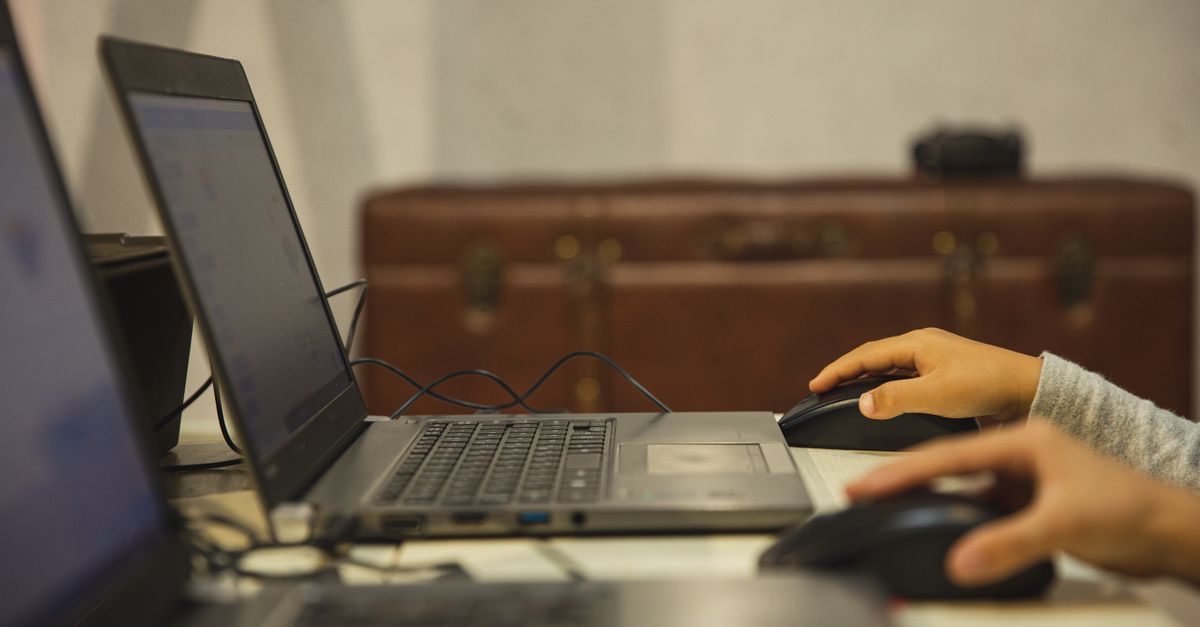
What the browser test can confirm
The Mouse Tester listens for mouse button-down events inside a large dashed target. Every accepted event increases a total, the count for its named Web button code, and a Recent list containing the latest eight accepted labels. The narrow result is whether the browser delivered that press to the test area and how the event was classified.
According to the MDN MouseEvent.button reference and the W3C Pointer Events specification, the standard named values are:
| Button code | Web label | Common meaning |
|---|---|---|
| 0 | Primary | The main activation button; its physical side can be changed by operating-system settings. |
| 1 | Auxiliary | Commonly a middle or wheel-button press. |
| 2 | Secondary | The button classified as secondary by the Web event model. |
| 3 | Back | Commonly an extra history-navigation button when the browser exposes it. |
| 4 | Forward | Commonly an extra history-navigation button when the browser exposes it. |
These labels describe Web event roles rather than guaranteed physical positions. Primary usually means the main activation button, but an operating system can assign that role to the physical right button. Back and Forward also depend on the device and browser exposing those buttons.
MouseEvent.button identifies the button associated with a press or release event, while MouseEvent.buttons is a bit field representing buttons currently held during other mouse events. Mouse Tester listens to button-down events and classifies the single button code on each accepted event. It does not reconstruct a continuous held-button state or test simultaneous button chords.
Any other integer code remains labeled as Unknown with its numeric value rather than being forced into one of the five names. Fractional values are rejected because the documented mapping uses integer codes. Preserving an unexpected value helps with comparison, but it does not identify which driver, extension, or input layer produced it.
Prepare a reliable laptop test
Use the same mouse and connection you rely on in the failing workflow. If you are checking a laptop's built-in pointing device, keep the scope to button-down events the browser exposes; the tool is not a multi-finger gesture, pointer-movement, or scroll-wheel test.
Place the pointer inside the dashed target before pressing anything. The target suppresses its own context menu and auxiliary activation, so testing a secondary or middle button does not immediately replace the result. This reduces accidental actions within the target, but it cannot override higher-priority browser or operating-system behavior.
- Keep the affected application ready for a second pass instead of switching away during the browser baseline.
- Record which physical button your settings treat as primary, since left and right roles can be swapped.
- Test only buttons available on the mouse, pressing each one separately rather than holding several buttons together.
All counts remain in the current tab. The widget does not request a device identifier, install a driver, upload events, save a history, or listen outside the visible test target. Refreshing the page, closing the tab, or selecting Reset test removes the current state.
Run the mouse test on a laptop
- Open the test page and place the pointer inside the dashed target without clicking yet.
- Press the primary mouse button once, then wait for the total and Primary count to update.
- Press the middle or auxiliary button, secondary button, Back button, and Forward button one at a time, skipping any button your mouse does not have.
- For every event the browser delivers, confirm that the total and the matching named count increased and check the label's position in the Recent list.
- Repeat the same sequence several times, checking that the expected named count increases once for each deliberate press that reaches the target.
- Repeat the same button sequence in the affected application and record whether each button produces its expected program-specific action. Treat the application's response separately from the browser counters.
- Select Reset test to clear the browser-only session when you need a fresh baseline for the next pass.
A deliberate press that produces no matching count is inconclusive by itself. It means no matching event reached this page during the test; the browser, operating system, driver, extension, or remote software may have intercepted or remapped it. Resetting the counters provides a clean comparison but does not change the mouse, driver, or application settings.
Interpret the counters and Recent list
Read the three outputs together. The total shows how many accepted button-down events reached the target, each named count shows how many had a particular Web button code, and Recent shows the latest eight labels in the order received.
| Observed result | Supported interpretation | Next check |
|---|---|---|
| The expected named count rises once. | A matching event reached the target and was classified under that label. | Repeat the sequence to check consistency. |
| The total rises, but no known named count rises. | The page accepted an integer code outside the five named values and retained it as an Unknown numeric label. | Compare the numeric code with the affected application and any input-remapping settings. |
| No matching count rises. | No matching event reached this page during the test. | Repeat in the affected application without assuming the hardware switch has failed. |
| Several labels or counts appear for one physical press. | The browser delivered multiple accepted events. | Compare the behavior with a dedicated double-click test or manufacturer software. |
Recent is a short order log rather than a complete history. If one button produces multiple events, Mouse Tester can expose that pattern, but one browser session cannot isolate debounce, transport, driver, or application behavior. Use separate timing or hardware diagnostics rather than treating the counter as a repair diagnosis.
Handle remapped and intercepted buttons
Several layers can change the result before the page sees an event. A browser or operating system can intercept a button, Back and Forward can navigate history, extensions can remap input, accessibility software can synthesize events, and remote-desktop tools can alter codes. Preventing default behavior inside the target reduces accidental actions but cannot override higher-priority handling.
Application behavior can differ too. Games, design tools, browsers, and operating systems may bind extra buttons differently, which is why the same mouse should be tested in the application where the issue occurs. If the failure is specific to Windows 11, the Windows 11 mouse-button checklist provides an operating-system-level follow-up after the browser pass.
Know what the test cannot establish
Mouse Tester does not measure click speed, double-click interval, polling rate, button debounce, wireless latency, switch force, pointer movement, scroll-wheel deltas, or drag behavior. It also cannot certify accessibility, game suitability, or hardware condition. Those questions require different measurements and, in some cases, physical timing or device diagnostics that a normal web page cannot access.
A successful laptop mouse test means the expected button-down events reached the visible target with the expected Web labels. It does not prove that every application will bind those buttons correctly or that the mouse hardware is healthy. For application-specific actions, continue in the affected program; for suspected switch, debounce, transport, or driver faults, use manufacturer diagnostics.
If you're weighing options, CPS Test Without an App: Run It in Your Browser covers this in detail.