A package label is one line of identifying text placed in a measured cell on a printable sheet, and you can build that sheet at home on US Letter or A4 paper without uploading your list to any service. The Label Maker browser tool turns each non-empty line in your list into a single label, places those labels in a configurable grid on a printable page, and renders the whole sheet locally in your current tab. For shipping, storage, or small-batch product packaging, the workflow starts with one line per parcel and ends with a printed sheet on the paper in your printer tray. You choose the number of columns and rows, set the outer margin and the gaps between adjacent labels to match your sticker stock, paste your list, inspect the paginated preview, then print one plain-paper test before committing to a full run on stickers. Because the preview uses the same page dimensions and geometry that the print view will use, you can see how many labels fit on a sheet before opening the browser print dialog, and any list longer than one sheet automatically paginates to additional pages. The list, preview, and final printable sheet remain on your device unless you choose to print them, which is why this approach works well for recipient names, internal SKUs, and one-off packaging runs.
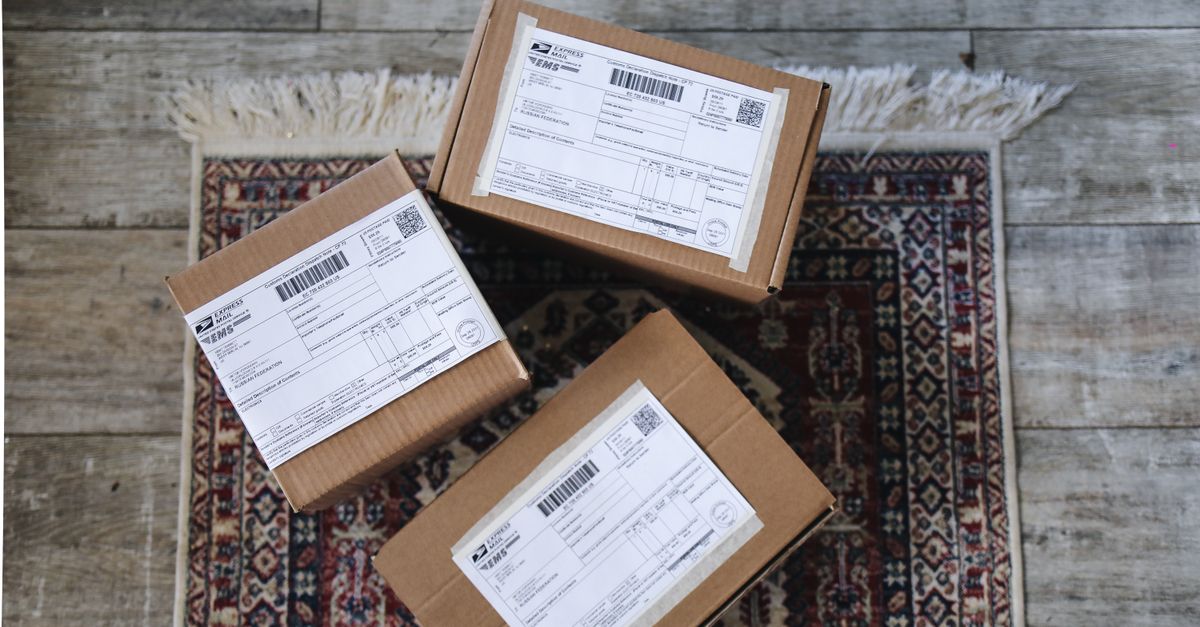
The packaging label workflow at home
When the goal is to make a label for a package, you usually already have the text ready: a recipient name and street, a bin number, a SKU, an order ID, a shelf tag, or a short description of what is inside the box. The hard part is laying out that text so each line lands on its own sticker without overflowing the page or drifting off-center. The Label Maker tool treats the problem as a grid problem. You declare how many columns and rows the sheet should have, how thick the outer margin should be, and how much empty space sits between adjacent labels. The tool then measures the page in inches, subtracts twice the outer margin and the gaps, and divides the remaining usable area evenly among the cells. The result is a clean printable sheet where each label has a calculated width and height, and the preview shows dashed cell boundaries so you can verify placement while you edit the list.
Empty lines in your list are ignored, so you can space your items visually while preparing a longer run without printing blank stickers by mistake. The product contract also makes clear that the tool refuses a grid when margins or gaps would leave no usable space or produce labels too small to be practical, because an apparently valid layout that overflows the paper is more frustrating than a direct warning before it reaches the printer. The label itself is centered inside its cell and wraps within that cell, which is well suited to ordinary one-line text but is not intended for complex multi-line address formatting, logos, QR artwork, or barcode graphics. For QR images, generate the QR first with a separate QR Code Generator and place it in a design program; for barcodes, use a Barcode Generator. The Label Maker focuses on a dependable, lightweight text grid that you can inspect and print immediately.
Pick a paper size, grid, and gaps that fit your stock
Start with the paper size in your printer tray. US Letter (8.5 by 11 inches) is the standard in the United States and Canada, while A4 (210 by 297 millimeters) is the standard in most other regions. Choosing the wrong paper size is the single most common reason a label sheet ends up misaligned, because the printed area and the printable sticker area no longer line up. Next, count the labels across and down on your physical stock. Common office sticker sheets are arranged 3 columns by 10 rows, 2 columns by 8 rows, or 4 columns by 6 rows, but the exact values depend on the manufacturer. Look at the unprinted sheet against a light source and you can usually see the cut lines; that gives you the true outer margin and the actual gap between stickers. Enter those values into the Label Maker tool and it will calculate the resulting label width and height. If the resulting cell is too narrow or too short for your text, you will see a direct warning rather than a silent overflow at print time.
Worked example for a 30-label US Letter sheet
Suppose you have a sheet of 3-by-10 mailing labels sized for US Letter paper. The standard cut for this stock leaves a 0.5-inch outer margin on all four sides and roughly 0.125 inches of empty space between adjacent stickers. Plug those values into the Label Maker tool and the math works out as follows. Usable width = paper width minus twice the outer margin = 8.5 − (2 × 0.5) = 7.5 inches. Horizontal gaps total = (columns − 1) × gap = (3 − 1) × 0.125 = 0.25 inches. Label width = (usable width − horizontal gaps) ÷ columns = (7.5 − 0.25) ÷ 3 = 2.4167 inches. For the vertical axis: usable height = paper height − (2 × margin) = 11 − 1 = 10 inches. Vertical gaps = (rows − 1) × gap = (10 − 1) × 0.125 = 1.125 inches. Label height = (usable height − vertical gaps) ÷ rows = (10 − 1.125) ÷ 10 = 0.8875 inches. Each cell is about 2.42 inches wide by 0.89 inches tall, the sheet holds 30 labels, and any list longer than 30 lines automatically continues on the next page. The tool divides the usable size evenly and paginates the trimmed non-empty input lines by columns times rows, so a 90-line list becomes exactly three printable sheets.
Build the package label sheet step by step
- Open the Label Maker tool in your browser.
- Choose US Letter if you are in North America or A4 if you are elsewhere, then enter the number of label columns and rows that match your sticker stock.
- Set the outer margin and the horizontal and vertical gaps to the values printed on the label stock packaging, or measure them with a ruler against a light source.
- Paste your list into the text area, with one label per line. For address labels, place each complete address on a single line if you want one label per address; for short identifiers, use one name, bin number, folder title, or inventory code per line.
- Inspect the paginated preview to confirm the labels fit, the cell boundaries look correct, and no text is being clipped.
- Print one plain-paper test page first, hold it behind one sheet of sticker stock against a light source, and adjust the margin or gap if the text does not land in the center of each sticker.
- Reload the sticker sheet in your printer, disable any browser headers or footers, use actual size or 100% scaling in the print dialog, and then print the full run.
Match the printed sheet to sticker stock or plain paper
The Label Maker preview uses the same page dimensions and geometry that the print view uses, so what you see is what you print, as long as your printer scaling is set correctly. The most reliable way to verify alignment is the plain-paper test. Print one sheet at 100% scale, then place it behind a fresh sticker sheet and hold both up to a window or a lamp. The text on the plain sheet should sit in the center of each sticker. If it drifts left, right, up, or down, the print head is starting from a different offset than the geometry assumes; small adjustments to the outer margin in the Label Maker tool will usually compensate. Disable browser headers and footers if your browser offers that option, because date stamps, page numbers, and URL footers will print on top of the labels and waste stickers.
Open the print preview, confirm the paper size matches your physical sheet, and select actual size or 100% scaling when the dialog gives you a choice. Per the MDN CSS paged media guide and the MDN Window.print reference, browser print scaling is governed by CSS @page rules and the user agent's print settings, so the print preview is the most reliable place to verify scaling before you commit to a full run of stickers. If your list needs more than one page, it is automatically split into separate sheets. The preview shows dashed cell boundaries as guides only, and those guides do not print, so they will not use ink or add unwanted lines to blank sticker stock.
Common packaging label jobs this tool handles well
The Label Maker tool is built around simple, one-line text per label, so it shines for the kinds of package-label tasks that come up at home or in a small office. Mailing labels, bin labels, file folder labels, product codes, event badges, and shelf tags all fit cleanly into the grid layout. The tool is not intended for QR code artwork, barcode graphics, regulated carrier labels, or multi-line address formatting where the layout matters line by line. For QR images, generate the QR first with a separate QR Code Generator and place it in a design program; for barcodes, use a Barcode Generator; for multi-line layouts, write each line on a separate sticker by hand. The table below summarizes the packaging jobs this tool handles well and the inputs you should prepare on each line.
| Packaging label job | What to put on each line | Notes |
|---|---|---|
| Mailing label | One full address per line | Best for short domestic addresses; for multi-line layouts, use separate stickers per address part |
| Storage or bin label | One bin number or short description per line | Use short codes to fit narrower cells |
| Product code | One SKU or inventory ID per line | Pairs with a barcode generated in a separate tool |
| File folder label | One folder title per line | Keep titles short so they fit on one line |
| Event badge | One attendee name per line | Use a sheet with fewer rows for larger badges |
| Shelf tag | One shelf or category name per line | Test alignment against the shelf edge after printing |
What stays on your device during the run
Because the Label Maker tool renders the sheet locally in your current browser, the list, the preview, and the final printable output never leave your device unless you choose to send them to your printer. That matters when you are working with recipient names, order IDs, or internal SKUs that you do not want to upload to a remote service. The product contract is explicit on this point: the final sheet is not a downloaded document or an uploaded form. Keep the test sheet and your original list until the run is complete, in case you need to reprint a damaged sticker or adjust the layout for the next batch. The dashed cell boundaries you see in the preview are guides only and do not print, so they will not add unwanted lines to blank sticker stock or use ink you did not plan to spend. For routine local organization, this gives you a fast, private path from a simple list to measured printable pages.
For a deeper look, see How to Use a To-Do List in Teams — A Browser Method.
For a deeper look, see Make a Label for a Product With a Browser Label Sheet.