A browser tab can stay awake during a maps session by requesting a Screen Wake Lock through the W3C-standard API used by the Keep Screen On tool — a request the browser can refuse or release, but one that reliably keeps the visible tab lit on supported browsers including Safari 16.4 and later. The browser, operating system, and battery settings stay in charge at all times, so the lock is best thought of as a polite request rather than a guarantee, and a power connection or fresh battery remains wise on long drives. This browser method covers any mapping website, embedded route, transit page, or QR code for a parking pass that you keep open in a tab. For Google Maps or Apple Maps running as a native app, check the app's own navigation display settings first because those apps already include an always-on toggle. The browser-based wake lock works on a desktop, on iPhone with Safari 16.4 and later, and on most modern Android browsers that support the API, so the same tab approach fits a phone mounted on a dashboard just as well as a laptop propped on a counter while you plan a route.
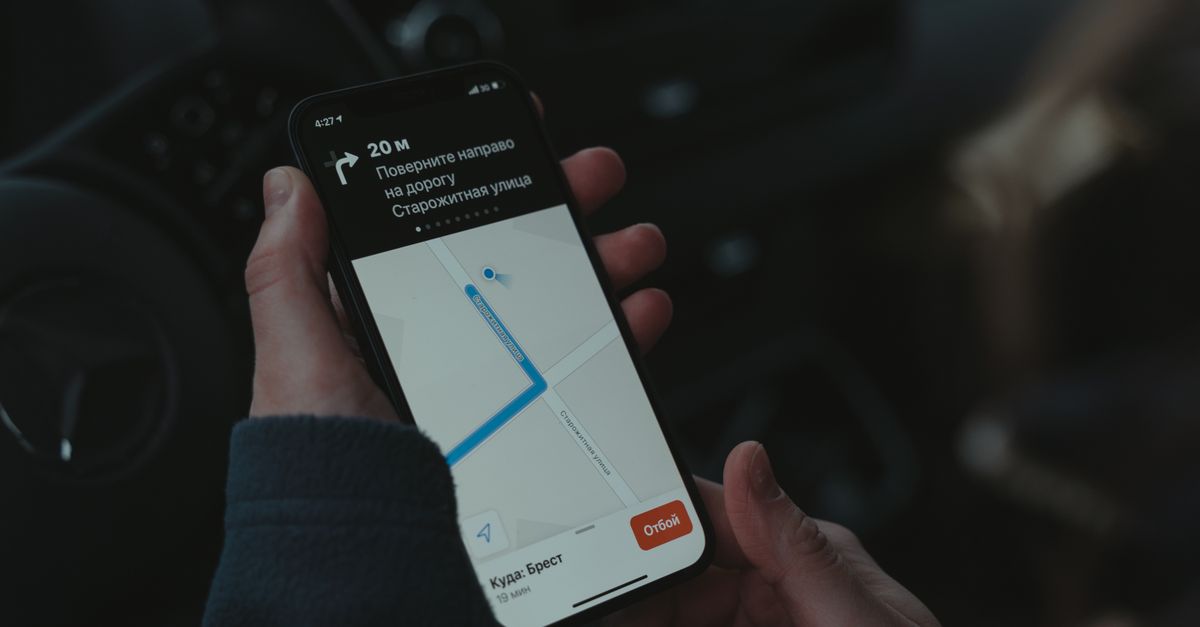
Why your maps screen keeps going dark
Every phone, tablet, and laptop has a display timeout designed to save battery and prevent screen burn-in. When you launch Google Maps, Apple Maps, or a transit page for a route, the inactivity timer still ticks normally, and after the configured timeout the screen dims and then locks. Navigation apps do their best to override that behavior while a route is active — Google's app keeps the screen on for the active turn-by-turn session, for example — but only during active guidance, only on supported devices, and only when the app itself is in the foreground. The moment you switch to a music app, take a phone call, scan a QR code for parking, or open a browser tab with a route preview, the inactivity timer resumes and the screen will go dark on its existing schedule.
For maps used as a reference rather than an active route — planning a road trip on a laptop, comparing transit options at the kitchen table, scanning a printed map side by side with a phone, or showing a destination address on a shared screen — there is no built-in always-on behavior. The screen behaves like any other browser tab and times out like a normal page. That gap is exactly the situation a browser wake lock was designed for, and the reason the W3C published the Keep Screen On tool as a clean, no-frills way to ask for one.
Use the Keep Screen On tool in a browser tab
Keep Screen On is a single-page browser tool that asks the current browser for a Screen Wake Lock and holds it while the tab stays visible. It is a request, not a hardware override, and the page surfaces every outcome the browser returns: accepted, denied, released, or unsupported. That honesty matters for navigation: there is no fake active indicator and no media-loop workaround that pretends to keep the display on. The page instead reflects what the browser actually reported, so you can tell at a glance whether your screen will stay awake for the next leg of the drive.
The tool runs entirely on the current device, requests a wake lock for the visible document only, and does not upload any data. There is no account, no download, no background service, and no tracking event. Compared with installing a system-level utility or changing global power settings, opening one browser tab is the lightest possible intervention and leaves no trace once you close it. For a maps session that may run from a few minutes to a few hours, that lightness is the point.
How to keep screen on while using maps, step by step
This walk-through keeps a browser-based maps view — Google Maps in a tab, Apple Maps on a route preview site, a transit schedule, or a QR code for parking — awake for as long as you need it to stay visible.
- Open the maps page or tab you want to keep visible. For a desktop, phone, or tablet browser, navigate to your mapping site or to the destination address you want to display, and leave that tab in the foreground.
- In the same visible tab, open Keep Screen On. The wake lock only applies to the page that asks for it, so the maps page and the wake-lock page must be the same document, or you must ask the browser for a lock from each tab that needs to stay awake.
- Select Keep screen on, then read the status line the page returns. A clear "active" message means the browser accepted the request and is holding the screen awake for that visible document. A "denied" or "unsupported" message means the browser refused, and your device's normal timeout will resume.
- Keep the tab visible. Switch tabs only when you intend to; a wake lock can be held only by a visible document, so hiding the page (minimizing the browser, locking the device, moving to another tab) can cause the browser to release the lock. Returning to the same tab prompts the tool to request a fresh lock only when you still intend it to be on.
- Select Turn off when you are finished. The status returns to its idle state, the normal display timeout resumes, and the browser stops asking the operating system to keep the display awake.
If the request is denied, the page explains that and leaves your device settings unchanged — there is no silent failure and no fallback trick. The tool deliberately avoids hidden video loops, audio tricks, full-screen color panels, or other workarounds that do not honestly guarantee the display will remain awake.
When the browser wake lock can be released
A wake lock is a polite, standards-based request, and several events will cause the browser or the operating system to drop it without changing your power settings. The table below lists the most common situations and what typically happens to the lock when they occur.
| Situation | What typically happens to the lock |
|---|---|
| You switch to a different tab | Browser may release the lock; return to the visible maps tab to request a fresh one |
| You lock the phone or put the laptop to sleep | Browser releases the lock on the next visibility transition |
| The device enters low-battery or power-saving mode | Operating system can override or refuse any new wake lock requests |
| A parental control, enterprise policy, or managed browser setting blocks the API | The request is denied at the browser layer |
| The browser version does not expose navigator.wakeLock | The tool shows an unsupported-browser message and stays idle |
| Private-browsing or installed web-app mode in some browsers | Actual availability can vary even when the API exists in the main profile |
The active message on the page means the browser accepted the current request — it does not override those controls. Watch the status line while you drive or cook: if it flips from active to released, the browser has ended the request and you can return to the visible maps tab to ask again. For long sessions, plug the device into power when practical and confirm the active message before relying on it for the next stretch. Per the W3C Screen Wake Lock specification, the request lives in the current browser tab only, so a separate tab opened later needs its own request.
Companion tools for following a route
Navigation rarely needs only a lit screen. A few other browser tools cover the timing side of a trip without forcing you to install another app.
- An Online Stopwatch tracks driving breaks, layovers, or how long you have been on a particular leg, with lap splits you can read off as you stop.
- An Online Countdown Timer estimates arrival windows or sets a hard stop time for errands, and runs the count down on the same device.
- For a focus block while you study a printed map or plan a multi-stop route, the Pomodoro Timer runs a 25/5/15 schedule entirely in the current tab.
- If your maps session is also a kitchen reference — following a recipe that names stores, transit stops, or distance markers — the same browser tab can host the wake lock while a separate tab holds the recipe or shopping list.
Native maps apps have their own behavior that complements a wake lock rather than replaces it. Google Maps keeps the screen on during active turn-by-turn navigation when its own display-during-navigation setting is on, and Apple Maps does the same on CarPlay and on the iPhone for the active route. The browser wake lock is the right tool for the spaces those native settings do not cover: a route preview site, an embedded map on a travel blog, a transit schedule, a QR code for a parking permit, or any time the maps content lives in a tab rather than an app.
For a single trip, opening one tab with the Keep Screen On tool is the lightest possible way to stop the display from timing out in the middle of your route. The page will tell you, honestly and on the same screen, whether the browser accepted the request, whether the lock is still active, and when it has been released — so you always know whether to plug in, switch back to the tab, or simply let the screen sleep again.
For a deeper look, see How to Keep a Work Laptop Screen On With a Tab.
For a deeper look, see How to Keep a Work Phone Screen On During a Task.