The Online Clock is a single-page browser clock app that displays your device's local time in both analog and digital form, updates four times per second, and exposes explicit controls for the 12-hour or 24-hour format, the optional seconds field, and a fullscreen button, alongside the displayed English date and the browser-resolved time-zone name. Because every reading comes straight from the JavaScript Date object in your browser, the clock is only as accurate as the device that opened it, with no network time server, no drift correction, and no account. The page never uploads preferences, never reads your location, and never runs in the background once the tab is closed, which keeps it fast and private. This guide walks through every control the clock exposes, what each format actually means on the page, and which tasks belong to a different time tool.
What a Browser Clock App Does
A browser clock app is a webpage that renders the current time directly from the device it was opened on. There is no install, no sign-up, and no separate window or widget to manage: open the tab and the clock is already running. The Online Clock combines an analog face, a digital readout, a written English date, and the browser's resolved time-zone name in one panel. Beneath the panel sit a handful of controls that change the digital format, toggle the seconds field, and request fullscreen on the current tab.
Unlike an operating-system clock or a physical desk clock, this kind of tool does not change the underlying device time, does not certify legal time, and does not synchronize with an external server. If the device clock is wrong, the display is wrong. That narrow contract is why the page is consistent across platforms, quick to load, and limited to a handful of clear controls.
Open the Clock and Confirm the Date and Zone
The very first step is verification, not configuration. When the Online Clock loads, glance at the date string and the time-zone label above the digital readout and confirm both match what you expect for the device in front of you. The date uses an English weekday, a month name, a day number, and a four-digit year, formatted as something like "Wednesday, October 8, 2025". The zone label is whatever the browser has resolved for your system, which can be a region name like "America/New_York" or a generic local-zone fallback on platforms that do not expose a richer label.
If either is wrong, fix it on the device rather than on the page. Date, time, automatic synchronization, and time-zone settings all live in your operating system, not in the widget. Reload the tab after adjusting so the browser re-reads the current Date object. On most platforms, changing the operating-system zone while the page is open picks up the change on the next tick; on others a refresh is required for the new zone to be exposed to the Date object.
Set Up the Clock in Three Steps
- Open the page and check the date and zone. Confirm the displayed local date and the browser-resolved time zone match the intended device settings. If anything looks off, correct the system settings and reload before doing anything else.
- Pick a digital format and decide on seconds. Use the 24-hour switch if your audience expects it, and toggle seconds on or off depending on whether you want the second hand and the digital seconds field to appear. The analog face and the digital readout share the same Date reading, so they always agree.
- Enter fullscreen only after the date and zone are correct. Click the fullscreen control to request a larger display, then use the browser's normal Escape key or its built-in fullscreen exit control to leave the mode.
Switch Between 12-Hour and 24-Hour Display
The format toggle changes only the digital readout and the AM or PM suffix; it does not move the hands, alter the date, or shift the underlying time. The two formats follow precise rules, which is useful when you are choosing the right one for the audience that will read the clock.
| Format | Midnight | Noon | Other hours | Leading zeros |
|---|---|---|---|---|
| 12-hour | 12 AM | 12 PM | 1 through 11 with AM or PM | Minutes and seconds only |
| 24-hour | 00 | 12 | 00 through 23 | Hours, minutes, and seconds |
Pick 24-hour if the audience reads a single, unambiguous cycle with no AM or PM, or if the clock sits next to a log, schedule, or system that speaks in 0–23 hours. Pick 12-hour when the audience is more comfortable with a wall clock and you want the readout to read conversationally, such as "three fifteen PM" rather than "15:15". Either way, the minutes and optional seconds always use two digits, so the readout shows "09:05" rather than "9:5".
Show or Hide Seconds and Read Both Faces
When seconds are visible, the digital readout appends a two-digit seconds field, and the analog face adds a thin second hand that sweeps once a minute. The second hand does not tick on integer seconds; its angle is computed from the full second plus the milliseconds that have elapsed within it, which is why the page refreshes four times per second on a 250 ms interval. The minute angle includes the fractional contribution of the current seconds, and the hour angle includes the fractional contribution of the current minutes. Twelve o'clock on the analog face is zero degrees; each full rotation covers the matching cycle, the second and minute hands step six degrees per unit, and the hour hand steps thirty degrees per hour.
Hiding seconds removes the second hand and the digital seconds field, but the minute and hour hands still include the current fractional time. The minute hand therefore sits a little ahead of the next integer tick rather than snapping to it. Choose to hide seconds when the smooth sweep would pull attention away from the hour; choose to show them when precise sub-minute timing or a visible presentation reference matters.
Enter and Leave Fullscreen Mode
Fullscreen is a browser feature, not a custom display mode, and the page only asks for it after you press the control. Most modern browsers require that request to come from a direct user action such as a click, a tap, or a key press, so it cannot be triggered automatically on load. Once the page is in fullscreen, the analog and digital clocks expand to fill the display, the system controls remain visible, and the page does not lock orientation, prevent the screen from sleeping, or behave like an operating-system screensaver.
Fullscreen can be denied. Browsers can reject the request because of an active policy, an embedded context, a device restriction, or a user setting. When the request is denied, the page reports a visible error rather than silently failing. To leave fullscreen at any time, press Escape or use the browser's normal fullscreen exit control. There is no in-page lock, so closing the tab, reloading, or pressing Escape all end the mode immediately.
Practical Ways to Use a Browser Clock App
The clock is deliberately small, so it fits a wide range of situations where a desktop clock, a phone glance, or a meeting-room display is the right form factor. In each case, choose the hour format first, decide whether seconds help or distract, and only enter fullscreen once the date and zone label match the room.
- Desk clock. Park the tab on a second monitor or a phone stand and glance at it without unlocking anything else.
- Meeting-room or studio display. Run the tab on a TV or a presentation screen and enter fullscreen so the audience sees only the time.
- Study and exam timing. Use the analog face as a visual reference for how much of an hour has elapsed, and switch on seconds for sub-minute precision.
- Presentation time check. Pin the clock to a presenter view so the speaker can pace a talk without staring at a wristwatch.
- Second-screen companion. Pair the clock with a count-up or count-down tool running in another tab so you can watch elapsed time and the current wall time side by side.
- Event countdown reference. Keep the clock visible while you run a countdown in another tool, so you can see both the current time and the time remaining.
When the Clock App Isn't the Right Tool
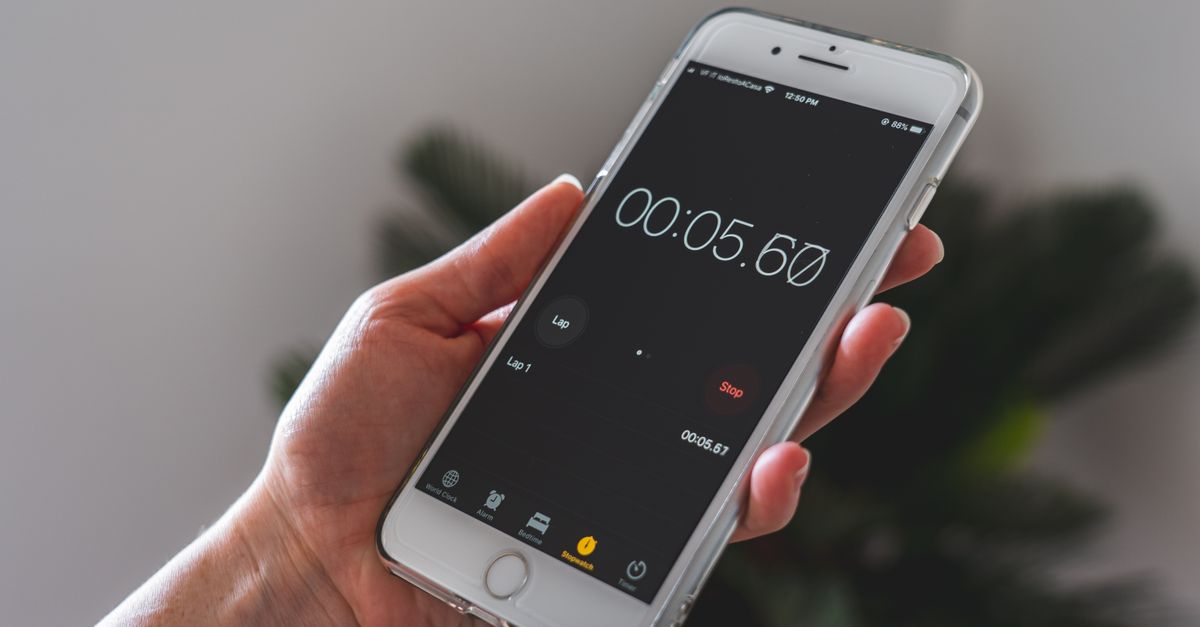
A wall clock is not an alarm, a stopwatch, or a timer, and the page does not pretend to be one. The clock has no alarm, no notification, and no background service. If the task is to ring at a target time, use the dedicated alarm tool. If you need to measure how long something has taken, use a stopwatch. If you need to count down to an event, use a countdown timer. None of those is built into the clock app, and bolting them in would muddy the narrow contract the clock is designed to keep.
The clock also only shows the device's own zone. If the task is to compare the current time across several cities, the better fit is a world clock view that lays out multiple zones side by side rather than switching the operating-system time zone just to read a foreign city on this page. The page is built to be an honest, narrow read of the device it is opened on, and a multi-zone comparison is a different problem.
Finally, trust the device. The page does not contact a network time server, does not correct drift, and does not update daylight-saving rules on its own. If the displayed time is wrong, fix the operating-system clock, automatic synchronization, and time-zone settings, then reload. The clock's job is to render what the device reports, consistently, in two digital formats and one analog geometry, and to do that well.
If you're weighing options, How to Check the Result After Using a Chess Clock covers this in detail.
If you're weighing options, How to Use Clock Directions to Describe Positions covers this in detail.