A tasbih counter result that looks wrong usually has one of three simple causes: a missed or extra tap, the wrong 33 or 99 target selected at the start, or a local-calendar day rollover that split your count across two history rows. The Tasbih Counter is built so each of those situations has a direct correction: a single Undo one button that rolls back the most recent tap, a target selector that lets you switch between 33 and 99 without erasing saved history, and a daily history list grouped by the device's local calendar date rather than UTC. The tool does not keep a single lifetime number; each saved increment belongs to the day you made it. A count finished at 23:50 stays on that day's row, and the next session at 00:10 starts a fresh visible count of zero. Once you identify which of those three causes applies, the fix is a few taps rather than a full reset, and the corrected record can be exported as PNG or CSV without leaving the browser.
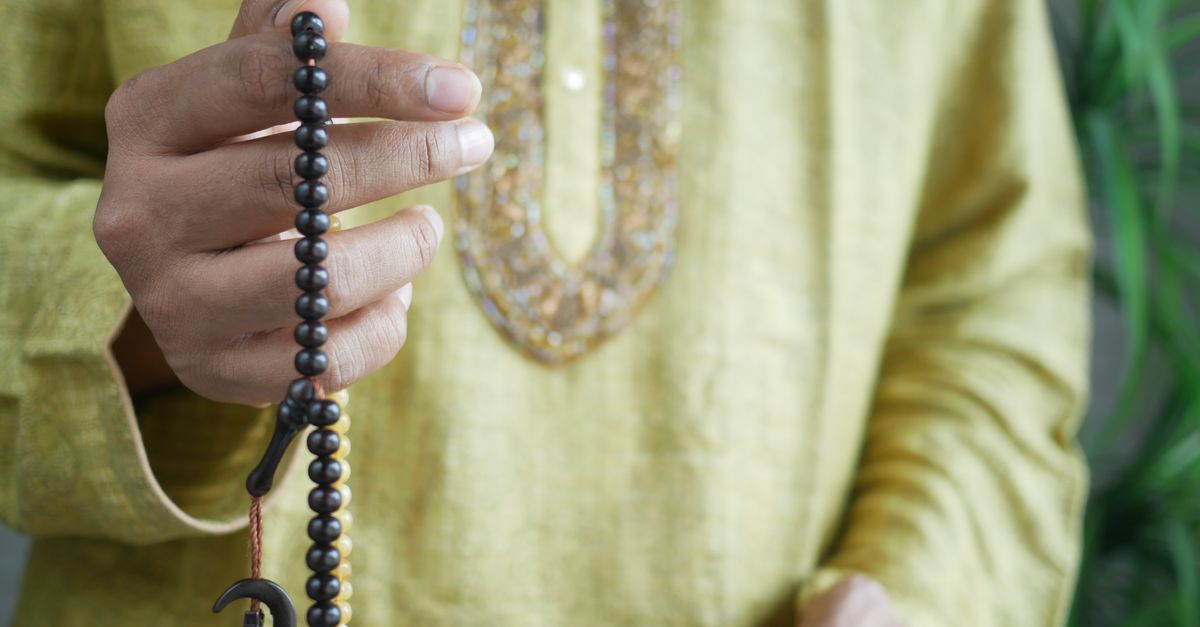
Common Reasons a Tasbih Counter Result Looks Wrong
Before undoing anything, match what you are seeing against one of the small set of situations the counter is designed to handle. The product contract for the Tasbih Counter is intentionally narrow: it accepts taps, marks an exact 33 or 99 round boundary, and groups saved numbers by the device's local calendar date. Anything that looks like an error usually falls into one of the rows below.
| What looks wrong | Most likely cause | Direct fix |
|---|---|---|
| Count is one higher than expected | An extra tap registered, possibly a double-tap on a touch device | Press Undo one once |
| Count is one lower than expected | A tap was missed during the round | Press Add one to make up the missed number |
| Round number looks off | Target was set to the wrong value (33 vs 99) | Switch the target and re-check the round math |
| History shows two short rows instead of one long one | A new local day started in the middle of the session | Accept the split; both rows are correct |
| Count disappeared after refresh | Browser data was cleared or a different browser profile is in use | Re-enter the count on the original browser |
| Vibration never confirms a round | Browser or device does not expose the vibration API | Watch for the visual completion state instead |
Each row maps a visible symptom to the underlying cause and the matching correction. If you are unsure which row applies, read the section on reading round and position numbers below before you start tapping.
How to Correct the Count Step by Step
- Open the Tasbih Counter in the browser you normally use and confirm the target shown at the top matches the personal count you are running, choosing either 33 or 99 as the round target.
- Check the current round and position numbers against the count you expected. At a 33 target, a count of 33 means the first round is closed; the next tap should begin round two at 1 of 33.
- If the count is too high by one, press Undo one to subtract the most recent tap. The counter rolls back exactly one increment and updates the round and position display together.
- If the count is too low by one, press Add one to add the missing tap. The counter increments the current position by one and closes a round if the new value hits the exact target.
- Repeat Undo one or Add one until the on-screen count matches the number you actually said or recited.
- If the visual completion state was already triggered by the wrong tap, the round counter and the position display update together when you Undo, so the corrected value is what gets saved to the day.
- Once the on-screen value looks right, the corrected increment is saved to the local day in browser storage under the counter's own key.
- Optionally, export PNG or CSV to keep a dated copy outside this browser before you close the tab.
This sequence keeps every change local. Nothing is sent to a server, no sign-in is required, and the saved history on the same browser is preserved between corrections.
Switching Between the 33 and 99 Targets
The Tasbih Counter exposes exactly two round targets: 33 and 99. Changing the target is a normal part of a personal workflow when a different count target is needed. The target selector sits next to the current count so the value you are aiming for stays visible. A target can be changed between interactions when a different personal workflow needs it, and the saved daily history is not erased when the target changes. What changes is the round boundary the counter watches for next. At 33, a count of 33 reports a completed first round; the following tap begins round two at 1 of 33. At 99, the same boundary logic applies at the 99th tap.
If a wrong-looking result came from picking 99 when you meant 33, the simplest fix is to switch the target back and re-tap the round. The daily history rows still record the numbers you actually entered, so the row total is unaffected even though the round interpretation changes. This is one of the small places where reading the round number alongside the position number matters more than the bare counter value.
Reading the Round and Position Numbers
The Tasbih Counter shows two numbers next to the main count: the current round and the position within that round. The visual completion state always appears when a round closes, so you have an immediate signal that an exact 33 or 99 boundary was reached. If the round number on the screen does not match what you expected at the end of a known set, that is the moment to suspect either an extra tap or a missed tap rather than a broken counter.
For example, suppose you intend to finish one full round at 33. If you see the position number reach 33 with a visible completion marker, the round is closed. If the position number reads 32 with no completion marker, one tap is missing and Add one brings it back to a clean boundary. If the position reads 34, one extra tap got through and Undo one returns it to 33 with the round closed. The math is small and exact because the target is fixed and the round boundary is fixed, which is what makes the correction a single-button action rather than a manual recount.
For a deeper walkthrough of the on-screen numbers, the related guide on checking a tasbih counter result walks through the round and position display in more detail.
How Local-Day History Affects the Visible Count
Each saved increment belongs to the local calendar date on the device. This is the part that surprises most readers who expect a single lifetime number. A count made late at night stays on that local day instead of being assigned by a UTC date. When a new local day begins, the page starts its visible count at zero while preserving earlier nonzero days in the history list. That behavior is intentional: the product keeps the count visible, exportable, and private without turning a personal practice into a complicated application.
If the wrong-looking result is that the history shows two short rows on what you thought was a single day, the cause is almost always a session that crossed midnight in your local time. Both rows are correct; together they describe what actually happened. If you would rather collapse the display, the only way to do that is to combine them manually in a spreadsheet after exporting CSV. The counter itself does not merge rows retroactively.
Saving the Corrected Record Outside the Browser
Once the on-screen count is correct, exporting gives you a dated copy that does not depend on browser storage. Export PNG creates a 1080 by 1350 image with a Lizely mark, a total, and recent calendar-day rows. The image does not include a URL and deliberately omits the optional custom label, so a shareable image does not reveal a personal note. Export CSV creates a simple Date and Count file with one data row for every saved nonzero day. It can be opened in a spreadsheet, kept as a private archive, or deleted when it is no longer useful.
Both export actions run inside the browser with native canvas and Blob APIs. No image or CSV is uploaded for processing, which is consistent with the privacy boundary that all state stays in localStorage under the counter's own key. If you need to keep evidence that a wrong result was fixed, exporting right after the correction is the cleanest way to capture the corrected numbers before any further taps.
Limits and Privacy Boundaries That Can Look Like Mistakes
Some behaviors are not mistakes even when they look like them. The Tasbih Counter does not synchronize across devices, travel through a sign-in flow, or become a server-side profile, so the same count will not appear on your phone and your computer. Clearing browser data removes the history, and a separate phone or computer begins with its own empty counter. According to the WHATWG HTML Web Storage specification, localStorage is bound to the storage key and the origin, which is why a different browser or profile starts fresh. Vibration is an optional enhancement rather than a requirement; the W3C Vibration API is not supported in Safari and some devices disable it entirely, but the page stays fully usable without it.
If the wrong-looking result is that nothing happened on another device, that is the expected privacy boundary, not a bug. If the wrong-looking result is that history vanished after clearing browser data, the counter cannot claim an unavailable backup. In both cases the fix is to know where the count lives and to export a dated copy if you need it to outlive the browser session.
For a deeper look, see How to Document Your Steps in a Water Intake Counter.