Accuracy on a typing test is calculated as correct characters ÷ total characters typed × 100, which means every mistyped character pulls that number down — no matter how fast your fingers are flying. The Typing Test tool shows this number live while you type, along with your WPM and elapsed time, so mistakes never go unnoticed: every correct character turns green, every wrong one flashes red, and the running accuracy counter tells you in real time whether your last ten keystrokes were clean or sloppy. Because the timer only starts on your first keystroke, you also get a calm setup window to settle your fingers on the home row, plant your gaze on the highlighted passage, and breathe once before you begin. These three things — live color-coded feedback, a start delay, and the freedom to watch the screen instead of the keys — do more to cut avoidable errors than any amount of extra speed practice. If you have ever finished a typing test wondering how your speed looked high but your overall score still felt disappointing, the answer usually lies in the accuracy column, and that is exactly where this tool shines.
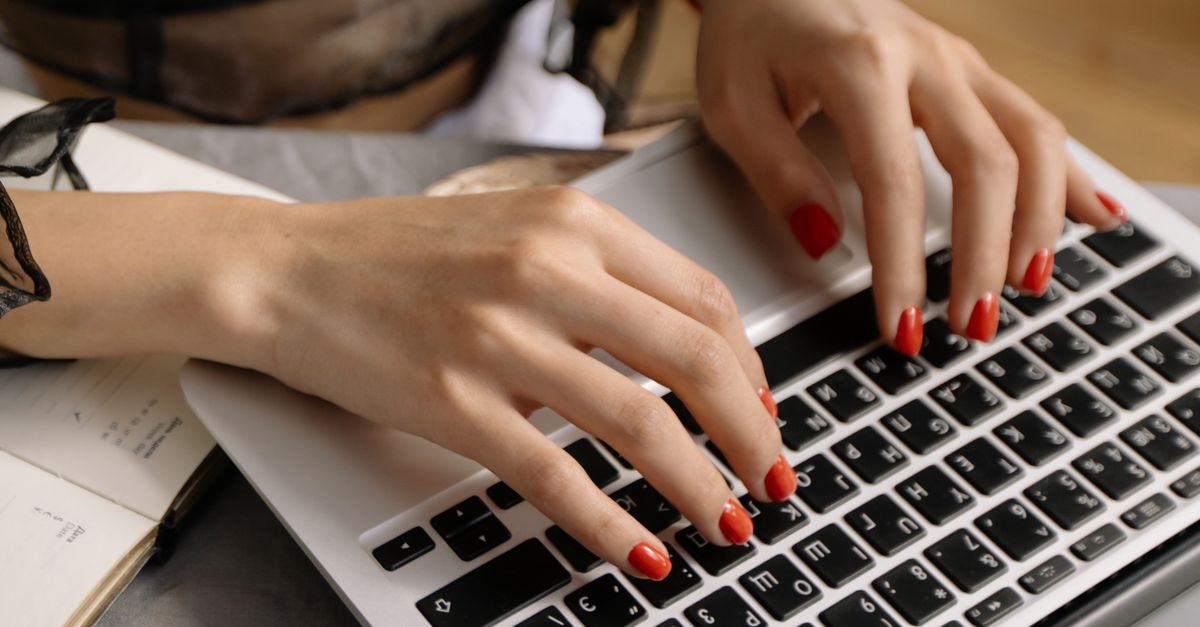
How the Typing Test Catches Mistakes as You Type
The reason this typing test is unusually good at surfacing avoidable mistakes is that nothing about the feedback is delayed until the end of the passage. The moment your first keystroke lands, the timer begins and four counters appear: live WPM, accuracy percentage, error count, and elapsed time. From that point on, every single character you press is compared against the target character in the highlighted passage above. A match paints the character green; a mismatch paints it red and increments your error count. You do not need to finish the passage to see whether you are having a clean round — the accuracy counter is always honest about the share of characters you have got right so far.
This matters because most typing mistakes are not random. They cluster around the same handful of keys: the ones your weak finger reaches for, the ones two positions away from home row, and the ones you keep transposing because you are thinking ahead of your fingers. The live red flashes make those patterns visible round after round. After three rounds, you will probably notice that your accuracy drops whenever a passage contains a long word with an unusual letter order, or whenever your eyes drift down toward the keyboard for half a second. Once you can see a pattern, you can change it.
Two more things make the feedback loop tight. First, the timer only starts on your first keystroke, so you can position your fingers, read the first line, and breathe before you commit. Second, the test runs entirely in your browser, so your keystrokes are not uploaded or stored — you can hammer out a sloppy practice round, learn from the red characters, and immediately press Restart for a clean retake without anything leaving your device.
Run a Mistake-Free Round Step by Step
The most reliable way to keep your mistake count low is to follow the same setup ritual every time you sit down at the tool, then type the passage deliberately rather than reactively.
- Read the highlighted passage once from start to finish before you touch a key. The timer has not started yet, so use this window to scan for unusual words, capital letters, and punctuation you do not want to guess at.
- Settle your fingers on the home row — left index on F, right index on J, the other fingers resting lightly on the keys beside them. Your wrists should hover, not rest on a hard edge.
- Plant your eyes on the screen, not the keyboard. Glancing down even briefly is the single fastest way to introduce a wrong key, because your fingers lose their spatial reference.
- Press the first character to start the timer, then keep your gaze locked on the highlighted text. The on-screen character turns green when you hit the right key and red when you do not.
- Watch the live accuracy counter rather than the WPM counter. A drop in accuracy is an early signal to slow your rhythm by about ten percent for the next sentence, not a sign to push harder.
- If you mistype, fix the character immediately with backspace and re-enter it. Once you have pressed space or moved two or three characters past the error, it is usually faster to keep going and accept the hit — dwelling on old mistakes costs more time than it saves.
- Click Finish now when you reach the end of the passage (or when you want to lock in your score early). Your net WPM, gross WPM, accuracy and error count freeze at that moment.
- Press Restart for a fresh passage and apply whatever the last round taught you — usually a slower pace or a glance back at the screen.
Technique Fixes That Lower Your Error Count
Most avoidable typing mistakes come from a small set of habits, and each one has a direct fix you can practice inside the typing test itself.
Look at the screen, never the keyboard. Every downward glance breaks the spatial map your fingers have built up, and the first key you press on the way back is almost always wrong. If you find your eyes drifting, slow your pace on purpose for one sentence until you can hold your gaze steady.
Keep your fingers anchored on the home row. Reaching for the top row, the bottom row, or the number row with the wrong finger is the single biggest source of substitution errors. The fix is to return each finger to its home key after every reach, so the next reach starts from the same reference point.
Type the rhythm, not the speed. Aiming for a target WPM makes you press keys faster than your accuracy can support, which fills the screen with red characters. A steadier cadence — the same beat sentence after sentence — produces cleaner rounds and a higher net WPM, because net WPM only counts the characters you typed correctly.
Use backspace as a clean-up tool, not a panic button. Correct a mistyped character right away, but do not let yourself get pulled into a long fix-up chain. If you have already pressed space and moved on, keep typing; the round is scored on the whole passage, not on whether any single word was perfect.
Warm up before you start. Five minutes of a low-stakes practice round primes the fingers and the focus. Jumping into a high-stakes round from cold typing almost always produces a wave of avoidable errors in the first thirty seconds.
Why Net WPM Is the Score That Matters for Accuracy
Every typing test reports two speed numbers, and confusing them is one of the easiest ways to misread your own performance.
| Score | What it counts | What it rewards |
|---|---|---|
| Net WPM | Only the characters you typed correctly | Accuracy and clean execution |
| Gross WPM | Every character typed, correct or not | Raw finger speed, errors included |
| Accuracy | Correct characters ÷ total characters × 100 | How often the right key was hit |
| Errors | Characters that did not match the target | Where you slipped, in absolute count |
Gross WPM can climb even while your accuracy is collapsing, because every keypress counts whether it was right or wrong. Net WPM, by contrast, only counts the keys that landed on the target character. That is why a round at 70 WPM with 90% accuracy is often slower in practice than a round at 55 WPM with 99% accuracy — every mistake leaves cleanup work behind it, and cleanup takes time.
Worked example: imagine you typed a 250-character passage in one minute and hit 240 of those characters correctly. Your accuracy is 240 ÷ 250 × 100 = 96%. Your net WPM is (240 ÷ 5) ÷ 1 = 48 WPM. Your gross WPM is (250 ÷ 5) ÷ 1 = 50 WPM. The two WPM figures diverge by the same ten characters you missed, and the net figure is the honest one to track if you care about mistakes.
Build a Practice Routine That Trains Accuracy First
Improving your typing is mostly a matter of repeating clean reps until the muscle memory takes over, and the typing test is well suited to that loop because every round uses a fresh, random passage. You cannot memorise a single answer; you have to retype with the screen, every time.
Start by taking one round cold to establish a baseline — your starting net WPM, your starting accuracy, and your starting error count. Then retake the test a few times a week. Keep each session short and focused; a focused block of three rounds usually beats a long, distracted hour, because fatigue is itself a major cause of avoidable errors.
Between rounds, change one variable at a time. Try a slower cadence for one round. Try forcing yourself to look only at the screen for the next. Try a round where you deliberately slow down at every punctuation mark. Watching how your accuracy responds to each small change is how you turn a generic typing test into a personal diagnostic.
Because each round draws a different passage, the practice stays varied: different words, different punctuation, different sentence shapes. That variety is what trains the fingers to handle unfamiliar vocabulary cleanly, which is exactly the skill a job typing test will demand.
WPM Tiers and the 95% Accuracy Bar That Most Jobs Set
Typing tests used in hiring usually combine a speed floor with an accuracy floor, and the accuracy floor is the one most candidates underestimate. Most administrative, data entry and support role assessments set the bar at 95% accuracy or higher; a fast but sloppy round can fail the test even if the WPM number looks fine.
| Net WPM | Typical meaning |
|---|---|
| Around 40 WPM | Average adult typing pace |
| 50–60 WPM | Confident everyday typist |
| 60–80 WPM | Professional, transcriptionist, many developers |
| 100+ WPM | Top competitive typists |
If you are practising for a job test, the practical target is the intersection of these rows: the speed tier the role asks for, paired with at least 95% accuracy. For a deeper look at how the WPM figure is calculated and why the standard formula treats one word as five characters including spaces and punctuation, see the WPM formula walkthrough.
Outside hiring, accurate typing pays off in everyday work: less time spent backspacing, less time spent re-reading your own sentences, and fewer small corrections that add up across a long day. That is the case for training accuracy first and letting speed follow, which is the approach most touch-typing curricula recommend and the one this tool is built to support.