A double click test on iPhone measures the elapsed browser-event time between two clicks on one large target, and the Double Click Test shows that interval in milliseconds to one decimal place. The tool reads the timestamps supplied by your browser, subtracts the first from the second, and rounds the result so you can compare attempts under the same conditions. Because Safari on iOS generates click events when you tap, the page responds to taps the same way it responds to a mouse double-click on a desktop. You do not need to install an app, create an account, or grant any permissions, so the entire measurement runs in the page and stays there.
That makes the Double Click Test useful when you want a quick, repeatable read on your tap timing from an iPhone. It can help you compare how you double-tap today with how you double-tapped a few minutes ago, or how the same hand performs with the device flat on a desk versus held in one hand. The page does not label a result as fast, slow, passing, or failing, and it does not try to match the double-click threshold used by a particular operating system, app, or game. It simply records the gap between two click events and shows your latest, fastest, and average gaps across up to fifty completed pairs.
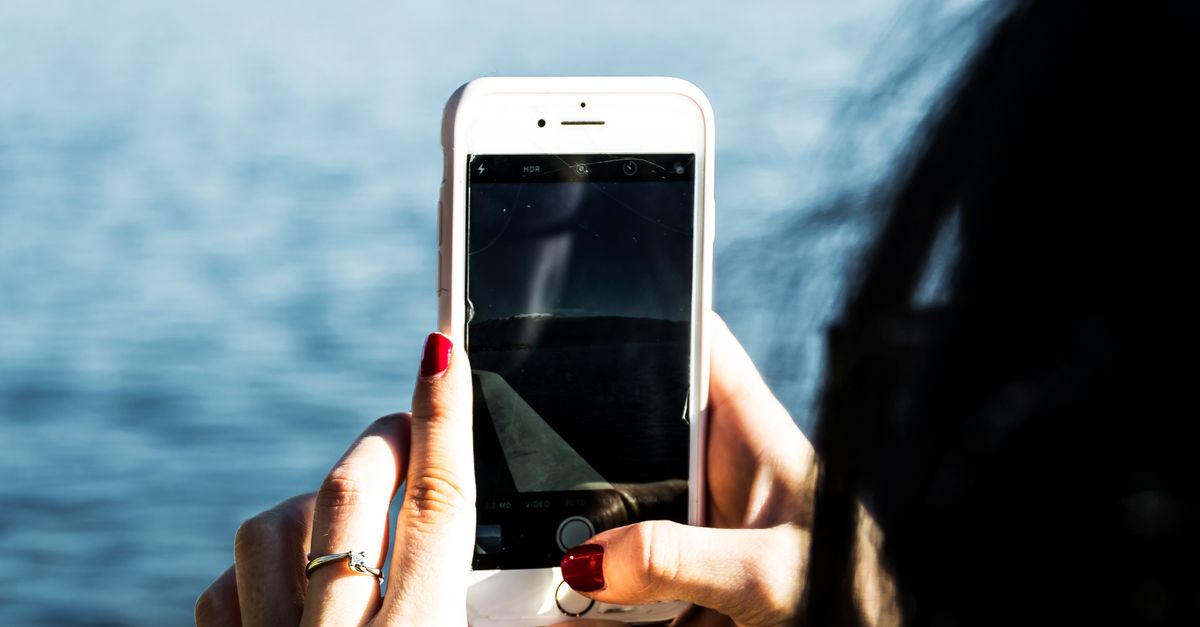
How Double-Clicks Reach a Browser on iPhone
A double click on an iPhone normally means two quick taps on the screen. Inside Safari, each tap triggers a sequence of touch events followed by a synthesized click event, and that click event is what the Double Click Test listens for. The page does not see the raw pressure or finger position; it only sees the timestamp that the browser attaches to the click. As long as both taps fall on the same large target, the page can treat them as a pair and time the gap between them.
This matters because iPhones do not have a physical double-click button the way a desktop mouse does. Touchscreen taps, assistive input, and other synthesized activations can generate click events that the page timestamps when the test area is in focus, and a result may represent a tap or synthesized activation rather than a physical mouse switch. The browser timestamps are useful for comparing attempts in the same environment, but they do not reveal anything about the side button hardware, the Touch ID sensor, or the accelerometer. The Double Click Test works with whatever the browser is willing to time, which on an iPhone means your taps. For a deeper walk-through of how the interval is captured at the browser level, see the Double Click Test measurement guide.
Running the Double Click Test on iPhone
Open Safari on the iPhone, load the Double Click Test page, and use the large test area as your target. The page is built around one big rectangle, which is easier to hit twice quickly than a small button, especially in landscape orientation. The first tap starts a pair, the second tap completes it, and every additional pair behaves the same way. The interval is the only number that changes after each completed pair, so you can focus on your hand position rather than reading the screen between taps.
- Place your finger over the large test area and tap once to start the first pair.
- Tap the same area a second time within 1,000 milliseconds to complete the pair and record the interval.
- Repeat for more samples, keeping your hand position and the device orientation the same so the comparison stays fair.
- Watch the Latest value update after each pair, the Best value lock in when you beat your fastest interval, and the Average shift as the running total grows.
- Read the Pair Count to confirm how many completed pairs are currently held in the page memory.
- Tap Reset to clear all samples and begin a new session whenever conditions change, such as switching from desk to handheld grip.
The order of taps matters. If you tap once and then wait too long before the second tap, the second tap is not paired with the first. Instead, the page shows a timeout message and the late tap becomes the first click of a new pair. This is intentional: pairs never overlap, so the second tap of one result is never reused as the first tap of the next. Every interval you see on the page is therefore easy to reproduce and interpret.
Reading the Latest, Best, and Average Numbers
The page shows four numbers that update after each completed pair. Latest is the most recent interval, Best is the fastest pair recorded in the current session, Average is the arithmetic mean of all retained intervals rounded to one decimal place, and Pair Count is the number of completed pairs the page is currently holding. None of these numbers come from a fixed threshold, so the tool never labels a value as fast, slow, passing, or failing, and you decide what they mean for your task.
A worked example helps. Suppose you complete four pairs with intervals of 220.0 ms, 180.0 ms, 200.0 ms, and 240.0 ms. The sum of those four intervals is 840.0 ms, and dividing by four gives an average of 210.0 ms. Best is the minimum at 180.0 ms, Latest is the final value at 240.0 ms, and Pair Count is 4. If you then tap again after more than one second and the page reports a timeout, the new tap becomes the first click of a fresh pair and Pair Count does not yet increase until a second tap arrives inside the window.
This example also shows why a single interval is rarely enough. Your fastest pair might be a lucky fluke, and your slowest pair might be the one where you were already thinking about the next tap. The arithmetic average smooths those out, but it is still pulled by outliers, so a small sample of three or four pairs can swing it noticeably. Aim for at least ten pairs under steady conditions before you read much into the average, and treat single values as a snapshot rather than a verdict.
What the Interval Actually Includes
The number on the page is the gap between two click event timestamps, not a measurement of any single component in the chain. On an iPhone, that gap includes the time your finger spent moving from the rest position to the first tap, the iOS event delivery delay, the touch-sensor polling interval, Safari's gesture interpretation, the click event timestamp itself, and the display refresh in between. It also includes any background load, such as open tabs, downloads, or a Face ID prompt, that happened to delay event scheduling at the moment you tapped.
| Included in the measured interval | Not measured by the tool |
|---|---|
| Finger movement between taps | Hardware switch debounce |
| iOS event scheduling delay | USB or wireless polling rate |
| Touch-sensor polling interval | End-to-end click latency |
| Safari gesture interpretation | Specific app or operating-system thresholds |
| Browser click event timestamp | Side button or Touch ID sensor wear |
| Display refresh timing | Calibration against external hardware |
The tool makes no attempt to isolate hardware latency, USB polling rate, switch debounce, or end-to-end click latency, and it does not claim that a measured pair proves a desktop double-click setting will recognize the same action. The contract is narrow: pair two increasing browser click timestamps within the disclosed one-second window, retain up to fifty positive intervals, and calculate transparent Latest, Best, and Average statistics. For a useful comparison on iPhone, keep the same hand position and device orientation between attempts, and note any change in conditions, such as switching from two hands to one, putting the phone down on a desk, or stepping away from a busy home screen, so the next session is comparable to the last.
Reset, Re-run, and Compare Sessions
Reset clears the in-memory state immediately and lets you begin a new session without affecting anything outside the page. Every sample you have recorded stays in the current page only, so nothing is uploaded, associated with an account, saved after refresh, or used to identify your device. Refreshing the page or closing the tab discards the samples in the same way Reset does.
A common workflow on an iPhone is to take a baseline session in one posture, tap Reset, and then take a second session in a different posture or with a different finger and compare the averages. Holding the iPhone flat on a desk with one finger often produces tighter intervals than cradling it in one hand, because the device does not move between taps and your wrist does not have to stabilize the screen. If you suspect a hardware issue, for example a side button that sometimes ignores a quick double-press for Apple Pay, compare what the Double Click Test records against the behavior in the affected app, and only test another device or repair path when it is safe to do so. A browser tool cannot diagnose a failing switch or recommend a repair, and the page does not try to.