A double click test for a side button measures the elapsed browser-event time between two consecutive clicks on that button, showing the exact interval in milliseconds when the second click arrives within one second of the first. The Double Click Test works the same way for a thumb-side back or forward button as it does for a primary click, because the browser sees both as ordinary click events on the page. A common concern is that the side button double triggers and jumps the browser back two pages when only one navigation was intended. A short, consistent interval on the page is a useful comparison number, but the page itself does not label results as fast, slow, passing, or failing. For a side button that misbehaves, the value of the test comes from comparing sessions under the same hand position, the same device port, and the same system load rather than from any single number on its own. The page stores up to fifty completed samples, reports the latest, fastest, and average interval to one decimal place, and clears the session the moment you refresh or hit reset. All of this runs locally; nothing is uploaded, nothing is associated with an account, and the in-memory state does not survive a page reload.
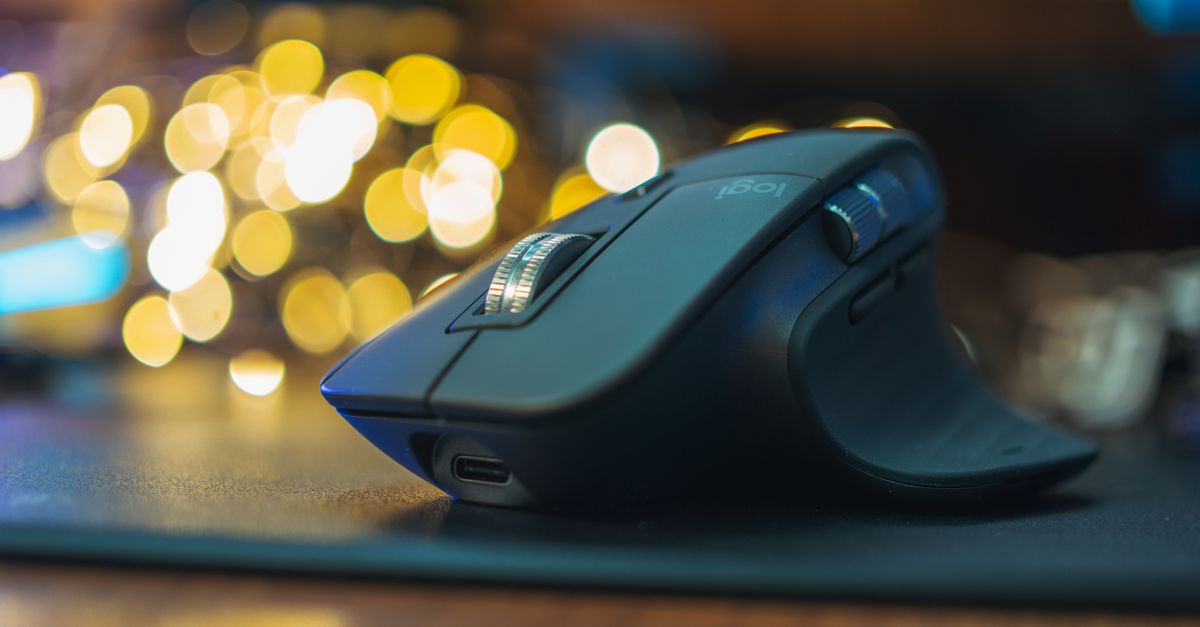
What the Double Click Test Measures on a Side Button
The Double Click Test records the gap between two browser click events on a single large target. The first click starts a pair, the second click completes it when it arrives within 1,000 milliseconds, and the page shows the gap rounded to one decimal place. This rule applies to every button the browser recognises as a click event, so the same test works for the thumb-side back and forward buttons on a mouse. If a side button double triggers, two click events will land in quick succession and the page will surface that gap.
A typical session captures the latest interval, the fastest recorded pair, the arithmetic average of all retained pairs, and the number of completed pairs. The page stores at most fifty pairs, so repeated accidental input cannot grow the page memory without a bound. All samples stay in the current page; nothing is uploaded, nothing is associated with an account, and the in-memory state clears the moment you refresh or hit reset.
The pairing rule is intentionally simple. The first click starts a pair and the second completes it. If the second click arrives more than 1,000 ms after the first, it does not become a completed pair; it is reused as the first click of a new pair and the page explains what happened. Pairs never overlap, so the second click that ends one result is never reused as the first click of the next result.
Why Side Buttons Behave Differently From the Primary Click
Side buttons sit on the edge of most productivity mice, where the thumb rests naturally. They are smaller, often have shorter travel, and frequently rely on a microswitch that is more sensitive to small repeated presses. Many mice also map side buttons to browser Back and Forward, which means a single accidental double trigger can navigate away from a page the user wanted to keep open. That cost makes side button timing noticeably more important than primary-button timing for some workflows.
The browser also treats side button clicks as ordinary click events unless the page listens for specific button codes. A standard mouse tester that distinguishes primary, secondary, and auxiliary clicks can tell you which button the browser received, but the Double Click Test works on the event itself, which means it works on any button the browser accepts as a click. That includes the thumb buttons when they are not remapped to keyboard shortcuts.
There is one practical difference worth noting. Side buttons often feel different under the finger, and the human component of the interval can vary more than for a primary click. Hand position, thumb angle, and the amount of travel before the switch trips introduce their own variation. When you test a side button, hold your thumb in the position you actually use it in. The numbers only mean what they appear to mean if the test mirrors real use.
Run the Test on a Side Button
The procedure for a side button is the same procedure used for a primary button. The browser does the work; you provide two deliberate clicks within the disclosed window.
- Open the Double Click Test in a desktop browser. Make sure the mouse you want to test is connected and that no other device is competing for focus.
- Place the pointer inside the large test area and click the side button once. This first click starts a pair and the page records its browser-event timestamp.
- Click the same side button a second time, aiming to land within 1,000 ms of the first. The page subtracts the first timestamp from the second, rounds the gap to one decimal place, and shows the result as the latest interval.
- Repeat the same two-click action several times without moving the pointer or changing hands. Each completed pair appends to the on-page history until the page has fifty samples.
- Read the latest, best (fastest), and average values on the same page. The best value is the smallest interval in the session and the average is the arithmetic mean of all retained pairs, both rounded to one decimal place.
- Press reset if you want to start a fresh session, or refresh the page if you want to clear everything immediately. Refresh also drops the history, since the page keeps samples only in memory.
If you want a control comparison, repeat the same steps with the primary left button before and after testing the side button. The control run tells you whether the browser, the device port, or the operating system has changed during the test. If the primary-button intervals look healthy while the side button intervals look suspiciously short, the side switch is the likely suspect.
Reading the Latest, Best, and Average Numbers
The page shows three values plus a count of completed pairs. The latest interval is whatever the most recent completed pair produced, the best interval is the smallest interval retained in the session, and the average is the arithmetic mean of every retained pair. The page rounds all three to one decimal place, so a sub-millisecond comparison is not possible with this tool. That level of resolution is enough to spot the gap between an intentional click and an accidental double trigger.
Mouse-testing references often describe intervals well below 100 ms as a strong signal of an unwanted repeat trigger, and intervals in the low hundreds of milliseconds as the range most users produce for an intentional double click. The Double Click Test itself does not label results as fast, normal, slow, passing, or failing, so any threshold you apply is your own choice, not a verdict from the tool.
Here is how to read a typical session at a glance:
| Displayed value | What it represents | How to use it |
|---|---|---|
| Latest | The interval of the most recent completed pair | Spot the immediate behaviour of your last pair |
| Best (fastest) | The smallest interval recorded in the session | Flag any pair that looks like an accidental repeat |
| Average | Arithmetic mean of all retained pairs, rounded to one decimal | See the typical gap across the whole session |
| Pair count | Number of completed pairs currently retained | Confirm how many samples back the average goes |
If the average sits comfortably in the low hundreds of milliseconds, the side button is probably behaving the way you intend. If the best value drops well below 100 ms while the rest look normal, the most recent pair was likely an accidental repeat rather than a sign that the whole switch is failing. If the latest, best, and average all sit below 100 ms, that is the kind of pattern that justifies further investigation in the application where the problem appears.
What the Interval Does and Does Not Tell You
The page uses the browser's click-event timestamp, so the interval includes everything between your thumb and the page: switch debounce, pointing-device firmware, wired or wireless transport, operating-system scheduling, browser event delivery, display timing, and whatever load the device is handling at the moment. Browser zoom does not change the subtraction. Touchscreens and assistive input can generate click events too, so a result may represent a tap or a synthesised activation rather than a physical side button.
The page does not label results, does not diagnose hardware, and does not isolate any single layer of the click path. A 60 ms interval cannot tell you whether the side switch debounced badly, whether the wireless receiver added latency, or whether the operating system batched the events. It can only tell you that two click events arrived about 60 ms apart, and that is a useful comparison number when the conditions are held constant. The reliability of the conclusion depends on holding the conditions constant.
Operating systems, applications, and accessibility tools can use different double-click thresholds and behaviour. A side button that the browser sees as a single click can still cause double navigation in a browser if the side button is mapped to Back and the application fires a second action on its own timer. The Double Click Test does not measure that path; it only measures the browser event. For a useful comparison, hold the same hand position, the same device port, the same application focus, and the same system load when you compare attempts.
When to Investigate a Side Button Beyond the Browser
If the on-page interval looks normal and the side button still misbehaves in your daily tools, the cause is somewhere the browser cannot see. Common next steps include checking the mouse settings in your operating system for repeat-delay or click-lock behaviour, opening the application where the problem appears and looking at its own double-click threshold, and trying a different USB port or receiver if it is safe to do so. For mouse hardware diagnostics that distinguish each button separately, a dedicated mouse tester can confirm which MouseEvent.button code the browser receives for the side button.
A browser tool cannot diagnose a failing switch or recommend a repair. What it can do is provide a clean, repeatable interval number under controlled conditions, so you can compare sessions side by side and decide whether the side button is consistent with your intent or consistent with an unwanted repeat.
For a deeper look, see Double Click Test: Run It in Browser.
For a deeper look, see Daily Habit Counter: Comparing the Approaches Side by Side.