A dead pixel test alternative is a way to inspect a display for stationary mismatched points without installing dedicated diagnostic software, and the Dead Pixel Test fills one large browser panel with eight exact sRGB colors so any stuck, dead, or weak pixel can stand out against a known stimulus. The fixture cycles black, white, red, the full green channel (named lime in CSS), blue, cyan, magenta, and yellow in that order, and each panel is the single hex value shown in the progress line at the top. Movement is keyboard and mouse: click, Space, and the arrow keys all step through the sequence with wraparound in both directions, so a viewer can flip quickly between contrasting fields to spot a point that does not match its surroundings. Fullscreen is requested only when the viewer selects Start, and the requested CSS color values are checked against the W3C CSS Color Module Level 4 specification and the MDN named-color reference, which means the on-screen stimulus is documented rather than approximate. This article explains how to run the test, what each of the eight colors is designed to reveal, and where the visual check ends and a manufacturer's diagnostic begins.
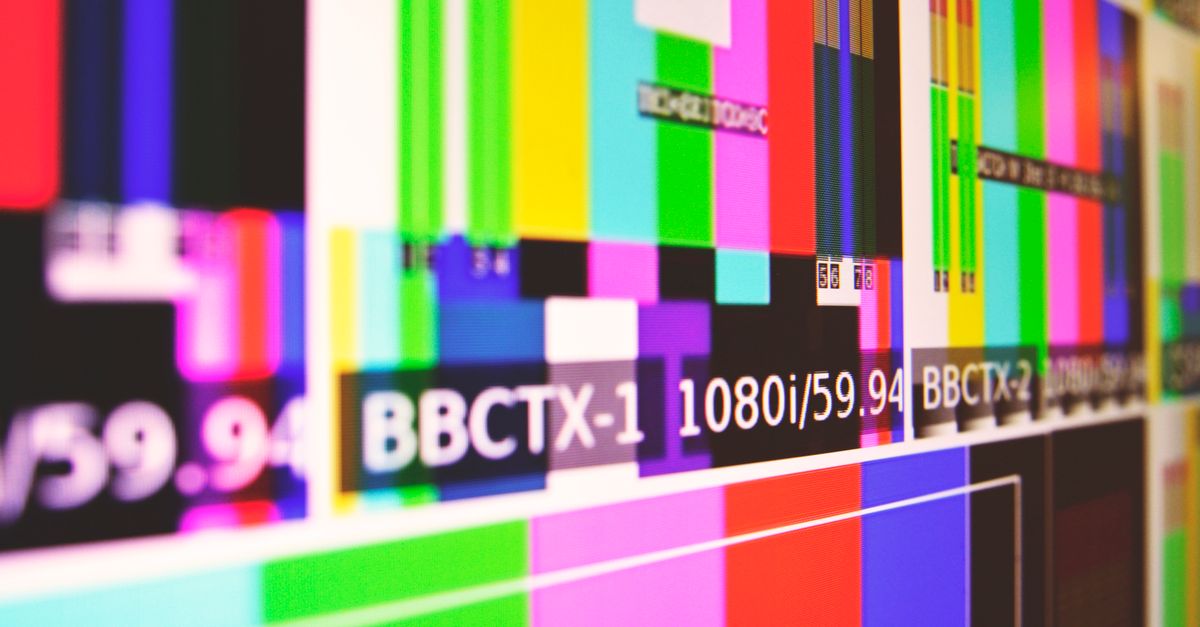
Why Viewers Search for a Dead Pixel Test Alternative
Most people who search for a dead pixel test alternative have already tried at least one of the usual routes and run into a limitation. Dedicated display-calibration suites can be expensive, locked to a specific operating system, or slow to launch, and they often ask for an account before they will run a basic panel sweep. Native image-viewer "fill the screen with a color" tricks rely on files the viewer never had, screenshots that drop menu bars, or zoom features that do not actually scale to a true fullscreen panel. Manufacturer diagnostics are useful but usually require a service contact, a return merchandise authorization, or a phone call before they will share a built-in pixel test, and some screen types — older laptops, used TVs, rental monitors — have no such tool at all. A browser-based alternative sidesteps those constraints: there is no install, no driver, and nothing to update, which is why the Dead Pixel Test runs on a Windows laptop, a macOS desktop, a Chromebook, a Linux machine, a smart TV with a built-in browser, or a phone running a modern browser engine. For anyone weighing options, the practical question is not which tool is most thorough — no browser test can match a service-bench measurement — but which tool removes the most friction while still producing a documented stimulus to compare against the panel.
What Sets the Dead Pixel Test Apart
The defining trait of the Dead Pixel Test is that the stimulus is not approximate. Each of the eight fields is a single, named hex value, and the progress line always shows that exact value alongside the current pattern, so a viewer can record what was on screen without guessing. The fixture is sourced from the CSS Color Module Level 4 named-color list and the MDN reference, both of which define green as the darker #008000 — that is why the tool deliberately labels its full-channel green field as lime at #00ff00, to use the single-channel maximum rather than the named color. Different solid fields make different visual mismatches easier to notice: a point that remains dark on white or on a primary field may not emit as expected, while a point that remains bright or shows an unexpected component can stand out on black or on a complementary channel combination. The tool uses static fields only, with no rapid strobe, no seizure-risk animation, and no force-instruction claim about "fixing" pixels. Everything runs locally in the tab, and no screenshot, display identifier, color profile, or navigation history leaves the device.
Run the Dead Pixel Test in Your Browser
- Clean only the outer display surface using the manufacturer's safe method — a dry microfiber cloth for most panels, or whatever the manual specifies — so dust is not mistaken for a panel defect.
- Open the Dead Pixel Test in a browser tab and resize or maximize the window so the panel fills the screen.
- Select Start fullscreen test to request a larger browser presentation; this is the only action that asks for fullscreen, and a denial still leaves the in-page panel working.
- Inspect the first field, #000000 black, looking for any point that stays lit or shows color where the panel is meant to be uniform.
- Move to #ffffff white and scan the edges, corners, and center for any stationary dark or dim point that fails to brighten.
- Cycle through the primaries — #ff0000 red, #00ff00 lime, #0000ff blue — using click, Space, or the arrow keys, and note any subpixel that fails to emit its channel at full intensity.
- Inspect the composite fields — #00ffff cyan, #ff00ff magenta, #ffff00 yellow — to catch channel-combination defects that a single primary might hide.
- Exit fullscreen normally with the browser's standard controls; if a stationary mismatch is visible across several fields, consult the manufacturer's diagnostic routine before any repair decision.
The Eight Solid Colors and What Each One Reveals
The fixture is deliberately small and well-documented. Eight colors, eight hex values, no gradients, no animation — each field is one stimulus designed to make a specific class of mismatch visible. The table below lists the exact pattern order, the documented hex value, and what a stationary mismatch on that field usually means in inspection terms.
| # | Pattern | Hex value | What to look for |
|---|---|---|---|
| 1 | Black | #000000 | A point that remains lit or shows an unexpected color |
| 2 | White | #ffffff | A point that stays dark or appears dimmer than its surroundings |
| 3 | Red | #ff0000 | Subpixels failing to emit the red channel at full intensity |
| 4 | Lime (full green channel) | #00ff00 | Subpixels failing to emit the green channel at full intensity |
| 5 | Blue | #0000ff | Subpixels failing to emit the blue channel at full intensity |
| 6 | Cyan | #00ffff | Combined green + blue behavior, useful when primaries look normal |
| 7 | Magenta | #ff00ff | Combined red + blue behavior, useful when primaries look normal |
| 8 | Yellow | #ffff00 | Combined red + green behavior, useful when primaries look normal |
Navigation is intentionally simple. Each click on the panel, each press of Space, or an arrow key press steps through the sequence; navigation wraps around at both ends so the viewer can flip between black and yellow without leaving the panel. The progress line always names the current pattern, its position, and the exact hex value, which makes it easy to record the stimulus when writing down a finding.
What the Tool Deliberately Does Not Do
The narrow contract matters as much as what the tool offers. The Dead Pixel Test does not force kiosk mode, hide operating-system controls, disable sleep, change brightness, alter display settings, or override the browser's normal Escape behavior. Fullscreen is only a browser request issued from the Start button, and a browser can deny it because of permissions, embedding, policy, platform limitations, or user settings; when that happens, the page reports the failure and the in-page panel continues to cycle through all eight patterns. The tool does not run any "pixel fixing" routine, does not flash the panel rapidly, and does not apply pressure, heat, or repeated toggling to the display. None of the on-screen behavior uploads anywhere: there is no screenshot capture, no display identifier sent to a server, no color profile shared, and no navigation history recorded on the back end. The current pattern index exists only inside the tab and resets the next time the page is loaded, which keeps the visual check private.
Why the Requested Color Is Not the Same as the Emitted Color
The hex value shown in the progress line is the requested CSS stimulus, not a measurement of what the panel is physically emitting. Browser color management, operating-system profiles, HDR modes, panel gamut, scaling, subpixel layout, viewing angle, local dimming, image enhancement, burn-in protection, and hardware calibration can all change what the eye sees on screen. The W3C specification defines the CSS color values; it does not certify the physical output of a particular monitor, and the Dead Pixel Test is honest about that boundary by naming the request rather than implying a measurement. A reading that is useful for an inspection is therefore "the panel is showing a uniform #000000 request and one point does not match," not "the panel is emitting exactly the sRGB value of #000000 from that location." This is also why a mismatch is not automatically a dead pixel: dust, reflections, screen protectors, pressure marks, image retention, stuck subpixels, browser zoom artifacts, GPU output, cable faults, screenshots, and remote-display compression can produce different symptoms. A screenshot can help separate content-generation problems from physical panel problems only when interpreted carefully, because a physical defect generally does not become part of a screenshot, while a rendering defect might.
When a Visual Check Is Not Enough
A visual aid is a starting point, not a diagnosis. The Dead Pixel Test is appropriate when a viewer wants a quick, private, install-free sanity check of a monitor, laptop screen, TV, or phone display, especially before a warranty claim or before returning a used panel. It is not appropriate as the sole evidence for a repair decision, because the tool cannot distinguish a true panel defect from a content-generation defect, a stuck subpixel from a pressure mark, or a dead pixel from a stuck pixel without further information. Manufacturer diagnostics and warranty policies remain the appropriate authority for repair or replacement, and any decision that affects the panel — repair, replacement, return — should be based on the manufacturer's procedure rather than on a single browser session. If the display shows spreading damage, electrical symptoms, impact damage, or safety concerns, stop using it and follow qualified manufacturer guidance. For a broader inspection-first workflow, the Dead Pixel Test and Fix: Inspect the Display First guide walks through how the visual check fits into the rest of the decision process.
For a deeper look, see Dead Pixel Test Explained: What Each Color Reveals.