A countdown timer is a clock that counts down from a set duration to zero, then notifies you when time has run out. The term covers any tool — a kitchen twist-dial, a smartphone app, a wall-mounted gym clock, or a tab in your browser — that begins at a number of hours, minutes and seconds you choose and ticks steadily toward 00:00. When the display hits zero, an alert fires so you can stop what you are doing and move on, which is the whole point of the tool: it gives you a visible, audible hard deadline so you do not have to keep checking your phone. The word "countdown" itself comes from launch sequences, where ground crews counted backwards from ten to signal ignition; a countdown timer borrows that same backward-in-time idea and applies it to ordinary tasks like boiling an egg, pacing a plank, or capping a five-minute agenda item. Over time the meaning has expanded to include any flexible, user-defined duration — the opposite of a fixed schedule such as a Pomodoro focus cycle.
Where the Word "Countdown Timer" Comes From
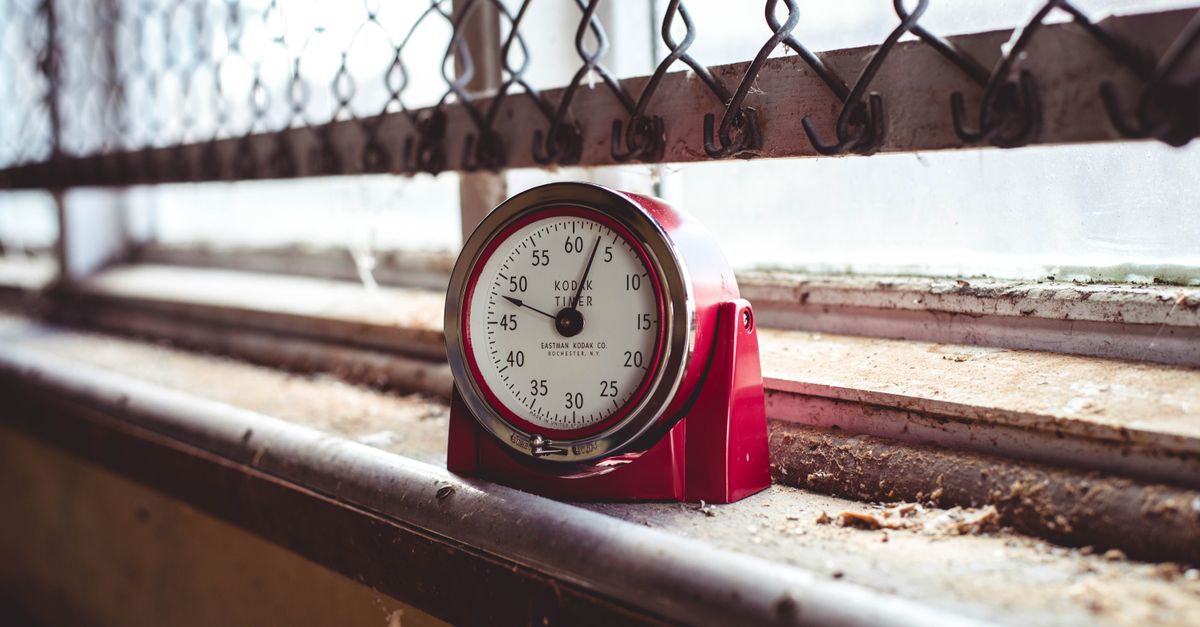
The earliest countdowns were mechanical. Rocket engineers in the 1950s shouted "T minus ten, nine, eight…" before ignition because a falling number creates more urgency than a rising one — your brain reads a smaller number as closer to a deadline. Engineers then packaged that feeling into mechanical boxes with a single dial: wind it forward to the duration you wanted, press the lever, and the hand swept back to zero while a bell rang. These boxes filled kitchens, classrooms, darkrooms, and gym floors because they answered a basic human need: a deadline you can see and hear without having to think about it.
The term "countdown timer" today covers that original dial as well as every digital descendant of it. A clock app on your phone is a countdown timer. A microwave button that adds thirty seconds is a countdown timer. A browser tab that ticks from 10:00 to 00:00 with a beep is also a countdown timer. What unites them is the three-part behaviour: pick a duration, watch it tick down, hear an alert at zero. Anything else — a clock face that shows the current time of day, a stopwatch that counts up, a calendar reminder that pops at a fixed wall-clock moment — is a different tool with a different job.
Countdown Timer vs. Stopwatch vs. Pomodoro Timer
Three timer-style tools show up in most time-related searches, and people mix them up. They look similar on screen, but they solve different problems. The clearest way to separate them is by direction, by who picks the duration, and by what the task actually needs.
| Tool | Direction | Who picks the length | Best for |
|---|---|---|---|
| Countdown timer | Counts down to 00:00 | You — any hours, minutes, seconds | Tasks with a fixed deadline (boil, plank, talk, test) |
| Stopwatch | Counts up from 00:00 | Nobody — runs until you stop it | Measuring how long something actually took |
| Pomodoro timer | Counts down to 00:00 | A fixed 25/5-minute rhythm (or 25/15) | Repeat focus blocks with built-in breaks |
If your task has a hard, set number of minutes, a countdown is the right instrument. If you want to time yourself without a deadline — say, seeing how long a chore really takes — reach for a stopwatch. If you want a productivity rhythm that switches between focus and rest on its own, the Pomodoro Timer runs the classic 25-minute focus / 5-minute break cycle automatically and counts completed sessions for you.
Everyday Uses for a Countdown Timer
Almost any task that benefits from a hard stop is a candidate for a countdown timer. The list is long because deadlines are everywhere.
- In the kitchen: boil eggs to a precise softness, steep tea without bitterness, time a rest for bread dough, or remind yourself that the lasagna has exactly twelve minutes left.
- During a workout: pace a thirty-second plank, hold yourself to ninety seconds of rest between sets, run HIIT rounds at twenty seconds on / ten seconds off, or cap a warm-up at five minutes.
- At work or school: keep a ten-minute lightning talk on time, cap a five-minute agenda item in a meeting, run a timed practice quiz, or time-box a forty-five-minute deep-work block.
- At home with kids: set a screen-time limit, time the two minutes of tooth-brushing, run a tidy-up race, or serve as the move clock during a board game.
- For events and ceremonies: give a quiz night a per-round cap, drive a debate segment, count down the last ten seconds before a presentation starts, or release balloons at a birthday on cue.
The common thread is simple: the task already has a built-in ideal duration, and you want a tool that enforces it without you having to think about it.
How to Run an Online Countdown Timer
The fastest way to get one is to open an online countdown timer in a browser tab. Because it lives in a tab rather than on your phone, it stays exactly where you are already working. The exact steps are below.
- Open the tool in a browser tab. Nothing to install, no account, no sign-up. The page loads in a second and is ready to use immediately.
- Set the duration. Type the hours, minutes and seconds you need in the input fields, or tap a quick preset such as 1, 3, 5, 10 or 15 minutes if one of those matches your deadline.
- Press Start. The large display begins ticking down. It is built to stay accurate even if you switch to another tab, lock your screen, or briefly walk away from your device.
- Pause and resume as needed. Press Pause to freeze the timer when you have to take a call or step away, and press Resume to pick up exactly where the count stopped.
- Watch for the alert. When the display reaches 00:00 you will see a clear "Time's up!" message and hear an optional short beep if your browser allows sound.
- Reset for the next round. Press Reset at any moment to return to your original duration and start a fresh count without retyping the time.
That is the whole loop: set, start, watch, alert, reset. There is nothing to learn and no setup wizard to clear.
Why Browser-Based Countdown Timers Stay Accurate
Accuracy is the part that separates a reliable timer from a frustrating one. A naive approach is to subtract one second every time the browser fires a setInterval tick, but those ticks are not perfectly regular — if the device is briefly busy, or you switch tabs and the browser throttles background work, the timer falls behind and shows less time than has actually elapsed.
The Online Countdown Timer avoids that drift with an anchor-timestamp approach. The instant you press Start, the tool records a high-resolution timestamp and stores it in memory. On every tick, the timer recomputes the remaining time as the original duration minus the real elapsed time. If the device paused for thirty seconds while you switched tabs, the next tick simply reflects that real elapsed time and the display corrects itself instead of falling behind. When the count reaches zero it stops cleanly at 00:00, fires the alert, and waits for your next move.
Privacy is the other half of the design. The whole timer runs locally in your browser with plain JavaScript. There is no server round-trip, no upload of what you are timing, no analytics tied to your activity, and no account. Because nothing leaves your device, the page also opens instantly and keeps working on a flaky or offline connection. The inputs lock while the clock is running so you cannot nudge the duration by accident mid-count.
Picking the Right Duration for Any Task
Choosing how many minutes to set is a small decision with an outsized effect. A timer that is too short cuts a task off before you are ready; one that is too long lets you coast when you should be pushing.
The quick presets on the Online Countdown Timer — 1, 3, 5, 10 and 15 minutes — cover the most common everyday cases: a quick stretch, a tea steep, a short focus block, a five-minute agenda item, or a short interval workout. If none of those fit, type the exact hours, minutes and seconds you want. The tool accepts any combination up to 99 hours, so it handles a nine-second egg flip as easily as a 72-hour bake, an eight-hour workday block, or a forty-eight-hour lock-in.
A few practical heuristics help when you are unsure:
- For physical tasks (planks, steeps, rests), pick the duration your goal actually demands, not the one that feels comfortable. A timer is most useful when it makes you push slightly past comfort.
- For focus work, twenty-five minutes is the canonical Pomodoro length, but anything between ten and fifty works; the point is to have a visible end.
- For talks and meetings, build in a buffer. If your slot is ten minutes, set the timer to nine so you finish a minute early.
- For kid-aimed timers (brush, screen time), round up to the nearest friendly minute so the number reads cleanly out loud.
Whatever duration you pick, the underlying meaning of the tool stays the same: a countdown timer is a deadline you can see, an alert you can hear, and a guardrail that lets you focus on the work instead of the clock.
Related reading: Pomodoro Timer Alternative: Run the 25/5/15 Cycle.
Related reading: How to Document the Steps You Use With a Debate Timer.