Changing your world clock to track time in different cities is as simple as adding or removing a city from a live-updating board. The World Clock tool lets you see the current local time in major cities around the globe at a glance, with updates every second and automatic adjustments for daylight-saving changes. Unlike built-in clock apps that require manual setup or syncing, this tool works instantly in your browser—no downloads, no sign-ups, and no delays. Whether you're coordinating with remote teams, planning international calls, or just curious about time zones, you can customize your clock in seconds and keep it running as long as you need.
Many people struggle with outdated or clunky world clock tools that require multiple steps to add a city or don’t update in real time. Some apps force you to create an account, while others don’t account for daylight-saving changes, leading to incorrect times. The World Clock solves these problems by offering a live, accurate display that refreshes every second and automatically adjusts for time changes. You can add or remove cities with a single click, and the tool runs entirely on your device, so your data stays private. This makes it ideal for professionals, travelers, and anyone who needs to stay on top of time differences without the hassle.
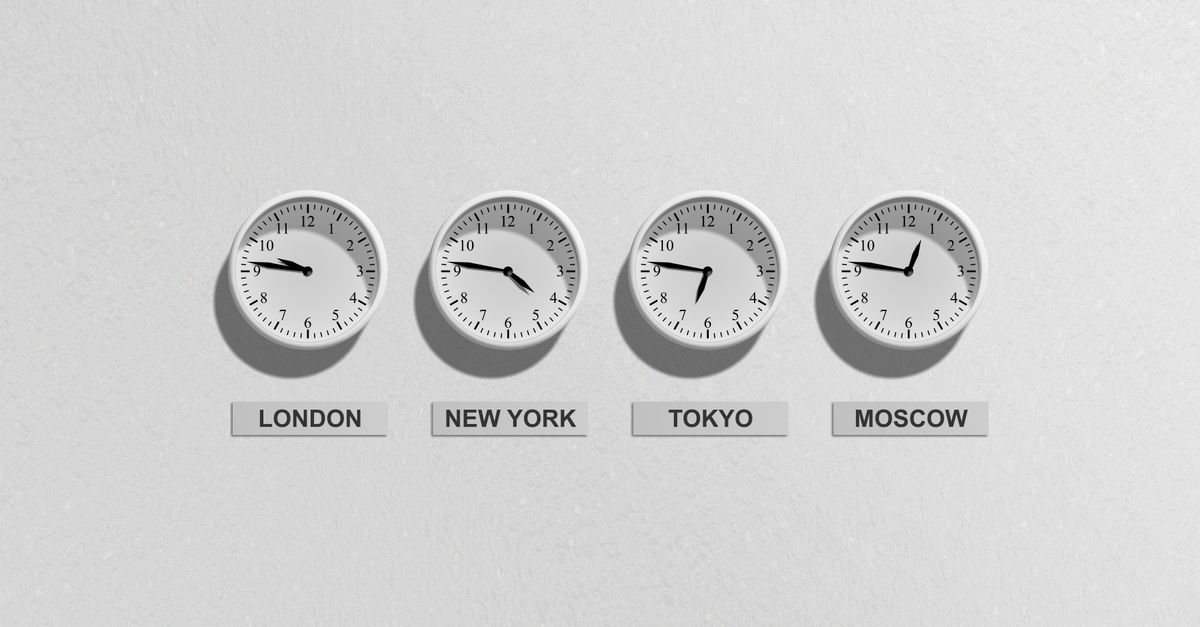
Why the World Clock Is the Best Choice for Tracking Global Time
The World Clock stands out because it combines simplicity with precision. Unlike native clock apps on phones or desktops, which often require navigating through multiple menus to add a city, this tool lets you customize your display in moments. Here’s what makes it different:
| Feature | World Clock | Native Clock Apps (Phone/Desktop) |
|---|---|---|
| Live updates | Refreshes every second | Updates every minute or manually |
| Daylight-saving aware | Automatic adjustments | Often manual or delayed |
| Ease of use | Add/remove cities in one click | Requires multiple steps |
| Privacy | No sign-up, no data upload | May sync with cloud accounts |
| Accessibility | Works on any device with a browser | Limited to specific platforms |
For example, if you’re using the Clock app on Windows or the built-in world clock on an iPhone, you’ll need to dig through settings to add a new city. With the World Clock, you simply select a city from a dropdown and press Add—no menus, no delays. The tool also shows the local date, weekday, and UTC offset for each city, so you always have the full context. This makes it especially useful for scheduling meetings, tracking market hours, or planning travel.
How to Change Your World Clock in 3 Simple Steps
Changing your world clock to track the cities you need is straightforward. Follow these steps to customize your display:
- Open the World Clock tool: Go to /productivity/world-clock/ in your browser. The tool loads instantly and shows a default set of major cities, with the current local time updating every second.
- Add a city: Click the Add a city dropdown, scroll or type to find the city you want, and press Add. The city’s local time, date, weekday, and UTC offset appear immediately on the board.
- Remove a city: If you no longer need to track a city, click Remove on its row. The board updates instantly, and you can continue adding or removing cities as needed.
That’s all it takes. The tool automatically adjusts for daylight-saving changes, so you never have to worry about incorrect times. You can keep the clock running in a browser tab for as long as you need, and it will stay accurate without any manual updates.
When You Might Need to Change Your World Clock
There are many situations where tracking time in multiple cities is essential. Here are a few common scenarios where changing your world clock can save you time and avoid confusion:
- Remote work: If you collaborate with teams or clients in different time zones, keeping an eye on their local time helps you schedule meetings or deadlines without miscommunication.
- Travel planning: if you're booking flights, arranging hotel check-ins, or planning activities, knowing the local time at your destination helps you avoid mistakes like arriving too early or missing a reservation.
- Financial markets: Traders and investors often need to track market hours in different regions. The World Clock lets you monitor opening and closing times for stock exchanges in New York, London, Tokyo, and other major cities.
- Family and friends: If you have loved ones living abroad, checking their local time before calling or messaging ensures you don’t wake them up in the middle of the night.
- Gaming or streaming: Gamers and streamers who interact with international audiences can use the World Clock to plan live sessions or events at times that work for their global fanbase.
For example, if you’re based in New York but need to coordinate with a team in London and Tokyo, you can add all three cities to your world clock. The tool will show you the current time in each location, along with the date and weekday, so you can quickly see whether it’s morning, afternoon, or night in each city. This eliminates the need to calculate time differences manually or rely on external websites.
How the World Clock Handles Daylight-Saving Changes
One of the biggest frustrations with world clocks is keeping up with daylight-saving time (DST) changes. Many tools require manual updates or don’t account for DST at all, leading to incorrect times. The World Clock solves this problem by automatically adjusting for DST changes as they happen. This means you never have to worry about whether a city is observing DST or not—the tool does the work for you.
For instance, cities like New York and London observe DST, while others like Tokyo do not. When DST starts or ends in a city, the World Clock updates the local time and UTC offset instantly. This is especially useful for professionals who need to schedule meetings or deadlines across time zones. Instead of checking multiple sources to confirm whether DST is in effect, you can rely on the World Clock to provide accurate, up-to-date information.
If you’ve ever been caught off guard by a time change, you’ll appreciate how seamless this feature is. The tool also shows the UTC offset for each city, so you can see at a glance how many hours ahead or behind a location is compared to Coordinated Universal Time (UTC). This is helpful for understanding time differences beyond just the local time.
Alternatives to the World Clock (And Why They Fall Short)
While there are other ways to track time in different cities, most come with limitations. Here’s how the World Clock compares to some common alternatives:
| Tool | Pros | Cons |
|---|---|---|
| Built-in phone/desktop clock apps | Pre-installed, no downloads needed | Limited customization, slow updates, often require manual DST adjustments |
| Search engine queries (e.g., "time in London") | Quick for one-off checks | No live updates, no way to track multiple cities at once, ads and clutter |
| Third-party world clock apps | Some offer advanced features | Often require sign-ups, may track your data, can be slow or buggy |
| World Clock tool | Live updates, no sign-up, fully DST-aware, works on any device | Requires an internet connection to load initially |
For example, if you use the Clock app on Windows or the built-in world clock on an iPhone, you’ll need to navigate through multiple menus to add or remove cities. These apps also don’t always update in real time, and they may not account for DST changes until hours or even days after they happen. Search engine queries are fine for a quick check, but they’re not practical for tracking multiple cities simultaneously. Third-party apps often come with privacy concerns or require you to create an account, which adds unnecessary friction.
The World Clock eliminates these issues by offering a fast, private, and accurate solution. Since it runs entirely in your browser, you don’t have to worry about downloads, updates, or data tracking. It’s also accessible from any device, so you can use it on your phone, tablet, or laptop without any differences in functionality.
Tips for Getting the Most Out of Your World Clock
To make the most of the World Clock, consider these tips:
- Bookmark the page: Save the World Clock to your browser’s bookmarks bar for quick access. This way, you can open it with a single click whenever you need to check times.
- Use it alongside other productivity tools: Pair the World Clock with tools like the Pomodoro Timer or Online Stopwatch to stay on top of your schedule. For example, you can use the Pomodoro Timer to structure your work sessions and the World Clock to ensure you’re not interrupting colleagues in other time zones.
- Customize for your needs: Add only the cities you need to track to keep the display clean and focused. You can always add or remove cities later if your needs change.
- Check UTC offsets: The UTC offset for each city is displayed alongside the local time. This can help you quickly calculate time differences between locations, even if you’re not familiar with their time zones.
- Use it for travel planning: Before a trip, add your destination city to the World Clock to get a sense of the time difference. This can help you adjust your sleep schedule or plan activities before you arrive.
For example, if you’re planning a trip to Sydney, you can add Sydney to your world clock a few days before your flight. This will give you a sense of the time difference and help you adjust your schedule accordingly. You can also use the tool to plan calls or meetings with people back home, ensuring you don’t accidentally schedule something at an inconvenient time.
Frequent Errors When Using a World Clock
While the World Clock is designed to be simple and intuitive, there are a few common mistakes people make when using it—or any world clock tool. Here’s how to avoid them:
- Assuming all cities observe DST: Not all cities observe daylight-saving time. For example, Tokyo doesn’t use DST, so its time remains consistent year-round. The World Clock handles this automatically, but it’s good to be aware of it when planning.
- Forgetting to check the date: The World Clock shows the local date for each city, which is important for avoiding confusion. For example, if it’s Monday in New York but Tuesday in Sydney, you’ll want to double-check the date before scheduling a meeting.
- Overloading the display: While you can add as many cities as you want, too many can make the display cluttered and hard to read. Stick to the cities you actually need to track.
- Not bookmarking the page: If you use the World Clock frequently, bookmarking it ensures you can access it quickly without having to search for it every time.
- Ignoring UTC offsets: The UTC offset for each city is displayed alongside the local time. This can be helpful for understanding how far ahead or behind a city is compared to UTC, which is useful for scheduling or travel planning.
For instance, if you’re scheduling a meeting with someone in London and Sydney, you might assume that London is 10 hours behind Sydney. However, if DST is in effect in London but not in Sydney, the actual time difference could be 9 hours. The World Clock shows the correct UTC offset for each city, so you don’t have to guess.
How to Use the World Clock on Different Devices
The World Clock works on any device with a browser, including phones, tablets, and laptops. Here’s how to use it on different platforms:
- Desktop or laptop: Open your preferred browser (Chrome, Firefox, Safari, Edge, etc.) and go to /productivity/world-clock/. The tool loads instantly and works just like any other website. You can keep it open in a tab for quick reference.
- Phone or tablet: Open your mobile browser and navigate to the same URL. The World Clock is fully responsive, so it adapts to smaller screens without any loss of functionality. You can add it to your home screen for even quicker access—just tap the Share button in your browser and select Add to Home Screen.
- Smart TVs or gaming consoles: If you have a browser on your smart TV or gaming console (e.g., Xbox, PlayStation), you can open the World Clock there as well. This is useful if you want to display the clock on a larger screen for easy viewing.
No matter what device you use, the World Clock offers the same features and performance. There’s no need to download an app or create an account—just open the tool and start using it immediately. This makes it a versatile solution for anyone who needs to track time across multiple cities.
More on this topic: How to Stop a Stopwatch on Your Browser.
If you're weighing options, Set an Online Alarm Clock in Your Browser in 30 Seconds covers this in detail.
If you're weighing options, Add a Live World Clock to Your Windows 11 Desktop covers this in detail.