An audio reaction time test on iPhone would measure your response to a sound; the Reaction Time Test on this page instead measures your response to a green visual “PRESS NOW” signal, so it is not an auditory or hearing test. If you searched for an audio version because you want a quick reaction-time check on your iPhone, you can still use this tool for a visual-response measurement, but you should not describe the result as hearing or sound reaction performance. The page waits through a fresh randomized delay of 1,500–4,000 milliseconds, then accepts a panel tap, Enter, or Space after the panel turns green. Its score is the browser-delivered interval between the ready-state callback and the press event, so the number includes more than the time it takes a person to decide and move. Display refresh, browser and operating-system scheduling, input handling, and other device conditions can affect it. The tool retains the latest five completed trials, calculates the smallest result as best and their rounded arithmetic mean as average, and keeps everything in the current tab. That makes it useful as a repeatable informal comparison when you keep the iPhone, browser, input method, and surrounding conditions stable.
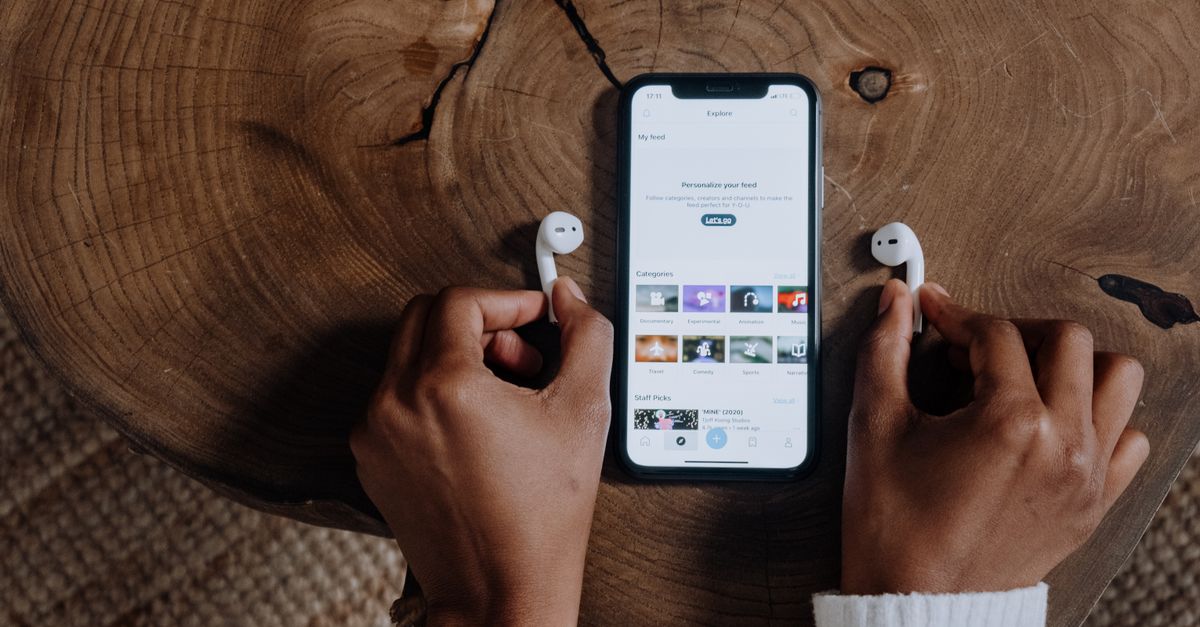
What the iPhone test actually measures
The keyword describes an auditory task, while this tool is deliberately visual. There is no sound to react to, and the page does not test hearing. If sound is essential to your goal, this page cannot provide an auditory reaction measurement. It can, however, answer the practical question: how quickly can you respond to a visible go signal in an iPhone browser under a repeatable setup?
After you select Start test, the page chooses a fresh randomized waiting period between 1,500 and 4,000 milliseconds. When the panel turns green and reads PRESS NOW, the tool records the browser’s ready-state callback and the later press event with performance.now. In implementation terms, the displayed value is max(0, round(press reading − ready-state reading)), rounded to the nearest whole millisecond. A valid tap or key press therefore produces a non-negative browser interval.
That interval is not a photograph of human reaction alone. The page cannot observe the physical instant your finger began moving, a wireless packet leaving the device, or the exact moment display pixels emitted green. For a fuller breakdown of the software and hardware layers behind this number, see what a reaction-time score includes.
| Test element | Page rule | Practical effect |
|---|---|---|
| Ready cue | Panel turns green and displays PRESS NOW | The response is visual, not auditory |
| Waiting period | Fresh random delay from 1,500–4,000 milliseconds | The changing delay makes it harder to anticipate the signal from a fixed rhythm |
| Accepted response | Panel pointer press, Enter, or Space while focused | You can tap the iPhone panel directly |
| Early response | Pending trial is cancelled and marked Too soon | No result is added |
| Session summary | Last five completed results, best, and rounded average | The comparison covers only the visible recent window |
Run the reaction-time check on your iPhone
Use a foreground browser tab rather than a streamed or remote session when you want a result that represents your local iPhone setup.
- Open the test page in the browser on your iPhone, bring the tab to the foreground, and position the screen so the test panel stays visible.
- Select Start test. While the panel displays its waiting message, do not tap the panel or press a key. Each new trial uses a newly generated randomized delay.
- As soon as the panel turns green and displays PRESS NOW, tap it immediately. If you are using a physical keyboard, focus the control and press Enter or Space.
- Repeat under the same device conditions. After each valid trial, the latest result appears in milliseconds. Continue until you have several results, with up to five completed trials retained.
- Review the latest, best, and average values. When you finish or want to begin a separate comparison group, select Reset all; it cancels any pending trial and clears every result.
Read the millisecond summary correctly
Only completed valid trials enter the history. The page keeps the last five, and older completed results fall out after the fifth, so its summary describes only the current recent window. The three displayed figures have different jobs:
- Latest is the result from the most recently completed valid trial.
- Best is the smallest value among the retained completed trials.
- Average is the arithmetic mean of the retained results, rounded to the nearest whole millisecond.
A false start never becomes the latest result and does not change the best or average. A particularly fast trial can make the best value look stronger, while one unusually slow trial can pull the average upward. That is why several valid attempts provide a more useful comparison than a single result. A shorter number means a shorter measured browser interval, but it does not automatically prove that the person reacted more quickly because the surrounding device layers remain part of the measurement.
Keep iPhone comparisons fair
The score contains more than human decision time. Display refresh, compositor scheduling, browser task timing, operating-system input handling, device transport, wireless conditions, and event dispatch can all contribute. Background tabs, power-saving behavior, high CPU load, remote desktop software, and variable refresh behavior can also change results.
- Keep the browser in the foreground throughout each trial and the comparison session.
- Use the same iPhone, browser, input method, window position, and display mode.
- Avoid changing power, connectivity, or load conditions between attempts when the purpose is to compare your responses.
- Complete several trials rather than treating one unusually fast or slow result as a conclusion.
If you compare tapping with an external keyboard, use Reset all between the two groups and label the conditions outside the page because the widget stores no experiment notes. The control accepts pointer and keyboard input paths, but it does not claim that those paths are physically equivalent. Likewise, avoid comparing a foreground local browser with a streamed or remote session unless end-to-end system delay is the specific subject of your test.
False starts, Reset all, and local session data
If you tap before the green signal, the pending timer is cancelled, no reaction result is added, and the panel reports Too soon. Earlier completed trials remain in the summary, so one false start does not erase your valid history. Select another try when you are ready to continue.
Reset all has a wider effect: it cancels a pending trial and clears every stored result, including the latest value, best, and average. All timing state remains in the current tab. The page does not request a login, upload presses, identify your input hardware, save a leaderboard, or persist history after you reload it. Your completed session is therefore local and temporary rather than a permanent personal record.
Understand the limits of an informal iPhone score
This is an informal browser timing utility, not a calibrated hardware latency meter. It cannot separate your decision time from display latency, browser scheduling, operating-system handling, input-device behavior, or transport delay. It also does not test hearing, diagnose neurological conditions, assess fitness to drive, recommend training, or certify competitive performance.
The tool deliberately omits age tables, percentile rankings, pass-or-fail labels, sports benchmarks, medical thresholds, and claims about alertness. Those interpretations require controlled protocols and expertise that this general-purpose utility does not provide. If reaction measurement will guide a safety, health, employment, accessibility, or purchasing decision, use an appropriate controlled instrument and qualified guidance.
For your original iPhone goal, the practical conclusion is simple: use this tool for a repeatable visual go-signal measurement in the browser, not as an audio reaction or hearing assessment. Keep the conditions consistent, inspect all retained results rather than one outlier, and treat the millisecond figure as a combined signal-to-press interval rather than a pure score for the person holding the phone.