A PDF page is measured in PDF points, where 72 points equal exactly 1 inch — the same way a physical scale ruler maps a small distance on a blueprint back to its real-world size. When you resize a PDF using Resize PDF, the tool applies the same ratio logic a scale ruler uses: it reads each page's current width and height, computes a single scale factor, and rescales every page's geometry to match your chosen target. Standard page sizes in points are fixed — A4 is 595 by 842, US Letter is 612 by 792, and US Legal is 612 by 1008 — so a 50% scale factor halves every page while 200% doubles it. A scale factor of, say, 0.83 maps a 720-point-wide slide onto a 595-point A4 page width, exactly the way a 1:50 architectural scale ruler converts a drawing line into a real measurement. Treating PDF points as the ruler and your target as the goal is what makes page resizing feel like reading a scale ruler instead of guessing.
The Scale Ruler Idea Behind PDF Resizing
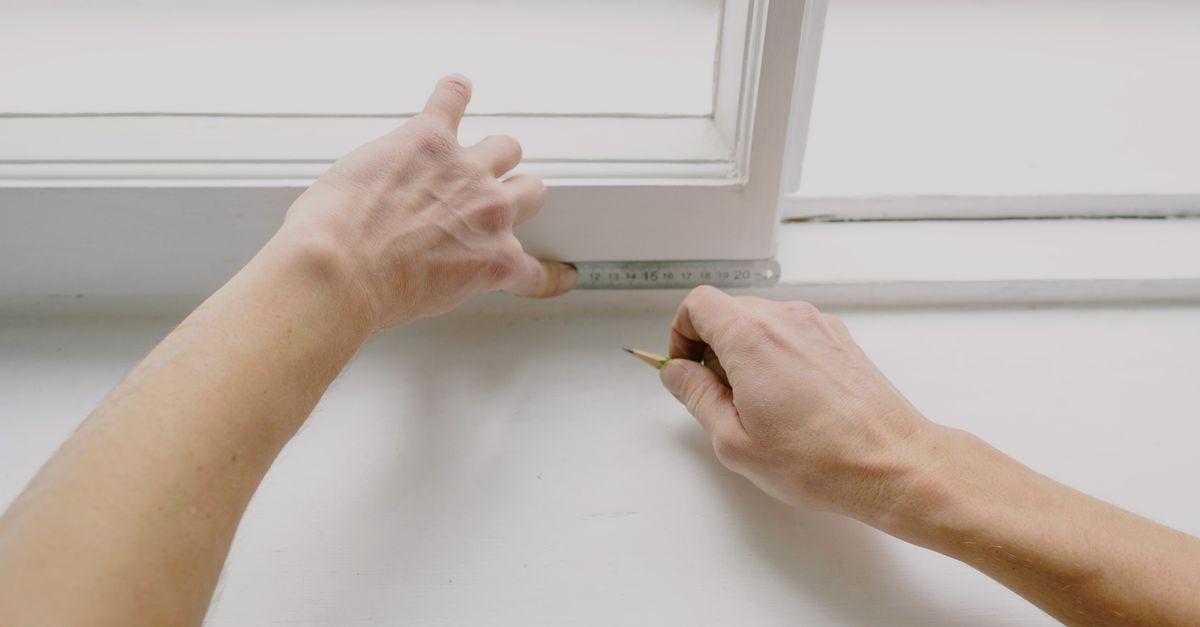
A physical scale ruler — the kind architects and engineers pull out next to a blueprint — is a measuring stick printed with several reduced scales such as 1:50, 1:100, or 1:200. You line it up against a drawing, read the marks, and the ruler converts that small distance back to the real-world size. The mental model is a single ratio between two lengths, applied over and over across the drawing.
PDF page dimensions use exactly the same model. Every page in a PDF carries a width and a height measured in PDF points, where 72 points equal one inch. When you "use a scale ruler" on a PDF, you are really picking a ratio between the page's current size and a target size, and the tool rescales the page geometry by that factor. Going from a 1280-by-720 point slide deck to 612-by-792 US Letter is just another ratio — the same arithmetic a scale ruler does on a drawing line, applied to the whole page instead of a single edge.
PDF Page Geometry and the "Ruler" in Points
Because every PDF page carries its dimensions in points, the points act as the ruler you read against. Three standard sizes cover almost every print, submission, and screen-PDF workflow:
| Standard | Width (pt) | Height (pt) | Inches |
|---|---|---|---|
| A4 | 595 | 842 | 8.27 × 11.69 |
| US Letter | 612 | 792 | 8.5 × 11 |
| US Legal | 612 | 1008 | 8.5 × 14 |
These numbers are the targets you line your PDF against. If your current page is, say, 720 by 540 points and your target is US Letter at 612 by 792, the Fit mode picks the smaller of the two ratios so the content fits without distortion, while Stretch uses a different factor for each axis and fills the page edge to edge. Working in points keeps the math exact: every conversion between PDF and inches, millimetres, or pixels starts from the same ruler.
How to Resize a PDF Using Scale Ruler Logic
- Open Resize PDF in your browser and click Browse PDF, or drag your file onto the page — the PDF is read locally in your browser and never uploaded. Password-protected or corrupted PDFs cannot be read without their password and are reported clearly so you can unlock them first.
- Pick Standard size and choose A4, US Letter, or US Legal. Select Portrait or Landscape, then choose Fit (keeps proportions and adds even margins) or Stretch (fills the target page edge to edge).
- Switch to Percentage mode if you would rather scale relative to the current size — enter 50 for half-size, 200 for double, or any value you need.
- Click Resize PDF. The tool scales every page with the same setting, builds a new PDF entirely in your browser, and shows a download link for the resized copy.
- Save the new file. Your original PDF is left untouched, and nothing was sent to a server along the way.
Fit or Stretch: Which Mode Matches Your Goal
Fit keeps the original proportions. The tool computes a single scale factor as the smaller of targetWidth divided by pageWidth and targetHeight divided by pageHeight, scales the content by that one factor on both axes, sets the page to the target size, and centers the artwork with even margins where the aspect ratios differ. Nothing gets distorted and nothing gets cut off. This is the mode you want when the document will be printed, bound, or read on screen at its true proportions — the digital equivalent of laying a scale ruler flat against a drawing and reading the marks faithfully.
Stretch scales width and height independently, using targetWidth divided by pageWidth and targetHeight divided by pageHeight as separate factors. The content fills the entire target page edge to edge. This is useful when you deliberately want to fill a frame — for example, fitting a wide landscape diagram into a portrait slide — and you are happy to see the proportions change in the process.
Scaling by Percentage: The 50% and 200% Shortcuts
If you already know the ratio you want, percentage mode is the fastest path. Enter 50 and every page halves in size; enter 200 and every page doubles. The percentage is applied as a single factor to both axes, so the page's proportions stay exactly the same as the original. This is the closest digital analogue to picking 1:50 off a physical scale ruler and laying it against a drawing: you decide the ratio in advance, then let the tool apply it uniformly across every page.
Percentage mode also handles mixed-size documents cleanly. A document with some pages at 595 by 842 and others at 1280 by 720 still gets every page multiplied by your chosen factor, so a 50% scale produces consistent relative shrinkage across all of them. The output looks the same regardless of which page you sample.
When Resizing Will Not Make Your File Smaller on Disk
A common point of confusion: changing page size does not necessarily shrink the number of bytes in the file. Resize PDF changes the page's physical dimensions and scales the drawn content to match, but it does not re-sample images, strip fonts, or remove embedded objects. The downloaded file can be similar in size to the original, and in some cases larger, because the same content is being described at a different geometry.
If your real goal is a smaller attachment to send by email or upload to a form, page resizing is the wrong tool for that part of the job. You would instead need a compressor that down-samples images and optimizes objects. Use resizing when you need consistent paper dimensions for printing, binding, or submission requirements, and reach for a different tool when you need fewer bytes on the wire.
Common PDF Scaling Scenarios
| Situation | Best Mode | Why |
|---|---|---|
| Slide deck exported at 1280×720 pt needs to print on US Letter | Standard → Letter, Fit, Landscape | Single scale factor keeps slides readable; landscape preserves wide layout |
| Scanned contract on odd dimensions needs to match a submission template | Standard → A4 or Letter, Fit | Even margins prevent content from being clipped at the edge |
| Wide diagram must fill a portrait slide edge to edge | Standard → Letter, Stretch, Portrait | Independent width/height scaling fills the frame exactly |
| You want every page shrunk by the same ratio | Percentage → 50 (or any value) | Single factor, no aspect-ratio choice to make |
| Phone-captured scan shows up sideways after resizing | Reset rotation first, then resize | Resize preserves any existing rotation flag, so portrait targets can still display sideways |
For rotated or scanned pages, keep in mind that the tool uses each page's unrotated geometry. If a page carries a rotation flag — common with phone or scanner PDFs — a portrait target can still display sideways, because the rotation is preserved on top of the new size. The content is never cut or distorted; only turned. If the result looks turned, run a rotation pass first so the unrotated geometry already matches your intent.
Putting the Pieces Together
Reading a scale ruler is just choosing a ratio and letting the ruler do the multiplication. Resizing a PDF works the same way: you pick a target (a standard size or a percentage), the tool computes the scale factor in points, and every page is rescaled uniformly. Once you treat PDF points as the ruler and your target as the goal, the rest of the workflow — Fit versus Stretch, standard size versus percentage, browser-only versus upload — falls out of the same simple rule.
For documents that should never leave your device, Resize PDF runs entirely in your browser: the file is read into memory, processed locally with JavaScript, and the resized copy is offered as a direct download. Your original PDF stays on your computer from start to finish, which matters for confidential contracts, medical records, and financial statements. For a deeper walkthrough of the print workflow this unlocks, see the guide on how to resize a PDF page for printing or submission.
Related reading: Resize a PDF to 8.5 x 11 Without Adobe Acrobat.