The main thing that can go wrong when you use the convert PDF to grayscale tool is that it creates a flattened raster PDF: selectable text, live links, form fields, annotations, vector content, accessibility structure, and metadata are not preserved.
That is acceptable for a quick visual monochrome copy, print preview, upload requirement, or reference document, but it is not a drop-in replacement for an interactive, archival, or compliance-controlled PDF. The converted file can also be larger than the original, and some colors can lose contrast or become difficult to distinguish. The source PDF is processed locally and is not uploaded.
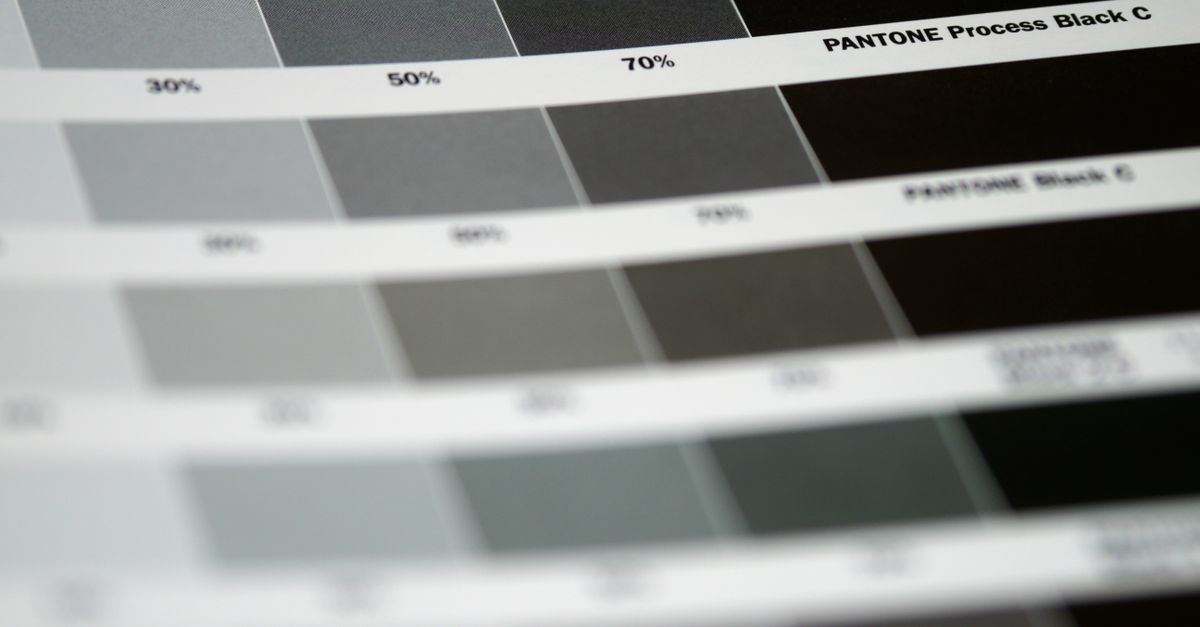
Why a grayscale copy can look different
The converter does not recolor the original PDF's color commands or vector objects. Instead, the browser's PDF renderer first resolves each page, and the tool then calculates a gray value for every rendered RGB pixel. It rounds 0.2126 times red plus 0.7152 times green plus 0.0722 times blue, then assigns that value to the red, green, and blue channels.
This produces tonal grayscale, not a conversion to only pure black and pure white. The weighting means that two different colors with similar brightness can become almost indistinguishable. Pale colored text against a white background may also become very light gray, reducing its apparent prominence even though the underlying text was clear in the source.
- Fine distinctions between similarly bright colors can disappear after the pixels are converted to gray.
- Thin text, borders, and linework may look softer because the page is rendered as an image at a fixed 1.5 scale.
- The page appearance is resolved by the browser before grayscale calculation, so the result reflects the rendered pixels rather than the original PDF color definitions.
- Layered, transparent, or otherwise structural content is flattened into the page image rather than retained as editable PDF structure.
The original page dimensions are preserved, but preserving the page size does not mean preserving the source file's visual precision or internal construction.
What the rebuilt PDF keeps and loses
Every converted page is encoded as a PNG image, and those images are assembled into a new PDF. The following differences matter when deciding whether the result can replace the source.
| Feature | Converted result | Practical consequence |
|---|---|---|
| Source handling | One local PDF is processed in the browser without uploading the source. | The source remains available for comparison, but the output is a separate document. |
| Page dimensions | The original dimensions are retained after rendering at a fixed 1.5 scale. | The finished pages match the original dimensions, not necessarily the source's vector or image detail. |
| Selectable text | Text is rebuilt as part of a raster page image. | Text cannot be selected, copied, or edited as text in this output. |
| Links and form fields | Live links and form fields are not preserved. | The file is intended for viewing or printing rather than completing an interactive form. |
| Annotations and layers | Annotations, layers, and vector paths are not retained as PDF structures. | Comments, widgets, and editable graphics cannot be expected to remain functional. |
| Document properties | Accessibility structure, metadata, original image encodings, and original compression are not preserved. | The file should not be treated as an archival or accessibility-preserving version. |
| Output format | A new PDF containing grayscale PNG page images is produced. | The output may look correct while being less flexible and potentially larger than the source. |
This is why a successful conversion does not automatically mean a successful replacement. The visual pages may be suitable, but features that depend on the original PDF's internal structure have been removed.
Why the converted PDF may become larger
Each rendered page is stored as a PNG image in the new PDF. Those page images can use more bytes than the source PDF's existing fonts, vector paths, and compressed image data. A source can therefore be compact because it stores repeated text and graphics efficiently, while the raster version stores rendered pixels for every page.
A larger file is possible, not inevitable. The original compression is not carried into the output, and the final size depends on the page dimensions, rendered pixel count, page imagery, and PNG encoding. Keeping the same page dimensions does not guarantee a similar file size.
If a destination imposes a strict upload limit, inspect the downloaded file before using it. This converter does not provide controlled compression for that purpose; a professional PDF editor is the appropriate alternative when compression must be managed to a specific target.
Limits and failures that can interrupt conversion
File size and page count are only part of the converter's boundary. All of the following limits can determine whether a job completes:
- It accepts one local source PDF of up to 25 MB.
- A single document can contain no more than 40 pages.
- A rendered page can be no more than 12,000 pixels on either side.
- One rendered page can contain no more than 40 megapixels.
- The rendered pages across the entire document can total no more than 100 megapixels.
Before allocating an output page canvas, the tool checks every page against the 1.5-scale dimension and pixel budgets. A PDF can therefore satisfy the 25 MB and 40-page limits but still exceed the rendering limits because of unusually large page dimensions or a high aggregate pixel count.
Password-protected, malformed, signed, or unusually complex PDFs may also fail. The converter does not bypass document passwords or validate signatures, so a signed file should not be assumed to convert merely because it opens in a browser.
Starting another conversion cancels the previous job. Let the current conversion finish before beginning another one, particularly when the document is close to one of the page or pixel limits.
Convert a PDF using the supported workflow
Use the Grayscale PDF Converter when a flattened visual copy is acceptable and you do not need the source document's interactive or structural features.
- Choose one local PDF no larger than 25 MB, then confirm that it fits the 40-page, rendered-dimension, per-page pixel, and document pixel limits.
- Select Convert to grayscale and wait while every bounded page is rendered locally.
- Review the raster PDF and download it when the flattened pages meet your needs.
The source is not uploaded, and the converter creates a new PDF rather than altering the source in place. Because the output is assembled from rendered page images, review the complete document before relying on it. Starting a second conversion before the first finishes cancels the earlier job.
Inspect every page before delivery
Treat the converted PDF as a new visual artifact and check it under the conditions in which it will be used.
- Compare the output's page count and dimensions with the source.
- Zoom in on the smallest type, thin rules, charts, logos, and photographs to identify softened or newly ambiguous details.
- Look for pale colored text or marks that became light gray against a white background.
- Confirm that nobody expects to select text, follow a live link, complete a form field, open a comment, or edit a vector graphic in the converted file.
- Check the output file size against any upload or delivery limit.
- Open a print preview when the file is intended for printing, and keep the original PDF for comparison or rollback.
For a focused final review, follow the guide to checking a grayscale PDF result before distributing the document.
When to keep the source or use another workflow
The raster converter is a practical choice for a quick visual monochrome copy, print preview, upload requirement, or reference document when flattened pages are acceptable. Those uses do not depend on the original PDF remaining selectable, interactive, vector-based, or accessibility-tagged.
Use a professional PDF editor when the deliverable must preserve selectable text, PDF/A compliance, accessibility tags, vector graphics, signatures, print color management, or controlled compression. The grayscale converter does not claim archival or legal conformance, and it does not establish that a document's existing signature is valid. Keeping the source and using the converted file only for its intended visual purpose is the safest approach.
If you're weighing options, Key Details for Using the Convert PDF to Grayscale Tool covers this in detail.