To print a PDF poster near me, tile each PDF page across an ordered set of same-size sheets, print them at 100% scale, and assemble the tiles from top left to bottom right. This creates an enlarged poster from multiple printable sheets without relying on a printer driver’s poster mode.
Print Poster PDF handles only the tiling stage. Its embedding, enlargement, clipping, serialization, and download creation happen inside your browser, so the document is not uploaded to Lizely. It does not identify nearby businesses, submit a print job, or guarantee that a provider will assemble the sheets; you still need a home printer or a local service that accepts customer-supplied PDF files.
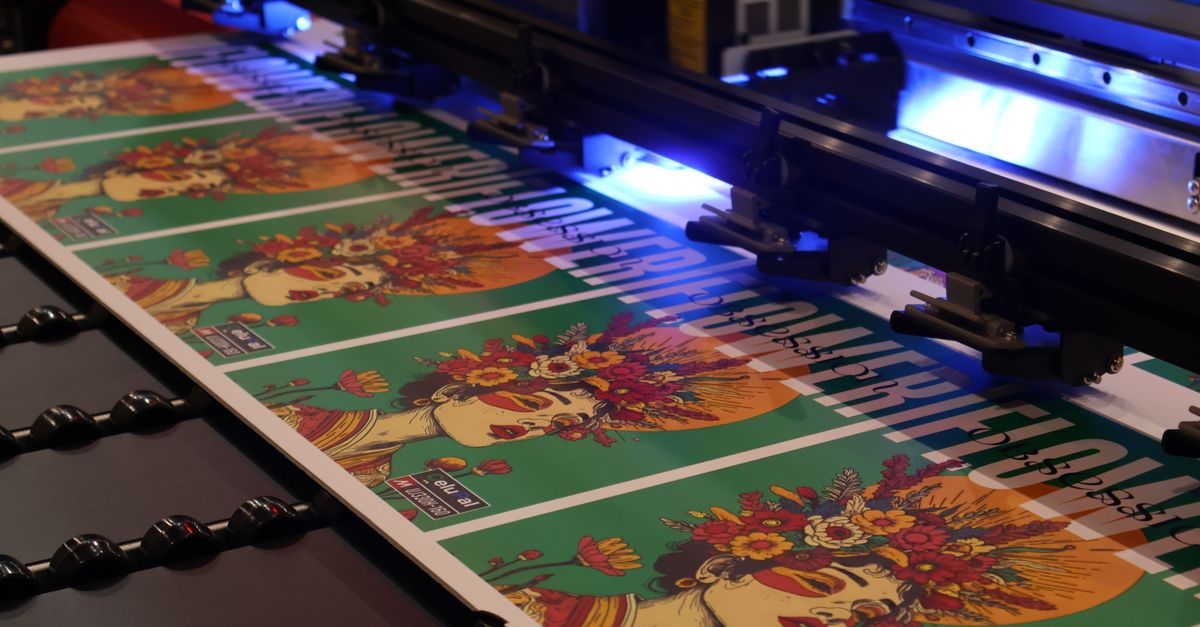
Where to look for a local print service
Search by city or postcode for “PDF poster printing,” “large-format printing,” “copy and print,” or “poster assembly.” Local listings may include independent copy centers, office-supply print desks, libraries, campus facilities, and commercial print shops. Their services vary, so contact the provider before traveling or sending the file.
Confirm these points before the print order:
- Can the provider print a multi-page PDF with one tile on each sheet?
- Will it print at actual size, or does its system apply automatic fitting?
- Does the price include physical assembly, or will you join the sheets yourself?
- Can it print on the paper size and material you need?
- Does it accept a customer-uploaded file, an emailed PDF, or a message attachment?
A shop that only prints one large artwork page may not accept a tiled PDF in the same way as a provider offering poster assembly. Ask specifically whether it can print the individual tile pages and put them together. If you send the file to an online provider, that upload is a separate transfer governed by the provider’s own process; Print Poster PDF itself does not upload your document to Lizely.
Prepare a tiled PDF for handoff
- Choose the source file. Open Print Poster PDF and select a local PDF. It must be non-empty and no larger than 25 MiB. Confirm that the file opens normally before beginning, because empty files, non-PDF selections, encrypted documents, damaged files, and unsupported PDFs produce a visible error.
- Select the grid. Choose between two and four poster columns and between two and four poster rows. This allows square grids such as 2×2, 3×3, and 4×4 as well as rectangular combinations such as 2×3.
- Create and download the tiled PDF. For every source page, the tool scales the artwork across the selected grid and emits one sheet for each tile. Tiles begin at the top left, continue across the first row, move to the next row, and finish at the bottom right. The original page order is retained.
- Inspect the generated file. Open the download in the PDF viewer you expect the printer or shop to use. Check page orientation, image continuity, and any unusual results around rotated pages, crop boxes, media boxes, or unusual coordinate origins. Mixed-size documents are supported, with each page’s tiles derived from that page’s own dimensions.
- Provide the current tiled file. Upload it to a provider only if that provider accepts customer files, or print it yourself. Request 100% actual-size printing and do not let the print system use “Fit,” “Shrink,” or “Scale to Fit.” Note the source page count, total sheet count, grid, and page dimensions before handoff.
- Test one sheet before the full run. Check the scale, orientation, edges, and image placement. Once the test is correct, print the remaining sheets and arrange them in grid order: top left across the first row, then downward until the bottom-right tile is in place.
Match the grid to the sheet count
The available grids determine both the assembled poster dimensions and the number of physical sheets you need to handle. These are examples of supported choices:
| Grid | Sheets per source page | Assembly layout |
|---|---|---|
| 2×2 | 4 | Two columns across and two rows down |
| 2×3 | 6 | Two columns across and three rows down |
| 3×3 | 9 | Three columns across and three rows down |
| 4×4 | 16 | Four columns across and four rows down |
The total sheet count equals the number of source pages multiplied by the selected columns and rows. The tool reports both the source page count and the total number of generated sheets, so you can check the order before printing. A larger grid produces a larger assembled image but also gives you more separate sheets to print, transport, and assemble.
Confirm the sheet and poster dimensions
Every output sheet keeps the width and height of its corresponding source PDF page. A landscape source page therefore produces landscape sheets, while a portrait source page produces portrait sheets. The tool does not normalize pages to Letter, A4, or another named paper standard, and it contains no paper-size lookup table.
The assembled width is the source page width multiplied by the number of columns, while the assembled height is the source page height multiplied by the number of rows. Give those dimensions to the print provider if it needs to quote a final poster size or verify that the chosen media will work.
If every tile must use a particular physical sheet size, resize the source PDF before tiling. The dedicated resize tool can prepare the source pages, Print Poster PDF will then retain those source-page dimensions for the tiles rather than applying another conversion.
Print without scaling or unwanted gaps
- Set the scale to 100%. The tool cannot compensate for automatic printer-driver scaling, so actual-size printing is essential.
- Use the generated tiles as they are. Printer-driver poster mode is not required because each output page already contains its own section of the enlarged artwork.
- Expect hardware margins. Most physical printers cannot reach the exact sheet edge, so narrow unprintable margins can leave small gaps between assembled tiles.
- Do not expect trim aids. The tool adds no overlap, trim marks, bleed, margin, or registration marks. You can trim edges manually or choose suitable printer settings for your device, but the tool does not know your printer’s hardware margins.
- Check the result early. Test one page before committing paper and ink to a complete multi-sheet poster.
Check special pages and document features
Rotated pages retain the artwork embedded by the PDF library, but PDF rotation and page-box conventions can affect how a viewer presents a tile. Crop boxes, media boxes, and non-zero coordinate origins can also make unusual documents behave differently from ordinary pages. Inspect the generated sheets in the intended viewer, especially for rotated, cropped, or prepress-oriented artwork.
The poster document preserves embedded PDF artwork instead of converting every page into a rasterized screenshot. Vector shapes and text can remain vector-based to the extent supported by the underlying PDF library, which is useful for visual print quality.
This is a visual tiling workflow rather than a complete copy of every PDF feature. Interactive links, comments, form widgets, scripts, attachments, bookmarks, and named destinations are not recreated as equivalent interactive structures on each tile. Do not rely on the generated poster to retain clickable or form-based behavior.
Keep processing local and handle file errors
The complete tiling workflow runs locally in the browser: the source artwork is embedded, enlarged, clipped to each output-page boundary, serialized, and prepared for download without uploading the file to Lizely. Local processing does not make the tool a secure hidden-content remover, so it should not be treated as a document-sanitization service.
The tool shows an error for an empty file, a non-PDF selection, a file larger than 25 MiB, an encrypted PDF, damaged cross-reference data, or an unsupported document. Password protection is not bypassed. If your document is encrypted, obtain an authorized unlocked copy before trying to tile it.
Changing the source file or grid revokes the previous download so that an outdated arrangement is not mistaken for the current one. Make your final selection, create the new tiled PDF, and download that version before giving it to a printer.
Use this shop handoff checklist
- The source PDF opens correctly and meets the 25 MiB limit.
- The generated PDF has been opened and visually checked in the intended viewer.
- The source page count and total sheet count match your expectations.
- The grid, page orientation, source dimensions, and assembled dimensions are recorded.
- The nearby provider has confirmed that it accepts tiled PDF pages and prints at actual size.
- The provider’s assembly service and price are understood before the order is placed.
- One test sheet has been checked for scale, continuity, and unprintable-edge gaps.
- The tile order is known: top left across each row, then downward to the bottom right.
When the sheets are printed at 100% and arranged in that order, they reconstruct the enlarged source page. The tool ends with an assembly-ready tiled PDF; finding the nearby provider, fulfilling the order, and physically joining the printed sheets remain separate steps.