To convert a PDF to text on Android, use the browser-based PDF to Text Converter to select a local file, extract its selectable text, and copy or download a UTF-8 TXT without uploading the document; image-only scans still require OCR.
For an Android user, the important distinction is between a PDF that already contains selectable characters and a scan that contains only page images. The converter works with the first type. It reads the text layer exposed by PDF.js, follows the document's page structure, and produces a plain-text file that can be copied into another app or downloaded for later editing.
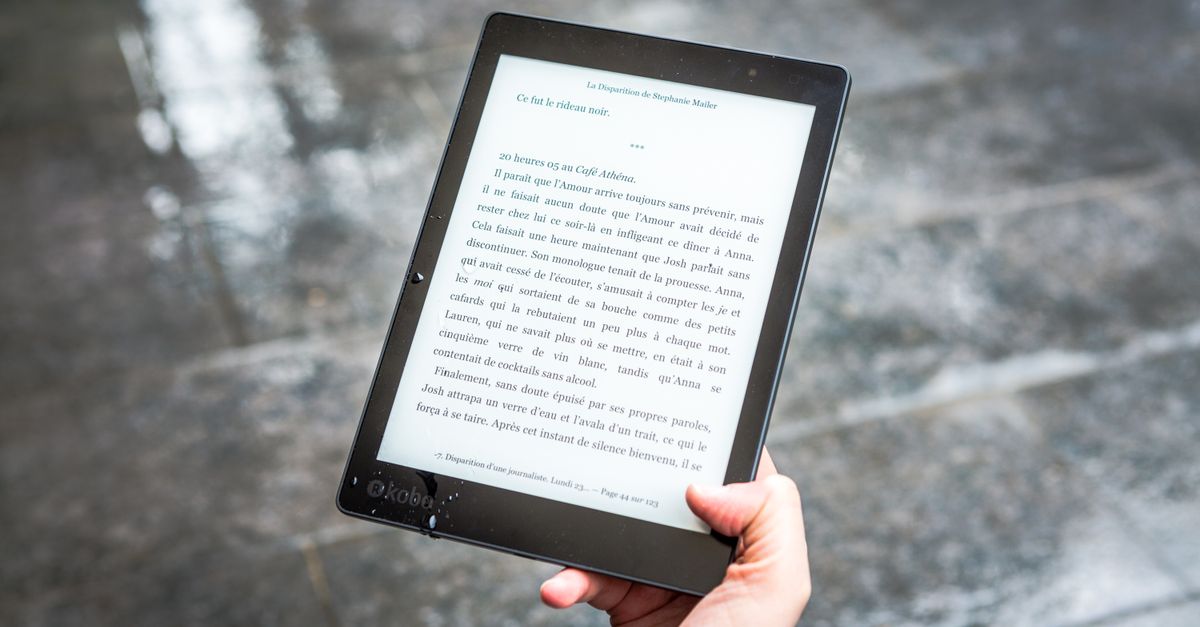
Convert a PDF to text on your Android phone
- Open the converter in your phone's browser. Navigate to the PDF to Text page and load the tool before choosing a document. This is a browser-based workflow rather than a separate native Android application.
- Choose one local PDF. Open the file picker and select a PDF already stored on the phone, such as a downloaded or received document. The converter accepts one non-empty PDF per run, so process files individually.
- Check that the file fits the supported limits. The PDF must be no larger than 25 MiB and no longer than 40 pages. If the document is an image-only scan, use a dedicated OCR workflow instead of expecting this converter to recognize the words.
- Tap Convert to Text. This explicit action starts the local extraction process. PDF.js reads the selectable text items from each page, and the converter assembles them in the order supplied by the document.
- Review the preview and its counts. Check the displayed page and character counts. Each page has a clear separator, and empty pages remain represented so the report stays aligned with the source document.
- Copy the text or download the TXT file. Copying and downloading use the same assembled result. The download is UTF-8 plain text with a filename derived from the original PDF name. On Android, you can then paste the copied text into a notes or editing app, or open the downloaded TXT file in a text editor.
Read the preview before copying it, especially on a small screen. A visible separator confirms where one page ends and the next begins, but it does not guarantee that every column or table cell has been placed in the correct reading order.
Check the PDF type before conversion
A digital PDF usually stores characters, font references, positions, and instructions for displaying text. PDF.js can expose those characters as selectable text items. A scanned PDF may instead contain only a page-sized image, so there is no text layer for the converter to extract.
| PDF type on Android | What the converter can extract | Recommended action |
|---|---|---|
| Digital PDF with selectable text | Characters exposed in the PDF text layer, assembled page by page | Convert the file, then proofread the result against the original |
| Image-only scan | Little or no text because the converter does not perform OCR | Use a dedicated OCR workflow before text extraction |
| Visible words that cannot be selected | No reliable transcript from the image-based page | Run OCR rather than relying on the PDF to text result |
| Multi-column PDF, form, or table | Positioned text items in PDF.js order rather than a recreated visual layout | Treat the TXT as rough text and verify its structure |
If words are visible in the Android PDF viewer but cannot be selected, OCR is usually required. The converter does not inspect the rendered page, recognize characters, or invent a transcript for an image that has no usable text layer.
Android limits that can stop a conversion
The file-size and page limits apply together, and additional text-processing budgets protect the browser tab. A PDF that crosses any supported boundary returns an error rather than a partial result that appears complete.
| Limit or condition | Supported value | What it means on Android |
|---|---|---|
| Files per conversion | One non-empty PDF | Select and process one document at a time |
| Maximum file size | 25 MiB | A larger PDF cannot complete under the current contract |
| Maximum page count | 40 pages | Split a longer document before converting it |
| Text-processing bounds | Limits on items per page, total items, individual item length, and total output characters | An unusually complex PDF may exceed the available text budget |
| Limit exceeded | An error, not partial output | Reduce or split the source rather than trusting an incomplete file |
Encrypted, malformed, unsupported, or damaged PDFs may also fail. The converter does not bypass passwords, repair broken PDFs, or validate digital signatures. For a closer look at the same constraints, review PDF text extraction size, page, and scan limits.
What the page-separated text file preserves
The output keeps page boundaries visible with a clear separator. Empty pages are not silently removed, which helps prevent a footer from one page and a heading from the next from appearing to be one continuous block. The preview also reports page and character counts, giving you a quick indication of how much text was found.
Text is assembled from the item order supplied by PDF.js. Explicit end-of-line markers are honored, and conservative spaces are inserted between adjacent items. That means the result can be useful for reading, searching, and rough editing without claiming to reconstruct the document's semantic structure perfectly.
Repeated headers, footers, hidden text, ligature normalization, and accessibility-related ordering may appear according to the PDF's own structure and PDF.js interpretation. The preview is inert plain text, while the copy and download actions work from the same assembled result. Choosing a different input clears the previous output so its counts cannot be mistaken for the new document's results.
Why columns and tables may look different
PDF pages store positioned text rather than paragraphs in the same way as a word-processing document. The converter follows PDF.js item order, but visual order and reading order can differ in multi-column articles, sidebars, forms, tables, headers, footers, and documents that draw text one glyph at a time.
As a result, the TXT file does not reliably preserve column widths, table-cell boundaries, semantic heading levels, or the exact visual relationship between labels and values. Scientific notation, contract clauses, names, figures, and table entries deserve particular attention because their characters may be extracted correctly while their association with the surrounding text is still imperfect.
The converter does not determine whether the extracted content is accurate or safe. Compare the result with the source before relying on it for important work. If visual fidelity is the priority, keep the PDF or use PDF page image tools. If the source is image-only, use a dedicated OCR workflow rather than treating an empty or incomplete extraction as a faithful transcript.
Local processing and Android file safety
PDF parsing and text assembly run in the current browser tab. The document is not uploaded, and the extracted text is not sent to a document-processing service. PDF.js and its shared worker are requested only after you press Convert to Text, rather than being loaded with the initial page.
The converter does not execute embedded scripts, follow links, fetch external resources, or interpret extracted content as HTML. The preview is plain text, and the original PDF is never modified. These protections reduce unnecessary document activity, but they do not guarantee that every PDF is valid, safe, or structurally sound.
The extraction layer comes from Mozilla's PDF.js project. For the final download, the converter creates a browser Blob containing the UTF-8 text, consistent with MDN's Blob documentation.
When to use the converted TXT file
The Android converter is most useful for quoting accessible text, creating a rough searchable draft, checking whether a PDF contains a usable text layer, or moving simple page text into another editor. It is less suitable when you need OCR, exact table reconstruction, faithful visual formatting, or an unverified transcript of a scan.
- Confirm that the preview page count matches the expected document structure.
- Check page separators, headings, footers, and transitions between pages.
- Verify names, numbers, scientific notation, clauses, and table entries against the PDF.
- Use OCR when the document contains images of text rather than selectable characters.
- Keep the original PDF as the visual reference, because the converter never changes it.
Related reading: How to Rearrange PDF Pages on Android Without an App.