Choose 10 pt for dense plain-text reference material, or move toward 16 pt when comfortable reading matters more than keeping the page count low; TXT to PDF supports font sizes from 10 to 16 point.
Font size affects both readability and pagination. Larger type gives each character more visual room, while compact type fits more material on a page. With the TXT to PDF converter, you can adjust the size before conversion along with the page and margin settings. The process runs entirely in your browser, so the text does not have to leave your device.
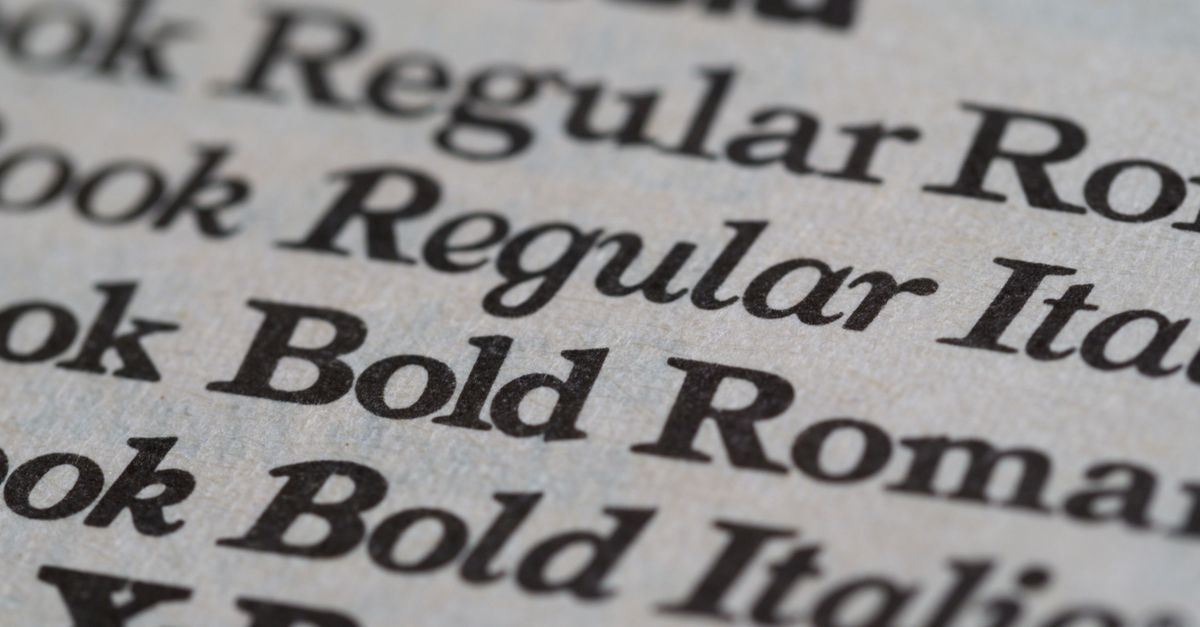
Choose 10 pt, 16 pt, or a Middle Setting
Start by considering the purpose of the document. A log that will be consulted for specific details has different requirements from notes intended to be read from beginning to end. Use the smallest suitable size for dense material, but do not treat compactness as the goal when the text is meant to be read continuously.
Use 10 pt when density comes first
The 10 pt setting is the most compact supported option. It is suited to dense reference material, including logs, technical notes, archived text, and records that users will mostly scan rather than read line by line. Choosing 10 pt gives the document a compact appearance and allows more of the original text to fit within each page.
Use 16 pt when readability comes first
The 16 pt setting is the most comfortable supported option. It works well for class notes, printable handouts, drafts shared for review, and personal documents intended for extended reading. The larger type is easier to read, but it also takes up more room, so a long document may require more pages.
Use a middle setting for mixed content
For a file that combines dense records with longer explanations, choose a setting between 10 and 16 pt. This avoids designing the entire document around either extreme. Convert the file, inspect the result, and move up or down within the supported range if the balance is not right for the intended audience.
| Document goal | Font-size choice | Reason | Also consider |
|---|---|---|---|
| Dense log or reference file | 10 pt | Uses the most compact supported setting and fits more text on a page | Narrow margins when maximizing content per page |
| General notes or printable handout | 16 pt | Provides the most comfortable, easy-to-read result | Wide margins when recipients need room for notes |
| Mix of records and extended text | A setting between 10 and 16 pt | Balances compactness with readability | Convert and inspect the result before finalizing |
These are starting choices rather than guarantees about the final page count. Line breaks and pagination also depend on the wording, page size, and margin width. Judge the finished PDF rather than relying on an estimate made before conversion.
Set Paper and Margins Before Finalizing Type
The font size and page setup work together. TXT to PDF offers A4 and US Letter page sizes, plus narrow, normal, and wide margins. Select the paper size that matches your printer or regional standard, then choose the margin width that suits the document.
- Narrow margins maximize the amount of text on each page and suit dense references or logs.
- Normal margins provide a middle layout choice when neither maximum density nor extra annotation space is necessary.
- Wide margins leave room for binding, handwritten notes, or comments around the text.
Changing the page size or margins alters the available text area, so the same font size can produce different line breaks and a different number of pages. Line spacing also scales with the selected font size, keeping the vertical spacing balanced as the type changes. A practical order is to select the page size, choose the margins, and then set the font size.
Set the Font Size in TXT to PDF
Use the following workflow to choose and apply the font size:
- Add your text. Open the TXT to PDF converter and paste your content into the editor. Alternatively, click Upload .txt file and select a plain-text file from your device. The file is opened locally rather than sent to a server.
- Select the page size. Choose A4 or US Letter according to where and how the PDF will be printed or displayed.
- Choose the margin width. Select narrow, normal, or wide margins. Use narrow margins for maximum density and wide margins when notes or binding space matter.
- Set the font size. Choose 10 pt for dense reference material, 16 pt for easy reading, or a setting between them for mixed content. The available range is 10 to 16 pt.
- Convert the file. Click Convert to PDF. The document is generated in your browser with automatic wrapping and pagination.
- Download and review it. Click the Download link, open the finished PDF, and check its readability and pagination. If the result needs adjustment, return to the converter, change the settings, and convert again.
Check the Converted PDF at Its Intended Reading Size
Open the downloaded PDF and view it in the same way the intended reader will use it. A font that looks adequate on a large monitor may be less comfortable on a phone, while a handout intended for print should be checked against the selected paper size.
- Readability: Check whether the text can be read comfortably without repeatedly zooming.
- Line wrapping: Look for broken sentences or log entries that would be easier to scan with a different size or page setup.
- Page edges: Confirm that the text remains inside the page and that margins leave the intended amount of space.
- Pagination: Review page transitions to make sure the document flows logically and no section appears cut off.
- Long strings: Inspect URLs, hashes, and other unbroken strings because the converter may split them to keep them within the page.
If one of these checks fails, adjust the font size, margins, or page size and create another version. For a broader output-review checklist, see how to check the result after converting TXT to PDF.
Understand Automatic Wrapping and Pagination
Once the font size is set, the converter measures the actual character widths in that font and prepares each line to fit the available page area. Long lines wrap at word boundaries when possible. This means you do not need to insert manual line breaks simply to keep ordinary text inside the page.
Unusually long unbroken strings are treated differently because there may not be a suitable word boundary. Strings such as URLs and hashes are split so they still fit instead of extending beyond the edge. The text is then flowed onto as many pages as required, with a new page beginning when the previous one fills.
Font size influences this process. Moving from 10 pt toward 16 pt gives lines more height, can produce more wrapping, and may result in additional pages. Line spacing scales at the same time. The exact result depends on the source text and page setup, so the most reliable test is the converted file itself.
Account for Plain-Text and Character Limits
Changing the font size changes the scale of the text, not the range of characters that the built-in font can display. That font covers standard Latin text. Characters it cannot render, including emoji and CJK scripts, are replaced with a safe placeholder so that the export still succeeds instead of failing.
This limitation means the final PDF may not display an unsupported symbol in its original form, even when the font size is appropriate. If a symbol carries important meaning, check the source and the finished PDF before distributing it.
Plain text also has no rich visual styling for the converter to reproduce from a word processor. TXT to PDF applies a readable typeface, consistent margins, wrapping, and pagination while retaining the text content. Expect the visual arrangement to become more consistent, but do not expect original graphic styling or unsupported glyphs to be recreated through the font-size control.
Make the Final Selection by End Use
Use the document's destination to make the final call:
- For a dense log or reference archive: begin with 10 pt.
- For notes, a handout, or a document for continuous reading: begin with 16 pt.
- For mixed material: begin between 10 and 16 pt and inspect the converted result.
- For a specific print destination: match A4 or US Letter to the printer, then adjust the margins around the chosen font size.
A good final choice keeps the text comfortable to read, fits every line inside the page, and produces a page sequence that suits the document's purpose. Since processing stays on your device, you can create and inspect another version without sending the source text to a remote server.
If you're weighing options, How to Choose the Right Approach to Split PDF by Size covers this in detail.