To avoid mistakes when you compress a PDF, keep the original, confirm that the output is actually smaller, and inspect the changed pages before you replace or share the file.
A PDF does not become smaller merely because it passes through a compressor. The result depends on which objects inside the file can be changed safely. The most common errors are expecting a guaranteed reduction, overwriting the source, and judging success by file size alone. The right workflow starts with a realistic definition of what “compress” means for your document.
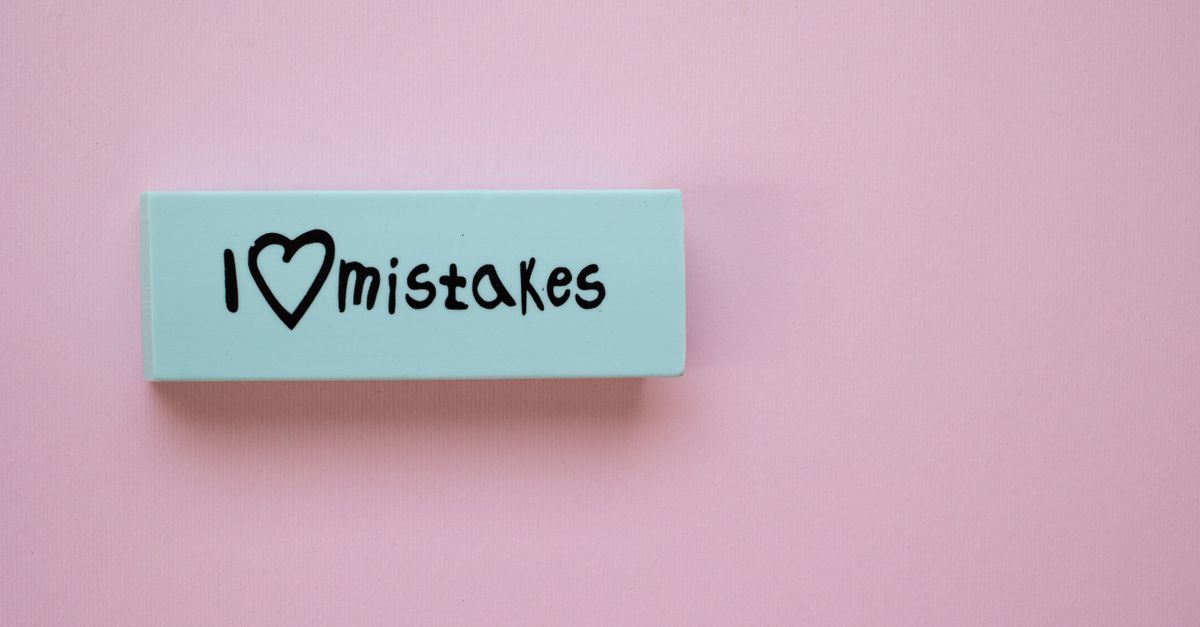
Identify PDFs that can actually benefit
The strongest candidates are scanned documents and photo-heavy files whose large images are stored as embedded JPGs. A text-only PDF normally has little that this image-focused method can reduce, and its final size is still affected by PDF overhead. A mixed document may shrink only in part because eligible images can change while text, vector graphics, forms, and other document objects remain.
For a bounded, local workflow, use Compress PDF when the goal is a visually smaller copy of a JPG-heavy PDF and some reduction in image quality is acceptable. It deliberately does more than place a generic “compressed” label on a file: it checks specific embedded images, works entirely in the browser tab, and refuses to present a download when no supported replacement is smaller.
| PDF type | Expected result | Safest action |
|---|---|---|
| Scanned or photo-heavy PDF with embedded JPGs | Eligible JPG payloads may be re-encoded. | Run the local workflow, then compare the reported input and output sizes. |
| Text-only or mostly text PDF | Usually no useful reduction from JPG recompression. | Keep the original; use a specialist optimizer if broader stream compression is required. |
| Mixed PDF | Only eligible JPG objects may change. | Expect text and vector content to remain, then check the final size. |
| Unsupported image objects | JPX, CMYK, Indexed, masked, ImageMask, and decode-parameter cases are skipped. | Do not assume those visible images will be reduced. |
The image filter matters. The tool changes only unmasked DCTDecode JPG objects with DeviceRGB or DeviceGray color data. It skips the unsupported cases rather than guessing. If a newly encoded JPG is not smaller than its original byte stream, the original image is kept.
Check the input limits
Before processing, check all four input limits. They work together, so a file below the size cap can still exceed the image limits.
- One PDF: choose one local file rather than a batch.
- 25 MB maximum: the selected PDF must be 25 MB or less.
- 80 eligible image objects maximum: the version accepts no more than 80 eligible objects.
- 100 megapixels maximum: the combined size of the images it decodes must be at most 100 megapixels.
If any limit is exceeded, use another workflow rather than assuming the browser tool can finish safely. These are hard boundaries, not estimates. The tool checks a file for eligible embedded JPG objects; it does not convert arbitrary PDF content into a different format to force a smaller result.
Compress a PDF without losing the source
Use this sequence to compress one PDF while preserving a recovery copy.
- Keep the original unchanged. Make a separate copy before processing so that you can compare both versions or restore the source.
- Choose the local file. Open the linked Compress PDF tool and select one PDF from your device, making sure it is 25 MB or less.
- Start the local check. Select Compress PDF and wait while eligible embedded JPG images are identified and re-encoded in the current browser tab. The source file never leaves that tab.
- Compare the reported sizes. Review the input and output figures. Use the download only when the reported output is smaller. If no safely replaceable JPG becomes smaller, the tool returns an error and does not create a download.
- Open and inspect the result. Download the verified PDF, open it in a PDF viewer, and check the page count, scanned pages, photographs, text, and links before it replaces the original.
The tool reopens the output with a PDF viewer and verifies the page count before exposing the download link. That check helps prevent a malformed result from being presented as a success, but it does not certify that every image looks acceptable. Visual review remains a separate, necessary step.
Review quality and document structure
A smaller file can still be a poor result if scan text becomes hard to read or a photograph looks visibly degraded. The tool encodes candidate JPGs at JPEG quality 0.70 and caps their longest side at 1,400 pixels. Those settings make it useful for a visually smaller working copy, but they do not guarantee lossless fidelity.
Document structure is treated differently from image appearance. Eligible image payloads are replaced at the same indirect references, so page references remain intact. Page content, page count, text, links, vector objects, forms, annotations, metadata, and unsupported image objects remain in the PDF structure. The changed JPG pixels can still look different, which is why “text and links are preserved” should not be mistaken for “the whole document looks identical.”
Review images at normal viewing size and zoom in on small text, signatures, line art, and faces. Open important links and check that forms and annotations remain visible and usable. If the visual trade-off is not acceptable, keep the original and choose a workflow designed for your quality requirements.
Mistakes that lead to a bad result
Most compression errors are easy to prevent once the workflow separates file preparation, processing, and review.
| Mistake | Why it causes trouble | Safer action |
|---|---|---|
| Overwriting the source file | It removes your fallback if the output is poor. | Keep the original and compressed copy as separate files. |
| Expecting every PDF to shrink | A text-only or unsupported file may have no smaller safe replacement. | Check the file profile and accept that no download may be offered. |
| Assuming every image is optimized | Unsupported image objects are deliberately skipped. | Understand the supported formats before judging the result. |
| Choosing by file size alone | A smaller file can still have poor scan or photo quality. | Inspect pages at normal size and zoomed in. |
| Treating viewer verification as visual approval | The internal check catches malformed output and verifies page count, not image acceptability. | Review visual quality separately. |
| Sharing without checking the size comparison | You may circulate a copy with no useful reduction. | Compare the reported input and output sizes first. |
One subtle mistake is confusing local processing with permission to share immediately. Local processing means that the source PDF is not uploaded; it says nothing about whether the output is legible, complete for the intended audience, or suitable for its purpose. Privacy and quality are separate checks.
Another mistake is expecting the same reduction from every file. The final size depends on the source images and PDF overhead, so a fixed percentage is not a dependable target. Judge the actual reported input and output sizes, and keep the compressed file only when the reduction is meaningful for your task.
Match the method to the document
Choose the method based on the document and the required result. For a scanned or photo-heavy PDF where a visually smaller copy is acceptable, the local JPG workflow is a sensible fit. For a text-heavy file, compression is unlikely to deliver much because the text and structure are not re-encoded by this tool.
Use a specialist desktop PDF optimizer when you need arbitrary stream compression, archival conformance, print color management, or guaranteed lossless results. Those are broader goals than safe JPG recompression. Do not force a JPG-only result into a print-production, archival, or strict-lossless workflow.
An error saying no smaller output was produced does not necessarily mean the PDF is damaged. It may simply mean that no eligible image replacement was smaller after encoding. Keep the original, check whether the document contains unsupported image types, and select a more suitable method if reducing those objects is essential.
Run a pre-share checklist
Run this final check before sending or publishing the file:
- The untouched original still exists.
- The reported output is smaller than the input.
- The page count matches the original.
- Scans and photos remain legible at normal size and when zoomed in.
- Text, links, forms, annotations, and other expected content are present.
- You are sharing the downloaded compressed copy, not the original by mistake.
If any item fails, do not circulate the compressed version. Keep the original, identify the requirement that failed, and use a method suited to the document. If every check passes, the smaller copy is ready for its intended use while the original remains available for reference.
For a deeper look, see Delete Pages From PDF: Tips and Common Mistakes.
For a deeper look, see Paper Sizes: Tips and Common Mistakes to Avoid.