PDF annotations are interactive objects stored in each page's Annots array, not the painted marks you see on screen, so a result that looks wrong after removing annotations almost always means the visible element you wanted gone was already flattened into the page content stream rather than living as an interactive overlay. Removing the Annots key deletes the clickable region, comment popup, form widget, or markup object attached to a page, but it deliberately leaves any text, lines, shapes, or images that were drawn into the page itself. The fix is to identify which visible elements belong to each category, then either re-run the operation with the correct expectation, treat the leftover artwork as part of the document, or switch to a different tool that targets painted content directly. This article walks through the structural reasons a result can look wrong, the narrow rule the tool actually applies, a step-by-step recovery path, and the situations in which annotation removal is the wrong choice entirely.
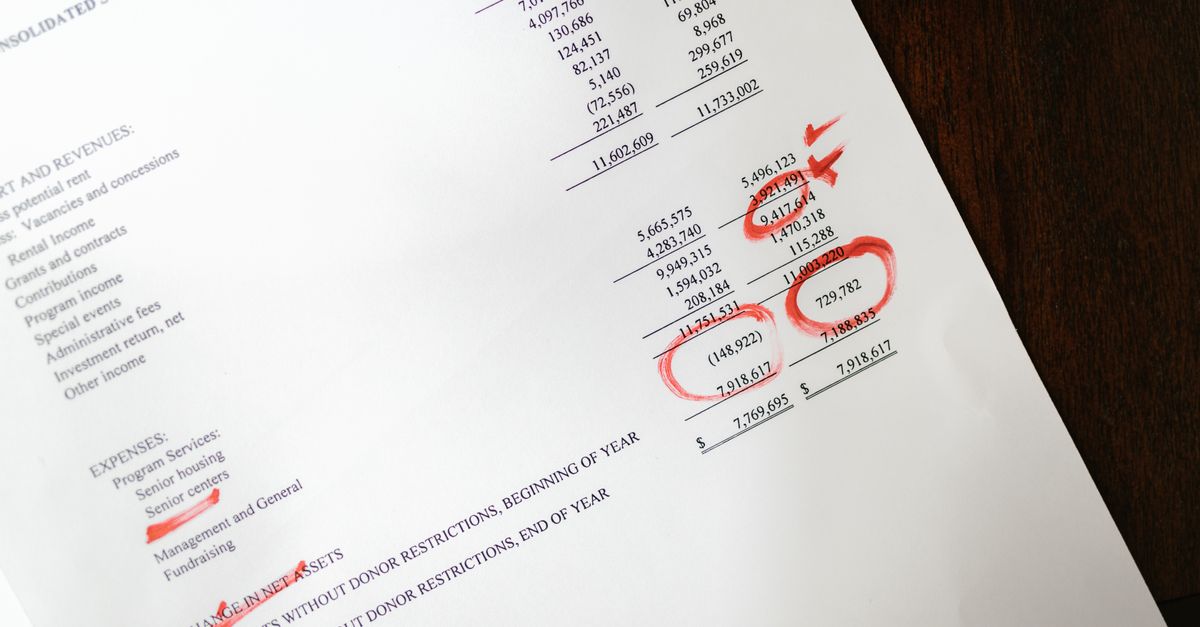
Why the Result Looks Wrong After Removing PDF Annotations
Most readers arrive here after seeing something unexpected in the downloaded PDF. Three structural facts explain almost every visible surprise. First, annotations live in a separate dictionary key called Annots on each page dictionary, while the marks you see on screen come from a different stream — the page content stream — that paints text, shapes, and images as ordinary graphics. Second, when a previous editor flattened an annotation, the original appearance was converted into ordinary page content and the annotation object was typically removed or made invisible. Third, removing the Annots array deletes the interactive overlay but does not touch the painted content underneath, so anything that was flattened stays visible. This means a wrong-looking result is rarely a bug. It is the documented outcome of a narrow structural operation applied to a PDF whose visible content was not entirely annotation-driven.
The distinction matters because PDFs circulate through many editors, viewers, and export pipelines. A highlight added in a desktop editor and saved as a markup is still an annotation; the same highlight run through a print-to-PDF workflow becomes part of the page artwork and can no longer be removed by editing the annotation array. A typed form value can fall on either side: it lives as a field appearance while the form is interactive, and it can be flattened into the page when the document is sealed, signed, or exported. The same logic applies to signatures, stamps, sticky notes, and file attachments, which is why the post-removal result often surprises people who expected annotations and painted marks to behave the same way.
Common Visible Outcomes After Annotation Removal
The table below pairs the most frequent "looks wrong" complaints with the visible outcome the tool actually produces and the structural reason behind it. Use it to triage a downloaded file before deciding what to do next, because the right response for each scenario is different.
| What you expected to disappear | What stays visible after removing annotations | Why it stays |
|---|---|---|
| Blue underlined link text | Text and underline remain; the clickable region is gone | Link annotation was deleted, but the painted text and underline were part of the page content stream |
| Yellow highlight over a sentence | Highlight rectangle stays; any comment popup is removed | Highlight was flattened into the content stream before removal, often by an earlier export |
| Signature image on a page | Signature drawing remains | Signature was flattened or rendered as a stamp appearance in the page artwork |
| Typed value inside a form field | Typed text stays; the editable field is removed | Form widget annotation was removed, but the visible value was painted into the page content |
| Comment popup with a note | Popup disappears; any underlying underline or highlight stays | The note was a text annotation; the underlying markup was flattened independently |
| Clickable button or checkbox | Button artwork stays; the interactive widget is removed | The visual button is part of the content stream; only the interactive widget was an annotation |
What the Tool Actually Removes (and What It Leaves)
Remove PDF Annotations follows a single auditable rule: it deletes the Annots key from every page dictionary in the local PDF, then re-serializes the document for download. The page count, page order, page boxes, rotation settings, and content streams remain untouched. The tool counts annotation entries and reports how many pages contain at least one entry before offering the download, and if the count is zero it refuses to produce a useless replacement file. PDF loading, inspection, modification, and download creation happen entirely in the browser, so the document is never uploaded.
Because the operation is narrow, the only thing guaranteed to change is the interactive overlay. The downloaded file's name gains the suffix -annotations-removed so the original is never overwritten, and selecting a different file clears all previous inspection state. The implementation is built on the open source pdf-lib PDFDocument API, which handles local load, modification, and save cycles without a server round-trip. For background on the annotation model itself, the PDF Association annotations overview explains how link, text, and widget objects relate to the page dictionary they sit on, which is useful context when a downloaded file does not behave the way you expected.
How to Fix a Wrong-Looking Result Step by Step
Once the rule the tool applies is clear, recovery is a small set of diagnostic moves. The fastest path is to confirm what survived, classify each leftover mark as either still-interactive or already-painted, and decide whether to keep it, flatten the original first, or use a different tool that targets the painted content itself. Treat the operation as a single-purpose cleanup of the Annots key rather than a general-purpose content eraser, and the post-removal behavior becomes predictable.
- Open the downloaded PDF in the viewer you will actually use and list every visible element that still looks wrong.
- For each item, decide whether it is still controlled by an annotation (interactive) or already painted into the page (static). A clickable region that no longer navigates is a sign the annotation was removed; selectable text or a colored shape that looks like ordinary artwork is a sign the element is now part of the page content.
- If the item is still an annotation that you missed, re-run the tool on the original file and check the reported annotation count to confirm the entry was actually present in the document before removal.
- If the item is already painted into the page, decide whether to keep it as part of the document, crop the page to remove the artwork, or use a different tool that targets painted content such as images or shapes.
- If the leftover artwork is a flattened form value or signature that you want to preserve intentionally, run Flatten PDF on the original document first so the visible state becomes deliberate rather than accidental, then re-run annotation removal on the flattened copy.
- Open the final downloaded file again in your target viewer and confirm both the visible appearance and the interactive behavior match your goal before sharing the PDF.
Annotation vs. Painted Content: A Quick Comparison
The two categories behave so differently that it helps to lay them out side by side. Annotation objects are interactive entries stored in a page's Annots array; painted marks are ordinary graphics drawn into the page content stream. The tool only touches the first category, so anything in the second category survives the operation regardless of how much it looks like a comment, highlight, or filled-in field. Use this reference when triaging a downloaded file.
| Property | Annotation (Annots array) | Painted page content (content stream) |
|---|---|---|
| Storage location | Page dictionary's Annots key | Page content stream as graphics operators |
| Examples | Link regions, text comments, popups, stamps, file attachments, form widgets | Underlined text, flattened highlights, drawn signatures, painted field values, decorative shapes |
| Interactive behavior | Clickable, editable, popup-bearing | Static; behaves as ordinary artwork |
| Affected by the tool | Yes — entry is deleted from every page dictionary | No — content stream is preserved unchanged |
| Effect of removal | Interactive overlay disappears; object references are gone | Nothing changes visually or structurally |
| How it can still appear after removal | Rarely; only if a viewer caches the object | Common; this is the typical "looks wrong" result |
When Annotation Removal Is the Wrong Tool for the Job
Removing page annotation arrays is a narrow structural operation. It is not a security redaction or sanitization product, and it does not prove that confidential text, metadata, embedded files, scripts, hidden layers, or recoverable source information have been purged from every byte of the file. If the goal is to permanently hide a name, account number, address, or other sensitive string before sharing a document publicly, you need a purpose-built redaction workflow that removes content from the underlying stream and validates the final file. Using annotation removal for that purpose would be a category error and could expose the very information you were trying to hide.
The tool is also not a form flattener. It removes the interactive widget for each form field, but the AcroForm definition in the document catalog can still contain form-related structures, and any value already painted into the page remains visible. To make filled-in values permanent page content while keeping a clean appearance, run Flatten PDF on the original document first, then return to annotation removal if you still want to strip interactive overlays. For workflows that need the form structure itself to remain valid for further edits, a dedicated form editor is the appropriate tool rather than either of these.
Finally, the tool is not a repair product, a metadata cleaner, a malware scanner, or an archival conformance checker. If the input is encrypted, password-protected, empty, larger than 25 MiB, or has damaged cross-reference data, the tool surfaces a visible error rather than attempting to bypass the protection. Password protection is not bypassed, and selecting a different file clears previous state while any earlier object URL is revoked so a stale asynchronous job cannot replace a newer selection.
Verify the Downloaded PDF Before You Share It
Different PDF viewers render the same underlying structure differently, especially when interactive elements have been removed. Always open the downloaded file in the viewer or workflow that will consume it — a browser, a print driver, an e-reader, or a regulated submission portal — and check each previously affected page for both appearance and behavior. Confirm that text is selectable, that no orphan popup remains, that links no longer navigate, and that anything you expected to stay visible is still visible. For an in-depth walkthrough of this verification routine, see the guide on how to check the result after removing PDF annotations.
For an audit-friendly record of what changed, keep the original PDF alongside the renamed -annotations-removed file so anyone reviewing the operation can compare structures later. If a viewer still shows an interactive artifact that you expected to be gone, the file may be cached — reopen from disk before drawing conclusions, and re-run the tool on a freshly opened original if any uncertainty remains about what the document contained before the operation.
If you're weighing options, Paper Sizes on Android: Look Up Sizes and Pixels covers this in detail.