To convert a TXT file to PDF without writing a single line of Python, paste your text into the TXT to PDF tool, choose your page size, font size, and margins, then click Convert to PDF and download the finished document — the whole process runs in your browser and takes a few seconds. Most Python tutorials for this task start with pip install fpdf or pip install reportlab, then walk you through canvas objects, font registration, manual page-break logic, and Unicode handling before you ever produce a usable file. For a one-off conversion — a log to email, a README to print, class notes to hand out — that setup is wasted effort. The browser-based TXT to PDF converter handles encoding, line wrapping, and pagination automatically, so you can move from plain text to a polished PDF in the time it takes to copy and paste. If you searched for a Python solution and realized you would rather not create a virtual environment just to print a text file, this tool exists exactly for that moment.
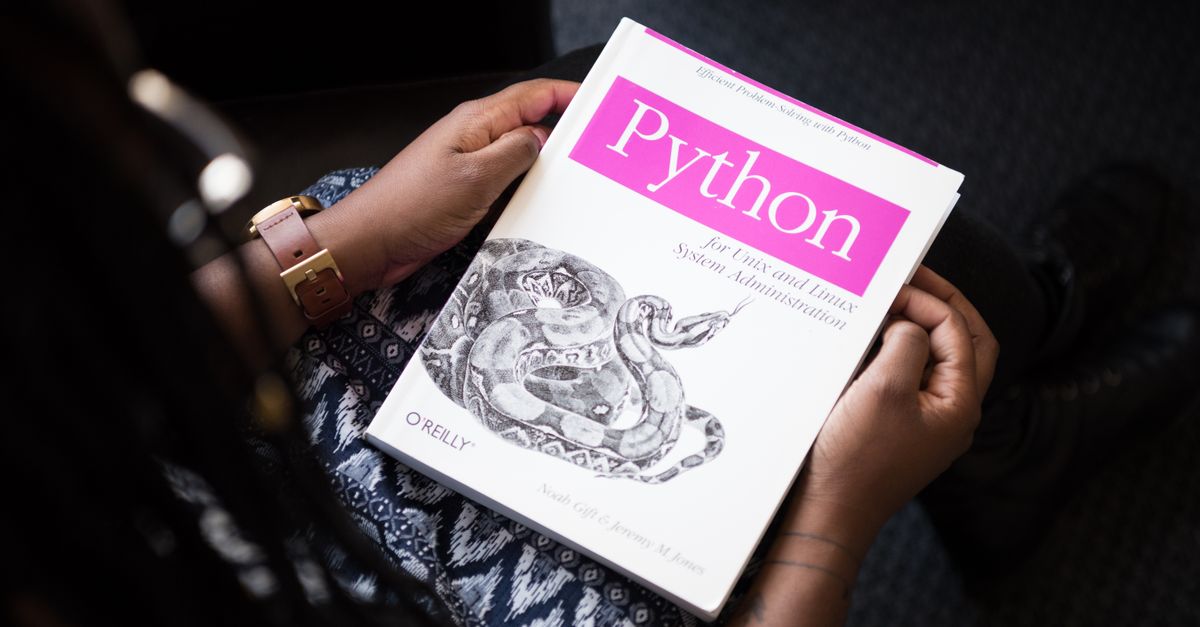
Why Search for Python When You Can Do It in Two Clicks?
Python is a sensible answer to "convert txt to pdf" when the job is repetitive, batch-sized, or embedded inside a larger pipeline — a cron job that archives daily logs, a CI step that ships build output, a script that merges reports from many sources. Python is the wrong answer when the job is "I have one text file, I want one PDF, I want it now." Writing five lines of code to save ten seconds of clicking is a poor trade, and that is before you account for library churn: FPDF, ReportLab, WeasyPrint, borb, PyPDF2 — each one has its own font model, page object, and quirks with encoding.
The browser tool exists for the second scenario. There is no requirements.txt, no pip install step, no virtual environment, and no debugging session when a long URL refuses to wrap. You open the page, drop in your text, click a button, and download a PDF. For developers who already have Python on their machine, the irony is that the fastest path to a finished PDF is the one that never opens a terminal at all.
What the TXT to PDF Tool Handles for You
Plain text is deceptively hard to lay out. A .txt file written in Notepad on Windows uses CRLF line endings; the same content saved in TextEdit on macOS uses LF. Tab characters render at four spaces in one editor and eight in another. A line that fits in a terminal window at 80 columns can spill off the edge of a printed page. Multiply those inconsistencies across a five-thousand-line log and you have a document that looks broken on every device it touches.
The converter normalizes all of that before generating output. It measures the true width of every character in the chosen font, wraps each line so that no text runs off the edge of the page, and folds long unbroken strings — URLs, file paths, hex hashes — so they still fit. Once lines are prepared, the tool flows them onto as many pages as needed, starting a fresh page the moment one fills up. The result is a multi-page document with consistent margins, balanced line spacing, and no orphaned content.
How to Convert TXT to PDF in Your Browser
- Paste your text into the editor, or click Upload .txt file to load an existing text file from your device.
- Choose your page size (A4 or US Letter), font size, and margin width to control how the PDF looks.
- Click Convert to PDF and the document is generated instantly in your browser.
- Click the Download link to save the finished, paginated PDF to your device.
That is the entire workflow. The converted file is yours to email, print, archive, or attach to a ticket.
Layout and Pagination Controls
Before converting, you can fine-tune three settings that determine how the PDF looks on screen and on paper. The table below summarizes what each control does and when to pick which option.
| Setting | Available Options | When to Pick It |
|---|---|---|
| Page size | A4, US Letter | A4 for international, academic, and most non-North-American printers; US Letter for North American letterhead, school handouts, and standard office paper. |
| Font size | 10 pt to 16 pt | 10–11 pt for dense reference material such as logs or code listings; 12 pt as a balanced default; 14–16 pt for handouts and reading material aimed at a general audience. |
| Margins | Narrow, Normal, Wide | Narrow to maximize content per page; Normal for everyday printing; Wide when pages will be bound, hole-punched, or annotated by hand. |
Line spacing scales with the font size automatically, so the result stays balanced whether you pick 10 pt or 16 pt. You do not need to set leading, tracking, or any typographic detail manually.
Handling Long Lines, Logs, and Special Characters
Real-world text files are rarely neat paragraphs. A server log might contain a stack trace with a URL 200 characters long; a CSV export might have a row of comma-separated values that overruns the page; a copied snippet from a chat app might mix emoji with ASCII. The converter handles each of these cases:
- Long lines at word boundaries are wrapped to fit the page width, so prose and log messages break naturally at spaces.
- Unbroken strings — URLs, hashes, file paths, base64 blobs — are split mid-string so they never overflow the right margin.
- Multi-page documents flow continuously across pages, so a 5,000-line log becomes a numbered multi-page PDF rather than a single overflowing sheet.
- Non-Latin characters and emoji that the built-in font cannot render are replaced with a safe placeholder, so the export always completes instead of throwing an encoding error mid-conversion.
This is the part that takes the most code to replicate in Python. Wrapping unbroken strings correctly requires character-width measurement and a fallback break point; handling emoji without crashing requires either a font with full Unicode coverage or a substitution map. The browser tool does both out of the box.
Privacy for Developers: Nothing Leaves Your Machine
For developers working with logs, internal documentation, or client data, the privacy model matters as much as the output. The converter runs entirely on your own machine using standard browser features. Your text and any .txt file you open are never uploaded, never stored on a remote server, and never visible to anyone else.
This design has two practical consequences. First, it makes the tool safe for confidential notes, internal logs, contracts, and personal writing — content you would never paste into a random web form. Second, because there is no network round trip, conversion completes as quickly as your browser can render. You can convert file after file back to back as quickly as you can paste them.
When Python Still Makes Sense
The browser tool is not a replacement for Python — it is an alternative for cases where Python is overkill. You should still reach for a library when you need to generate hundreds of PDFs from a database, embed images and tables, apply custom fonts, or build the conversion into an automated pipeline. For those jobs, ReportLab and FPDF remain solid choices and the Python ecosystem has good documentation for both.
For everything else — a single README, a transcript pasted from a terminal, a chunk of notes you want to print before a meeting — the TXT to PDF converter gets you from plain text to a finished, shareable PDF faster than opening a code editor. It is the right tool when the work is the conversion itself, not the automation of it.
If you're weighing options, How to Convert TXT to PDF Without Losing Formatting covers this in detail.
If you're weighing options, CSV to PDF Python: A No-Code Browser Alternative covers this in detail.