A signed PDF becomes a flat picture the moment you convert it to JPG: the signature turns into a fixed set of pixels, form fields flatten into shapes that can't be edited, and the JPG output locks the page to a single resolution. The phrase "convert signed PDF to JPG" usually hides three separate decisions — how to keep the signature sharp, how to keep the document private, and whether the JPG is really the format you need at the end. Most readers searching this phrase have a specific destination in mind: a chat thread that strips attachments, a CMS upload box that only accepts images, an email client that warns about unknown PDF senders, or a presentation slide that needs a picture of the signed page. This article walks through each of those decisions and shows a fully local workflow using the Sign PDF tool, where your PDF and your signature stay on your own device from start to finish. By the end you'll know when a JPG is the right output, when a signed PDF is the better deliverable, and how to sign locally before deciding whether a separate JPG conversion is needed.
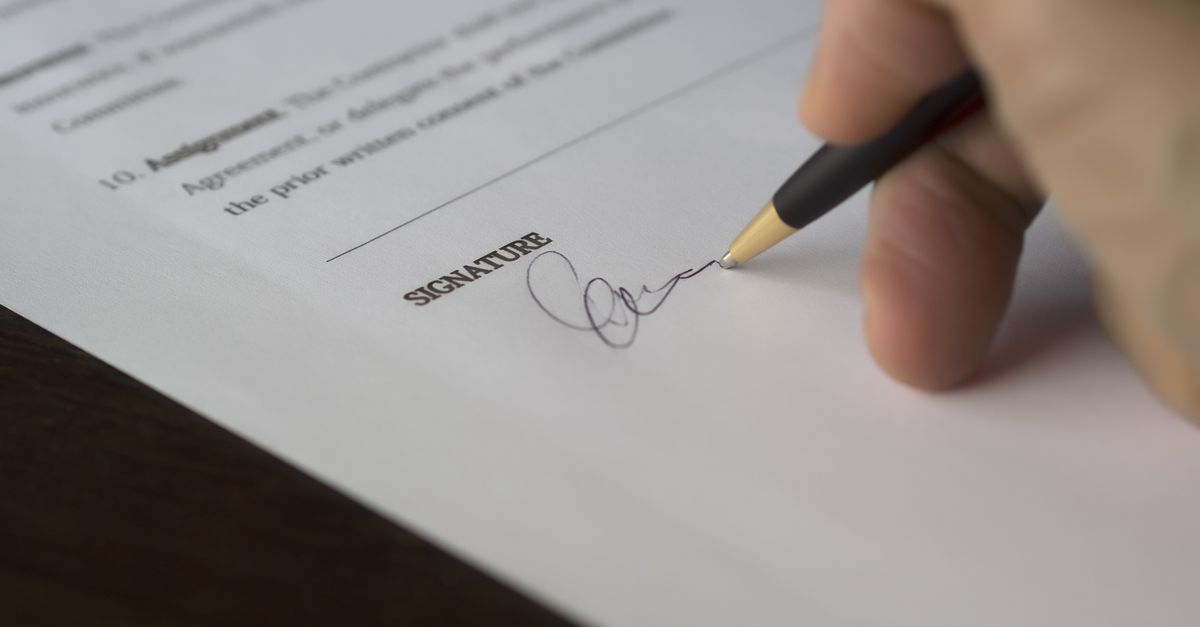
What Happens When You Convert a Signed PDF to JPG
A PDF is a vector-friendly container. Text stays text, lines stay lines, and a signature added as an image lives inside the page as a positioned picture with a transparent background. JPG is a pixel format. The moment your converter finishes its work, every character, every line, and your signature are baked into a fixed grid of colored squares.
That single change has practical consequences:
- Resolution is locked. A JPG made at 96 DPI is blurry when printed at full page size, and re-saving a JPG makes it worse each time. A signed PDF stays sharp at any zoom level.
- The signature becomes a picture of a signature. Any soft edges, anti-aliasing, or color gradients in your drawn stroke are sampled into pixels. Strokes thinner than the chosen DPI can disappear entirely, especially on small signature boxes.
- Form fields flatten. If your PDF had fillable text boxes, checkboxes, or drop-downs, those are converted to static images. The recipient can't fill them in, and you can't edit them either.
- File size often grows. A one-page signed PDF might be 80 KB. The same page rendered as a high-quality JPG is usually 200-500 KB. Multiply by page count and the email attachment gets heavy fast.
The JPG format is genuinely useful when you need a picture — for a slide deck, a chat message, a social post, or an upload form that only accepts images. For an actual contract or approval that someone needs to read, sign, and archive, the PDF keeps the door open.
The Privacy Cost of Most PDF to JPG Sites
Search for "convert PDF to JPG" and the first page is dominated by sites that ask you to drop a file into their upload box. The standard flow is: your signed contract leaves your browser, lands on the company's server, gets converted, sits in their cache or queue for some period, then comes back to you as a download link.
For a signed contract, a tax form, a medical release, or an HR letter, that upload step is the part that hurts. Even sites that promise "we delete files after one hour" or "files are encrypted in transit" still require you to hand the document to a third party. A breach on their side, a subpoena on their side, or a misconfigured storage bucket on their side exposes your signed document — and your signature — without you ever consenting to that specific exposure.
Sign PDF keeps the signing process local: it reads the original PDF and embeds the drawn signature in your browser with JavaScript. Nothing is sent to a server, and the signed PDF is downloaded from the page.
Sign Locally First, Then Decide About the JPG
Because the JPG conversion will flatten your signature anyway, the order of operations matters. Sign first, on your own device, while the PDF is still vector-clean. Then, if a JPG is genuinely needed, use a separate conversion method.
Signing locally means the signature image is captured on a transparent background, embedded into the PDF at your chosen position, and never copied to a server in the process. The PDF that comes out of Sign PDF is a normal PDF — the kind any reader can open, print, or archive — with no watermark and no branding stamped on it.
| Property | Upload-based converter | Local signing + selective render |
|---|---|---|
| Where the file lives | Uploaded to a remote server | Stays on your device |
| Signature quality | Flattened to JPG pixels | Kept as a positioned image in the PDF |
| Account required | Often yes | No |
| Watermark added | Sometimes | Never |
| Offline use after first load | No | Yes |
| Form fields after conversion | Flattened, uneditable | Editable until you choose to render |
How to Add a Handwritten Signature in Your Browser
The Sign PDF tool is built around four steps, and every one of them runs on the page you're reading this on. Here is the full workflow.
- Click Browse PDF and choose the document you want to sign. The tool reads the file locally with JavaScript and shows the page count at the top — nothing is uploaded to a server, and the file never leaves your machine.
- Draw your signature in the signing box. Use a mouse, trackpad, stylus, or finger on a touchscreen. Pick any ink color and adjust the pen width until the stroke feels natural. If you want to redo it, hit Clear and try again — there is no limit on practice attempts.
- Pick where the signature should go and which page to sign. You can place it in the bottom right, bottom left, top right, top left, or center of the page. For a multi-page document, select the specific page number where your signature belongs. The tool handles the coordinate math so the signature lands exactly where you expect, scaled to fit without spilling off the edge.
- Click Apply signature, then download the signed PDF. The signature image is embedded on a transparent background, the page count of the original file is preserved, and a download link for the finished PDF appears. Open it in any reader to verify.
Because the signature is added as a positioned image with a transparent background, it layers cleanly onto the document. There is no white box around the stroke, no halo, no jagged edge from anti-aliasing artifacts. When you later print or share the signed PDF, the signature looks like ink on paper.
When You Actually Need a JPG After Signing
Some destinations only accept images. A chat thread that strips PDF attachments, a social platform that wants a picture, a CMS upload box that rejects anything but JPG or PNG — these are real cases where you genuinely need a raster file at the end.
If you have that need, sign the PDF with Sign PDF first, then evaluate using the PDF to JPG converter, The supported output from Sign PDF is a standard signed PDF that you can print, email, or archive.
A quick reference for the resolution math: at 150 DPI, a standard US Letter page (8.5 × 11 inches) becomes a 1275 × 1650 pixel JPG (8.5 × 150 = 1275, 11 × 150 = 1650). At 200 DPI, the same page becomes 1700 × 2200 pixels (8.5 × 200 = 1700, 11 × 200 = 2200). The first is fine for screen viewing, the second is the safer choice if the JPG will be printed or zoomed.
| Page size | 150 DPI output (px) | 200 DPI output (px) |
|---|---|---|
| US Letter (8.5 × 11 in) | 1275 × 1650 | 1700 × 2200 |
| A4 (8.27 × 11.69 in) | 1240 × 1754 | 1654 × 2338 |
| Legal (8.5 × 14 in) | 1275 × 2100 | 1700 × 2800 |
These are rough screen-and-print boundaries; the exact JPG quality slider and pixel dimensions are set inside the PDF to JPG tool itself, so for your specific page size and target use, run the conversion there rather than guessing.
Visual Signature vs Certified Digital Signature
It is worth being honest about what Sign PDF produces, because the question comes up every time someone asks about "converting a signed PDF." The tool adds a visual signature image to your PDF — a real-looking handwritten mark that prints, emails, and reads like an ink signature. It is not a certified digital signature, and it is not a cryptographic (PKI) signature.
A certified digital signature ties the signer's identity to the document through a digital certificate, locks the document against later edits, and produces a tamper-evident audit trail. A drawn signature image does none of those things by itself. What it does, in most everyday situations, is carry legal weight through the surrounding agreement and the applicable law — internal approvals, personal letters, simple sign-offs, vendor agreements where both parties accept a scanned-style signature.
If you need identity verification, a tamper-proof record, or a document that the other side's compliance team will accept as a certified e-signature, you need a dedicated e-signature platform that issues a digital certificate. Sign PDF is the right tool for the long tail of cases where you just need a real-looking handwritten mark on a PDF without handing your document to anyone else.
If you're weighing options, Use Adobe to Compress PDF? Try Local JPG Recompression covers this in detail.
If you're weighing options, Convert Signed PDF to Unsigned: What's Actually Possible covers this in detail.