Yes, you can add a footer to a PDF without owning Adobe Acrobat or installing desktop software — a browser-based tool can stamp a centered footer line on every page of your document in a few clicks. The PDF format supports embedded text objects on each page, so any tool that draws text inside the page box can place a footer that travels with the file when it is opened, printed, or forwarded. With the Header Footer PDF tool, you point it at a local PDF, type a short footer (and optionally a header), pick a font size and an edge margin, and the browser writes a new copy with the text drawn on every structural page. Page numbers come from two simple placeholders, {page} and {pages}, so the same footer label can read "Page 2 of 5" on the second page of a five-page document without you typing any numbers yourself. Everything happens in the browser tab, so the source file is not uploaded to a server before, during, or after the footer is drawn.
What a Footer on a PDF Actually Looks Like
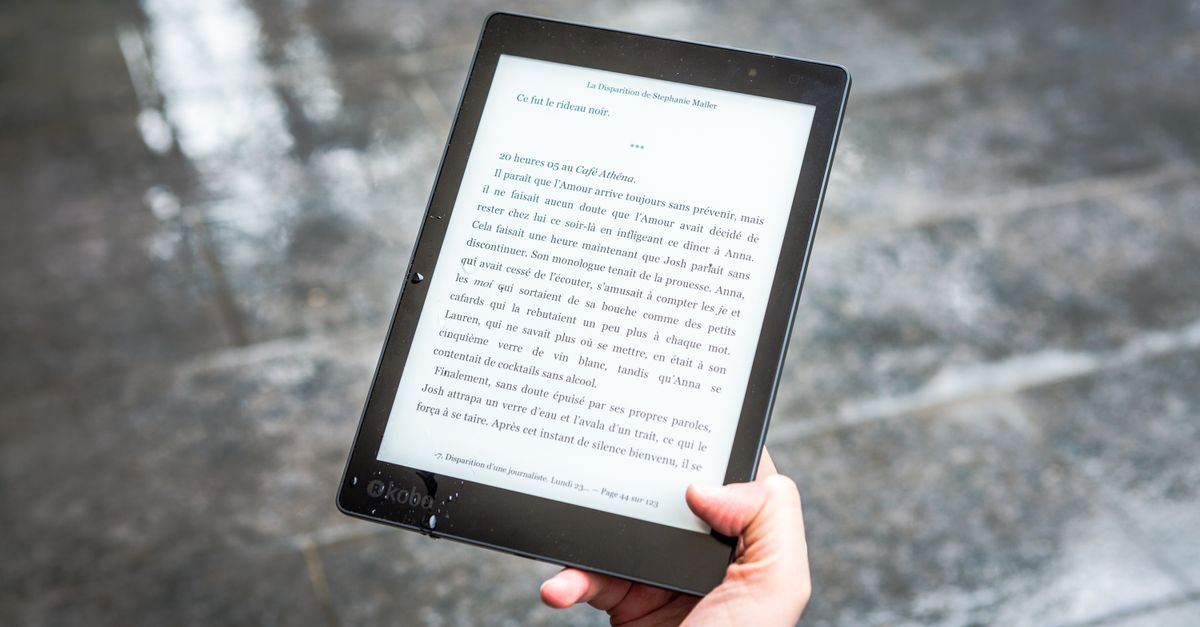
A PDF footer is a short line of text drawn near the bottom edge of every page in a document. Unlike a watermark, which sits behind the body content and is meant to fade into the background, a footer is foreground text that is meant to be read. Typical uses include a confidentiality notice such as "Internal use only," a filename or revision label, a company name, or page numbering in the form "Page 3 of 12." The tool draws the footer line above the bottom edge of each page, separated from the edge by the margin you specify, and centers it horizontally using the actual width of the rendered text rather than the width of the page. Because the text is drawn on top of the existing page box, anything already sitting close to the bottom edge — a logo, a crop mark, body text that runs to the bottom — can overlap the footer. The tool does not move existing content or carve out space for the new line, so it is worth opening the result and checking a representative page before you distribute or print it.
What You Can Put in a PDF Header or Footer
The tool accepts two short text fields, one for the header and one for the footer, each capped at 120 Unicode characters after trimming. You can leave either empty; the tool only draws the lines you actually fill in. Beyond plain text, two exact lowercase placeholders are recognized and expanded on every page:
- {page} is replaced with the current one-based page number, so it reads 1 on the first page, 2 on the second, and so on.
- {pages} is replaced with the total structural page count of the source document, which is the page count before any text is added.
A footer such as "Page {page} of {pages}" therefore becomes "Page 2 of 5" on the second page of a five-page document and "Page 5 of 5" on the last page. Replacement is deterministic: only the exact lowercase tokens are expanded, and any other brace text is left alone. The embedded font is standard Helvetica, which covers the practical Latin character set used for English, most Western European languages, and common symbols. If a character you entered cannot be encoded by that font, file creation fails visibly instead of silently substituting a missing glyph. For non-Latin scripts, emoji, or branded typography, a desktop publishing app that can embed the licensed font you actually want is the safer route.
Inputs and Limits at a Glance
Because the footer is drawn under tight constraints, it helps to see the supported values in one place before you start.
| Input | Accepted values | Notes |
|---|---|---|
| Header text | Up to 120 Unicode characters | Optional; trimmed before use |
| Footer text | Up to 120 Unicode characters | Optional; trimmed before use |
| {page} token | Lowercase placeholder | Expands to current one-based page number |
| {pages} token | Lowercase placeholder | Expands to total structural page count |
| Font size | Whole numbers, 6–36 points | Auto-reduced one point at a time down to 6 |
| Edge margin | Whole numbers, 0–200 points | Measured from top edge (header) or bottom edge (footer) |
| Source file | Non-empty PDF, ≤ 25 MiB | Not uploaded to a server |
| Alignment | Horizontally centered | Single style for both lines |
How to Add a Footer to a PDF
The whole workflow fits in a single page; you do not need an account, and the source file never leaves your device.
- Choose a local PDF no larger than 25 MiB from your computer.
- Type the footer text you want on every page; optionally type a header in the header field. Leave either empty if you only want one line.
- If you need page numbers, include the lowercase tokens {page} and {pages} — for example, "Page {page} of {pages}" or "Filename.pdf — page {page}".
- Pick a font size between 6 and 36 points and an edge margin between 0 and 200 points. A modest margin keeps the new line clear of body content that may already sit near the edge.
- Select Add header and footer and wait for the new PDF to be generated in the browser.
- Download the new file. It keeps the source filename base and ends with -header-footer.pdf, so an "invoice.pdf" becomes "invoice-header-footer.pdf".
- Open the result and check a representative page for overlap or for text running past the usable page width before sharing it.
Footer Size, Margin, and Overlap Rules
The footer line is centered horizontally from the real width of the rendered text, not from the page width, so a short string and a long string both end up centered within their own measured bounds. The font size you choose is honored first; if the resulting line would be wider than the usable page width, the tool reduces the size by one point at a time down to a 6-point floor. It never stretches, wraps, or silently drops characters, so if a line still does not fit at 6 points the text is drawn as small as it can go without being removed. Edge margin is a whole number of points from 0 to 200, measured from the top edge for the header and from the bottom edge for the footer. A larger margin pushes the line further into the page; a smaller margin tucks it closer to the edge.
Because the tool does not shift existing content, raising the margin cannot rescue a layout that already has body text touching the bottom edge — the body text would still sit on top of the footer. In practice, the safest workflow is to pick a modest margin, run the tool on a copy, and inspect a representative page before sharing the file widely. If you discover that body text consistently lands where you want the footer to go, a dedicated desktop layout tool is a better fit than any browser stamping tool.
File Limits, Errors, and Local Processing
Files must be non-empty PDFs no larger than 25 MiB. Encrypted, damaged, oversized, or files that are not actually PDFs are rejected with a visible error rather than bypassed. The browser loads the source, embeds the standard font once, draws the expanded text on each structural page, and saves a new PDF — none of the source bytes or the generated bytes leave your device. The download keeps the source filename base and appends -header-footer.pdf, which keeps your file management simple. Changing any setting after the first generation revokes the previous download so a stale file cannot be mistaken for the current configuration.
The source page boxes, page order, visible content, and original page count remain in place; the new text is added on top of them as additional PDF content rather than a viewer-only overlay. Headers and footers are applied uniformly to every structural page — there is no cover-page exclusion, no starting-number offset, no Roman-numeral mode, and no separate left and right alignment. Numbering always begins at one and the total always reflects the source document before any text is added. Those fixed rules keep the output predictable and easy to verify against the original.
When a Simple Centered Footer Is Not Enough
The tool is built for straightforward, predictable labeling and deliberately does not offer multi-line headers or footers, images or logos, different odd and even content, section-specific numbering, Bates numbering, dynamic dates, rich fonts, hyperlinks, or archival-conformance claims. Knowing which case you are in keeps the output predictable and the toolset honest.
| Scenario | Best fit |
|---|---|
| Centered confidentiality notice, filename, or revision label on every page | Header Footer PDF |
| Centered "Page X of Y" page numbering | Header Footer PDF |
| Corner page numbers with a custom starting value | Add Page Numbers to PDF |
| Translucent label sitting behind body text | Add Watermark to PDF |
| Multi-line header, custom font, section-specific numbering | Desktop publishing application |
If your document needs corner-aligned page numbers with a specific starting value, a different numbering style on the cover, or branded typography from a licensed font, a desktop layout tool is the right home for that work. For everything else — a centered label, a confidentiality notice, a filename stamp, or simple "Page X of Y" page numbering — a private, browser-based footer tool is the quickest way to get a clean, predictable result.
If you're weighing options, Header and Footer PDF Download: Add Text and Save Locally covers this in detail.
If you're weighing options, Header and Footer PDF Editor: Stamp Every Page Locally covers this in detail.