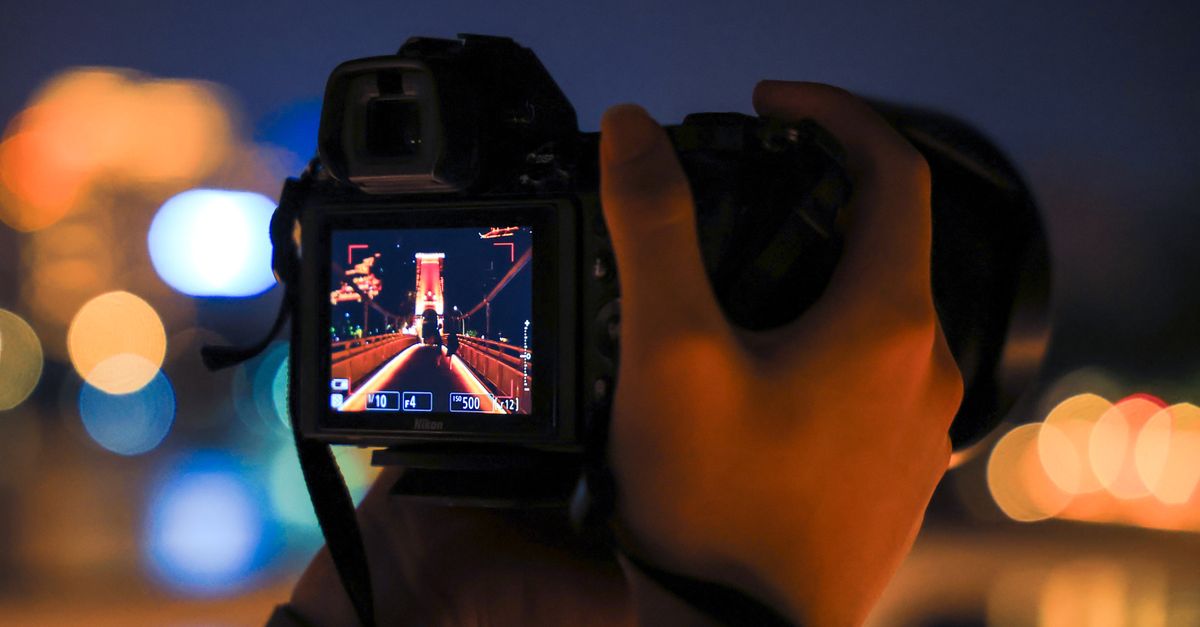
To view EXIF data of a photo, parse the file's APP1 Exif segment directly with a browser-based EXIF Viewer — a free tool that reads a local JPEG up to 25 MiB and displays common camera, lens, exposure, and GPS fields without uploading the file. Every JPEG produced by a smartphone or digital camera can carry an EXIF block alongside the pixel data, holding fields such as the camera make and model, the lens used, shutter speed, aperture (f-number), ISO speed, focal length, pixel dimensions, orientation, capture date, and — if location services were enabled — GPS latitude and longitude. Viewing that block is useful for photographers who want to remember the settings behind a shot, journalists verifying a submission, and everyday users who want to know what hidden information a picture carries before they share it. Because the data lives inside the file, anyone who receives the photo can read it too, which is why understanding what is stored matters as much as knowing how to open it.
What EXIF Data Actually Is
EXIF stands for Exchangeable Image File Format, a standard maintained by CIPA, the Camera & Imaging Products Association. The data sits in a small APP1 segment inside the JPEG container, immediately after the file's start-of-image marker. A short TIFF header inside that segment identifies the byte order (little-endian or big-endian), and from there the file lists one or more directories of tagged values — the EXIF block is technically just a standardized catalog of these tags.
You do not need to know the binary layout to view the data, but it explains why a tool can show some fields and not others. The EXIF Viewer follows the IFD0, Exif sub-IFD, and GPS sub-IFD directories and decodes only the tags it has been built to recognize. Proprietary maker note blocks from Canon, Nikon, Sony, and other manufacturers are intentionally skipped because they use undocumented or vendor-specific encodings, and guessing at their values would be misleading rather than helpful. Parsing follows the CIPA Exif 2.3 specification and is independently cross-checked against ExifTool's official tag table, so the values shown match what a desktop tool would surface for the documented common tag set.
How to View EXIF Data of a Photo Using EXIF Viewer
The EXIF Viewer is built for the specific job of reading a local JPEG and showing the common EXIF rows in a plain table. Here is the exact workflow:
- Open the EXIF Viewer page in your browser.
- Click the file picker and select a local JPG or JPEG file up to 25 MiB.
- Wait for the tool to scan the JPEG's APP1 segment, validate the embedded TIFF header, and walk the bounded metadata directories.
- Review the recognized EXIF rows in the table — camera make and model, software, orientation, capture and modification times, exposure time, f-number, ISO, focal length, pixel dimensions, lens model, and GPS coordinates when present.
- Pay particular attention to any GPS latitude, longitude, and direction rows, because those fields can disclose the precise location where the picture was taken.
- Close the tab when you are done — the file bytes and parsed values stay in your current browser session and are not uploaded or saved anywhere.
If the table comes back empty, the file may not contain an EXIF segment, its metadata may have been stripped by a previous platform or screenshot tool, or it may only contain unsupported proprietary fields. Safety limits inside the parser reject malformed segment lengths, directories with excessive entries, unsupported or oversized field counts, and offsets that point outside the selected file, so an unparseable file simply produces no rows rather than a misleading table.
Fields the EXIF Viewer Will (and Won't) Show You
Here is the practical scope of the EXIF Viewer, based on the documented common tag allowlist rather than marketing claims:
| Field category | Status in EXIF Viewer |
|---|---|
| Camera make and model | Read and displayed |
| Lens model | Read and displayed |
| Orientation (rotation hint) | Read and displayed |
| Software used to edit the file | Read and displayed |
| Original capture time | Read and displayed |
| File modification time | Read and displayed |
| Exposure time (shutter speed) | Read and displayed |
| F-number (aperture) | Read and displayed |
| ISO speed | Read and displayed |
| Focal length | Read and displayed |
| Pixel dimensions (width × height) | Read and displayed |
| GPS latitude, longitude, and direction references | Read and displayed (sensitive) |
| Vendor maker notes (Canon, Nikon, Sony, etc.) | Intentionally not parsed |
| XMP, IPTC, and ICC color profiles | Not parsed |
| RAW formats (CR2, NEF, ARW, DNG, RAF, ORF) | Not supported (JPEG only) |
| HEIC, PNG, WebP, GIF, and video files | Not supported (JPEG only) |
| Embedded thumbnail image | Not displayed |
The allowlist is intentional: showing every byte the file declares, including proprietary tags the parser does not fully understand, would produce a table full of mystery values rather than trustworthy rows.
Reading the Common EXIF Fields
Once the table is in front of you, the field names are technical but the meaning is direct. Here is what the rows typically tell you:
- Camera make and model — the manufacturer and product line that recorded the image. If this says something different from what the photographer claims, that is a red flag.
- Lens model — the optical system used. Useful for confirming macro, telephoto, or wide-angle claims.
- Exposure time — the shutter speed in seconds, such as 1/250 or 8. Long values indicate low light or a tripod; very short values indicate bright conditions.
- F-number — the aperture, written as f/2.8, f/5.6, f/11. Lower numbers mean a wider opening and shallower depth of field.
- ISO speed — the sensor sensitivity. Higher ISO values indicate grainier, noisier images, typical of low-light shooting.
- Focal length — the lens's zoom setting in millimeters. Useful for distinguishing wide-angle from telephoto shots.
- Orientation — the rotation needed to display the image correctly. Phones often write this so the receiver rotates the pixels on render.
- Original capture time — when the shutter fired, according to the device clock. Treat the device clock as untrusted; it can be wrong.
- Pixel dimensions — the image's width and height in pixels, which together with focal length and sensor size determine angle of view.
- GPS latitude, longitude, and direction references — the decimal coordinate and hemisphere (N/S, E/W) where the image was taken.
A field that simply does not appear in the table can mean it was not stored, was stripped, or is not part of the supported common set. Absence of evidence is not evidence of absence — it just means the tool did not find the field in the bounded directories it parses.
Privacy and GPS Considerations
GPS metadata can disclose the precise location where a picture was taken. Coordinates are stored inside the EXIF block as degrees, minutes, and seconds together with N/S and E/W hemisphere references, and the tool converts them into signed decimal degrees for display — the readable pair you might see if a phone's location services were on when the shutter fired.
Before posting a photo or a metadata report publicly, review the location fields. Many messaging apps and social platforms strip EXIF on upload, but the original file you hand to someone still carries the full block. If you want to share a photo without exposing the GPS row, a separate tool that rebuilds the JPEG from decoded pixels — without carrying the EXIF block forward — is the safer path. A step-by-step guide to stripping EXIF before sharing walks through that workflow if you need it.
When You Need a Full Desktop Metadata Tool
EXIF Viewer covers the most common photographic fields quickly and privately, but it stops at the first valid Exif APP1 segment and never executes embedded metadata. It does not claim full XMP, IPTC, HEIC, PNG, WebP, RAW, video, or proprietary maker-note coverage. If you need any of the following, reach for a maintained desktop tool such as ExifTool:
- RAW formats (CR2, NEF, ARW, DNG, RAF, ORF, and others)
- Complete metadata inventories including every vendor tag
- Maker notes specific to Canon, Nikon, Sony, Fujifilm, and so on
- Batch export across hundreds of files at once
- Forensic work that requires preserving the original file and documenting a chain of custody
Parsing inside the browser follows the CIPA Exif 2.3 specification and is independently cross-checked against ExifTool's official tag table, so the values shown are the same values a desktop tool would surface for the documented common tag set. What you give up by staying in the browser is depth of coverage, not accuracy on the fields that are shown.
Why Metadata Isn't Proof
Metadata is not proof of authorship, ownership, capture time, location, or authenticity. It can be missing, stripped by messaging and social platforms, edited, copied from one image to another, or simply stale if the device clock was wrong when the photo was taken. The EXIF Viewer surfaces the values exactly as the file declares them — it does not vouch for them.
For questions of provenance or evidence, treat metadata as a clue, not a conclusion, and preserve the original file alongside any forensic analysis. Reading EXIF is a great way to learn what a picture carries, but it is only the first step in any serious verification process.
For a deeper look, see Edit EXIF Data Without Photoshop: A Browser Workflow.