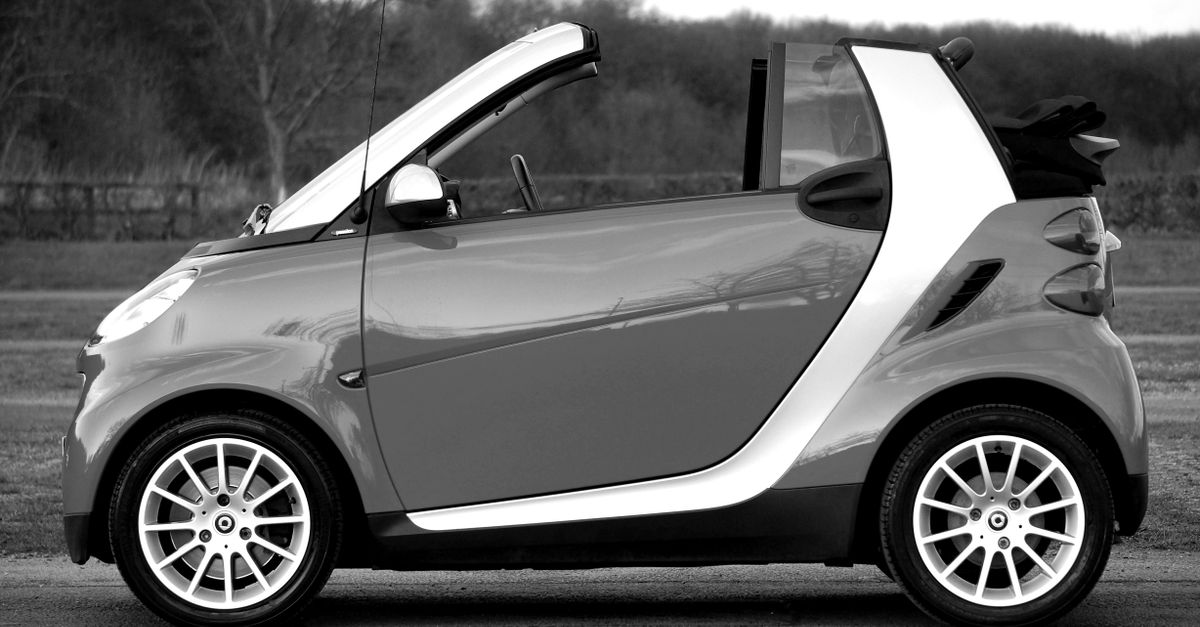
A black and white photo converter to 100KB requires two separate operations: create a grayscale PNG first, then reduce or resize that file until its encoded size fits the upload limit. The Black and White Photo Converter handles the color-conversion stage entirely in your browser: it accepts a local JPG, PNG, or WebP, calculates a documented grayscale value for every pixel, preserves alpha, and downloads a PNG with the same decoded width and height as the source. That output is grayscale, not a one-bit black-and-white threshold, and its pixel dimensions do not change. A 100KB limit is a file-size constraint, so converting the image alone cannot guarantee compliance; the PNG's encoded byte size still depends on the image content and dimensions. For the complete workflow, use the converter first and check the downloaded PNG's actual size. If it exceeds the limit, make a separate copy and use an appropriate image editor or tool, then check the edited file against the destination's requirement. Always compare the file against the exact rule displayed by the destination, because KB and KiB are not interchangeable labels and the service's stated rule governs validation.
What the converter delivers
The distinction matters because “black and white” can describe several different outputs. This converter produces continuous grayscale, so dark, middle, and light tones remain distinct. It does not reduce every pixel to pure black or pure white, and it does not apply halftone, duotone, film-emulation, selective-color, or artistic grading effects. For quick monochrome graphics, documents, reference images, and simple assets, that predictable transform is the useful first stage of a 100KB workflow.
| Item | Verified behavior |
|---|---|
| Accepted input | Local JPG, PNG, or WebP |
| Maximum file size | 25 MiB |
| Decoded-size rule | Bounded decoded dimensions and pixel budget |
| Output format | Grayscale PNG |
| Output dimensions | Same decoded width and height as the input |
| Transparency | Alpha is copied unchanged |
| Processing location | Local browser processing; the image is not uploaded |
| Automatic 100KB target | None; check and compress the downloaded PNG afterward |
Here, full resolution means that the decoded width and height remain unchanged. It does not mean that every source-file property survives the conversion. The transformation operates on the browser's decoded 8-bit channel values rather than preserving a professional color-management workflow.
Convert the photo to grayscale
- Choose the source image. Open the converter and select a local JPG, PNG, or WebP. The file can be up to 25 MiB, but its decoded width and height must also remain inside the tool's bounded pixel budget. The selected image remains in the current browser context rather than being uploaded to a server.
- Run the conversion. Select Convert to black and white and wait for the per-pixel canvas transform to finish. The browser decodes the file, reads the bounded RGBA pixel buffer, calculates a grayscale value for every complete pixel, writes the transformed buffer back, and encodes a PNG. Invalid or incomplete pixel data fails visibly rather than producing a partial result.
- Inspect and download. Verify the dimensions and appearance against the source, paying particular attention to transparent edges and partially transparent areas. Then download the grayscale PNG. Its decoded width and height should match the source; if they do not, or if the appearance is wrong, check the input before continuing.
The downloaded file is the converted master, but its presence does not confirm that it meets a size limit. Open its file details and compare the exact byte count with the destination's requirement. This separates two questions that are easy to conflate: the converter establishes the monochrome appearance and dimensions, while compression or resizing establishes the final upload size.
How the grayscale matrix works
For every pixel, the converter computes the weighted RGB value round(0.2126R + 0.7152G + 0.0722B). Red, green, and blue therefore contribute according to the proportions defined by the W3C Filter Effects grayscale definition. The rounded result is written to all three output color channels, which is why the downloaded PNG is grayscale even though it retains the source's decoded dimensions.
For one pure-red pixel, R is 255 while G and B are 0. The calculation is 0.2126 × 255 + 0.7152 × 0 + 0.0722 × 0 = 54.213, which rounds to 54. That single gray value is then assigned to the red, green, and blue channels of the output pixel.
Alpha is not part of the luminance calculation. It is copied unchanged, so fully transparent pixels remain transparent and partially transparent pixels retain their original opacity. This is also different from taking a screenshot of a visual preview. The MDN documentation for the CSS grayscale filter describes a CSS rendering filter, whereas this tool transforms the complete RGBA pixel buffer and encodes the result as a PNG. The downloaded file therefore contains the processed pixels rather than an image of an on-screen filter.
Reduce the PNG to fit a 100KB limit
Removing color information changes how an image looks, but it does not impose an encoded-file ceiling. A large PNG can still exceed 100KB even when every visible pixel is grayscale. After downloading, compare the file's exact byte count with the limit. If it is too large, make a separate copy and use an appropriate toolImage Compressor. Check the edited copy's size and appearance at the size where it will be displayed.
If the edited copy is still above the required size, make a separate copy and use an appropriate toolImage Resizer. Check the edited copy's size, format, and appearance before using it, and retain the full-dimension grayscale PNG if you may need another size later.
| What you find after conversion | Next action | What to verify |
|---|---|---|
| The PNG is already below the limit | Keep it and proceed to upload | Exact byte size, appearance, and accepted format |
| The PNG exceeds the limit | Compress a copy, then check it again | File size and visible detail |
| The compressed PNG is still too large | Reduce the pixel dimensions and repeat the size check | Legibility at the intended display size |
| The destination does not accept PNG | Use a separate format converter or editor | Required format, transparency needs, and final size |
| An artistic black-and-white treatment is needed | Use a dedicated image editor | Tone, masks, local adjustments, and layers |
A size label can also be ambiguous. Decimal 100KB equals 100,000 bytes, while 100KiB equals 102,400 bytes. File managers may display rounded sizes rather than exact bytes. Use the byte count when available, follow the destination's stated definition, and leave some margin below the ceiling when that definition is unclear. Neither the grayscale conversion nor compression should be treated as proof that a file passed until the actual downloaded file has been checked.
Input limits and visible failures
The converter has two relevant input gates: supported file type and file size, followed by a separate decoded-dimension budget. JPG, PNG, and WebP files are accepted up to 25 MiB, while decoded dimensions remain bounded. A file below 25 MiB can still exceed the dimension or pixel budget. Excessive dimensions fail visibly rather than triggering a silent resize.
Other visible failure conditions include invalid files, incomplete pixel data, missing canvas support, and empty output. These safeguards prevent the tool from presenting an incomplete or empty PNG as a successful conversion. They also mean that “full resolution” describes the relationship between the decoded input and output dimensions; it is not a promise that every image can be processed regardless of size.
Decoding, pixel transformation, PNG encoding, and download creation all run locally, so the image is never uploaded. Temporary object URLs are revoked when replaced or the converter is unmounted. Local processing protects the transfer of the image, but the final result still deserves inspection because the conversion uses decoded 8-bit values rather than carrying forward every color-management and high-dynamic-range property from the source.
Choose the right kind of monochrome output
This workflow suits quick web graphics, document illustrations, reference images, and other simple monochrome assets. It produces a neutral, luminance-weighted grayscale result with transparent regions left intact. That makes it a practical choice when the goal is a clean grayscale PNG rather than a heavily stylized photograph.
It is not the right tool for strict one-bit thresholding, halftone patterns, duotone styling, film emulation, selective-color editing, or a perceptually optimized artistic grade. It also does not support color-managed printing, RAW development, local contrast adjustment, batch editing, or non-destructive layers. Color profiles, HDR metadata, wide-gamut precision, and print-specific black generation are not preserved as part of a professional color workflow. Use a dedicated image editor when any of those requirements matter.
Before uploading, confirm that the file opens correctly, matches the intended dimensions, preserves the expected transparency, remains acceptable in appearance, and satisfies the destination's exact byte limit. If the form rejects it, check the permitted format and byte definition before making further visual changes. This approach keeps the grayscale conversion deterministic while giving the final size decision the verification it requires.
If you're weighing options, Favicon Generator Alternative for Local PNG Favicons covers this in detail.
If you're weighing options, Image Color Extractor on iPhone: Find a Photo's Colors covers this in detail.