A free signature generator with no sign-up lets you type or draw a signature and download it as a PNG without creating an account.
The Signature Generator draws the image on a canvas inside your browser, encodes it locally, and provides a direct download without sending your name, strokes, or finished PNG to a server.
This account-free workflow suits anyone who needs a reusable signature graphic for a document, email, contract, PDF, presentation, or web form while keeping the working copy on their own device.
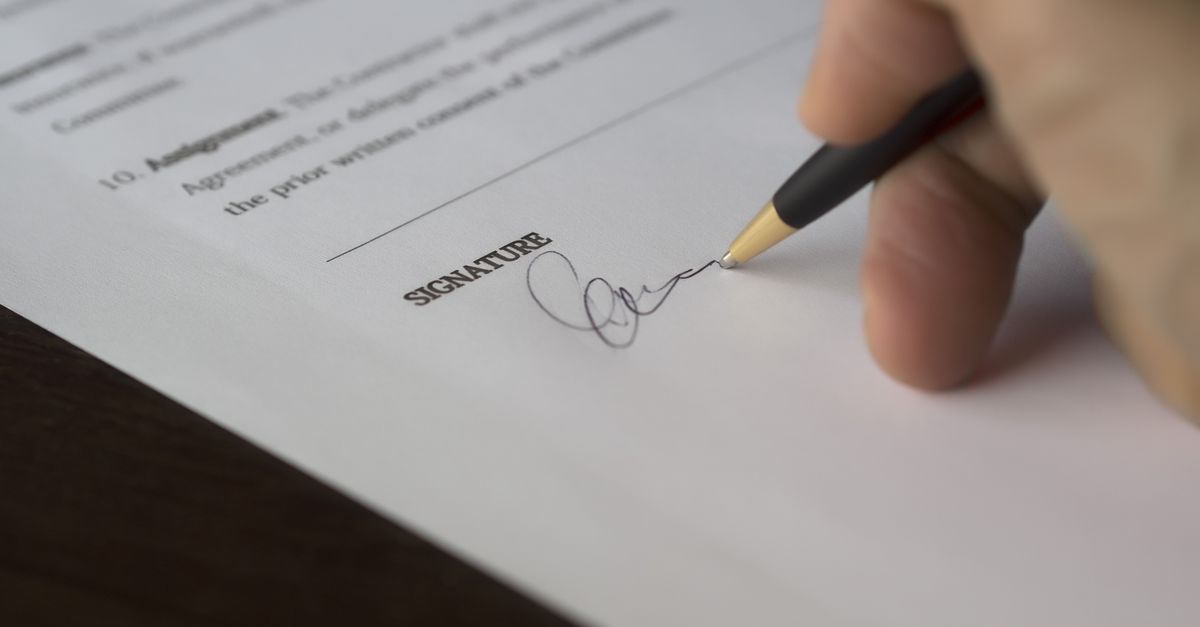
What the account-free workflow includes
There is no account step between opening the generator and creating the image. You can enter a name or make a freehand mark, adjust its appearance, select a background, and download the PNG. No profile is required for the tool to complete those steps.
Processing happens locally in your browser. The tool uses standard browser features to draw the signature, encode it as a PNG, and turn it into a downloadable file. That means your typed name and handwritten strokes remain on your device during creation rather than passing through a third-party server.
The page can also work offline after it has loaded. The downloaded PNG remains a normal file in your device's downloads, while the generator itself retains nothing after you close the tab. Local processing protects your working data from upload, but it does not turn the image into an identity-verification system.
Choose Type or Draw for your signature
Both creation modes produce the same high-quality PNG, but they offer different ways to establish the mark you want.
| Mode | How you create it | Available controls | Best fit |
|---|---|---|---|
| Type | Enter your full name. | Handwriting style, ink color, and size | A consistent handwritten rendering based on your typed name |
| Draw | Sign with a mouse, trackpad, stylus, or finger. | Adjustable pen width and a Clear control | A personal mark that closely follows the strokes you make |
Type mode is useful when you want the convenience of entering a name without reproducing every stroke by hand. You can choose from script and cursive styles, select an ink color, and resize the result. Draw mode gives you more direct control over the shape, spacing, and direction of the signature, while the Clear control makes it easy to discard a stroke and try again.
Create and download a signature
Use the following workflow to create a signature image without registering for an account.
- Open the generator and select a creation mode. Choose Type mode and enter your full name, or switch to Draw mode and sign with your mouse, trackpad, stylus, or finger. On a touchscreen, your finger can serve as the drawing input.
- Refine the appearance. In Type mode, pick a handwriting style, choose the ink color, and adjust the size. In Draw mode, change the pen width until the lines feel right. If a Draw attempt does not look correct, select Clear and practice the stroke again.
- Select the export background. Keep the transparent background for clean layering, or switch to white if you want a solid backing behind the signature. This choice affects the background of the PNG, not the shape of the signature itself.
- Review the live preview. Check the spelling in Type mode or inspect the individual strokes in Draw mode. Confirm that the proportions are comfortable, the ink color is visible against the intended destination, and the background suits where you plan to place the image.
- Click Download PNG. The finished image is saved to your device. Because drawing, encoding, and export happen locally, the signature does not need to be uploaded during this process.
The downloaded file is a lossless PNG, so the edges can remain crisp when you place the image, resize it, or print it. Save a reusable copy if you expect to use the same signature on future documents.
Choose a transparent or white background
The generator offers two practical export choices. Transparent is enabled by default, while a single toggle adds a solid white background.
| Background | What the PNG contains | Useful when |
|---|---|---|
| Transparent | No background layer | Placing the signature over a document, letterhead, colored page, or photo without a white box |
| White | A solid white backing | Using a white surface or preferring a signature graphic with a fixed solid background |
Transparent is usually the more flexible choice because the same signature can sit over different backgrounds. White is useful when the intended placement is already white or when a solid-backed image is more convenient. Both choices download as PNG files with the same lossless image quality.
Place the PNG where you need it
Downloading the image completes the generator's task, but the tool does not fill forms, embed a signing certificate, or submit a document on your behalf. After the PNG downloads, insert it with the image control in the destination application.
- Documents, PDFs, contracts, and presentations: Place the PNG beside the signature line and resize it while keeping the original proportions.
- Email: Insert the downloaded image as an attachment or inline image rather than treating it as editable text.
- Web forms: Upload the PNG only where the form accepts a visual signature image; the generator does not automate form completion.
- Photos and image overlays: Use the transparent export to avoid a rectangular background around the mark.
- Repeated approvals: Keep the PNG on your device so you do not need to recreate the signature for each task.
- Print layouts: Check the downloaded image at its intended size and confirm that the strokes remain clear before sending the document to a printer.
For a fuller PDF placement workflow, see how to create a signature for a PDF without printing or scanning. If the image is going into an email, email signature image specs for size, background, and format can help you choose a suitable layout.
Know the limits of a signature image
The exported PNG is a visual signature, not a certified digital or cryptographic signature. It contains no certificate, private key, tamper-evident hash, or audit trail, and the tool does not verify who created it. Privacy and identity verification are separate concerns: keeping the file local prevents an upload, but it does not authenticate the signer.
A pasted signature picture can still carry legal weight in many everyday situations. Whether it is appropriate depends on your jurisdiction, what you are signing, and whether all parties agree to it. That legal effect comes from the surrounding agreement and applicable law, not from the PNG itself.
If a transaction requires certified signing, identity verification, or a tamper-proof record, use a dedicated e-signature platform that issues a digital certificate. For approvals, mockups, personal letters, image overlays, and quick document sign-offs, the PNG provides a convenient visual signature graphic without account creation or upload.
Final checks before using the file
Run this quick review after downloading the signature:
- Confirm that a typed name is spelled correctly.
- Check that drawn strokes do not contain accidental marks.
- Verify that the size and proportions are suitable for the destination.
- Make sure the ink color contrasts with the background.
- Confirm that transparency or white is the intended export choice.
- Open the PNG on the device where you plan to use it.
- Use a certified e-signature service instead if your workflow requires identity verification or a tamper-evident audit trail.
For an everyday visual signature, the essential benefits are straightforward: no sign-up, local processing, two creation modes, and a downloadable PNG. The same privacy-focused workflow also supports sensitive working files because the tool does not upload the name or image you create.