An online signature maker is a browser-based tool that converts your name or a hand-drawn stroke into a reusable PNG image of a signature, ready to drop into documents, emails, contracts, PDFs, and web forms without the old routine of printing a page, signing it by hand, and scanning it back in. The fastest path to that image is a focused tool like the Signature Generator, which renders your typed name in a flowing handwritten style or captures the strokes you draw with a mouse, trackpad, stylus, or finger, then exports a high-quality PNG with a transparent background by default. The whole pipeline runs inside your browser — the canvas is drawn, encoded into the image file, and saved locally, so nothing is uploaded and no account is required. That local-only design makes the tool practical for everyday paperwork where you would rather not pass your name or your handwriting through a third-party service.
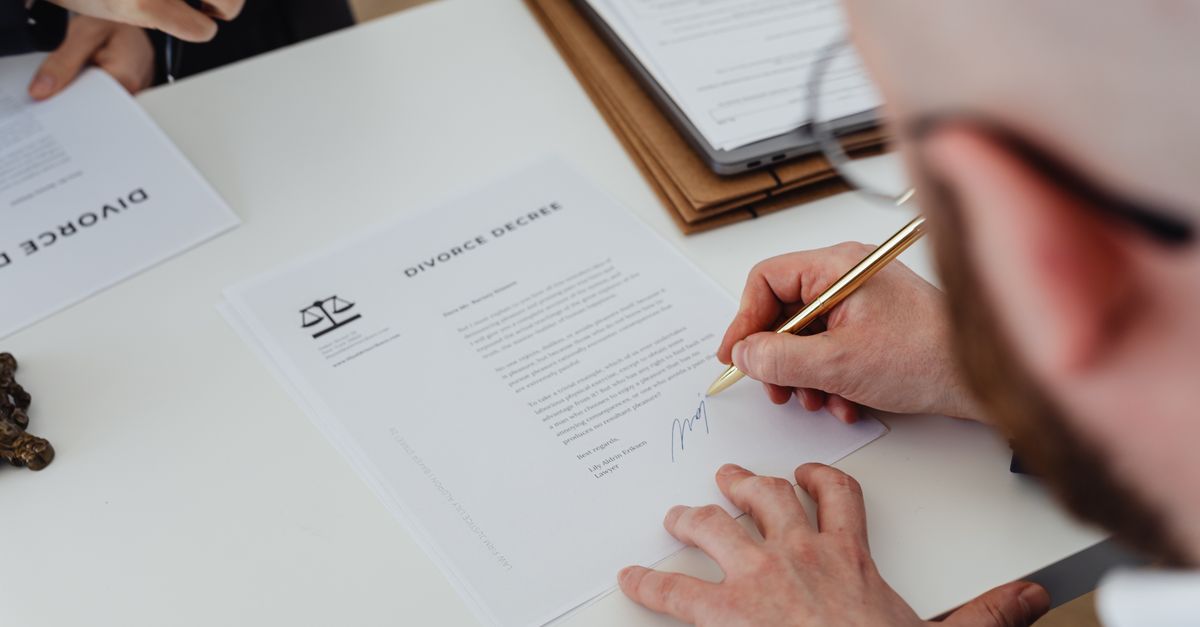
Replacing the Print-Sign-Scan Routine
A signature maker does one job and does it well: produce a clean signature graphic you can paste, attach, or layer into something else. The output is almost always a PNG, because PNG is the only common image format that supports a fully transparent background, and transparency is what keeps the signature from sitting inside an ugly white rectangle when you place it on a colored page, a dark slide, or a photograph.
Typical jobs for a generated signature image include:
- Signing PDFs and Word documents when a print-scan cycle would slow you down
- Building an email signature line for a personal or small-business account
- Adding an authentic mark to mockups, photos, social graphics, or creative drafts
- Personal letters, scanned forms, and one-off approvals where a visual signature is enough
- Web forms and onboarding flows that accept an uploaded image in place of a signature pad
Once the PNG is on your device, you keep it on file and reuse it. That is the real time savings over the print-sign-scan approach, which forces you to rebuild the signed page every single time.
Type Mode vs Draw Mode: Which Fits Your Need
A useful signature maker gives you two ways to get the image. The choice depends on whether you care more about consistency or about matching the signature you already write on paper.
| Mode | Input | What you get | Best for |
|---|---|---|---|
| Type mode | Typed full name | Your name rendered in a flowing handwritten font | Consistent appearance, fast turnaround, matching across devices and team members |
| Draw mode | Mouse, trackpad, stylus, or finger strokes | An authentic hand-drawn signature that mirrors your real handwriting | Replicating a signature you already use, custom flourishes, one-off use |
If consistency matters more than realism — for example, you want the same signature on every contract regardless of which computer you are on — Type mode is the cleaner answer. The output is generated from the typed string, so it looks the same each time and is unaffected by your hardware, your mouse precision, or the screen you are working on. If the goal is to make the digital version resemble the inked signature you already sign documents with, Draw mode fits better. You can practice a stroke as many times as you like, hit Clear, and try again until the line work looks like you.
Both modes export to the same high-quality PNG and both run in the browser, so switching between them costs nothing.
How to Create a Signature Image in Your Browser
Using the Signature Generator follows four short steps:
- Pick your input mode. Choose Type mode to render your name, or switch to Draw mode to sign by hand with a mouse, trackpad, stylus, or finger.
- Configure the look. In Type mode, pick a handwriting style, ink color, and size until the signature feels right. In Draw mode, set the pen width and use the Clear button to retry strokes until the line work matches what you want.
- Choose the background. Keep the transparent background (the default) if you plan to drop the signature over a document, colored page, or photo. Switch to a solid white background if you specifically want a flat image to embed in slides or attach to a form field.
- Download the PNG. Click Download PNG to save the signature to your device. The file is generated locally, so nothing is uploaded and nothing is stored after you close the tab.
Once the PNG is on your drive, you can drag it into a Word document, paste it into an email signature, layer it on a PDF in your editor of choice, or attach it to a web form that accepts image uploads. For tips on getting the size and background right in an email client specifically, the email signature image specs guide walks through the practical limits.
Why a Transparent Background Is Worth Keeping
The transparent background is the small detail that makes the whole image usable. A white box around a signature looks unprofessional the moment it lands on a colored letterhead, a dark slide, a social graphic, or a photograph. A transparent PNG lets the signature sit cleanly on top of whatever is underneath, with crisp edges and no visible halo.
The Signature Generator exports with transparency turned on by default. The only reason to flip the toggle to a white background is if you specifically want a flat image — for instance, when uploading to a service that strips transparency on its own, or when pasting into a slide deck where a uniform block of white is part of the layout. For everything else, transparent is the right choice.
Because the file is a lossless PNG, the edges of the signature stay sharp at any output size. You can shrink the image for a compact email signature line or enlarge it for a printed page without the soft, jagged outlines that show up when a JPEG is re-encoded at a different resolution. For a closer look at what transparent PNG output involves, the make a signature to PNG guide covers the practical side in more detail.
Privacy, Legality, and the Honest Limits of a Signature PNG
Two things matter beyond the visual result: where the signature is processed, and what the resulting file can legally do.
The Signature Generator draws the signature on a local canvas and encodes it into a PNG entirely on your device. Nothing is uploaded, no account is needed, and no data is stored after you close the tab. That local-only design makes it a safe default for everyday signing where you would rather not share your name or your handwriting with a third-party service.
The second point is the honest one. The PNG this tool produces is a visual signature image, not a certified digital or cryptographic signature. It does not embed a certificate, a private key, a tamper-evident hash, or an audit trail, and it does not verify who created it. A pasted signature picture can carry legal weight in many everyday situations — depending on your jurisdiction, what you are signing, and whether both parties agree to accept it — but that weight comes from the surrounding agreement and the law, not from the image file itself. For identity-verified signing with a tamper-proof record, you need a dedicated e-signature platform that issues a digital certificate and tracks who signed what and when.
For approvals, mockups, personal letters, image overlays, and quick document sign-offs, a local signature maker is the fastest way to get a good-looking signature graphic while keeping the data on your own machine. Match the tool to the task: a browser-based signature image for visual signing, a certified e-signature platform for anything that requires identity verification or a tamper-evident audit trail.