Mind Map Maker is a browser-based mind mapping tool that converts an indented text outline of up to 80 nonempty nodes into a standalone SVG for preview and download.
Its defining feature is deterministic outline-to-SVG conversion: nodes receive stable positions from their depth and source order, deeper branches move right, and curved paths connect each child to its parent. Parsing, layout, preview, and download all happen in the current browser tab, so the outline is not uploaded. This makes the tool well suited to a quick planning or communication artifact where a clear hierarchy matters more than freeform canvas editing.
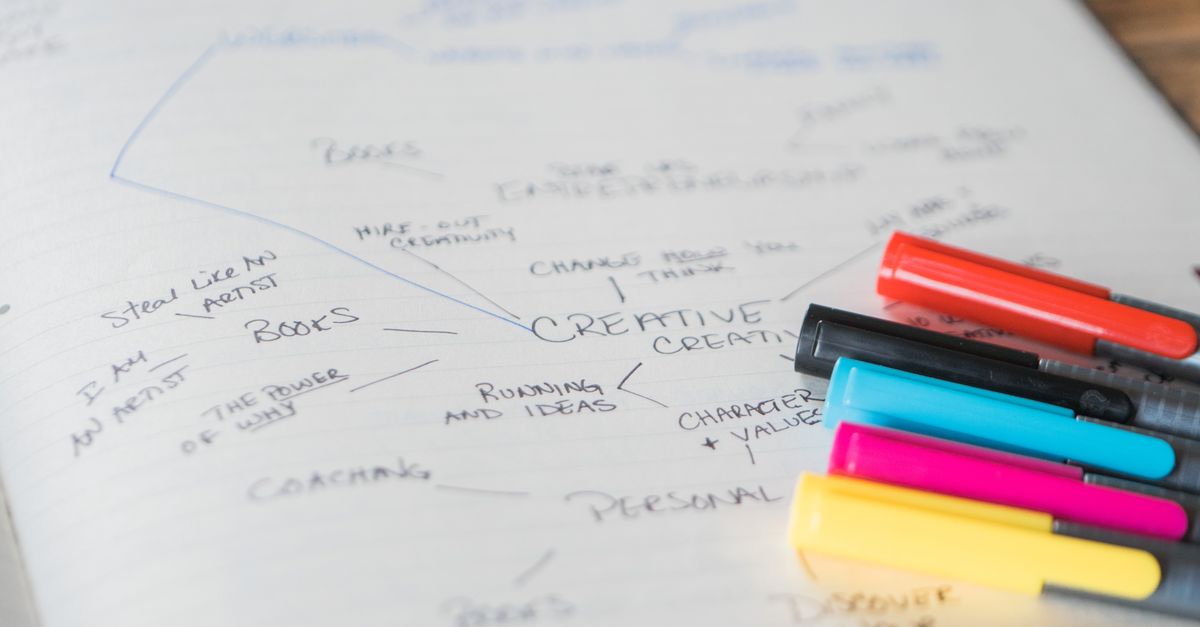
What this mind mapping tool creates
Start with a plain indented outline, and the generator turns it into a left-to-right diagram of rectangular nodes, text labels, and cubic SVG paths. The first nonempty line becomes the root. Rows follow the original outline order, each additional level occupies a fixed column farther to the right, and the canvas expands to include every generated node. This is predictable, outline-driven layout rather than automatic force-directed movement.
That distinction matters when you want two people to review the same structure and see the same connections. The visual arrangement is derived from rules, not from a canvas simulation, which makes the result suitable for documenting a topic, summarizing notes, or presenting a plan. It does not try to optimize every branch for visual balance, and it does not move nodes after generation.
Turn an outline into a mind map
- Create the root line. Put the central topic in the first nonempty line and leave it unindented. Later lines become descendants of that root.
- Add nested branches. Indent a child by two spaces or one tab. Add another two spaces or one tab for its child, and continue one level at a time.
- Keep parent order clear. Each indented line attaches to the nearest preceding node one level above it. Put a branch under its intended parent before adding the next sibling.
- Select Generate mind map. The tool parses the outline, assigns each node a depth, calculates its stable position, and draws the parent-child connections.
- Inspect the local preview. Check that every line connects to the intended parent. Look especially at branches that return from a deeper level to a shallower one.
- Download the standalone SVG. Keep the outline as your editable source. If you change the text, the previous result is invalidated and its local URL is released, so generate a new preview before downloading again.
Resolve each line to the right parent
The parent rule is simple but important: a line at depth one connects to the root, a line at depth two connects to the most recent preceding depth-one node, and a line at depth three connects to the most recent preceding depth-two node. A shallower line ends the current deeper branch. It does not connect to the last box drawn at the previous visual depth.
Consider an outline containing Project plan at depth zero, Research at depth one, Interviews at depth two, Delivery at depth one, and Launch at depth two. Delivery returns to depth one, so it becomes another child of Project plan; it is not attached to Interviews. The layout follows the same source-order rule. Deeper nodes shift right by a fixed distance, while sibling rows remain in the order they appeared in the outline.
Use consistent indentation. The first node cannot be indented, indentation cannot skip a level, and one indentation prefix cannot mix tabs with spaces. These malformed structures are rejected rather than silently attached to the wrong branch. You may use a leading hyphen, asterisk, or plus as a bullet; the marker is removed from the label after indentation has been read.
Stay within the supported input limits
The tool is deliberately bounded so it can create a predictable diagram from a manageable text input. These are the defined constraints to check before you generate:
| Input element | Supported rule |
|---|---|
| Outline size | Up to 12,000 characters |
| Nodes | Up to 80 nonempty nodes |
| Label length | Up to 120 characters per label |
| Root | The first nonempty line becomes the root and cannot be indented |
| Indentation unit | Two spaces or one tab for each nesting level |
| Hierarchy | Indentation cannot skip a level or mix tabs and spaces within one prefix |
| Blank lines | Ignored |
| Line endings | Normalized locally |
| Bullets | Leading hyphen, asterisk, and plus markers are removed from labels after indentation is read |
Long labels are not measured for wrapping, so a 120-character label can exceed its box even though it passes the parser limit. Concise phrases create the clearest result. Blank lines do not consume the nonempty-node allowance, and mixed Windows, macOS, or Linux line endings are handled locally.
Inspect the preview and downloaded file
The preview and download come from a revocable local Blob URL. The MDN guide to Blob objects explains the browser mechanism behind this kind of local file workflow. When the outline changes, Mind Map Maker invalidates the earlier result and releases its URL, so you need to generate the updated diagram again before downloading it.
The downloaded SVG contains simple rectangles, paths, and text. It has no scripts, foreignObject elements, external images, remote fonts, or network references, making it a standalone vector image. Labels are escaped for XML before they enter the file. Characters such as &, <, >, quotes, and apostrophes remain text rather than becoming markup.
SVG is a text-based vector format, and MDN's SVG tutorial explains its basic structure if you want to inspect the file in a text editor. The export is still a presentation artifact: it is not a persistent visual mind-map project that Mind Map Maker can reopen and edit node by node.
Choose the right kind of mind mapping tool
This outline-to-SVG workflow fits a specific job: turning structured notes into a visual quickly while keeping the source text separately. It is less suitable when the diagram itself must become an ongoing, freely arranged workspace.
| Your need | Better fit | Reason |
|---|---|---|
| Convert a structured outline into a local SVG | Mind Map Maker | Its fixed outline-to-SVG workflow creates deterministic parent-child connections. |
| Drag nodes, collapse branches, or arrange content freely | Dedicated diagram application | Mind Map Maker has no drag, collapse, or freeform editing controls. |
| Manage a large knowledge graph | Dedicated diagram application | The current generator is bounded to 80 nonempty nodes and 12,000 characters. |
| Collaborate in real time or maintain a long-term project | Dedicated diagram application | Mind Map Maker does not save projects or support real-time collaboration. |
| Publish an accessible semantic document | Dedicated diagram application | The output is an SVG presentation artifact rather than a semantic document. |
Some needs sound similar but lead to very different tools. A structured list with up to 80 nodes is a reasonable input for this generator. A sprawling knowledge base is not the same kind of task. Likewise, a presentation graphic that must remain traceable to a simple text outline fits this approach; an editable diagram with moving branches does not.
Build an outline that stays easy to edit
A practical source outline begins with one clear root, followed by broad branches and then specific children. Use short labels that name the idea rather than writing a paragraph inside a node. Before generating, read down the source once and check each indent against the branch above it. This review is especially useful after a branch contains several levels, because a returning sibling can otherwise look as though it belongs to the deepest nearby node.
After downloading, save both the SVG and the outline together. The SVG is ready for planning, presentation, or communication, while the outline remains the editable source. If the hierarchy changes, return to the text, revise it, and generate again. That loop keeps the structure visible and avoids treating the exported drawing as a round-trip project file.
If you're weighing options, Can I Drag Nodes or Reopen the SVG in Mind Map Maker? covers this in detail.
If you're weighing options, Yes No Generator Explained: Inside the 50/50 Mapping covers this in detail.