An LED scroller is a moving-text banner that loops a single short message across a bright track, controlled by fixed speed presets, a reversible direction, and a small set of text sizes. In a browser-based LED scroller, the moving banner is built from large monospaced text styled to look like an LED readout rather than from a simulation of specific hardware electronics. The animation runs entirely in the current browser tab using CSS keyframes, which means no message is uploaded, saved, translated, or sent to a server while you adjust the text or watch the preview. The controls are deliberately narrow: one short line of text, three speed presets, two directions, and five fixed text sizes. That narrowness is a feature, not a limitation, because each setting changes something visible and predictable. This walkthrough covers what each control does, why the apparent speed changes with message length and font size, what counts as a character, and when a browser-based LED scroller is the right choice versus dedicated sign-making software.
An LED Scroller, Defined
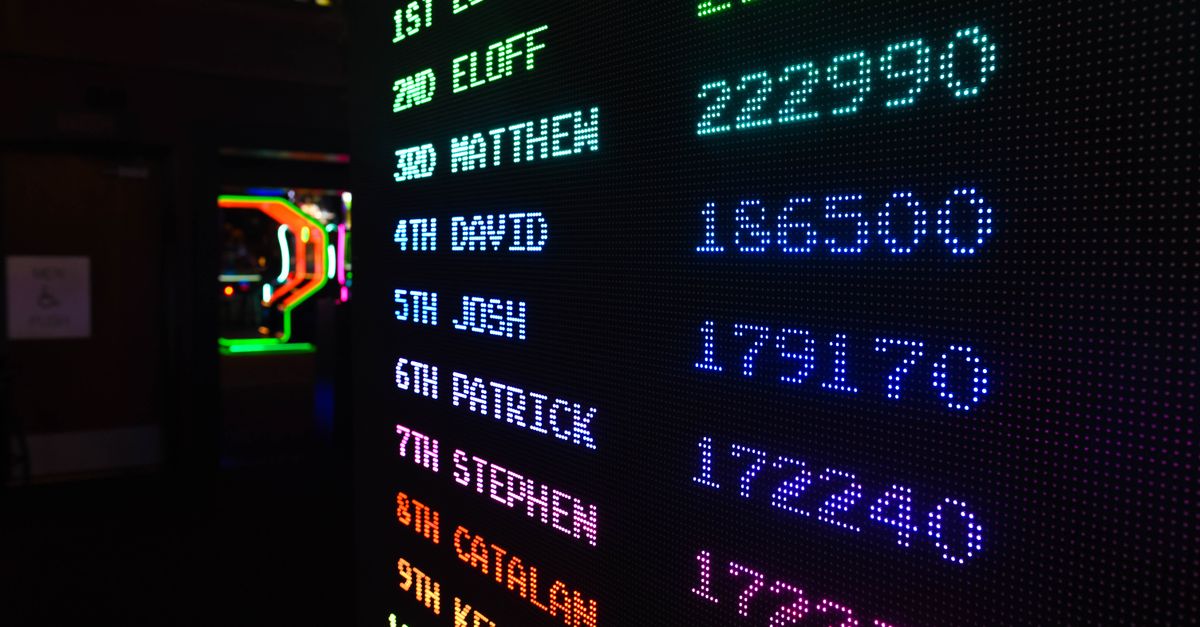
An LED scroller displays one short line of text that travels horizontally across a frame, repeating as long as the animation runs. The display is built from large monospaced browser text with extra character spacing and clean scrolling tracks, giving it the appearance of an LED readout without imitating a specific dot-matrix panel, refresh rate, or pixel pitch. The phrase is single-line by design, which is why the controls stop at one message rather than offering multi-line layout tools. That constraint keeps the preview predictable on any browser width.
A typical LED-style banner in this category is used for quick handheld signs, event cues, desk messages, presentation prompts, photo props, and short attention signals. The browser variant serves those exact use cases without requiring a separate display, controller, or sign-making application. Because the moving text is real, browser-rendered text and not a recorded video, every change you make to the message, speed, direction, or size clears the existing preview so the visible banner never silently disagrees with the controls, and pressing Start re-validates the complete configuration before a new animation appears. The result reads as a quick LED-style animation rather than a simulation of any particular hardware product.
How a Browser LED Scroller Differs from Hardware Signs
A browser LED scroller is a styled preview, not a controller for a physical panel. It uses large monospaced browser text, increased character spacing, and the site's color tokens rather than reproducing a named dot-matrix font, electrical refresh rate, pixel pitch, brightness level, physical sign controller, or manufacturer protocol. The rendered shape depends on the fonts installed in your browser, so the same message can look slightly different on devices, which is normal for text rendered outside a fixed hardware font.
Because the preview is CSS-driven, the apparent travel rate changes with message width, chosen font size, browser width, and zoom level, while the underlying loop duration stays fixed. If you need exact signage dimensions, certified brightness, remote scheduling, or hardware export, use the software that ships with that physical display. For everything else, the browser version answers the practical question of whether a short phrase reads clearly at a chosen pace and size, before you commit to anything.
How to Build a Scrolling Banner in the Browser
To produce a working scrolling banner, work through the controls in this order. The LED Scroller validates the complete configuration each time you press Start, so reviewing the full loop on the actual screen you plan to use is part of the process.
- Enter one short message in the text field. Keep it to a single phrase that fits one line; outer whitespace is removed automatically, and line breaks, control characters, and Unicode line or paragraph separators are rejected because the banner is one line.
- Choose a speed preset: slow (12 seconds per loop), medium (8 seconds per loop), or fast (4 seconds per loop). Treat the preset as a fixed CSS duration, not a calibrated physical speed.
- Pick a direction. Right to left starts the banner on the right and carries it toward the left, which is the most common reading direction for English text. Left to right reverses that motion for symmetry, mirrored stages, or non-Latin scripts.
- Set a text size from the fixed options: 32, 48, 64, 80, or 96 CSS pixels. The size options are limited on purpose so the controls stay predictable and the page does not break at extreme values.
- Press Start scrolling. The widget validates the complete configuration, stores one immutable settings object, and increments a render revision so the visible banner always matches the controls.
- Watch at least one full loop on the actual screen. Confirm the message reads clearly at the chosen pace, then use Pause for stationary messages, Resume to continue, or Restart to begin the loop from its initial position.
Editing any input after a preview is running clears the old preview so the visible banner can never silently disagree with the controls. Starting again re-runs the full validation before a new animation appears. The whole flow exists so a typo or a stray separator cannot produce a banner that drifts away from what you typed.
Speed Presets, Direction, and Text Size
The LED Scroller exposes a small set of fixed values rather than open-ended sliders. Keeping the choices predictable means every preview behaves consistently, and the page never breaks at extreme font sizes or zero-second loops.
| Setting | Available values | What it controls |
|---|---|---|
| Speed | Slow (12s), Medium (8s), Fast (4s) | One full CSS loop, repeated indefinitely |
| Direction | Right to left, Left to right | The travel direction of the text across the frame |
| Text size | 32, 48, 64, 80, or 96 CSS pixels | The fixed height of the moving text |
| Message length | Up to 120 Unicode code points | The maximum accepted message length |
The three speed labels are transparent interface presets, not claims in pixels per second. Apparent travel rate changes with message width, chosen font size, browser width, and zoom, so a short message at a small size on a narrow screen will look slower than a long message at 96 CSS pixels on a wide monitor, even with the same preset selected. This is why the tool asks you to choose the preset by watching the actual preview rather than treating it as a calibrated physical speed. For non-Latin scripts and emoji, a single emoji counts as one code point rather than two UTF-16 units, so the 120-character budget maps cleanly across scripts.
Message Limits and What the Tool Rejects
Validation happens before any animation starts, and the rules are narrow on purpose. A message may contain up to 120 Unicode code points, which is enough for a banner phrase but tight enough that the visible track stays readable. Outer whitespace is trimmed. Control characters, line breaks, and Unicode line or paragraph separators are rejected because this is a one-line banner and invisible separators could create confusing output that looks correct on screen but is not what you typed.
Emoji, accented letters, punctuation, and non-Latin scripts all count as code points rather than raw UTF-16 units, so a single emoji is not incorrectly counted as two. The tool does not shorten an over-limit message, replace unsupported text, convert case, correct spelling, translate, or insert decorative symbols. If your text comes back unchanged, it passed validation; if a control rejects input, the form returns you to editing rather than producing a broken preview that hides the problem.
Pause, Resume, Restart, and Reduced Motion
Three controls manage the motion itself. Pause freezes the current frame by toggling the CSS animation play state, Resume continues the same motion from that frame, and Restart creates a fresh animation instance and returns it to the beginning. None of these controls spin up a timer loop, requestAnimationFrame worker, canvas draw cycle, or server process in the background, so closing the tab stops everything.
The stylesheet also honors the browser's prefers-reduced-motion setting. If your operating system or browser asks for reduced motion, the banner is forced to stay paused; the message remains readable as a stationary sign and every control still works. This safeguard prevents a site preference from unexpectedly overriding an accessibility request from your device. Pause is the right state for any content that needs careful transcription: names, codes, addresses, phone numbers, instructions, or anything an audience must copy down. Keep critical safety information stationary and plainly visible; a moving decorative banner should not be the only channel for an emergency warning, accessibility notice, traffic direction, or other high-consequence message.
When a Browser LED Scroller Is the Right Tool
The LED Scroller is most useful when you want a fast visual presentation without installing an application. Practical fits include a quick handheld sign at an event, a desk message for a colleague, a presentation prompt that nudges an audience back on topic, a photo prop for social posts, and a visual attention signal when a full sign-making application would be unnecessary. The preview is private to your tab and does not require an account, which makes it easy to try a phrase, judge the pace, and switch to something else.
It is not a replacement for a physical sign, a hardware controller, certified brightness, exact pixel dimensions, or remote scheduling, and the preview will not export to a panel. For a larger view without using fullscreen prompts, increase the text size, use the browser's normal fullscreen command if desired, or mirror the browser window through trusted system controls. For the clearest result, use a short phrase with strong contrast, avoid dense punctuation, and check that everyone who needs the message can read it at the chosen pace and distance. The widget runs entirely in the current browser tab, requires no account, produces no file, and never uploads or saves what you type.
If you're weighing options, LED Scroller for Beginners: Make a Moving Banner covers this in detail.
If you're weighing options, LED Scroller Free, No Sign-Up: Private Browser Preview covers this in detail.