A moving LED-style banner is just a line of text that travels across a screen on a fixed loop, the same way a scrolling marquee or news ticker appears to scroll. The motion is produced by a CSS animation that translates a wide monospaced line across a fixed track in your browser, using large letters, increased character spacing, and a clean background. There is no physical strip, no hardware panel, no manufacturer protocol, and no upload involved: the entire loop runs inside the current tab. To make a message appear to move, you type a short line of up to 120 characters, choose a slow, medium, or fast preset, pick a travel direction (left-to-right or right-to-left), and choose a text size between 32 and 96 CSS pixels. The browser then renders a preview that repeats the same loop forever until you pause it or restart from the beginning. Because timing is browser-defined rather than calibrated to any real LED panel, the exact travel distance per second depends on the message length, the chosen size, and the viewport width. Treat the preset as a visual cue, not as a measurement in pixels per second.
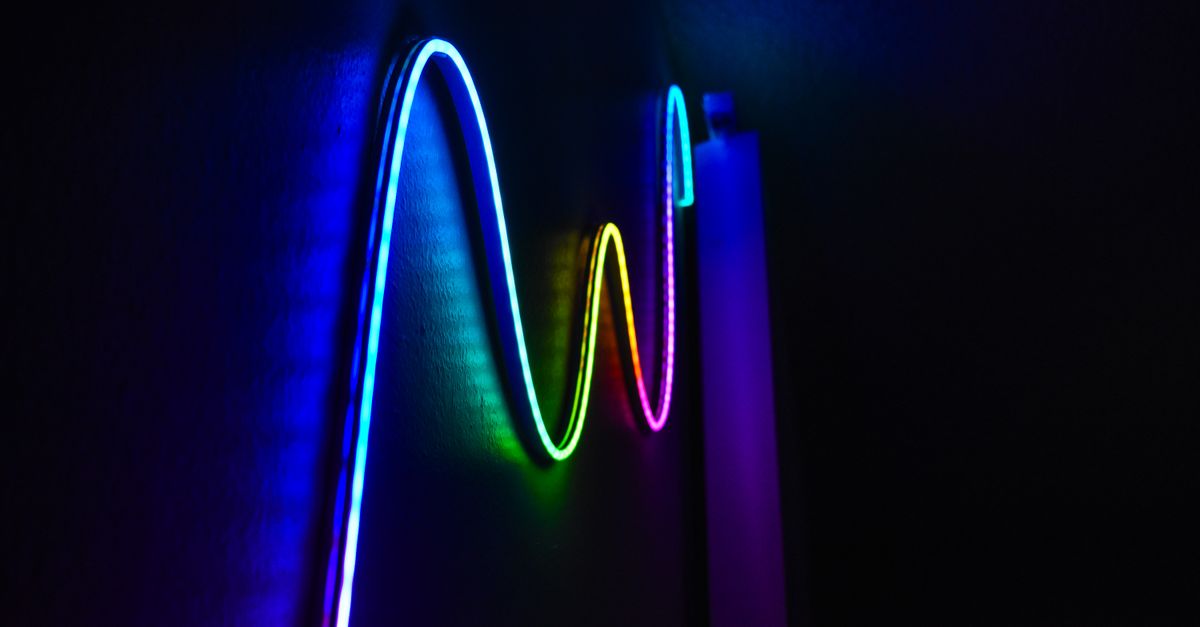
What a Moving LED-Style Banner Actually Does
When someone says they want to "move" text on an LED-style display, they usually mean one of three things: they want characters to travel horizontally across the screen, they want a stationary sign to switch to a scrolling one, or they want a longer sentence to fit a small panel by sliding rather than wrapping. All three are the same problem at the rendering level: take one line of monospaced text that is wider than the visible track, translate it across the track, and loop the motion smoothly.
The LED Scroller tool does exactly that in your browser. It reads a single line of text, applies CSS keyframes that move a wide monospaced string in the chosen direction, and repeats the cycle linearly forever. Because the result is browser-rendered text rather than a simulation of any particular brand of hardware, the look depends on the fonts available to your operating system. The motion, however, behaves predictably: the same keyframe name runs the same number of seconds for the same preset, regardless of which fonts load.
That predictability matters because it lets you preview motion before committing to a presentation, a recording, a livestream, or a real sign. You can test wording at different sizes, in different directions, and at different paces, all without buying equipment, signing up for an account, or uploading your message anywhere.
How to Move Text on an LED-Style Banner
The whole workflow runs in three steps inside the tool page. You can return to it as often as you want and change every setting before pressing Start again.
- Enter one short message and pick the basics. Type a single line of up to 120 characters. Choose slow, medium, or fast for the speed preset, pick left-to-right or right-to-left for the travel direction, and set the text size to one of the five options between 32 and 96 CSS pixels. The tool trims outer whitespace and rejects control characters or Unicode line and paragraph separators.
- Press Start and watch one full loop. The preview appears on the same page using the validated settings. Let it run through at least one complete cycle to confirm that the message is readable, that nothing is clipped, and that the chosen pace feels right on your current screen.
- Pause, resume, or restart as needed. Pause freezes the current frame so anyone can read the message. Resume continues the exact same motion. Restart begins a fresh animation instance from the initial position, which is the fastest way to re-read the same line from the beginning.
If you change any control after the banner is running, the previous preview is invalidated and the visible banner disappears until you press Start again. That safeguard keeps the controls and the displayed text in agreement so you never see stale motion that no longer matches the inputs.
Speed, Direction, and Size: Reading the Controls
The three speed labels are interface presets, not measurements. Slow completes one CSS loop in twelve seconds, medium in eight seconds, and fast in four seconds. Apparent travel rate changes with message width, text size, browser width, and zoom, so a fixed duration moves a short message less distance per frame than a long one. The right approach is to choose a preset and then watch the preview rather than treating the label as a calibrated physical speed.
| Preset | Loop duration | Best for |
|---|---|---|
| Slow | 12 seconds | Reading at a distance, longer phrases, accessibility |
| Medium | 8 seconds | General-purpose scrolling for most presentations |
| Fast | 4 seconds | Short attention-getters, photo props, quick cues |
Direction describes where the text travels, not where it starts. Right-to-left starts the banner on the right and carries it toward the left, which matches the natural reading order for most Western languages. Left-to-right reverses that motion and is useful for languages that read right-to-left or for artistic effects. Both directions are visually identical apart from the travel axis.
Text size ranges from 32 to 96 CSS pixels in five fixed steps. Keeping the options fixed prevents extreme values from breaking the page layout and gives you a predictable ladder for testing. Larger sizes make the message readable from further away but consume more of the track, which makes the text scroll past faster relative to the chosen preset.
Character Limits, Validation, and Reduced Motion
The message field accepts up to 120 Unicode code points. Emoji, accented letters, punctuation, and non-Latin scripts each count as one character rather than as raw UTF-16 units, so a single emoji is not silently counted as two. Outer whitespace is removed before the count, but spaces inside the message are kept because they form the visible spacing.
The tool rejects control characters, line breaks, and Unicode line or paragraph separators because the banner is a one-line display and invisible separators would create confusing gaps or duplicate lines. If your message contains a newline from a copy-paste, you will need to replace it with a space or a dash before the preview will start.
Several common transformations are deliberately not handled automatically. The tool does not shorten an over-limit message, does not replace unsupported text, does not convert case, does not correct spelling, does not translate, and does not insert decorative symbols. Treat the message exactly as it will appear, and shorten or rewrite it yourself if it exceeds the limit.
The stylesheet also honors the operating system or browser reduced-motion setting. When that preference is enabled, the scrolling classes are forced into a paused state. The message stays readable as a stationary sign and every control still works, but the animation will not run until the preference is relaxed. This safeguard prevents the page from unexpectedly overriding a system accessibility request.
When a Physical Display Is the Right Answer
A browser preview is a fast visual tool, not a sign controller. It does not reproduce a named dot-matrix font, electrical refresh rate, pixel pitch, brightness level, physical sign controller, or manufacturer protocol. The rendered shape depends entirely on the fonts available to your browser, and the apparent speed depends on your viewport.
If you need exact signage dimensions, certified brightness for outdoor use, remote scheduling across multiple signs, or hardware export to a real panel, use the software supplied with that physical display. The browser preview is best when a full sign-making application would be unnecessary: a quick handheld sign, an event cue, a desk message, a presentation prompt, a photo prop, or a visual attention signal.
For the clearest result, keep the message short, use strong contrast against the background, and avoid dense punctuation. Check that everyone who needs the message can read it at the chosen pace and distance, and pause the banner whenever the message contains a name, a code, an address, or instructions that require careful transcription. Critical safety information should stay stationary and plainly visible, because a moving decorative banner should never be the only channel for an emergency warning, an accessibility notice, traffic direction, or any other high-consequence message.
Everything stays in the current browser tab. The message is not uploaded, saved, analyzed, or sent to an advertising or AI service by the widget. There is no account requirement and no generated file, which makes the preview safe to use for sensitive wording as well as playful cues. For an even larger view, raise the text size, use the browser's normal fullscreen command, or mirror the browser window through trusted system controls rather than relying on a fullscreen prompt that the page does not request.
For a deeper look, see How to Move LED Lights Across Your Screen.
For a deeper look, see Avatar Generator Large Text: Bigger Initials at 512 px.